

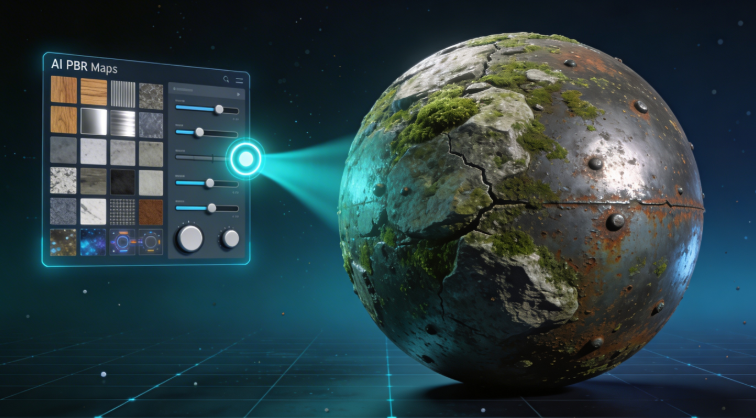
PBR Texture Generator: Create Physically Based Textures
Creating realistic 3D models requires more than just good geometry; it demands lifelike materials that accurately simulate how light interacts with surfaces in the real world. This is where Physically Based Rendering (PBR) comes in, and a PBR texture generator is the tool that makes it possible. These generators take a single source image and produce a full set of texture maps that control everything from color and bumpiness to shininess and metallic properties. While artists once had to create these maps by hand, modern tools use AI to automate the process, making high-quality material creation more accessible than ever.
Whether you're a game developer building immersive worlds, an animator crafting a cinematic scene, or a 3D artist designing product visualizations, PBR texturing is a fundamental skill. The market is filled with powerful options, from industry-standard software like Adobe Substance 3D Sampler to accessible online tools like Hyper3D's AI texture generator. Each offers a unique approach to transforming a simple photo into a complete, physically accurate material ready for any 3D engine.
This article explores the world of PBR texture generators, explaining what they do, how they work, and which tools are best suited for different needs. We'll compare the top solutions, walk through a first-hand experience generating textures with AI, and provide a step-by-step guide to get you started. By the end, you'll understand how to use these tools to create stunning, realistic materials for your own 3D projects.
What is a PBR Texture Generator and How Does It Work?
A PBR texture generator is a software tool that analyzes a source image to create a collection of texture maps, known as PBR maps. These maps work together within a 3D rendering engine to describe how a surface should look and react to light. Instead of just wrapping a flat photo around a model, PBR uses multiple layers of information to simulate real-world material properties, resulting in far more convincing and dynamic visuals. The process typically involves AI algorithms that identify details in the source image??ike cracks, bumps, and different material types??o intelligently generate the corresponding maps.
Understanding PBR Maps
To get the most out of a PBR workflow, it's essential to understand the core texture maps. While different engines sometimes use slightly different names, the five most common maps are:
- Albedo (or Base Color): This is the pure color of the surface without any lighting or shadow information. It defines the fundamental colors of the material, like the red of a brick or the brown of wood grain.
- Normal: This map creates the illusion of fine surface detail and depth without adding any extra polygons to the model. It tells the rendering engine how to simulate bumps, cracks, pores, and scratches by manipulating how light reflects off the surface.
- Roughness (or Glossiness): This grayscale map controls how rough or smooth a surface is. A white value indicates a very rough surface (like concrete) that scatters light widely, while a black value indicates a perfectly smooth surface (like a mirror) that reflects light clearly.
- Metallic (or Metalness): This map defines which parts of the material are metallic and which are not (dielectric). It's typically a grayscale map where white means 100% metallic and black means non-metallic. This property dramatically changes how a material reflects light.
- Ambient Occlusion (AO): The AO map adds subtle, soft shadows to areas where ambient light would have trouble reaching, such as crevices, cracks, and corners. This adds a sense of depth and realism to the model by grounding it in its environment.
Top PBR Texture Generator Tools Compared
Choosing the right PBR texture generator depends on your project needs, budget, and technical expertise. Here?? a comparison of some of the most popular tools available today.
Adobe Substance 3D Sampler
- Best for: Professional artists and studios needing maximum control and integration.
- Pros: Industry-standard tool with incredibly powerful features for creating materials from photos or procedural generation. It offers deep customization options, AI-powered features like Image to Material, and seamless integration with other Adobe and 3D software.
- Cons: Requires a subscription to Adobe Substance 3D, which can be costly. The interface has a steeper learning curve compared to simpler, single-purpose tools.
Quixel Mixer
- Best for: Game developers and artists using the Unreal Engine ecosystem.
- Pros: Completely free and integrates directly with the massive Quixel Megascans library. It offers a powerful and intuitive layer-based workflow for blending and customizing materials. Its smart material system makes it easy to create complex textures quickly.
- Cons: Primarily focused on the Unreal Engine pipeline, and while it can export for other engines, the tightest integration is with UE. It is more of a material blending tool than a pure generator from a single image.
Hyper3D's AI Texture Generator
- Best for: All-in-one workflows and users who want to generate a 3D model and texture it in the same place.
- Pros: Integrated directly into the Hyper3D ecosystem, allowing you to go from an image to 3D model and then immediately generate and apply PBR textures without leaving the browser. It's fast, web-based, and part of the OmniCraft suite of tools.
- Cons: As a newer tool, it may not have the deep, granular control of a dedicated desktop application like Substance. It is designed for texturing models generated within Hyper3D.
Meshy AI
- Best for: Artists who prioritize a polished user experience and excellent texturing results.
- Pros: Widely regarded for having one of the best AI texturing engines, producing high-quality, detailed PBR maps. The user interface is clean, modern, and easy to navigate, making it a great choice for beginners and professionals alike.
- Cons: The geometry of models generated in Meshy can sometimes be less refined than its competitors. It operates on a credit system that can become more expensive for heavy users.
Material Maker
- Best for: Technical artists and developers who enjoy procedural, node-based workflows.
- Pros: Free and open-source, offering a highly flexible graph-based system for creating PBR materials from scratch or by transforming textures. It's lightweight and can export materials for Godot, Unity, and Unreal Engine.
- Cons: The node-based interface is not as intuitive for everyone and requires a more technical mindset. It lacks the AI-powered
Image to Material features of tools like Substance.
My First-Hand Experience with an AI PBR Texture Generator
To get a feel for the modern AI-powered workflow, I took Hyper3D's AI texture generator for a spin. My goal was to texture a simple 3D model of a rock that I had already generated using their image to 3D tool. The entire process took place within the dark-themed Rodin workspace, which keeps everything consolidated and easy to find.
After my model was generated, I located the OmniCraft sidebar on the left and selected the "AI Texture Generator" tool. The interface was straightforward. It prompted me to describe the material I wanted. I decided to try a "mossy granite" texture. I typed the prompt and hit the GENERATE button. There were no complex modes to choose from for texturing; it was a simple one-click process.
Within about 30 seconds, the AI had produced a full set of PBR maps and applied them to my rock model. The result was impressive for the speed. The albedo map had a nice mix of gray granite colors with patches of green moss. The normal map added a convincing layer of bumpy detail that made the rock surface look rough and natural. The roughness map correctly made the mossy areas appear less shiny than the bare stone. I was able to preview the textured model directly in the browser, rotating it to see how the light played across the new material. From there, I could export the model as a GLB or FBX with the textures already packed, ready to be dropped into Blender or Unity.
Step-by-Step Guide to Using a PBR Texture Generator
While every tool is different, the basic workflow for using an AI-powered PBR texture generator is quite similar across platforms. Here is a general step-by-step guide:
1. Prepare Your Source Image: Start with a high-quality, well-lit photo of the material you want to create. The image should be evenly lit, in focus, and cropped to a square aspect ratio for seamless tiling.
2. Upload to the Generator: Open your chosen PBR generator and upload the source image. This could be a tool like a dedicated AI Texture Generator or a more comprehensive program.
3. Generate the PBR Maps: In most AI-powered tools, this is a one-click step. The software will analyze the image and automatically generate the albedo, normal, roughness, metallic, and AO maps.
4. Tweak and Refine (Optional): In more advanced tools like Substance 3D Sampler, you can adjust sliders and parameters to fine-tune each map. You might increase the intensity of the normal map for a bumpier surface or adjust the roughness levels to make it shinier.
5. Preview the Material: Apply the generated material to a 3D preview model (most tools provide a sphere or cube for this). Rotate the model under different lighting conditions to ensure it looks correct from all angles.
6. Export Your Textures: Once you are satisfied, export the texture maps. Make sure to choose the correct format and naming convention for your target engine or 3D software.
Use Cases and Applications
PBR materials are essential across a wide range of 3D disciplines. Here are a few key applications where a PBR texture generator can significantly speed up the workflow:
- Game Development: Quickly create realistic materials for environments, props, and characters. A generator can turn photos of real-world surfaces into game-ready assets in minutes.
- Architectural Visualization: Produce convincing materials like wood, concrete, metal, and fabric to make architectural renders look photorealistic.
- Visual Effects (VFX): Generate detailed surface textures for CGI assets that need to be smoothly integrated into live-action footage.
- Product Design: Create accurate materials for product mockups and advertisements, helping clients visualize the final product with lifelike detail.
Frequently Asked Questions (FAQ)
What is the best PBR texture generator for beginners?
For beginners, web-based tools like Hyper3D's AI Texture Generator or Meshy AI are excellent starting points. They have simple interfaces, require no installation, and automate most of the complex steps, allowing you to get great results quickly.
Can I create PBR textures for free?
Yes, there are several free options. Quixel Mixer is a powerful, professional-grade tool that is completely free. Material Maker is another great free and open-source option for those comfortable with node-based workflows.
Do I need to know how to code to use a PBR texture generator?
Not at all. The vast majority of PBR generators are designed for artists and have visual, user-friendly interfaces. Tools that use procedural generation, like Material Maker, involve connecting nodes visually rather than writing code.
What is the difference between a roughness and a metallic map?
A roughness map controls the microsurface detail, determining if a surface is smooth or matte. A metallic map defines whether a material is a metal or a non-metal (dielectric). They work together but control fundamentally different physical properties of the material.
How do I make my PBR textures seamless?
Many modern PBR texture generator tools, including those in Substance 3D Sampler and several online AI tools, have a "seamless" or "tiling" feature. This AI-powered function analyzes the edges of the texture and blends them so that the material can be repeated across a large surface without any visible seams.