

PLY File Viewer: Open Point Cloud Files Online
Dealing with 3D files can be a hassle, especially when you just need to quickly check a model. If you've ever found yourself with a PLY file and no software to open it, you know the feeling. PLY, or Polygon File Format, is a common format for storing 3D data from scanners, and it's great for point clouds and detailed geometric models. But what do you do when you need to view one right now, without installing a heavy desktop application? That's where an online PLY file viewer comes in handy.
There are several platforms out there that let you open and inspect PLY files directly in your browser. These tools are perfect for a quick review, sharing a model with a colleague, or just satisfying your curiosity. From simple drag-and-drop viewers to more advanced platforms with editing and conversion capabilities, you have options. In this article, we'll explore some of the best online PLY viewers, compare their features, and help you find the right one for your needs. We'll even walk through the process of using one of these tools and share some first-hand experience.
How to View a PLY File Online
Using an online PLY file viewer is straightforward. While each tool has its own interface, the basic workflow is generally the same. You don't need to be a 3D modeling expert to get a quick look at your file. Here?? the typical process:
1. Find a Viewer: Choose one of the many online viewers available. Some are simple, dedicated viewers, while others are part of a larger suite of 3D tools.
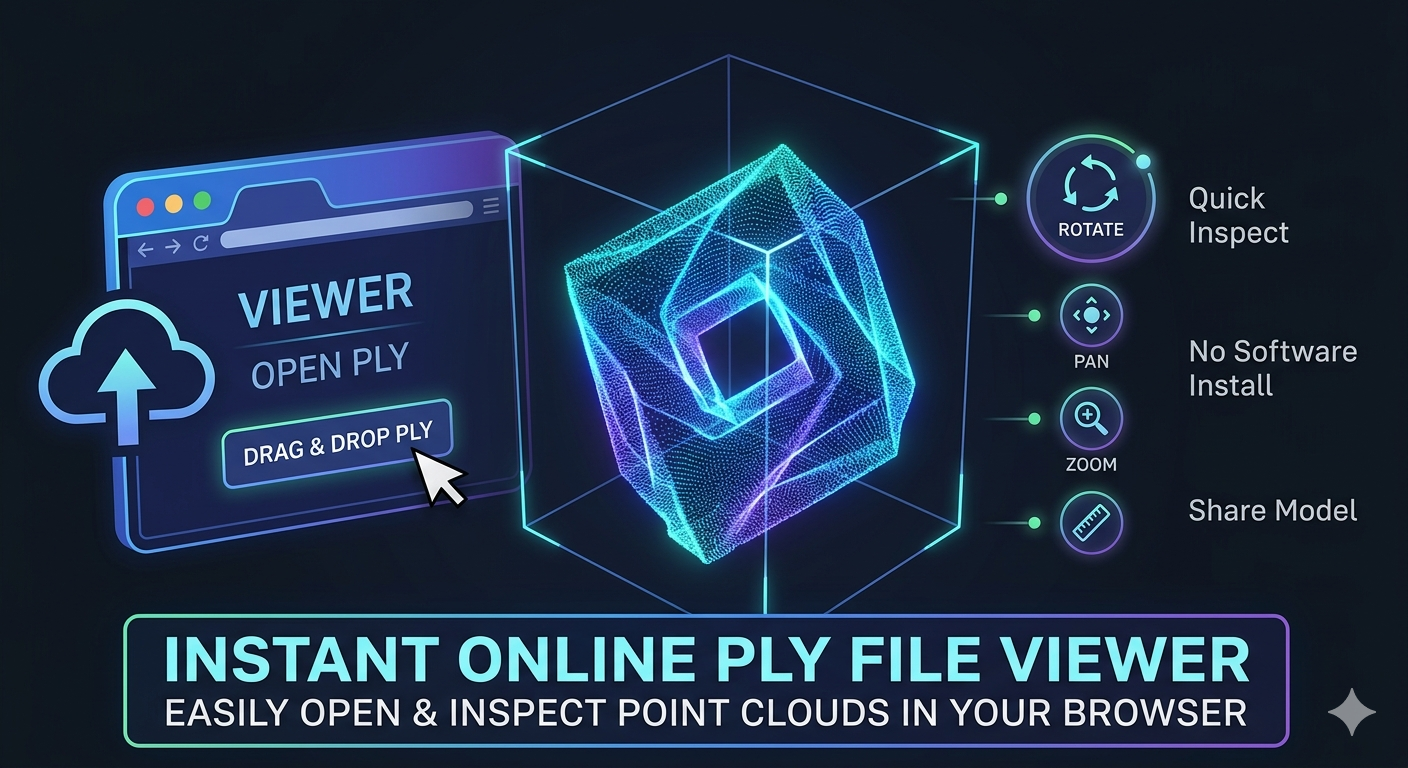
2. Upload Your File: Most viewers offer a simple drag-and-drop interface or a file upload button. You just select the .ply file from your computer.
3. View and Interact: Once uploaded, the model appears in a 3D viewport. You can typically rotate, pan, and zoom to inspect it from all angles. Some viewers even offer additional features like changing the lighting, viewing the wireframe, or taking measurements.
It's a simple process that takes just a few seconds, saving you the time and effort of downloading and installing specialized software.
Top Online PLY File Viewers
When it comes to choosing an online PLY viewer, you have several solid options. Each has its strengths, so the best one for you will depend on your specific needs. Let's look at a few of the most popular choices.
Hyper3D PLY File Viewer
The Hyper3D PLY file viewer is a fast and easy-to-use tool that?? part of a broader ecosystem of 3D tools. It?? designed for quick visualization without any fuss. You can simply upload your file and start exploring your model immediately. It's a great choice for users who need a reliable viewer and might also be interested in other 3D operations, like converting a PLY to STL or turning an image into a 3D model.
MeshLab
MeshLab is a well-known open-source desktop application for processing and editing 3D triangular meshes. While it's primarily a desktop tool, its widespread use and powerful features make it worth mentioning. It offers extensive viewing and editing capabilities for PLY files, but it does require installation. It's more suited for users who need to do more than just view a file, such as cleaning up a messy 3D scan or preparing a model for 3D printing.
3Dviewer.net
3Dviewer.net is a free and open-source web-based viewer that supports a wide range of 3D file formats, including PLY. It's a no-frills, get-the-job-done kind of tool. The interface is minimal, focusing entirely on the viewing experience. It's a good option if you work with various 3D file types and need a single viewer that can handle them all.
My First-Hand Experience with a PLY File Viewer
To get a real feel for how these online viewers work, I decided to test one out with a sample PLY file. I opted for the Hyper3D PLY file viewer because I was curious about its integration with other tools. I had a point cloud file from a 3D scan of a small statue, and I just wanted to check the data's integrity.
The process was as simple as advertised. I navigated to the viewer's page and was greeted with a clean, uncluttered interface. A large upload button was front and center, so I didn't have to hunt for it. I dragged my .ply file onto the designated area, and the upload started immediately. Within about ten seconds, my point cloud was rendered in the viewport.
I was able to easily rotate the model by clicking and dragging, and the scroll wheel on my mouse controlled the zoom. The rendering was smooth, with no noticeable lag, even with a moderately dense point cloud. I could clearly see the shape of the statue and identify a few areas where the scan was a bit sparse. What I appreciated was the lack of unnecessary bells and whistles. It was just a straightforward viewer that did its job well. For anyone who needs to quickly inspect a PLY file without getting bogged down in complex software, this kind of tool is perfect. It's also a gateway to other useful features on the platform, like the Rodin generator for creating 3D models from text.
Objective Comparison of Online PLY Viewers
Choosing the right tool depends on what you need to do. Here?? a breakdown of how the top online PLY viewers stack up against each other.
| Feature | Hyper3D Viewer | MeshLab (Desktop) | 3Dviewer.net |
|---|---|---|---|
| Primary Use | Quick online viewing & conversion | Advanced editing & processing | Multi-format online viewing |
| File Size Limit | Generous, handles large files | Depends on system resources | Moderate |
| Ease of Use | Very easy, intuitive interface | Steeper learning curve | Easy, minimalist interface |
| Additional Tools | Conversion, 3D generation | Extensive mesh editing tools | None |
| Platform | Web-based | Desktop (Windows, macOS, Linux) | Web-based |
Pros and Cons
Hyper3D's Viewer
- Pros: Extremely user-friendly, fast, and integrated with other useful tools like the PLY to STL converter and the gltf viewer. No installation required. Great for quick checks and conversions.
- Cons: Not a full-fledged 3D editor. If you need to perform complex mesh repairs, you??l need a more advanced tool.
MeshLab
- Pros: Incredibly powerful for mesh processing, cleaning, and editing. It?? the go-to tool for many professionals working with 3D scan data. It?? also open-source and free.
- Cons: It?? a desktop application, so you have to install it. The interface can be intimidating for beginners, and it?? overkill if you just want to view a file.
3Dviewer.net
- Pros: Supports a vast number of 3D file formats, making it a versatile choice. It?? simple, free, and web-based.
- Cons: It?? purely a viewer. There are no editing or conversion features, so its functionality is limited.
For most users who just need to open a PLY file quickly, the Hyper3D PLY file viewer offers the best balance of simplicity and functionality. For advanced users who need to edit their models, MeshLab is the clear winner. 3Dviewer.net is a handy backup for viewing a wide variety of file types.
Frequently Asked Questions (FAQ)
What is the best free PLY file viewer?
There isn?? one single ??est??viewer, as it depends on your needs. For quick, easy, and free online viewing, Hyper3D's viewer is an excellent choice. If you need advanced editing features and don?? mind installing software, MeshLab is a powerful, free, open-source option.
Can I view PLY files on my phone?
Yes, many web-based viewers, including the Hyper3D viewer, are mobile-friendly. You can upload and view PLY files directly from your phone?? browser, which is convenient for on-the-go reviews.
How do I open a large PLY file?
Large PLY files, especially dense point clouds, can be challenging for some online viewers. Desktop applications like MeshLab tend to handle large files better, as they can use your computer?? processing power. However, some online viewers are optimized for performance and can handle surprisingly large files.
Is it safe to upload my PLY files to online viewers?
Reputable online viewers prioritize user privacy and security. Most platforms, including Hyper3D, process your files in the browser and do not store them on their servers. Always check the privacy policy of the service you??e using if you have concerns about your data.
What's the difference between PLY and STL formats?
Both PLY and STL are formats for 3D models, but they store data differently. STL files only describe the surface geometry of a 3D object using a collection of triangles. PLY files, on the other hand, can store more complex data, including color, texture, transparency, and point clouds. This makes PLY a more versatile format for data from 3D scanners.
Conclusion
Having a reliable PLY file viewer in your toolkit is essential for anyone working with 3D models, especially those generated from 3D scans. Online viewers have made it incredibly simple to open and inspect these files without the need for specialized desktop software. Whether you??e a hobbyist, a student, or a professional, there?? an online viewer that fits your workflow.
For most everyday viewing needs, the Hyper3D PLY file viewer offers a perfect combination of speed, simplicity, and convenience. It gets the job done with no fuss and provides a gateway to other powerful 3D tools. When you need more advanced editing capabilities, a desktop application like MeshLab is the way to go. By understanding the strengths of each tool, you can choose the right one for the task at hand and keep your 3D workflow moving smoothly.