

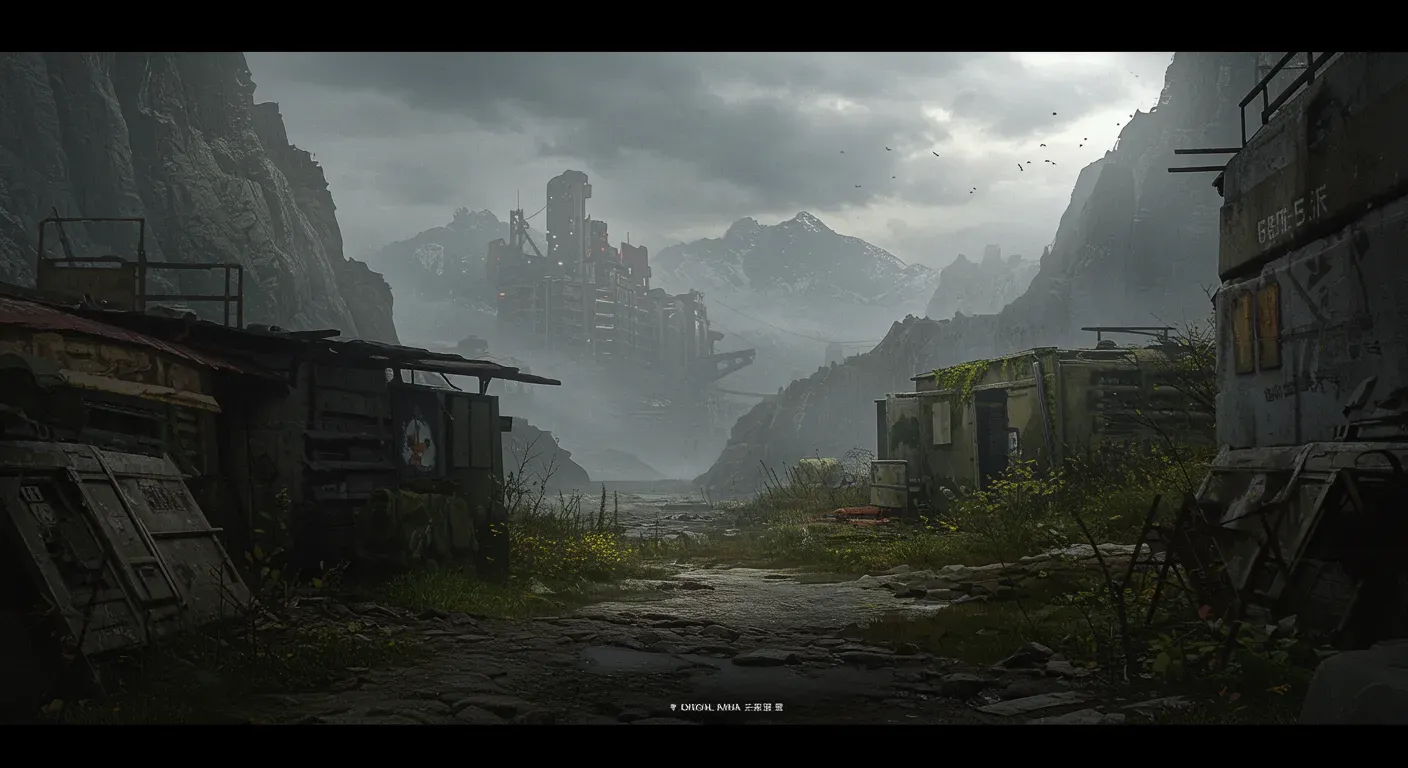
S.T.A.L.K.E.R. 2: Heart of Chornobyl is one of the most anticipated games of 2024, promising an immersive experience set in the hauntingly atmospheric Chernobyl Exclusion Zone. With stunning graphics and complex gameplay mechanics, optimizing your graphics settings can significantly enhance your gaming experience. In this guide, we will explore various settings and tips to help you achieve the best visuals and performance.
Understanding Your System Requirements
Before diving into the settings, it's crucial to understand the system requirements for S.T.A.L.K.E.R. 2. The game demands a robust setup to run smoothly at high settings. Here's a quick overview:
- Minimum Requirements:
- OS: Windows 10 x64 / Windows 11 x64
- Processor: Intel Core i7-7700K / AMD Ryzen 5 1600X
- Memory: 16 GB RAM
- Graphics: Nvidia GeForce GTX 1060 6GB / AMD Radeon RX 580 8GB
- Storage: 160 GB available space
- Recommended Requirements:
- OS: Windows 10 x64 / Windows 11 x64
- Processor: Intel Core i7-11700 / AMD Ryzen 7 5800X
- Memory: 32 GB RAM
- Graphics: Nvidia GeForce RTX 3070 Ti / AMD Radeon RX 6800 XT
- Storage: 160 GB SSD required
Make sure your system meets or exceeds these requirements for optimal performance.
Adjusting In-Game Graphics Settings
Resolution and Aspect Ratio
Start by setting your resolution to match your monitor's native resolution. This ensures the sharpest visuals. For most gamers, a resolution of 1440p is recommended for a balance between visual fidelity and performance. If you experience lag, consider lowering it to 1080p.
Graphics Quality Presets
S.T.A.L.K.E.R. 2 offers various graphics presets (Low, Medium, High, Ultra). Choose a preset that your system can handle. If you have a mid-range GPU, the Medium preset is often a good starting point. You can always tweak individual settings later for better performance.
Texture Quality
Textures significantly impact the game's visual quality. If your GPU has sufficient VRAM (at least 6GB), set the texture quality to High or Ultra. For lower-end systems, Medium may be more appropriate.
Anti-Aliasing
Anti-aliasing smooths out jagged edges, enhancing visual quality. However, it can be resource-intensive. If you're struggling with frame rates, consider turning it off or using a less demanding option like FXAA.
Utilizing Advanced Graphics Features
Ray Tracing
If your graphics card supports ray tracing, enabling this feature can create stunning lighting effects and reflections. However, it's demanding on hardware. Monitor your frame rates and consider turning it off if performance drops significantly.
DLSS and FSR
Both Nvidia's DLSS (Deep Learning Super Sampling) and AMD's FSR (FidelityFX Super Resolution) are technologies designed to boost frame rates while maintaining image quality. If you have a compatible GPU, enable these features to enhance performance without sacrificing visuals.
Performance Monitoring
Use in-game performance monitoring tools or third-party software like MSI Afterburner to keep an eye on your frame rates and GPU usage. This data can help you determine if further adjustments are needed. Aim for a stable 60 FPS for a smoother experience.
Ethical Considerations in Gaming Performance
While optimizing graphics settings, consider the ethical implications of gaming practices. For example, excessive resource usage can lead to increased power consumption. Strive for a balance between performance and environmental responsibility. Additionally, be mindful of community standards and avoid using cheats or hacks that disrupt the gaming experience for others.
As we approach the release of S.T.A.L.K.E.R. 2: Heart of Chornobyl, optimizing your graphics settings will be key to enjoying the game's rich visuals and immersive gameplay. By understanding your system requirements, adjusting in-game settings, and utilizing advanced features, you can create a gaming experience that is both visually stunning and performance-friendly.
Prepare for your journey into the Zone, and remember to share your settings and experiences with the community. Happy gaming!