

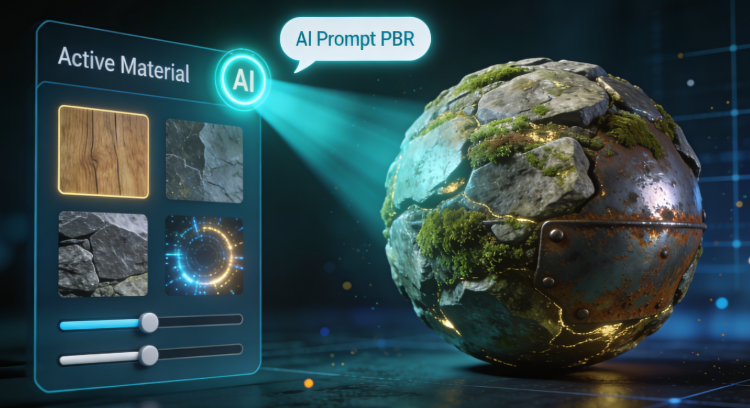
AI Texture Generator: Create 3D Textures Automatically
Creating realistic 3D textures has long been a manual and time-intensive process. With the rise of artificial intelligence, these tools are automating the workflow, enabling creators to produce high-quality materials from text prompts or images. This technology, offered by platforms like Hyper3D, Meshy, and Tripo, saves time and unlocks creative potential by allowing for rapid experimentation with various styles and materials. This article explores how this technology works, compares the top options, and provides a guide to using them effectively.
What is an AI Texture Generator and How Does It Work?
An AI texture generator uses machine learning to create 3D model textures from text descriptions or reference images. This speeds up the workflow and allows for more creative possibilities.
Understanding PBR Texturing
To appreciate the power of these tools, it is essential to understand Physically Based Rendering (PBR). PBR is a methodology in computer graphics that seeks to render images in a way that models the flow of light in the real world. A PBR workflow uses a set of texture maps to define the material properties of a surface. Common PBR maps include:
- Albedo (or Base Color): This map defines the base color of the material.
- Normal: This map adds surface detail and depth, simulating small bumps, cracks, and grooves without adding extra geometry.
- Roughness: This map controls how rough or smooth a surface is, which affects how light is reflected.
- Metallic: This map determines whether a surface is metallic or non-metallic.
- Ambient Occlusion (AO): This map defines how much ambient light a part of the surface receives, adding soft shadows and depth.
The Role of AI in Texture Generation
AI texture generators are typically trained on vast datasets of images and their corresponding PBR maps. They learn the relationships between textual descriptions, visual features, and material properties. When a user provides a prompt, the AI uses this learned knowledge to synthesize a new set of PBR maps that match the description. This process, often involving diffusion models, allows for the creation of unique and seamless textures that can be directly applied to 3D models.
Top AI Texture Generators Compared
The market for these tools is growing, with several platforms offering powerful features. Here?? a comparison of some of the leading tools to help you choose the best one for your needs.
| Tool | Best For | Top Strength | Key Limitation |
|---|---|---|---|
| Meshy AI | Texturing & UX | Best textures | Rougher geometry |
| Tripo AI | Game dev pipelines | Auto-rigging | STL export issues |
| Hyper3D | Topology & ecosystem | Cleanest geometry | Less versatile for stylized |
| Polycam | Realistic Textures | High-resolution outputs | Primarily a photogrammetry tool |
| Scenario | Game-Ready PBR | Seamless PBR materials | Focused on game development |
Hyper3D
Hyper3D's Rodin AI engine produces models with clean topology, ideal for characters and avatars. The OmniCraft suite offers an all-in-one workflow for generation, texturing, and editing. While less versatile for stylized assets, its strength is in production-ready models with excellent geometry. Use its AI Texture Generator for PBR materials.
Meshy AI
Meshy AI excels in texturing and user experience, making it a top choice for visually stunning textures. It offers various styles and an intuitive interface. However, its model geometry can be less refined.
Tripo AI
Tripo AI is popular for game development due to its fast generation, auto-rigging, and free credits, making it great for rapid prototyping. However, it has some reported issues with STL exports and is less specialized for avatars.
Polycam
Polycam, originally a photogrammetry app, now includes an AI texture generator. It produces high-resolution, realistic textures with a user-friendly interface, making it a good choice for those needing both capabilities.
Scenario
Scenario focuses on seamless, game-ready PBR materials, offering detailed control over texture maps. It's ideal for game developers but may be less suitable for other industries.
My First-Hand Experience with Hyper3D's AI Texture Generator
I tested Hyper3D's texturing tool to evaluate its workflow. The dark-themed UI is clean, with tools in the OmniCraft sidebar.
I textured a sword model using the prompt "a magical sword with a glowing blue blade and a handle wrapped in dark leather." The AI interpreted this well, creating a convincing texture. The 'Speedy' mode was fast, while 'Focal' mode produced more detail.
The image-to-texture feature also worked well. I used a rusty metal image to texture a treasure chest, and the AI realistically applied the texture. The flexibility of using both text and image inputs is a significant advantage.
Hyper3D supports various export formats (FBX, OBJ, GLB, USDZ), making it easy to integrate with other software. The overall process was smooth and efficient, making Hyper3D a strong choice for streamlining 3D texturing. Hyper3D also offers an image to 3D tool.
A Step-by-Step Guide to Using an AI Texture Generator
Getting started with this technology is surprisingly straightforward. While the exact steps may vary slightly between platforms, the general workflow is quite similar. Here?? a typical step-by-step guide to creating your own AI-generated textures, using Hyper3D as an example.
Step 1: Prepare Your 3D Model
Before you can start texturing, you need a 3D model. You can either create your own model using 3D modeling software like Blender or use a pre-existing model. Many platforms, including Hyper3D, support common 3D file formats like OBJ, FBX, and GLB. If you don't have a model, you can use a text-to-3D model generator to create one from a text prompt.
Step 2: Upload Your Model
Once you have your model, the next step is to upload it to the platform. In Hyper3D, you can simply drag and drop your file into the web interface. The platform will then process the model and prepare it for texturing.
Step 3: Provide a Text Prompt or Reference Image
This is where the magic happens. You can either provide a text prompt describing the texture you want to create or upload a reference image. For example, you could type "a shield made of ancient wood with iron reinforcements" or upload a picture of a rusty metal plate. Be as descriptive as possible in your text prompts to get the best results.
Step 4: Generate and Refine the Texture
After you have provided your input, the AI will generate the texture maps for your model. This process usually takes a few minutes, depending on the complexity of the texture and the platform you are using. Once the texture is generated, you can preview it on your model and make any necessary refinements. Most platforms allow you to adjust parameters like roughness, metallic, and normal map intensity.
Step 5: Export Your Textured Model
When you are satisfied with the texture, you can export your textured model. Hyper3D offers a variety of export formats, including FBX, OBJ, GLB, and USDZ, ensuring compatibility with most 3D software and game engines. If you need to convert your model to a different format, you can use a tool like an FBX-to-OBJ converter.
Use Cases and Applications of AI Texture Generators
This technology is not just a novelty; they have practical applications across a wide range of industries. Here are some of the key use cases for this technology:
Game Development
In the fast-paced world of game development, time is of the essence. These tools can significantly speed up the asset creation pipeline, allowing artists to create unique and high-quality textures for characters, environments, and props in a fraction of the time it would take to create them manually. This allows for more iteration and creativity, resulting in richer and more immersive game worlds.
Animation and Visual Effects
For animation and visual effects (VFX), creating realistic and detailed textures is crucial for achieving a believable look. This technology can be used to create everything from the intricate patterns on a character's clothing to the weathered surfaces of a futuristic cityscape. This technology empowers artists to bring their creative visions to life with greater efficiency and fidelity.
Architecture and Interior Design
Architects and interior designers can use these tools to create realistic materials for their visualizations. Whether it's a specific type of wood for a floor, a unique fabric for a piece of furniture, or a custom tile for a bathroom, AI can generate the perfect texture to match the desired aesthetic. This helps clients to better visualize the final space and make more informed decisions.
Product Design and E-commerce
In product design and e-commerce, presenting products in the best possible light is essential. These tools can be used to create realistic textures for product renderings, allowing customers to see how a product will look in real life. This is particularly useful for products with complex materials, such as furniture, clothing, and consumer electronics. For those who need to view their models in different formats, a GLTF viewer can be a useful tool.
Frequently Asked Questions (FAQ)
What is the best AI texture generator?
There is no single "best" tool for this purpose, as the ideal tool depends on your specific needs. For users who prioritize clean geometry and a seamless workflow, especially for character creation, Hyper3D is an excellent choice. If your main focus is on creating the most visually stunning and detailed textures, Meshy AI is a top contender. For game developers who need a fast and efficient pipeline for creating game-ready assets, Tripo AI is a great option.
Can I use these tools for free?
Many platforms offer free trials or a limited number of free credits to allow users to test their services. For example, Tripo AI is known for its generous free credits. However, for unlimited use and access to premium features, you will typically need to subscribe to a paid plan.
Do I need to be a 3D artist to use these tools?
No, you do not need to be a professional 3D artist to use these tools. These tools are designed to be user-friendly and accessible to creators of all skill levels. With a simple text prompt or reference image, you can create high-quality textures without any prior experience in texture artistry.
What are PBR maps?
PBR stands for Physically Based Rendering. PBR maps are a set of textures that define the material properties of a surface, such as its color, roughness, and metallicness. By using PBR maps, 3D artists can create materials that look and behave like they would in the real world.
Can I use AI-generated textures in commercial projects?
In most cases, yes. The majority of AI texture generator platforms, including Hyper3D, grant users a commercial license for the textures they create. This means you can use them in your commercial projects without any legal issues. However, it is always a good practice to check the specific terms of service of the platform you are using.