

What Is an STL File?
The STL format is a cornerstone of the 3D printing world, a universal language spoken by designers, engineers, and hobbyists alike. Whether you're working with advanced CAD software, a user-friendly online 3D modeling tool, or even a simple STL file viewer, you'll inevitably encounter this format. It?? the standard for translating a digital 3D model into something a 3D printer can understand and create. This guide will walk you through everything you need to know about the format, from its basic structure to advanced optimization techniques, which is relevant when working with what is stl file.
What is an STL File?: What Is Stl File
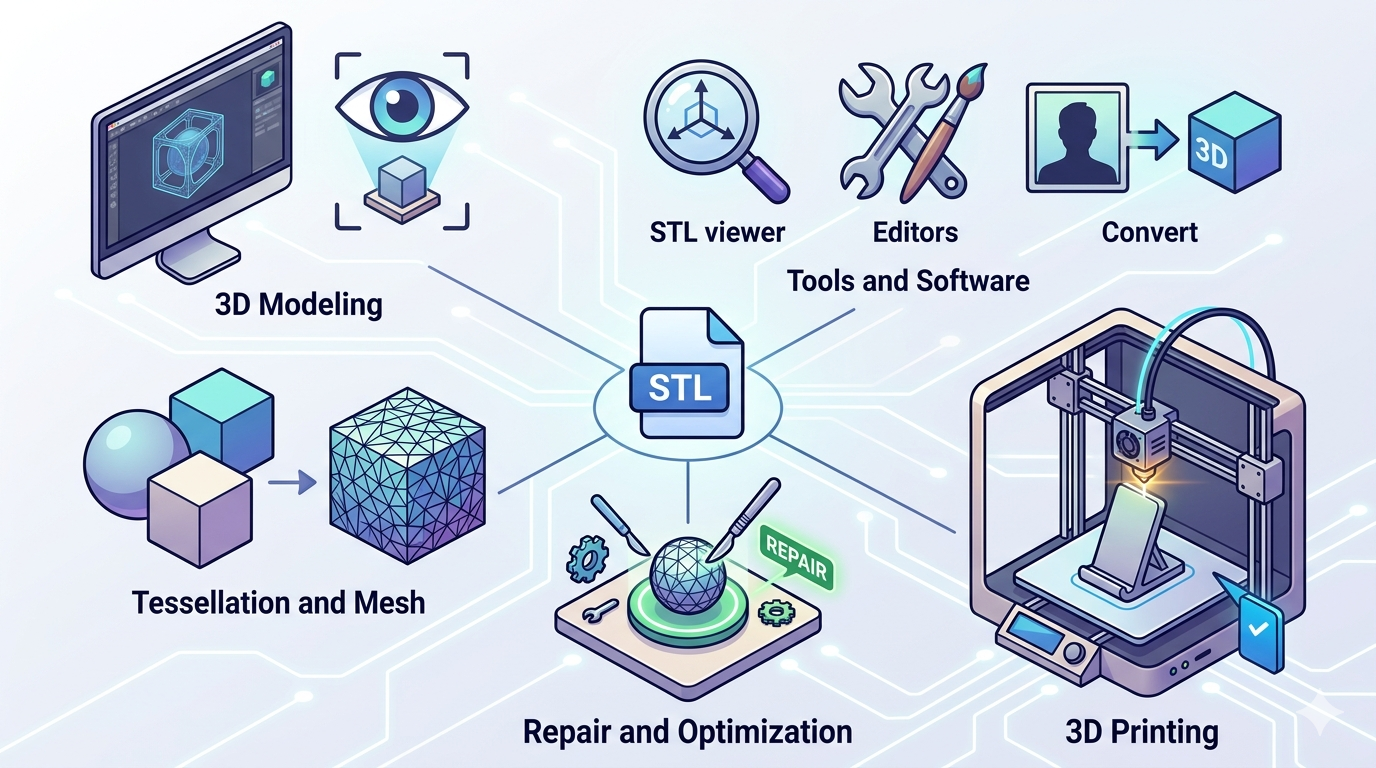
The term STL is an acronym for stereolithography, a 3D printing technology that was one of the first of its kind. The format represents the surface geometry of a 3D object using a mesh of triangles. Think of it as creating a mosaic of your 3D model, where each small tile is a triangle. These triangles, or polygons, cover the entire surface of the object, defining its shape. It's important to understand that these files only contain this surface geometry data. They don't store information about color, texture, or material, which is why they are often referred to as a 'digital skin' of a model, which is relevant when working with what is stl file.
How Do STL Files Work?: What Is Stl File
When you export a 3D model as an STL, the software converts the model's surface into a collection of triangles. The number and size of these triangles determine the resolution of the file. A higher number of smaller triangles will result in a more detailed and smoother surface, but will also create a larger file size. Conversely, a lower number of larger triangles will produce a smaller file but may result in a more blocky or faceted appearance. This process is called tessellation, which is relevant when working with what is stl file.
The main advantage of the STL format is its simplicity and wide compatibility. Nearly every piece of 3D printing software and hardware supports it. However, this simplicity is also a limitation. The lack of color and texture information means that for more advanced applications, other formats like OBJ or GLB might be more suitable. Additionally, the files can sometimes have errors, such as gaps or overlapping triangles, which can cause problems during 3D printing. Fortunately, many tools are available to repair these issues, which is relevant when working with what is stl file.
Top STL File Viewers and Editors
Choosing the right tool to work with your files depends on your specific needs. Here?? a breakdown of some of the most popular options, from simple viewers to powerful 3D modeling suites, which is relevant when working with what is stl file.
Hyper3D
Hyper3D offers a suite of free online tools that are perfect for both beginners and experienced users. The STL file viewer is incredibly easy to use ??you just drag and drop your file to open it. Beyond viewing, Hyper3D provides powerful editing and creation tools like OmniCraft and Rodin, which is relevant when working with what is stl file.
- Pros: Free and web-based, no installation required. Intuitive interface. Supports a wide range of formats including STL, FBX, OBJ, GLB, and USDZ. Includes an image to STL converter for quick model creation.
- Cons: Requires an internet connection to use.
MeshLab
MeshLab is a free, open-source program for processing and editing 3D triangular meshes. It?? a favorite among researchers and developers for its advanced features.
- Pros: Excellent for mesh analysis, cleaning, and repairing. Supports a large variety of 3D file formats. Highly extensible with plugins.
- Cons: The user interface can be intimidating for new users, and it has a steeper learning curve.
Blender
Blender is a powerhouse of a 3D creation suite. It?? free, open-source, and can handle everything from modeling and sculpting to animation and rendering. While it can easily open and edit these files, it might be overkill for simple tasks.
- Pros: Incredibly versatile and powerful. A massive and active community provides tons of tutorials and support. It's a complete 3D pipeline in one package.
- Cons: The interface is complex and can be overwhelming for beginners. Using it just for STL viewing is like using a sledgehammer to crack a nut.
Microsoft 3D Builder
For Windows users, 3D Builder comes pre-installed or is available as a free download from the Microsoft Store. It?? a user-friendly application for viewing, editing, and printing 3D models.
- Pros: Very easy to use, with a simple and clean interface. Integrates well with the Windows ecosystem. Good for basic edits and repairs.
- Cons: Its features are quite limited compared to more specialized software. It's only available on Windows.
Step-by-Step Guide: From 3D Model to STL File
Creating an STL is a straightforward process in most 3D modeling software. Here?? a general workflow that applies to many popular programs:
1. Finalize Your Model: Before exporting, make sure your 3D model is complete and error-free. Check for any gaps or holes in the mesh that could cause issues.
2. Select the Export Option: Go to the "File" menu and look for an "Export" or "Save As" option. Choose STL as the file format.
3. Adjust Export Settings: You may see options to control the resolution of the file. A higher resolution will create a more detailed model but a larger file. For most 3D printing applications, a medium to high resolution is sufficient.
4. **Save the File: Choose a name and location for your file and save it.t.
If you don't have a 3D model to start with, you can use a tool like Hyper3D's image to STL converter to create a 3D model from a 2D image. This is a great way to quickly generate a 3D printable object from a logo or a simple design.
My First-Hand Experience with STL Files
As a 3D artist, I work with the STL format on a daily basis. I recently designed a custom phone stand that I wanted to 3D print. I started by modeling the stand in Blender, my go-to 3D software. Once I was happy with the design, I exported it as an STL. The process was simple, but I wanted to double-check the file before sending it to the printer.
I uploaded the file to Hyper3D's STL file viewer to inspect it. The web-based viewer loaded the file instantly, and I was able to rotate and zoom in on the model to check for any potential issues. I noticed a small area where the mesh was a bit thin, so I went back to Blender, made a quick adjustment, and re-exported the file. This time, the file looked perfect in the Hyper3D viewer. The whole process was quick and easy, and it gave me the confidence that my 3D print would be successful. I find that for quick checks and sharing, a web-based viewer like Hyper3D's is much more convenient than opening up a heavy-duty program like Blender.
Advanced Tips for Working with STL Files
Once you've mastered the basics, there are several techniques you can use to optimize your files for 3D printing and other applications.
- Repairing Meshes: It's not uncommon for these files to have errors like holes, inverted faces, or non-manifold edges. Tools like MeshLab and Microsoft 3D Builder have built-in repair functions that can automatically fix many of these issues. For more complex problems, you may need to manually edit the mesh in a program like Blender.
- Optimizing Resolution: The resolution of your file can have a big impact on print quality and time. For models with intricate details, a higher resolution is necessary. For simpler models, a lower resolution can save file space and processing time. It's a good practice to find a balance that suits your specific needs.
- File Size Reduction: Large files can be difficult to handle and slow to process. You can reduce the file size by decimating the mesh, which reduces the number of triangles while trying to preserve the overall shape. Most 3D modeling software has a decimation tool. Hyper3D's platform also has optimization features that can help with this.
FAQ about STL Files
What is the difference between STL and OBJ?
Both STL and OBJ are common 3D model formats, but the main difference is that OBJ files can store information about color, texture, and other surface properties, while STL files only contain the surface geometry. This makes OBJ a more versatile format for applications like rendering and animation.
Can STL files be colored?
No, the STL file format itself does not support color information. To create a colored 3D print, you would typically use a different file format like OBJ or 3MF, or you would paint the model after it has been printed.
How do I open an STL file?
There are many ways to open an STL file. You can use a dedicated STL file viewer like the one offered by Hyper3D, a 3D modeling program like Blender, or a simple viewer like Microsoft 3D Builder. Most 3D printing slicer software will also allow you to open and view these files.
What is the best software for editing STL files?
The best software for editing these files depends on the complexity of the edits you need to make. For simple repairs and modifications, Microsoft 3D Builder or MeshLab are good options. For more advanced sculpting and modeling, a program like Blender is the way to go. For quick online edits and optimizations, Hyper3D's OmniCraft is a great choice.
How can I convert an image to an STL file?
You can use an online converter like Hyper3D's image to STL converter to easily create a 3D model from a 2D image. You simply upload your image, and the tool will generate a file that you can then download and 3D print.
Conclusion
The STL format is a fundamental part of the 3D printing landscape. Its simplicity and widespread adoption have made it the go-to format for sharing and printing 3D models. While it has its limitations, understanding how to work with the format is an essential skill for anyone involved in 3D design and fabrication. With the right tools and techniques, you can ensure that your digital creations are brought to life with accuracy and precision. For more tools and resources, be sure to explore what hyper3d.ai has to offer.