

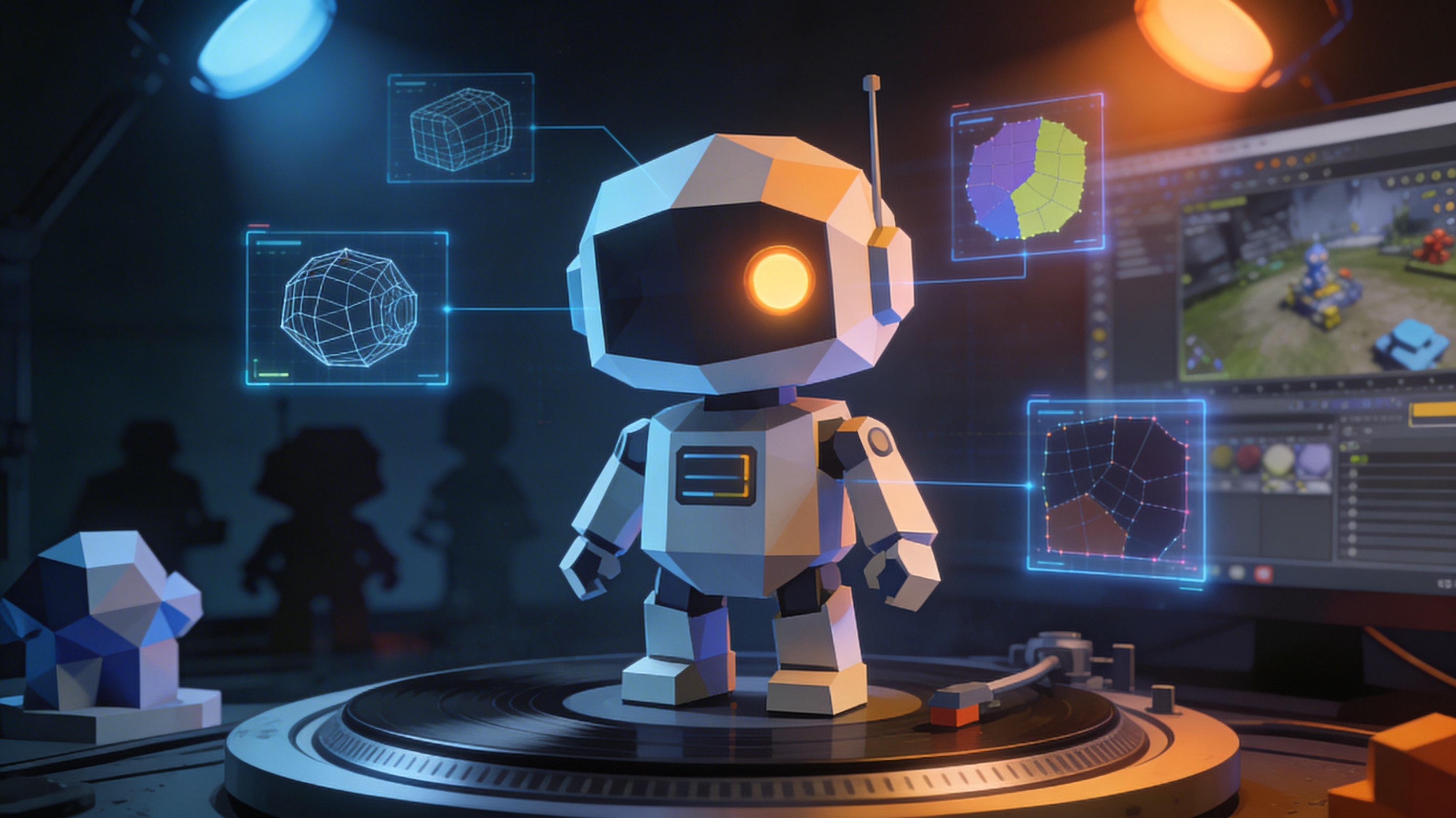
Game-Ready 3D Models: What They Are & How to Create
A game-ready 3D model is an asset that has been optimized to render in real-time within a game engine. Unlike the ultra-high-polygon models used for film, which can take hours to render a single frame, game-ready assets must be lightweight enough to be drawn on screen 60 times per second or more. This requires a careful balance between visual quality and performance, ensuring the model looks great without slowing the game down. Creating these assets involves a specific workflow, whether you're using traditional software like Blender or modern tools like an AI character design tool, to meet the strict technical budgets of PC, console, and mobile platforms.
What Makes a 3D Model "Game-Ready"?: Game Ready 3D Models
Several key characteristics distinguish a game-ready model from a standard 3D asset. These are not just suggestions but hard requirements for ensuring smooth performance in an interactive environment. It's a process of strategic optimization where every polygon and texture pixel is accounted for.
Efficient Polygon Count for Game-Ready 3D Models: Game Ready 3D Models
Polygon count, or polycount, refers to the number of flat polygons that make up the surface of a 3D model. In a game, the graphics card has to draw every single polygon for every model in the scene, every frame. A higher polycount leads to more detail but also demands more processing power. An unoptimized model with millions of polygons can bring even a high-end gaming PC to its knees.
There's no single magic number for polycount; it depends on the asset's role and the target platform. A main character that's always on screen might have 50,000-80,000 polygons, while a small background prop might only have 500. Mobile games are even stricter, sometimes limiting the entire scene to under 300,000 polygons. To manage this, artists often create multiple Levels of Detail (LODs) for a single asset?? high-poly version for close-ups and lower-poly versions for when the object is far from the camera.
Clean Topology for smooth Animation
Topology is the way the polygons are arranged on the model's surface, forming a wireframe mesh. For a model to be game-ready, especially if it needs to be animated, it must have "clean" topology. This means the polygons are mostly four-sided (quads) and are arranged in logical edge loops that follow the natural contours of the object, like the muscles on a character's face or the joints of a robot's arm.
Good topology is critical for deformation. When a character bends its elbow, clean edge loops ensure the mesh deforms smoothly and realistically. Poor topology, on the other hand, can cause ugly visual glitches, pinching, and stretching during animation. It?? a foundational element that separates professional, game ready 3d models from amateur work.
Optimized UV Mapping for High-Quality Textures
If you imagine unwrapping a 3D model into a flat 2D pattern, that's essentially what UV mapping is. The "U" and "V" are the axes of the 2D texture space, and the UV map tells the game engine how to apply a 2D image (a texture) onto the 3D surface. For a game-ready asset, the UV map must be highly optimized.
This involves arranging the unwrapped pieces, or "islands," to use as much of the texture space as possible, minimizing waste. It also means placing the seams??he cuts made to unwrap the model??n inconspicuous locations where players are unlikely to see them. A well-optimized UV map ensures the texture resolution is consistent across the model, preventing some parts from looking blurry while others are sharp.
The Magic of Texture Baking
So how do you get incredible detail without a massive polycount? The answer is texture baking. Artists first create a super-detailed, high-poly version of the model with millions of polygons. Then, they create a separate, optimized low-poly version. The baking process projects the surface detail from the high-poly model onto the low-poly model and saves it as a texture map.
A normal map is the most common type, which fakes the appearance of high-poly detail by manipulating how light interacts with the surface. Other maps, like ambient occlusion (for soft shadows) and roughness (for surface reflectivity), are also baked. This technique allows a low-poly, game ready 3d model to look nearly identical to its high-poly counterpart while being infinitely more performant.
How to Create Game-Ready 3D Models: A Step-by-Step Workflow
The process of creating game ready 3d models is a well-defined pipeline that has been refined over decades of game development. While tools evolve, the core principles remain the same.
1. Modeling the Low-Poly Mesh: The process starts with building the foundational low-poly version of the asset, keeping the target polycount budget in mind.
2. High-Poly Sculpting: The artist then creates a high-poly version, often in a digital sculpting program, to add fine details like wrinkles, scratches, and textures.
3. UV Unwrapping: The low-poly model is carefully unwrapped to create an efficient UV layout.
4. Texture Baking: The details from the high-poly sculpt are baked onto the low-poly model's UV map, creating the normal maps and other textures.
5. Texturing: Finally, the artist paints the color and material properties (like metal, wood, or plastic) onto the model using the baked maps as a guide.
My First-Hand Experience with AI-Powered 3D Model Generation
I was curious to see how AI could streamline the creation of game ready 3d models. I decided to try Hyper3D's suite of tools. My goal was to create a simple, stylized robot character. I started by using the AI 3D model generator, Rodin, with a simple text prompt: "a small, friendly robot with a single eye."
I experimented with a few generation modes. The 'Default' mode gave me a good starting point, but the 'Focal' mode produced a model with a more defined shape that I liked. The initial output was a bit high-poly for a simple game asset, but the overall form was fantastic. The topology was automatically generated and, while not perfect for animation, it was a solid base.
Next, I took the model into OmniCraft, Hyper3D's AI 3D model editor. Here, I used the mesh simplification tools to reduce the polycount to a more game-friendly level. I was able to target a specific polygon count and the tool intelligently removed edges while preserving the overall shape. After a few tweaks, I had a clean, low-poly model. Finally, I used the integrated 3D format converter to export the model as both FBX and GLB files, ready to be dropped into a game engine.
The entire process, from text prompt to having a game-ready asset, took less than an hour. Using a dedicated game 3D model generator felt like a significant shortcut, automating many of the most time-consuming steps.
Objective Comparison: AI vs. Traditional 3D Modeling
Both AI-powered tools and traditional 3D modeling software have their place in creating game ready 3d models. The best choice depends on your project's needs, your skill level, and your timeline.
| Feature | AI-Powered Tools (e.g., Hyper3D) | Traditional Software (e.g., Blender, Maya) |
|---|---|---|
| Speed | Extremely fast for generating base models and concepts. | Can be very time-consuming; requires manual work for every step. |
| Ease of Use | Very beginner-friendly; often requires just a text prompt. | Steep learning curve with complex interfaces and workflows. |
| Control | Less granular control over specific topology and details. | Complete, pixel-perfect control over every vertex and polygon. |
| Best For | Rapid prototyping, concept art, and creating assets quickly. | Final, polished hero assets and complex animation-ready characters. |
Frequently Asked Questions (FAQ)
What is the ideal polycount for a game-ready model?
There is no single ideal number. It's a budget based on the game's target platform (PC, console, mobile) and the model's importance. A hero character might be 80,000 polys, while a background prop could be under 1,000.
Can I use a high-poly model directly in a game?
Generally, no. High-poly models are not optimized for real-time rendering and will cause severe performance issues. The detail from a high-poly model is baked into textures for the low-poly game model.
What's the difference between a normal map and a bump map?
A bump map is a simpler, older technique that uses grayscale values to fake height, but it doesn't react accurately to light from different angles. A normal map is more advanced, using RGB values to store the precise direction of the surface, allowing for much more realistic lighting and the illusion of depth.
Do I need to know how to code to create game-ready models?
No, creating the 3D models themselves is a purely artistic and technical art process. You don't need any programming knowledge to model, texture, and optimize game-ready assets.
How long does it take to create a game-ready 3d model?
This varies wildly. A simple prop might take a few hours. A complex hero character for a major AAA game could take a professional artist several weeks or even months from start to finish. AI tools can significantly shorten this for simpler assets.