

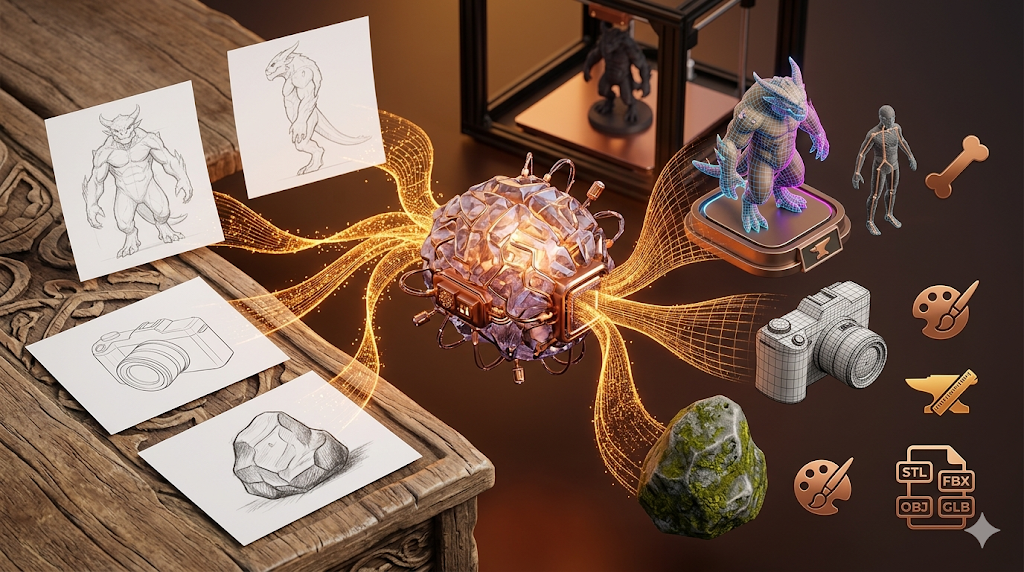
Sketch to 3D: Turn Drawings Into 3D Models with AI
Turning a simple drawing into a fully formed 3D model used to be the domain of skilled digital artists, requiring years of practice with complex software. Today, AI is changing that landscape, making it possible for anyone to bring their sketches to life in three dimensions. Whether you're a game developer, a product designer, or just a creative hobbyist, the ability to transform a 2D concept into a 3D asset is now more accessible than ever.
This is where sketch to 3d tools really show their value.
This shift is powered by a new wave of AI 3D generators that can interpret the lines, shapes, and shading in a drawing to construct a 3D mesh. These tools offer different strengths, from creating game-ready assets to producing high-fidelity models for 3D printing. They represent a significant step forward in creative technology, opening up new workflows for artists and designers who can now move from concept to 3D with surprising speed.
For anyone exploring sketch to 3d options, this matters.
In this guide, we??l explore how this technology works, compare some of the top tools available, and walk through the process of turning a sketch into a 3D model. We'll look at the specific strengths of platforms like Meshy, Tripo, and Hyper3D to help you find the right tool for your project.
The sketch to 3d workflow makes this straightforward.
What is Sketch to 3D?
The process of converting a sketch to a 3D model using AI involves sophisticated algorithms that analyze a 2D image to infer its three-dimensional structure. This technology has evolved from simple geometric extrusion to advanced deep learning models that understand form, depth, and texture from a single drawing.
That's a key advantage of modern sketch to 3d technology.
How AI Interprets Drawings
At the basic level, a sketch-to-3D AI uses a type of neural network, often a diffusion model or a Large Reconstruction Model (LRM), trained on vast datasets of 2D images and their corresponding 3D models. When you upload a sketch, the AI identifies key features like contours, outlines, and shaded areas. It uses these visual cues to predict the object's shape, volume, and surface details, generating a 3D mesh that represents the original drawing.
When it comes to sketch to 3d, the details matter.
From Pixels to Polygons
The output of this process is a mesh?? collection of vertices, edges, and faces that define the shape of a 3D object. The quality of this mesh, often referred to as its topology, is critical for downstream uses. A clean topology with well-organized polygons is easy to texture, animate, and rig. In contrast, a messy or broken mesh, sometimes called "triangle soup," can be difficult to work with and often requires significant cleanup in software like Blender.
A good sketch to 3d tool handles this automatically.
The Role of Texturing and Materials
Once the 3D shape is generated, many AI tools can also apply textures. Some use AI to generate PBR (Physically Based Rendering) materials that simulate how light interacts with surfaces in the real world, giving the model a realistic appearance. This all-in-one approach, from generation to texturing, streamlines the creative workflow and makes 3D creation more efficient.
Top Sketch to 3D Tools Compared
Choosing the right AI tool depends on your specific needs, from the quality of the geometry to the user experience. Here?? a comparison of some of the leading platforms in the space.
| Tool | Best For | Top Strength | Key Limitation |
|---|---|---|---|
| Meshy AI | Texturing & UX | Best textures | Rougher geometry |
| Tripo AI | Game dev pipelines | Auto-rigging | STL export issues |
| Hyper3D | Topology & ecosystem | Cleanest geometry | Less versatile for stylized |
| Hunyuan3D | Free/budget | 20 free/day | Chinese interface |
| Luma AI | Rapid prototyping | Speed | Triangle soup topology |
Meshy AI
Meshy is known for its polished user interface and powerful texturing capabilities. If your priority is creating a visually stunning model with high-quality materials, Meshy is a strong contender. However, users have noted that the underlying geometry can sometimes be less refined, which might require cleanup for professional use.
- Pros: Excellent texturing engine, intuitive UI, good library of styles.
- Cons: Geometry can be rough on complex shapes.
- Best for: Artists who prioritize texture and visual polish.
Tripo AI
Tripo AI is a favorite among game developers for its speed and pipeline-ready features like auto-rigging. It offers a generous number of free credits, making it accessible for experimentation. Some users have reported issues with STL exports, but for creating assets quickly for game engines, it?? a very effective tool.
- Pros: Fast generation, built-in auto-rigging, generous free tier.
- Cons: Potential issues with STL export quality.
- Best for: Game developers needing to create rigged assets quickly.
Hyper3D (Rodin)
Hyper3D?? Rodin engine excels at producing models with clean, sharp topology, making it a top choice for character artists and those who need production-ready geometry. Its integrated OmniCraft suite provides a complete workflow from generation to texturing and editing, all within the browser. While it?? highly specialized for characters and avatars, it may be less versatile for simple, stylized props.
- Pros: Superior geometry quality, all-in-one ecosystem, strong multi-view support.
- Cons: More focused on characters, which can make it less ideal for stylized assets.
- Best for: Creating high-quality characters and avatars with clean topology.
My First-Hand Experience with Hyper3D
To see how it performs, I tested Hyper3D?? image to 3D model generator with a few of my own character sketches. The interface is a clean, dark-themed workspace with the main tools accessible from the OmniCraft sidebar on the left. I uploaded a front-facing drawing of a fantasy creature, and the process was straightforward.
I hit the large "GENERATE" button and decided to test the "Focal" generation mode, which is designed for higher detail. The model was ready in about a minute. The topology was impressive??he lines were clean, and the major forms from my sketch were captured accurately. I then tried the "Speedy" mode with a different sketch, and while the result was faster, the detail was noticeably softer. For most use cases, "Default" or "Focal" seems to be the best balance.
After generation, I used the integrated AI Texture Generator to apply a scaly skin material to my creature. The ability to stay within one ecosystem for both modeling and texturing is a huge time-saver. Finally, I exported the model as an FBX file to bring into Blender for rigging. The export options were clear: STL, FBX, OBJ, GLB, and USDZ.
Step-by-Step Guide: From Sketch to 3D Model
Here is a typical workflow for turning your drawing into a 3D model using an AI generator.
1. Prepare Your Sketch: For best results, use a clear, well-defined drawing. A simple line drawing on a plain background often works better than a busy or heavily shaded image. If your tool supports it, providing front, side, and back views can dramatically improve the quality.
2. Choose Your Tool: Select a platform based on your needs. If you need a quick game asset, try Tripo. For a high-quality character model, Hyper3D is a great choice.
3. Upload and Generate: Navigate to the image-to-3D feature, upload your sketch, and select your desired generation settings. Experiment with different modes (like Speedy vs. Focal) to see what works best for your drawing.
4. Refine and Texture: Once the model is generated, use the platform?? built-in tools to refine the mesh or apply textures. Hyper3D?? OmniCraft suite is particularly useful here, allowing you to edit the mesh or use the AI Texture Generator.
5. Export the Model: Export the final model in a format compatible with your 3D software. GLB and FBX are great for general-purpose use, while STL is standard for 3D printing. You can use a GLB-to-USDZ converter if you need to use the model in AR applications on Apple devices.
Use Cases and Applications
Sketch-to-3D technology is being adopted across many industries for a variety of creative tasks.
- Game Development: Quickly create 3D characters, props, and environment assets from concept art.
- Product Design: Turn initial product sketches into 3D prototypes for visualization and testing.
- 3D Printing: Generate 3D-printable models from drawings, allowing hobbyists and makers to bring their ideas to life.
- Animation and Film: Rapidly prototype characters and creatures for animated shorts or visual effects.
- AR/VR: Create assets for augmented and virtual reality experiences from 2D images.
Frequently Asked Questions (FAQ)
What is the best AI for turning a drawing into a 3D model?
It depends on your goal. For the best geometry and clean topology, especially for characters, Hyper3D is a top choice. If you need fast results with auto-rigging for game development, Tripo AI is excellent. For the best texturing, Meshy AI leads the pack.
Can I use a pencil sketch on paper?
Yes, most tools accept photos of physical drawings. For best results, take the photo in good, even lighting and ensure the background is as clean as possible. Using an app like Adobe Scan can help create a clean digital version of your paper sketch.
How much does it cost to convert a sketch to 3D?
Many platforms like Tripo and Hunyuan3D offer free generations, making it easy to get started. Others, like Hyper3D and Meshy, operate on a credit system where you pay per generation, with pricing varying based on the quality and resolution of the output.
What file formats can I export my 3D model in?
Common formats include OBJ, FBX, GLB, and STL. Hyper3D supports all of these, plus USDZ. The right format depends on your needs: STL is for 3D printing, while FBX and GLB are widely used in game engines and 3D animation software.
Do I need 3D modeling skills to use these tools?
No, basic use does not require any prior 3D experience. You can upload a sketch and generate a model with just a few clicks. However, if you want to refine, rig, or animate your model, some familiarity with 3D software like Blender or Maya will be helpful.
Can I create a 3D model from a text prompt instead?
Yes, many of these platforms also offer a text-to-3D model generator. This allows you to describe the object you want to create in words, and the AI will generate a 3D model based on your description. This is a great alternative if you don't have a sketch to start with.