3D File Formats Explained: STL vs OBJ vs FBX vs GLB vs USDZ
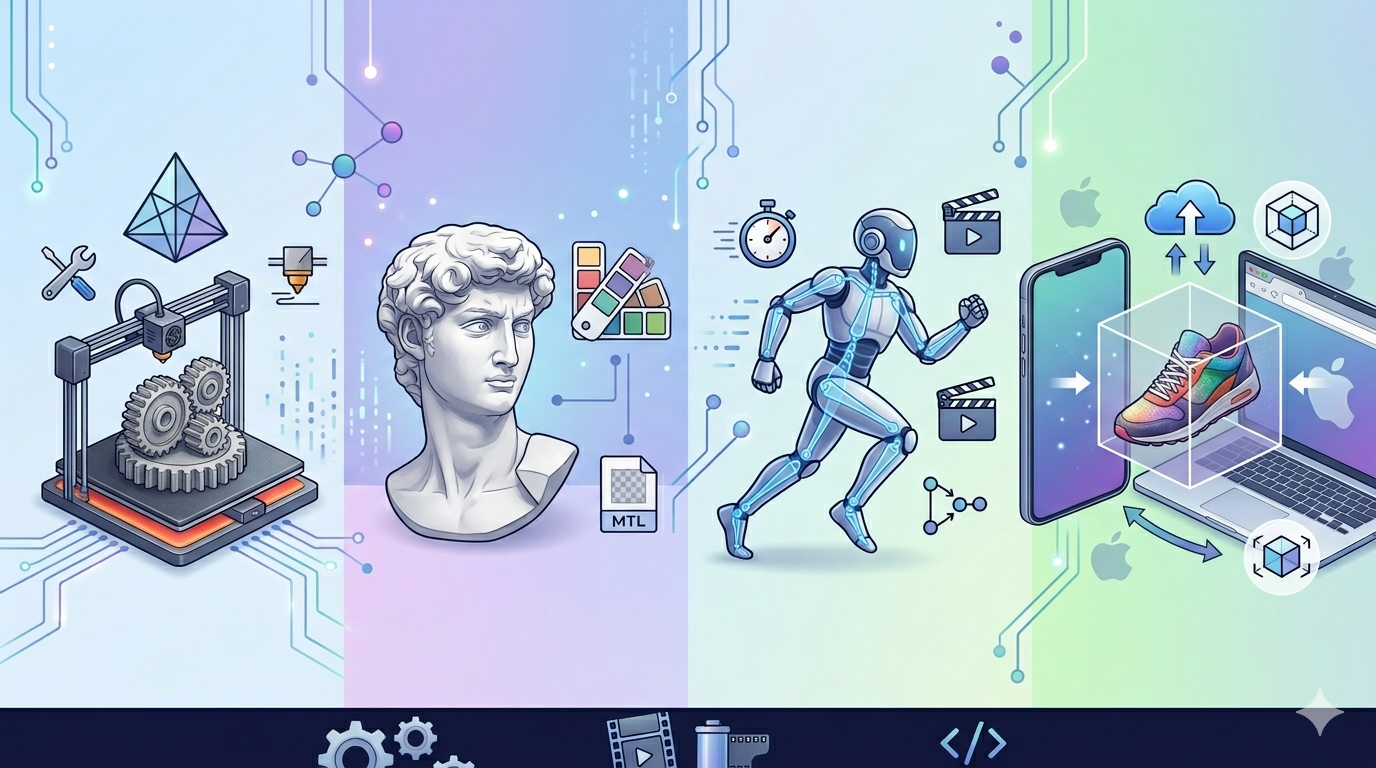
When you're working with 3D models, the file format you choose can make a big difference. Whether you're creating assets for a game, designing a product for 3D printing, or building an augmented reality experience, the right 3d file format ensures your models look and behave as intended. There are many different 3d file formats out there, each with its own strengths and weaknesses. Some are better for storing complex data like animations and textures, while others are more lightweight and optimized for the web. This article will break down the most common 3d file formats, including STL, OBJ, FBX, GLB, and USDZ, to help you decide which one is best for your project.
What Are 3D File Formats?
At its simplest, a 3d file format is a container that stores information about a 3D model. This information can include the model's geometry (the shape of the object), its appearance (colors, textures, and materials), and even animations. Think of it like a blueprint for a 3D object. Just as there are different types of image files (like JPG, PNG, and GIF), there are many different 3d file formats, each designed for specific purposes. Some are ideal for 3D printing, while others are better suited for video games or augmented reality.
STL: The 3D Printing Standard
STL (Stereolithography) is one of the oldest and most widely used 3d file formats. It was originally developed for 3D printing, and it remains the standard for that industry. An STL file represents a 3D model as a collection of interconnected triangles. This simple, straightforward approach makes it easy for 3D printers to interpret and create physical objects.
Pros:
- Universally accepted: Nearly every 3D printer and CAD software supports STL.
- Simple and lightweight: STL files are relatively small and easy to share.
Cons:
- No color or texture information: STL files only store the geometry of a model, not its appearance.
- Can be imprecise: The use of triangles to represent curved surfaces can sometimes result in a loss of detail.
If you need to view an STL file, you can use a free STL file viewer.
OBJ: A Versatile Veteran
OBJ is another widely supported 3d file format. Unlike STL, OBJ files can store color and texture information in a separate .MTL (Material Template Library) file. This makes it a more versatile format for applications where visual appearance is important, such as video games and architectural visualization.
Pros:
- Supports color and textures: Can store more detailed visual information than STL.
- Widely compatible: Supported by most 3D modeling and animation software.
Cons:
- Can be complex: The use of a separate file for materials can sometimes make file management more difficult.
- No animation support: OBJ files do not support animations.
FBX: The Animation Powerhouse
FBX (Filmbox) is a proprietary 3d file format owned by Autodesk. It's a popular choice for animation, visual effects, and game development because it can store a wide range of data, including geometry, materials, textures, and animations. This makes it a comprehensive format for complex 3D scenes.
Pros:
- Supports animation: Can store complex animations and skeletal data.
- Rich data storage: Can store a wide variety of information, including cameras and lights.
Cons:
- Proprietary format: Controlled by Autodesk, which could be a concern for some users.
- Can be large and complex: FBX files can be quite large, especially when they contain a lot of animation data.
GLB & GLTF: The Web-Friendly Formats
GLTF (GL Transmission Format) and its binary version, GLB, are modern, open-source 3d file formats designed for efficient transmission and loading of 3D scenes and models. They are often referred to as the "JPEG of 3D" because they are optimized for the web. GLB files are particularly convenient because they bundle all the model's information (geometry, textures, etc.) into a single file.
Pros:
- Optimized for the web: Designed for fast loading and rendering in web browsers.
- PBR materials: Supports physically based rendering (PBR) materials for more realistic visuals.
- Single file format (GLB): GLB files are easy to share and manage.
Cons:
- Still evolving: As a newer format, it may not be as widely supported as older formats like OBJ and FBX.
To view GLB or GLTF files, you can use a GLB/GLTF viewer.
USDZ: Apple's AR Darling
USDZ is a 3d file format developed by Apple in collaboration with Pixar. It's specifically designed for augmented reality (AR) applications on iOS devices. USDZ is a zero-compression, unencrypted zip archive that contains a USD (Universal Scene Description) file and other assets like textures and animations. This makes it easy to share and experience AR content on iPhones and iPads.
Pros:
- Optimized for AR: Designed for seamless AR experiences on Apple devices.
- Rich data support: Can store complex scenes with materials, animations, and audio.
Cons:
- Apple-centric: Primarily designed for the Apple ecosystem.
- Limited cross-platform support: Not as widely supported on other platforms.
For viewing USDZ files, a USDZ viewer is a useful tool.
3D File Formats: A Quick Comparison
| Feature | STL | OBJ | FBX | GLB/GLTF | USDZ |
|---|---|---|---|---|---|
| Primary Use Case | 3D Printing | 3D Modeling | Animation | Web & AR | AR (Apple) |
| Color & Textures | No | Yes (separate file) | Yes | Yes | Yes |
| Animation | No | No | Yes | Yes | Yes |
| File Size | Small | Medium | Large | Small | Medium |
| Compatibility | Universal | High | High | Growing | Apple Ecosystem |
My First-Hand Experience with 3D File Formats
As a 3D artist, I work with different 3d file formats on a daily basis. I've used Hyper3D's suite of tools, including Rodin for generation and OmniCraft for editing, and I've found them to be incredibly versatile. When I'm creating a model from scratch, I usually start with the Default generation mode in Rodin. For a recent project, I needed to create a detailed character model with a lot of intricate parts. I used the Gen-2 mode to get a high-quality base mesh, and then I used OmniCraft to refine the details and add textures.
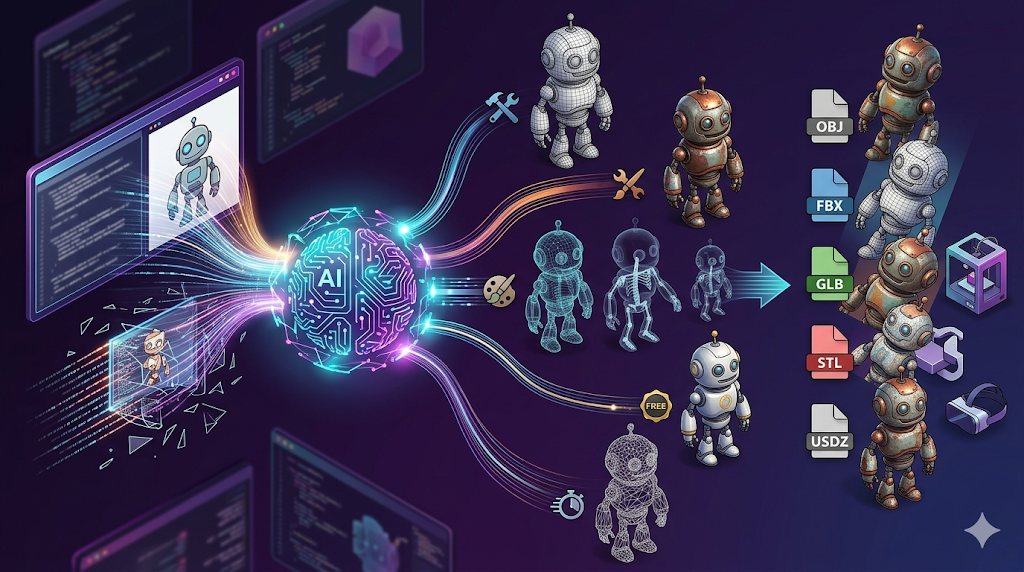
When it comes to exporting, Hyper3D offers a variety of options, including STL, FBX, OBJ, GLB, and USDZ. For this particular project, I needed to export the model for use in a game engine. I chose the FBX format because it supports animations and PBR materials. The export process was seamless, and the model looked great in the game engine. I've also used Hyper3D's 3D format converter to convert models from one format to another. It's a real time-saver, and it always produces high-quality results. I also frequently use their image to 3D tool to quickly generate a 3d model from a 2d image.
Frequently Asked Questions
What is the best 3d file format for 3D printing?
For 3D printing, STL is the most common and widely accepted 3d file format. Its simplicity and universal support make it the go-to choice for most 3D printing applications.
Can I use a single 3d file format for everything?
While some formats are more versatile than others, there is no single 3d file format that is perfect for every situation. The best format for your project will depend on your specific needs, such as whether you need to store color and texture information, animations, or if you are targeting a specific platform like the web or AR.
What is the difference between GLB and GLTF?
GLTF and GLB are both designed for efficient transmission of 3D models, but the main difference is that GLB is a binary format that bundles all the model's data into a single file. This makes it more convenient to share and use, especially on the web.
Are there any free tools to convert between 3d file formats?
Yes, there are many free tools available that can convert between different 3d file formats. Hyper3D offers a free 3D format converter that is easy to use and supports a wide range of formats.
How do I choose the right 3d file format for my project?
To choose the right 3d file format, consider the following factors: your intended use case (e.g., 3D printing, animation, AR), the software and platforms you will be using, and the level of detail and data you need to store. This article provides a good starting point for understanding the most common formats and their strengths and weaknesses.
How to Choose the Right 3D File Format
Choosing the right 3d file format is a critical decision that can impact your entire workflow. To make the best choice, you need to consider several factors. First, think about the primary purpose of your 3D model. Are you creating a model for 3D printing, a video game, an animated film, or an augmented reality experience? Each of these applications has its own set of requirements, and some file formats are better suited for certain tasks than others.
For example, if you are creating a model for 3D printing, STL is the most common and reliable choice. However, if your model includes color and you want to print it in full color, you might consider using a format like VRML or AMF. For game development, FBX is a popular choice because it supports animations, but GLB/GLTF is gaining traction due to its web-friendly nature and PBR material support. If you are developing an AR application for iOS, USDZ is the obvious choice.
Another important factor to consider is the software you will be using. While most 3D modeling software supports a wide range of file formats, some formats are proprietary and may not be compatible with all applications. For example, FBX is an Autodesk format, and while it is widely supported, you may run into issues if you are using non-Autodesk software. Open-source formats like OBJ and GLTF are generally a safer bet if you are concerned about cross-platform compatibility.
Finally, think about the level of detail and data you need to store. If you have a simple model with no textures or animations, a lightweight format like STL might be sufficient. However, if you have a complex model with high-resolution textures, PBR materials, and intricate animations, you will need a more solid format like FBX or GLB/GLTF. By carefully considering these factors, you can choose the 3d file format that is best suited for your project and ensure a smooth and efficient workflow.
Advanced Tips for Working with 3D File Formats
Once you have a good understanding of the different 3d file formats, you can start to explore some more advanced techniques to optimize your workflow. One important tip is to always keep a high-resolution, uncompressed version of your model in a format like FBX or a native format from your 3D modeling software. This will serve as your master file, and you can then export it to other formats as needed. This is a good practice for managing your 3d file format.
Another tip is to use a batch conversion tool to convert multiple files at once. This can save you a lot of time if you have a large number of models to convert. Many 3D modeling software packages have built-in batch conversion tools, and there are also many standalone applications available. When you are working with a team, it is important to establish a clear file naming and organization system for your 3d file formats. This will help to avoid confusion and ensure that everyone is working with the correct files. By following these advanced tips, you can work more efficiently with different 3d file formats and produce higher-quality results.