Blender to OBJ: Export & Convert BLEND Files
So you??e crafted the perfect 3D model in Blender, but now you need to get it into another application or prepare it for 3D printing. You quickly realize that the native `.blend` file isn't always the most compatible format. This is where the `.obj` file format comes in, a universal language for 3D models. But how do you make the switch? This article will guide you through the process, whether you're using Blender's own tools or a handy online blend to obj converter. We'll explore different methods, troubleshoot common issues, and help you decide which blend to obj converter is best for your project.
We'll explore different methods, troubleshoot common issues like missing textures, and help you decide which approach is best for your project. We'll also touch on other useful tools like our Blender to STL converter for your 3D printing needs.
Understanding .blend and .obj Files
Before we dive into the conversion process, let's quickly get to know our two file formats.
What is a .blend File?
A `.blend` file is the heart of your Blender project. It's a comprehensive container that stores everything you've worked on: your 3D models, materials, textures, lighting setups, animations, and more. Think of it as a complete workshop in a single file. While this is incredibly powerful within the Blender ecosystem, it can be a bit of a black box to other software that doesn't know how to unpack all that information.
What is an .obj File?
The `.obj` format, on the other hand, is like a universal blueprint for 3D geometry. It's a widely supported, text-based format that primarily stores the shape of your model (vertices, faces), UV mapping coordinates (how textures wrap around the model), and basic material information. Because of its simplicity and broad compatibility, `.obj` is a go-to format for moving models between different 3D applications, game engines, and 3D printers.
How to Use a BLEND to OBJ Converter
There are two primary ways to convert your `.blend` files to `.obj`: directly within Blender or by using an online tool. Let's break down both methods.
Method 1: Using Blender's Built-in Exporter
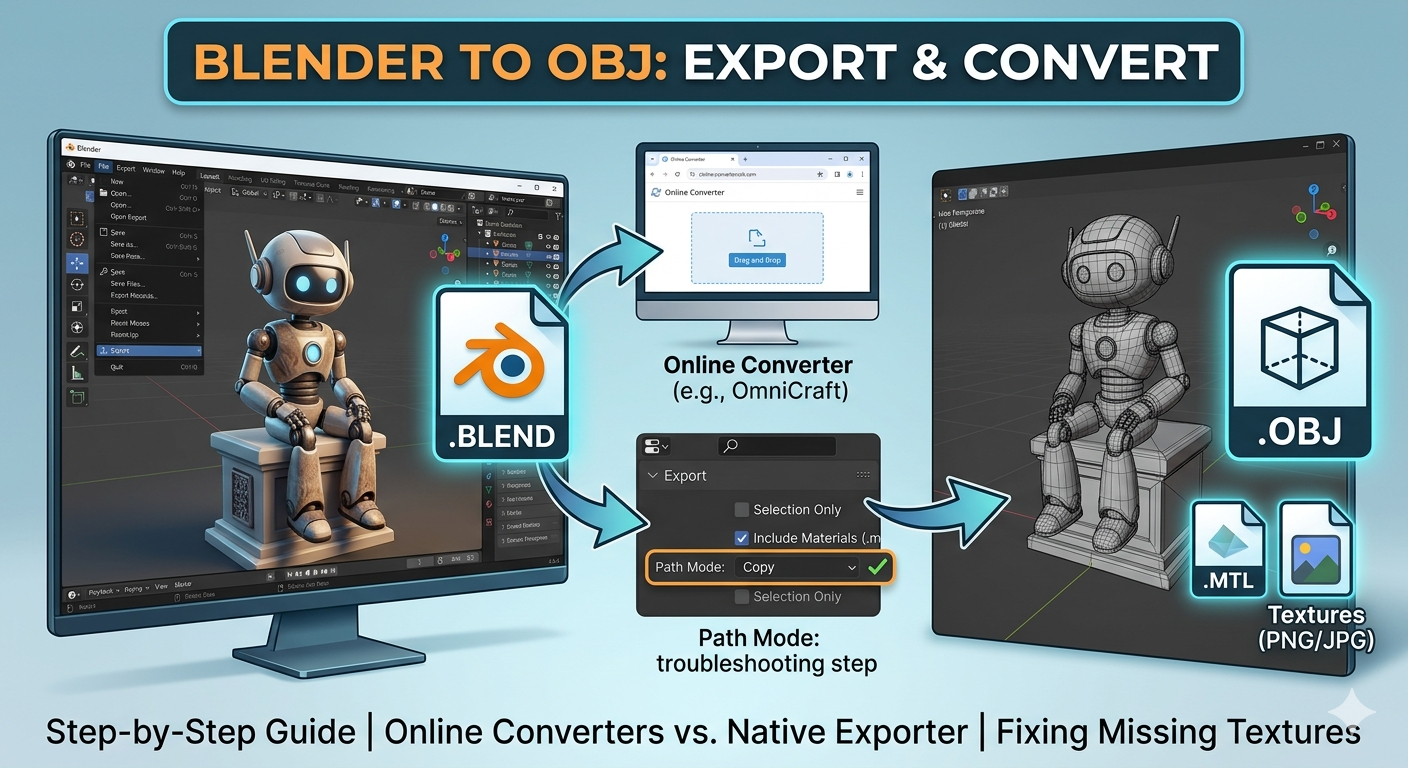
If you have Blender installed, the most direct way to convert your file is by using its native export function. This gives you the most control over the output.
1. Open your file in Blender.
2. Go to `File > Export > Wavefront (.obj)`.
3. In the export settings on the right, you have several important options:
- Selection Only: If you only want to export a specific object, select it in your scene and check this box.
- Include: Make sure to check `Write Materials` to create a companion `.mtl` file that stores material information. Also, ensure `Triangulate Faces` is checked if your target application requires triangular geometry.
- Path Mode: Set this to `Copy` to gather all the necessary texture images and save them in the same folder as your `.obj` file. This is a crucial step to avoid missing textures.
4. Choose a file name and location, and click `Export OBJ`.
This process gives you a `.obj` file, a `.mtl` file, and a folder with your textures, ready to be imported into another program.
Method 2: Using an Online BLEND to OBJ Converter
If you don't have Blender handy or just need a quick conversion, online tools are a great option. They offer a simple drag-and-drop interface that does the heavy lifting for you. We at Hyper3D have our own suite of tools, including OmniCraft, which can handle these conversions.
Using an online converter is straightforward:
1. Navigate to the converter website.
2. Upload your `.blend` file.
3. The tool will process the file and provide you with a downloadable `.obj` file (and usually the accompanying `.mtl` and texture files).
These tools are incredibly convenient, but they may offer fewer customization options than Blender's native exporter.
My First-Hand Experience with BLEND to OBJ Conversion
I remember working on a project where I had to get a detailed architectural model from Blender into a real-time rendering engine. I spent days perfecting the model and its materials in Blender. When it came time to export, I just went to `File > Export > OBJ` without paying much attention to the settings. I was in a hurry, as always.
When I imported the `.obj` into the other program, the model was there, but it was completely white. All my carefully crafted textures and materials were gone. I spent a frustrating hour trying to figure out what went wrong. After some digging, I realized my mistake: I hadn't told Blender to pack the textures with the export. I went back, found the `Path Mode: Copy` setting, and re-exported. The second time, everything came through perfectly. It was a simple checkbox, but it made all the difference. This experience taught me to always pay attention to the export settings, a lesson I've carried with me ever since.
Objective Comparison of Conversion Methods
| Feature | Blender's Built-in Exporter | Online Converters |
|---|---|---|
| Pros | - Full control over export settings - No need to upload files - Free and always available | - Easy to use, no installation required - Fast for simple models - Accessible from any device |
| Cons | - Can be confusing for beginners - Requires Blender to be installed - Troubleshooting may be needed | - Less control over settings - Potential privacy concerns - May have file size limits |
Ultimately, the best method depends on your needs. For complex scenes where you need fine-tuned control, using Blender's exporter is the way to go. For a quick and easy conversion without the fuss, an online tool is your best bet.
Frequently Asked Questions (FAQ)
Why are my textures missing after converting to .obj?
This is the most common issue. It usually happens because the texture files were not included with the export. When using Blender, make sure to set the `Path Mode` to `Copy` in the export settings. If you're using an online converter, ensure it supports texture extraction.
Can I convert a .blend file to .obj without Blender?
Yes, you can! Online file converters are designed for this exact purpose. They allow you to upload a `.blend` file and receive a `.obj` file in return, without needing to have Blender installed on your machine.
What is the best online blend to obj converter?
There are many great online blend to obj converter tools available. We recommend looking for a converter that is fast, secure, and supports textures and materials. Our own Blender to OBJ converter is designed to handle this process smoothly and is an excellent blend to obj converter.
While there are many great tools available, we recommend looking for a converter that is fast, secure, and supports textures and materials. Our own Blender to OBJ converter is designed to handle this process smoothly.
How do I keep my materials when exporting to .obj?
In Blender, make sure the `Write Materials` option is checked during export. This will create a `.mtl` (Material Template Library) file alongside your `.obj` file. This file contains information about the materials, which can then be read by the application you're importing the model into.
Is it safe to use online file converters?
Reputable online converters take privacy and security seriously. They typically delete your files from their servers after a short period. However, if you're working with sensitive or confidential files, it's always best to use an offline method like Blender's native exporter.
Beyond Conversion: Editing and Generating 3D Models
Converting files is just one part of the 3D creation process. Once you have your model in the right format, you might need to edit it further or even generate new models from scratch. At Hyper3D, we offer a range of tools to help you at every stage of your creative journey. With Rodin, you can generate incredible 3D models from text prompts. And if you need to convert an image to a 3D model, our Image to 3D tool has you covered. We aim to provide a complete ecosystem for 3D creators.
Conclusion
Getting your 3D models from Blender into the `.obj` format doesn't have to be a headache. A good blend to obj converter can make the process seamless. Whether you prefer the detailed control of Blender's native exporter or the convenience of an online tool, you have options. By understanding the process and paying attention to a few key settings, you can ensure your models, materials, and textures transfer smoothly. So go ahead, export with confidence, and keep creating amazing things.