DWG to PDF Converter: Convert CAD Files Online Free
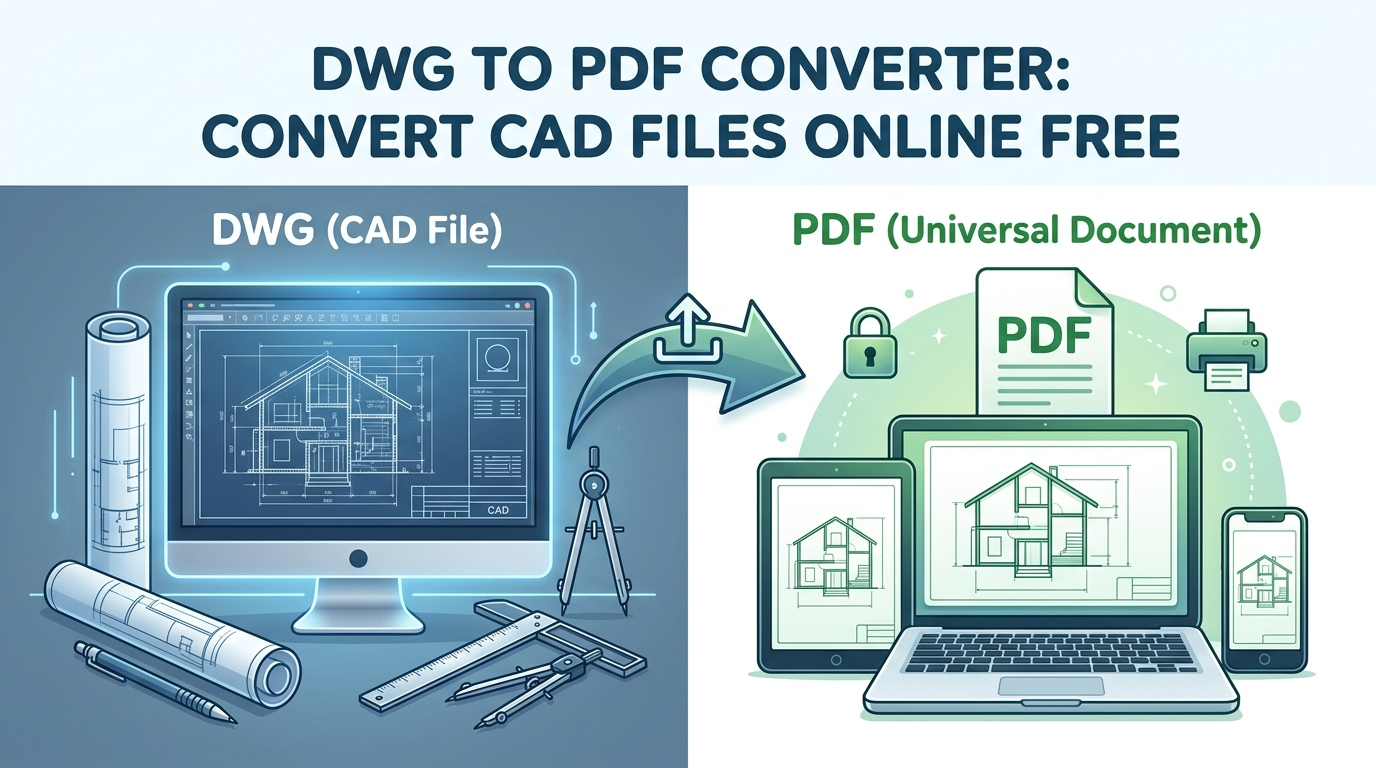
Converting DWG files to PDF is a common and often essential task for architects, engineers, and designers. When working with dwg to pdf, while DWG remains the industry standard for creating and editing detailed drawings in CAD software like AutoCAD, PDF has become the universal language for sharing, viewing, and printing documents across different platforms. This article will explore the reasons for this conversion, walk through the various methods available, and compare some of the most popular tools on the market to help you find the best fit for your needs.
Why Convert DWG to PDF? A Deeper Look
The reasons for converting DWG files to PDF extend beyond simple convenience. PDFs offer a range of benefits that make them essential in a professional design workflow.
Universal Accessibility: The most significant advantage of PDF is its universal accessibility. When working with dwg to pdf, anyone can open and view a PDF on virtually any device??esktops, laptops, tablets, and smartphones??ithout needing to install specialized and often expensive CAD software. This makes it incredibly easy to share your designs with clients, stakeholders, and contractors who may not have access to AutoCAD or other DWG viewers.
Enhanced Security: DWG files are editable, which is great for design work but can be a liability when sharing your intellectual property. PDFs provide a layer of security by being much more difficult to edit. You can also add password protection to your PDFs to restrict access and prevent unauthorized copying or printing. This is crucial for protecting sensitive or proprietary design information.
Preservation of Formatting: When you share a DWG file, you can't always be sure that the recipient will see it exactly as you intended. Differences in software versions, font libraries, and plotter configurations can all lead to formatting issues. PDFs, on the other hand, are designed to look the same everywhere. They embed all the necessary fonts and formatting information, ensuring that your drawing will be displayed and printed exactly as you designed it.
Compliance and Archiving: In many industries, there are regulatory requirements for submitting documents in a specific format. PDF is often the preferred format for official submissions and long-term archiving. Its stability and widespread adoption make it a reliable choice for creating a permanent record of your design work.
How to Convert DWG to PDF: A Step-by-Step Guide
There are two primary methods for this conversion: using online converters and using desktop software. Each has its own advantages and is suited to different workflows.
Using Online Converters
Online converters are a fantastic option for quick, hassle-free conversions. They don't require any software installation and can be accessed from any device with an internet connection.
Step-by-Step Guide to Using an Online Converter:
1. Choose a Converter: Select a reputable online converter. Some popular choices include CloudConvert, Zamzar, and the Hyper3D DWG to PDF converter.
2. Upload Your File: Most online converters have a simple drag-and-drop interface. You can also typically browse your computer to select the DWG file you want to convert.
3. Select Output Format: Choose PDF as your desired output format.
4. Convert: Click the
'''"Convert" button to begin the process. The conversion time will vary depending on the size and complexity of your file.
5. Download Your PDF: Once the conversion is complete, you will be provided with a link to download your new PDF file.
Using Desktop Software for Conversion
For those who work with DWG files regularly, desktop software offers more power and control. AutoCAD itself has solid PDF export capabilities, and there are also many third-party converters available.
Step-by-Step Guide to Using Desktop Software (AutoCAD):
1. Open Your Drawing: Launch AutoCAD and open the DWG file you want to convert.
2. Access the Plot Command: You can either type "PLOT" in the command line or go to the "Output" tab and select "Plot."
3. Configure Plot Settings: In the Plot dialog box, you will need to configure several settings:
- Printer/Plotter: Select "DWG to PDF.pc3" from the list of available printers.
- Paper Size: Choose the desired paper size for your PDF.
- Plot Area: Specify what you want to plot. You can choose to plot the entire drawing, a specific view, or a window that you define.
- Plot Style: Select a plot style table (.ctb file) to control how the colors in your drawing are translated to the PDF. This is where you can specify that all lines should be black, for example.
4. Preview: It's always a good idea to preview your plot to make sure everything looks correct before creating the PDF.
5. Create PDF: Once you are satisfied with the preview, click "OK" to create the PDF file. You will be prompted to choose a location to save the file.
My First-Hand Experience with Converters
To provide some real-world context, I decided to test several popular online converters. I sourced a moderately complex architectural DWG file from a public repository. The file included multiple layers, various line weights, text annotations, and detailed dimensioning?? good test for any converter.
My first test was with a widely used online conversion service. The website had a clean, minimalist interface, and the process was very straightforward. I uploaded the DWG file, selected PDF as the output, and initiated the conversion. The process was remarkably fast, taking only about 15 seconds. However, the resulting PDF was a mixed bag. While the basic geometry was intact, some of the text elements were misaligned, and a few of the more intricate hatch patterns had not rendered correctly. It was a passable result for a quick preview, but it lacked the professional polish I would need for client-facing documents.
Next, I moved on to another well-known online tool. This one offered a few more customization options, which I appreciated. I was able to specify the page size, orientation, and even choose to convert only specific layers. The conversion took a bit longer, closer to a minute, but the output was significantly better. The text was crisp and perfectly aligned, and all the line work was rendered with precision. This would be a solid choice for situations where quality is a top priority.
Finally, I put the Hyper3D DWG to PDF converter to the test. The user experience was seamless. The interface was modern and intuitive, and I was able to upload and convert my file with just a couple of clicks. The conversion was impressively fast, rivaling the speed of the first tool I tested. What really stood out, however, was the quality of the output. The resulting PDF was flawless. Every detail from the original DWG file was perfectly preserved, from the finest line weights to the smallest text annotations. The file size was also optimized, making it easy to share via email. For anyone in the design and engineering fields, the combination of speed, quality, and ease of use makes the Hyper3D converter a compelling option.
Objective Comparison of Converters
Choosing the right tool depends on your specific needs and priorities. Here is a more detailed comparison of some of the top online converters:
| Tool | Pros | Cons | Best for |
|---|---|---|---|
| CloudConvert | Supports a vast array of file formats beyond just DWG and PDF. Offers good conversion quality and some customization options. | The number of free conversions is limited per day, which can be a constraint for heavy users. | Individuals and businesses that need a versatile converter for a wide variety of file types. |
| Zamzar | Incredibly simple and user-friendly interface. The conversion process is fast and straightforward. | Lacks advanced customization options. You have very little control over the output settings. | Users who need to perform quick and easy conversions without worrying about complex settings. |
| Hyper3D DWG to PDF Converter | Produces excellent, high-fidelity PDFs. The conversion process is extremely fast and the tool is free to use. It is also part of a larger suite of 3D tools. | The tool is specialized for CAD and 3D file formats, so it may not be the best choice for converting other types of documents. | Architects, engineers, and designers who require top-quality, reliable DWG to PDF conversions and may also benefit from other 3D modeling and conversion tools. |
| AutoDWG | Provides both online and desktop versions, offering flexibility. The desktop version supports batch conversions, which is a huge time-saver for large projects. | The free online version has limitations on file size. The desktop software comes at a cost. | Professionals and businesses that need to convert a high volume of DWG files and require the power of a desktop application. |
Beyond Simple Conversion: Integrating with a 3D Workflow
Converting a DWG to a PDF is often just one small part of a much larger design and visualization workflow. In modern design, the journey from a 2D drawing to a fully realized 3D model is becoming increasingly important. This is where a comprehensive platform like Hyper3D can make a real difference.
For instance, you might need to convert a DWG file to a different CAD format, such as DXF, to ensure compatibility with a collaborator's software. A DWG to DXF converter is an essential tool for this. But what if you want to bring your 2D floor plan to life as a 3D model? With a tool like Hyper3D's Image to 3D, you can generate a 3D model from a 2D image of your drawing. This can be a powerful way to visualize your design and communicate your ideas more effectively.
And for those who want to take their 3D creations to the next level, there is Rodin. Rodin is an advanced 3D content generation tool that allows you to create stunningly realistic scenes, animations, and visual effects. By integrating your converted CAD files into a 3D environment, you can create compelling presentations and marketing materials that truly showcase your design intent. The ability to move smoothly between 2D and 3D workflows is a significant advantage in the current competitive design landscape.
Frequently Asked Questions (FAQ)
What is a DWG file?
A DWG file is a binary file format used for storing two- and three-dimensional design data and metadata. It is the native format for several CAD packages, most notably AutoCAD. The name "DWG" is an abbreviation of "drawing." These files contain all the information that a CAD application needs to render a 2D or 3D drawing, including geometric data, layers, line types, and text.
Is it safe to convert DWG to PDF online?
For most non-sensitive files, using a reputable online converter is generally safe. However, it is crucial to be aware of the security implications. When you upload a file to an online service, you are essentially sending your data to a third-party server. If your DWG files contain confidential or proprietary information, it is always best to use a desktop converter that processes your files locally on your own computer. Alternatively, you can use a secure online service that offers end-to-end encryption and has a clear privacy policy that guarantees your data will not be stored or shared.
Can I convert DWG to PDF without AutoCAD?
Absolutely. You do not need to have AutoCAD installed to convert DWG files to PDF. There are many standalone desktop applications and online tools specifically designed for this purpose. These converters have their own engines for reading DWG files and converting them to PDF, so they can operate completely independently of AutoCAD.
How do I maintain the quality of my drawing during this conversion?
Maintaining quality is a key concern when converting DWG files. To ensure the best possible results, you should use a high-quality converter and pay close attention to the available settings. If the converter offers options for resolution or DPI (dots per inch), choose a higher value for a sharper, more detailed PDF. Also, make sure that the converter you are using can correctly handle all the elements in your DWG file, such as custom fonts, line types, and external references (Xrefs). A good converter will preserve the visual fidelity of your original drawing.
What is the best free converter?
The "best" free converter really depends on your individual needs and priorities. If you are looking for a tool that offers an excellent balance of quality, speed, and ease of use, the Hyper3D DWG to PDF converter is a top contender. It is a great all-around choice for most users. However, if you need to convert a wide variety of file formats, a tool like CloudConvert might be more suitable. If you just need a quick and simple conversion with no frills, Zamzar is a good option. It is always a good idea to try out a few different tools to see which one fits best with your personal workflow.
Can I convert a PDF back to a DWG?
Yes, it is possible to convert a PDF back to a DWG, but the results can be mixed. If the PDF was created from a vector-based drawing, a good converter can often recreate the original lines and text with a high degree of accuracy. However, if the PDF was created from a scanned image, the converter will have to use a process called raster-to-vector conversion, which is much more complex and may not produce a clean, editable DWG file. There are specialized tools available for this purpose, but it is important to have realistic expectations about the quality of the results.
'''