

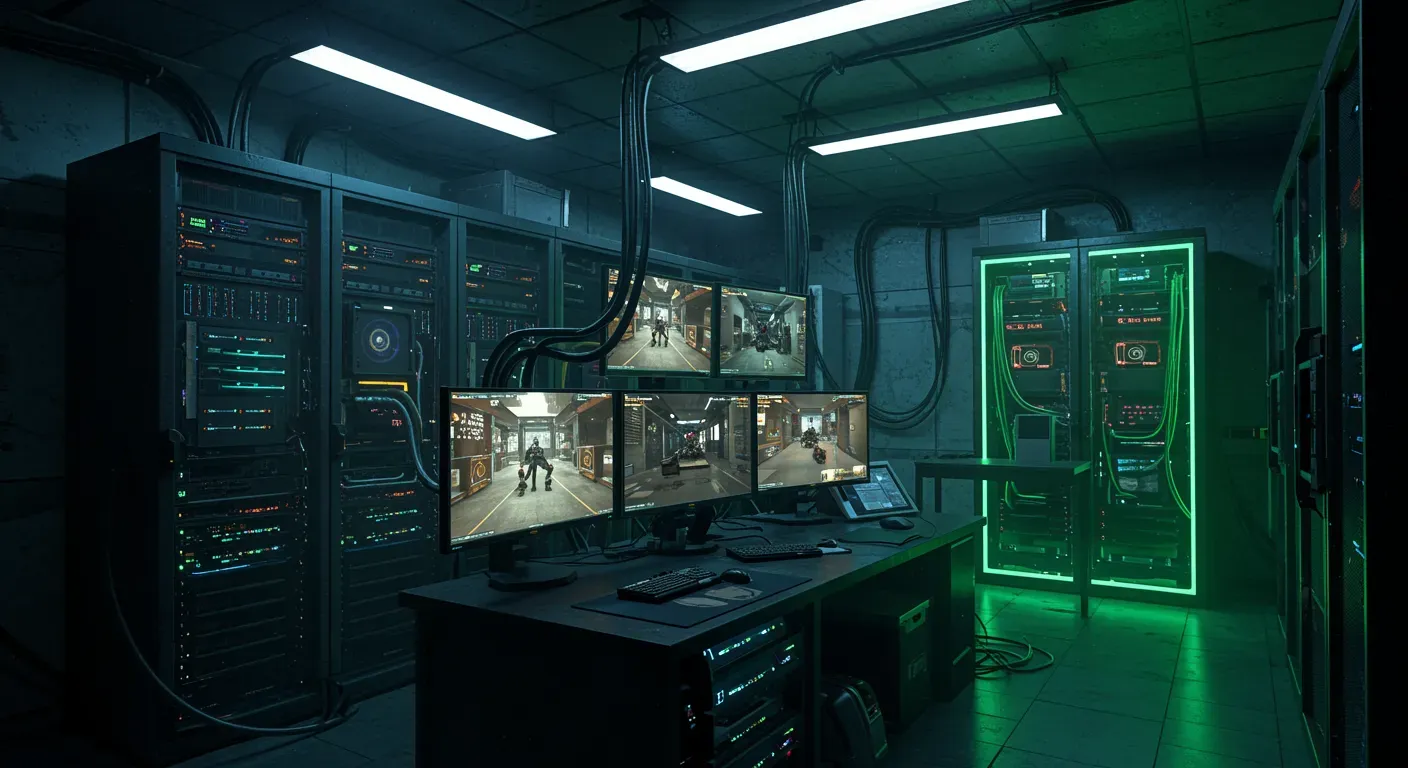
Half-Life 2: Deathmatch is a classic multiplayer experience that has captivated gamers for years. While public servers are great for quick matches, creating your own server allows for a personalized gaming environment tailored to your preferences. In this guide, we’ll walk you through the step-by-step process of setting up your own Half-Life 2: Deathmatch server, ensuring you have the best experience possible.
Prerequisites: What You Need
Before diving into the setup process, ensure you have the following:
- A Copy of Half-Life 2: You need the game installed on your machine, preferably through Steam.
- A Reliable Internet Connection: A stable connection is essential for hosting a smooth gaming experience.
- Basic Networking Knowledge: Understanding how to configure your router and firewall settings can save you a lot of time.
Setting Up the Server
Step 1: Install the Source Dedicated Server
1. Open Steam: Launch Steam and navigate to the Library.
2. Tools: In the Library, switch to the “Tools” tab.
3. Install Source Dedicated Server: Find “Source Dedicated Server” in the list and install it. This tool will be the backbone of your server.
Step 2: Configuring Your Server
Once installed, you need to configure your server settings:
1. Navigate to the Server Folder: Locate the installation directory of the Source Dedicated Server.
2. Edit the Configuration File: Find the `server.cfg` file. Here, you can set your server name, game mode, and player limits. Example settings might look like this:
`plaintext
hostname "My Half-Life 2 Deathmatch Server"
sv_maxplayers 16
mp_timelimit 20`
Step 3: Port Forwarding
To allow players outside your local network to join, you’ll need to forward ports on your router:
1. Access Your Router Settings: Usually done by typing your router’s IP address into a web browser.
2. Locate Port Forwarding Section: This varies by router model, but look for a section labeled “Port Forwarding” or “Applications.”
3. Forward the Necessary Ports: Forward UDP ports 27015 and 27005 to your local IP address.
Launching Your Server
After configuration, it’s time to launch your server:
1. Run the Server: Open the Source Dedicated Server application and select your Half-Life 2: Deathmatch game.
2. Start the Server: Click on “Start Server.” Your server should now be live!
Inviting Friends and Managing Players
Once your server is operational, invite your friends to join:
1. Share Your Public IP: Provide your public IP address (you can find this by searching “What is my IP” on Google) to your friends.
2. Server Management: Use in-game commands to manage players and settings. For example, use `kick