How to Edit a 3D Model with AI: No Blender Needed
For years, editing a 3D model meant diving into complex software like Blender or ZBrush. These powerful tools have a steep learning curve, often taking months to master. If you just wanted to tweak an existing model, resize a part, or apply a new texture, the process felt overwhelming. It was a barrier for many creators, designers, and hobbyists who needed a simpler way to make adjustments without becoming expert 3D artists.
This is where how to edit 3d model tools really show their value.
The good news is that artificial intelligence is changing the game. A new wave of AI-powered tools has emerged, making 3D model editing more accessible than ever. Instead of navigating complex menus and mastering intricate controls, you can now use simple text prompts or upload images to guide the changes. These tools handle the heavy lifting, allowing you to focus on your creative vision. Whether you're a game developer needing quick asset variations or a 3D printing enthusiast customizing a design, AI offers a faster and more intuitive workflow.
For anyone exploring how to edit 3d model options, this matters.
This guide will walk you through how to edit 3d model using these new AI tools. We'll explore what they are, compare the top platforms available, and provide a first-hand account of what it's like to use one. You'll learn how to get started, discover practical use cases, and find answers to common questions. By the end, you'll be ready to edit your 3D models without ever needing to open Blender.
What is AI 3D Model Editing and How to Edit 3D Model with it?
AI 3D model editing refers to the use of artificial intelligence algorithms to modify, refine, or create 3D assets. Unlike traditional methods that rely on manual manipulation of vertices, edges, and faces, AI-driven tools interpret higher-level commands. This can be anything from a text description like "make the legs 50% longer" to an image reference for a new texture. The AI analyzes the input and applies the changes to the model's geometry or material properties automatically.
The how to edit 3d model workflow makes this straightforward.
How It Works: From Prompt to Polygon with How To Edit 3D Model
The technology behind these tools often involves advanced machine learning models, such as generative adversarial networks (GANs) or diffusion models, which have been trained on vast datasets of 3D shapes. When you provide a prompt, the AI doesn't just "read" the text; it understands the semantic meaning and correlates it with geometric transformations. For example, telling an AI to "add battle damage" to a shield would trigger it to apply dents, scratches, and broken edges in a way that looks natural and realistic.
That's a key advantage of modern how to edit 3d model technology.
The Role of Mesh and Textures
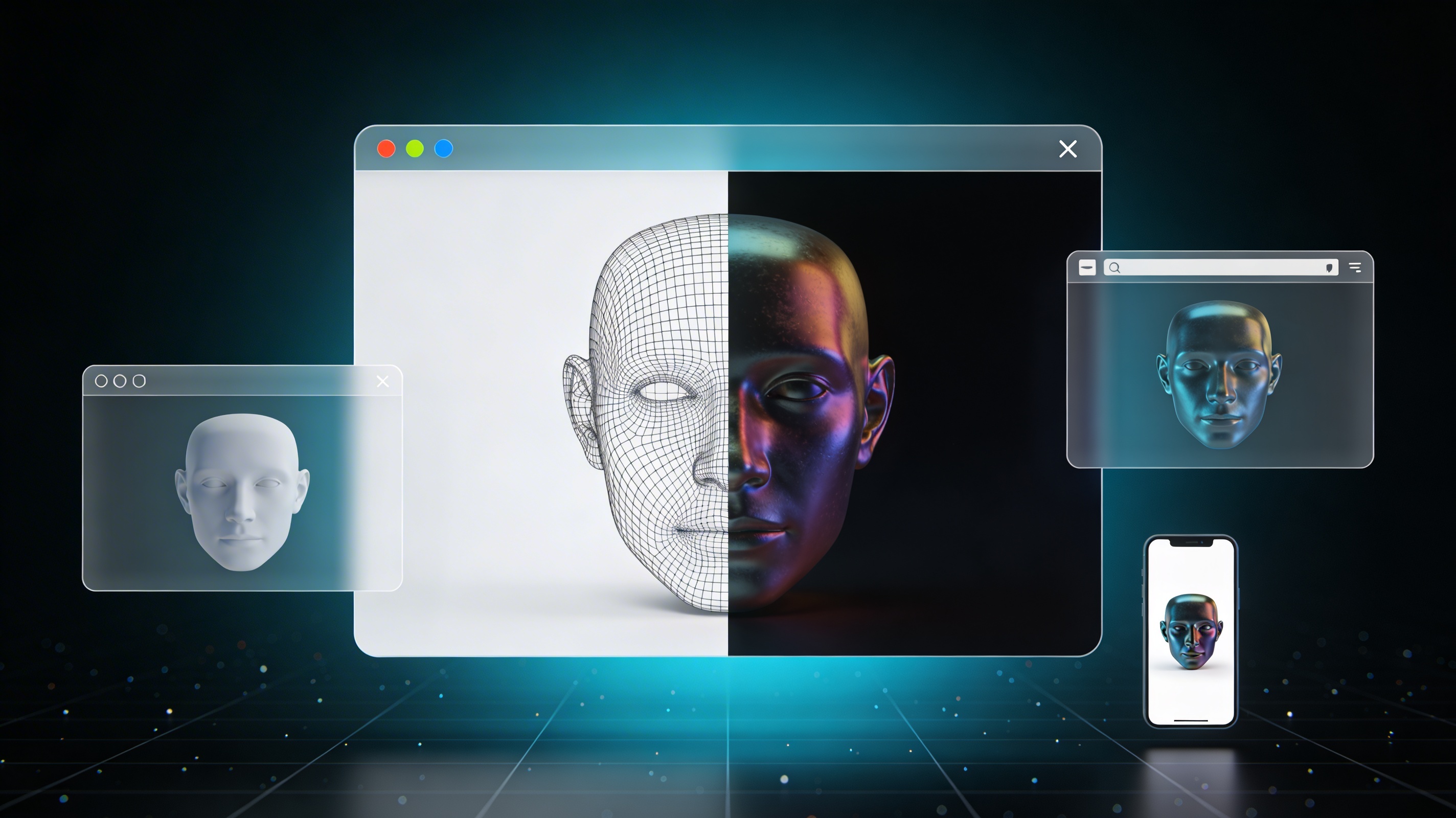
Every 3D model is composed of a mesh?? scaffold of interconnected polygons that defines its shape. AI editors can manipulate this mesh directly, a process known as procedural modeling, or they can alter the model's surface appearance through AI-powered texturing. An AI Texture Generator can create photorealistic materials from a simple text prompt like "worn leather" or "mossy stone," and apply them to your model, complete with PBR (Physically Based Rendering) maps for realistic lighting.
Top Tools Compared
Several platforms now offer AI-powered 3D editing capabilities, each with its own strengths and ideal use cases. Here?? a comparison of the leading tools to help you decide which one is right for your project.
| Tool | Best For | Top Strength | Key Limitation |
|---|---|---|---|
| Meshy AI | Texturing & UX | Best textures | Rougher geometry |
| Tripo AI | Game dev pipelines | Auto-rigging | STL export issues |
| Hyper3D | Topology & ecosystem | Cleanest geometry | Less versatile for stylized |
| Hunyuan3D | Free/budget | 20 free/day | Chinese interface |
| Luma AI | Rapid prototyping | Speed | Triangle soup topology |
Meshy AI
Meshy is widely praised for its exceptional AI texturing engine and polished user interface. If your primary goal is to apply high-quality, realistic materials to an existing model, Meshy is a fantastic choice. Its style library, which includes options for voxel and low-poly aesthetics, is also a major plus.
- Pros: Best-in-class texturing, intuitive UI, great for stylized looks.
- Cons: The underlying geometry of generated or edited models can sometimes be less refined compared to competitors.
Tripo AI
Tripo AI is a favorite among game developers, largely due to its speed and pipeline-friendly features. It offers built-in auto-rigging and segmentation, which can save a tremendous amount of time. The generous free credit system also makes it very accessible for new users.
- Pros: Very fast, includes auto-rigging, generous free tier.
- Cons: Some users have reported issues with normals on STL exports, and it's less specialized for creating detailed character avatars.
Hyper3D (Rodin)
Hyper3D's AI 3D model editor stands out for its ability to produce models with exceptionally clean topology. This makes it ideal for character creation and projects where high-quality geometry is critical. Its all-in-one OmniCraft ecosystem allows you to generate, texture, and edit within a single, unified workflow.
- Pros: Produces the cleanest geometry, offers a complete in-browser toolsuite, and supports multi-view inputs.
- Cons: It is more specialized for character and avatar work, which can make it feel less versatile for stylized or abstract props.
My First-Hand Experience
To get a real feel for how these tools work, I took Hyper3D's Rodin for a spin. After signing in, I landed in a dark-themed workspace with the main generation controls front and center. On the left, the OmniCraft sidebar offered a suite of tools, including the Mesh Editor and AI Texture Generator. The interface felt clean and focused.
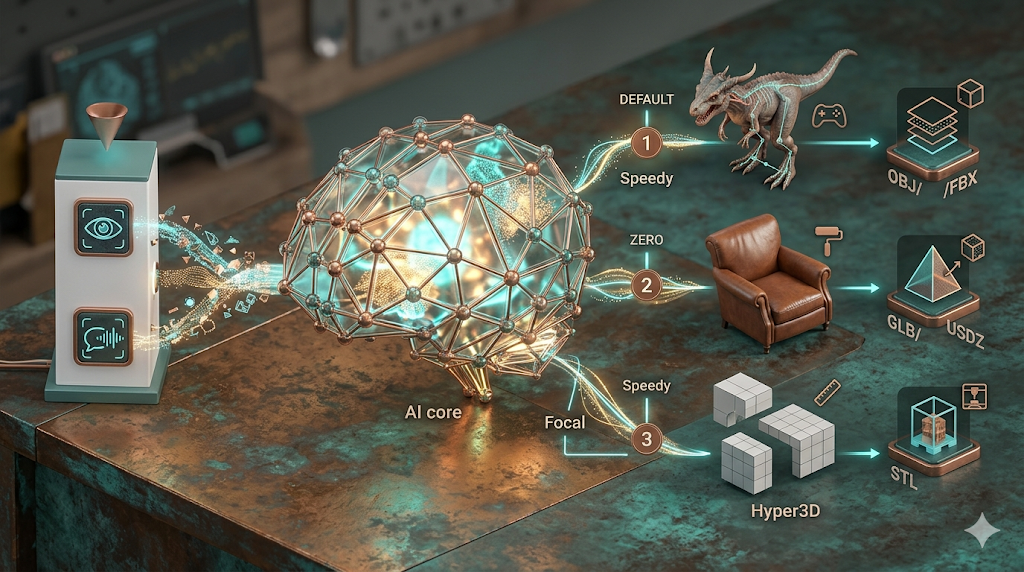
I decided to test the AI 3D generator with a text prompt: "a futuristic sci-fi helmet, sleek, with a glowing blue visor." I was presented with a few generation modes: Default, Focal, Zero, and Speedy. I opted for the 'Focal' mode, which the documentation suggests is good for detailed objects. After clicking the GENERATE button, the AI went to work. In about 45 seconds, a 3D model appeared in the viewer.
The result was impressive. The helmet had the sleek, aerodynamic shape I envisioned, and the visor area was clearly defined. The topology was clean, with well-organized polygons??o a 'triangle soup' that some other generators produce. From there, I could have sent it directly to the AI Texture Generator to add materials or exported it in formats like GLB, FBX, or OBJ for use in other software.
A Step-by-Step Workflow
Learning how to edit 3d model with AI is a straightforward process. While each platform has a slightly different interface, the core workflow is generally the same. Here?? a typical step-by-step guide to get you started.
Step 1: Choose Your Base Model
You can start in one of two ways: by generating a new model or uploading an existing one. If you have a 3D file (like an OBJ, FBX, or STL) that you want to modify, simply upload it to the platform. Alternatively, you can use the platform's text-to-3D or Image-to-3D generator to create a starting asset from scratch.
Step 2: Use Text Prompts for Major Edits
This is where the AI magic happens. Once your model is loaded, you can use natural language to make changes. For example, you could type prompts like:
- "Make the arms 20% thicker."
- "Add a handle to the top of the object."
- "Change the texture to brushed metal."
- "Create a low-poly version of this model."
The AI will interpret your command and regenerate the model with the requested modifications. This iterative process allows you to quickly explore different variations.
Step 3: Refine with AI Texturing
With the geometry finalized, the next step is to apply materials. Navigate to the texturing tool and use prompts to describe the look you want. You can be specific, like "dark walnut wood with a glossy finish," or more abstract, like "alien-like iridescent skin." The AI will generate and apply PBR textures that react realistically to light.
Step 4: Export for Your Project
Once you are happy with your edited model, you can export it for use in your project. Most AI editors support standard formats like OBJ, FBX, and GLB, which are compatible with major game engines, 3D software, and 3D printing slicers. Hyper3D supports STL, FBX, OBJ, GLB, and USDZ, ensuring compatibility with nearly any pipeline.
Use Cases and Applications
AI 3D model editing is not just a novelty; it has practical applications across many industries. By simplifying the editing process, it opens up new possibilities for creators and professionals alike.
Game Development
Indie developers and even large studios can use AI to rapidly create variations of game assets. Need a dozen different styles of sci-fi crates or alien plants? An AI can generate them in minutes, saving countless hours of manual modeling. The ability to quickly convert models to game-ready formats like GLB or FBX is also a huge time-saver. You can preview these assets in a GLTF Viewer before importing them into your engine.
3D Printing and Prototyping
For hobbyists and engineers, AI offers a simple way to customize and repair STL files for 3D printing. You can easily resize components, add custom text or logos, or even repair broken meshes without needing to be a CAD expert. This is perfect for personalizing downloaded models or quickly iterating on a prototype design.
AR/VR and Metaverse Experiences
Creating content for augmented and virtual reality requires lightweight, optimized 3D models. AI tools can help by generating low-poly versions of high-detail models and exporting them in formats like USDZ, which is native to Apple's AR ecosystem. This makes it easier than ever to create immersive digital objects for a wide range of devices.
Character and Avatar Design
AI is particularly powerful for creating and customizing digital humans and avatars. Platforms like Hyper3D specialize in generating characters with clean topology, which is essential for realistic animation. You can use text prompts to define a character's appearance, clothing, and accessories, bringing your virtual identities to life with ease.
FAQ
What is the best AI for editing 3D models?
It depends on your needs. For the cleanest geometry and character work, Hyper3D is a top choice. If your main goal is applying incredible textures, Meshy AI excels. For game developers who need speed and auto-rigging, Tripo AI is a strong contender. For those on a budget, Hunyuan3D offers a generous free tier.
Can I edit an STL file with AI?
Yes, most AI 3D model editors allow you to upload existing files, including STL, OBJ, and FBX. You can then use text prompts to modify the model. This is a great way to customize models you've downloaded from sites like Thingiverse or to repair meshes for 3D printing.
How do I add textures to a 3D model with AI?
Most AI editing platforms include an AI Texture Generator. After you have your model's shape finalized, you can switch to the texturing tool and use text prompts like "aged copper with green patina" or "carbon fiber weave" to automatically generate and apply realistic PBR materials.
Is it possible to rig a 3D model with AI?
Some platforms, like Tripo AI, are beginning to offer experimental auto-rigging features. This can create a basic skeleton and skinning for your model, which is a huge time-saver for animation. However, for complex cinematic or game animations, a manual rigging process in software like Blender is still the industry standard.
What are the limitations of AI 3D model editors?
While powerful, AI editors still have limitations. They can sometimes struggle with very precise, hard-surface modeling that requires exact dimensions. The topology, while much improved, may not always be as optimized as a manually created mesh. For highly detailed or technically specific work, traditional 3D modeling software remains essential, but for a huge range of creative tasks, AI is an amazing and fast alternative.