How to Edit STL Files: Tools and Techniques
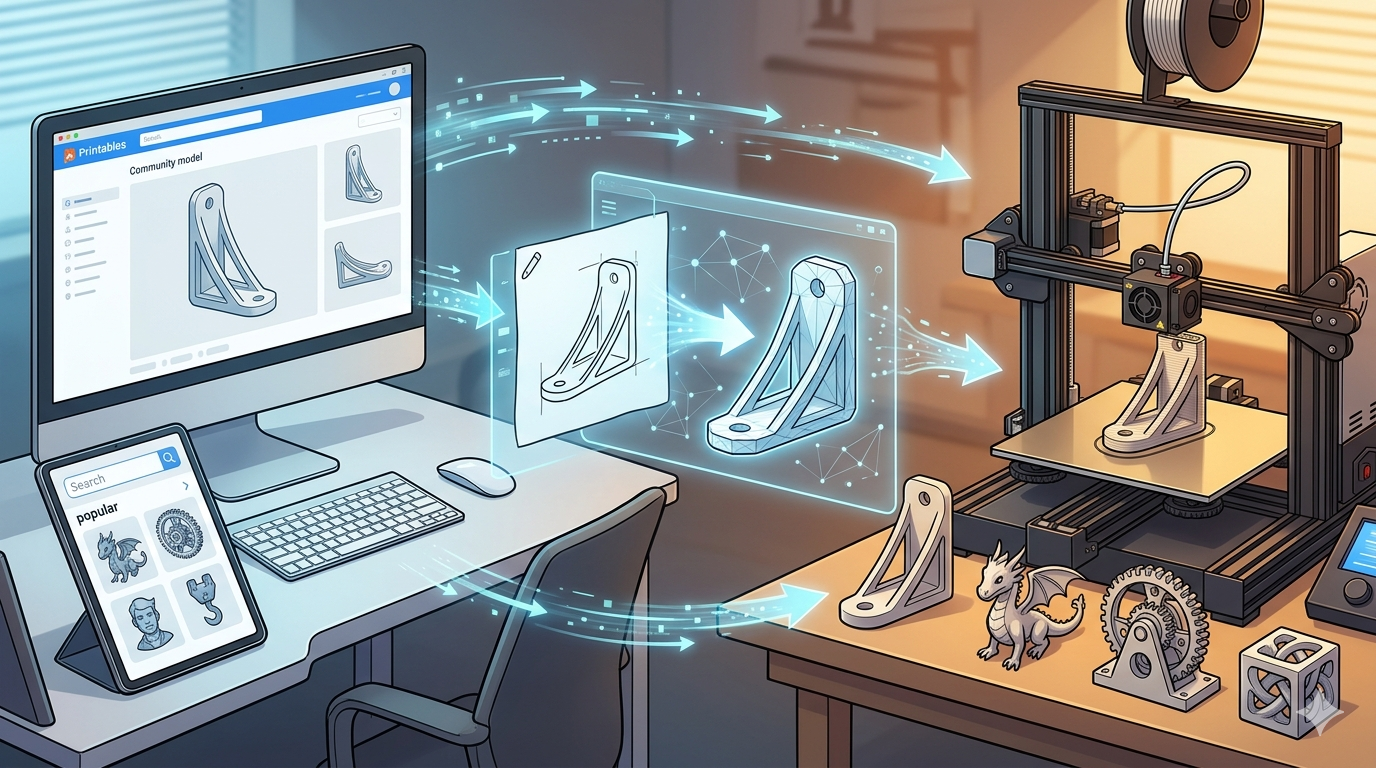
So, you have an STL file that's almost perfect, but not quite. Maybe you downloaded a model from Thingiverse and need to tweak it, or perhaps a 3D scan needs some cleanup. Whatever the reason, you've come to the right place. Working with STL files is a common task for anyone in the 3D printing world, and while it might seem daunting at first, it's definitely achievable. There are many software options available, from professional-grade CAD programs to free and user-friendly mesh editors. In this article, we'll explore some of the best tools and techniques to help you edit your STL files with confidence, which is relevant when working with how to edit stl file.
What is an STL File?: How To Edit Stl File
Before we dive into editing, let's quickly cover what an STL file is. STL (stereolithography) is a file format native to the stereolithography CAD software created by 3D Systems. It's one of the most common file formats for 3D printing. An STL file describes only the surface geometry of a three-dimensional object without any representation of color, texture, or other common CAD model attributes, which is relevant when working with how to edit stl file.
How To Edit Stl File: Understanding the Structure of STL
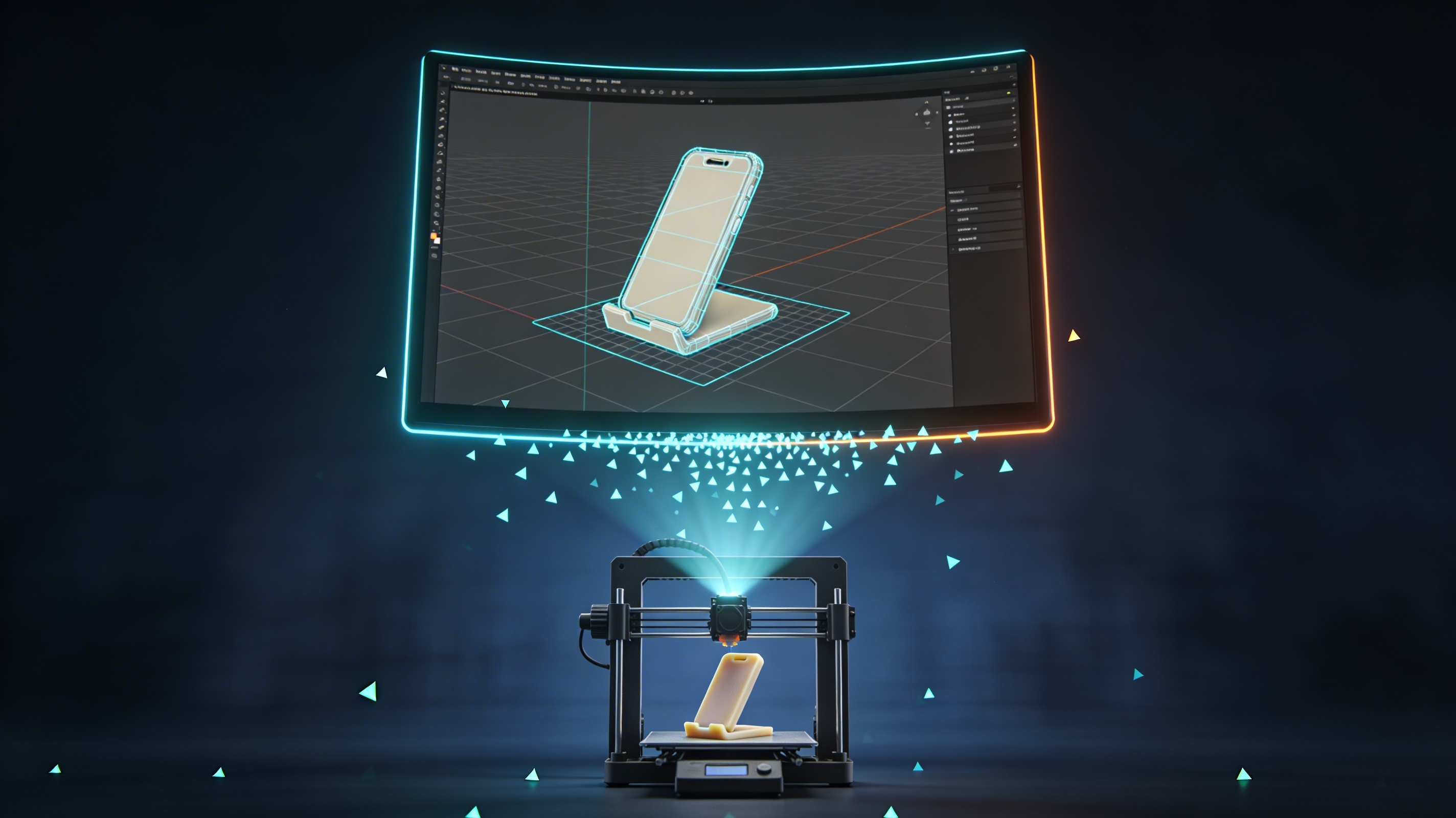
An STL file represents a 3D model as a collection of triangular facets. Each triangle is defined by a set of three vertices and a normal vector. This simple structure is what makes STL files so universal and easy to process by 3D printers. However, it also has its limitations. Since the model is made of triangles, curved surfaces are approximated, and the more triangles you have, the smoother the surface will be, but the larger the file size, which is relevant when working with how to edit stl file.
Why Edit an STL File?
There are many reasons why you might need to change a 3D model. Here are a few common scenarios:, which is relevant when working with how to edit stl file.
- Repairing a model: Sometimes, STL files have holes, non-manifold edges, or other errors that need to be fixed before they can be 3D printed.
- Modifying a design: You might want to add your own creative touch to a model, such as adding text, a logo, or combining it with another model.
- Resizing or scaling: You may need to adjust the size of a model to fit your 3D printer's build volume or to meet specific project requirements.
- Optimizing for printing: This could involve hollowing out a model to save material, adding drainage holes for resin printing, or splitting a large model into smaller parts.
Top Tools for Editing STL Files
Now for the main event: the tools. There's a wide array of software that can adjust STL files, each with its own strengths and weaknesses. Here?? a comparison of some of the most popular options, which is relevant when working with how to edit stl file.
| Tool | Best For | Price | Learning Curve | Key Features |
|---|---|---|---|---|
| Autodesk Fusion 360 | Professional and parametric modeling | Paid (Free for students/hobbyists) | Moderate | Parametric modeling, mesh to solid conversion, advanced sculpting tools |
| Tinkercad | Beginners and simple edits | Free | Easy | Intuitive interface, basic geometric shapes, easy to learn |
| Meshmixer | Mesh repair and sculpting | Free | Moderate | Advanced mesh repair tools, sculpting brushes, hollowing and analysis tools |
| Blender | Artistic and complex modeling | Free | Steep | Powerful sculpting and modeling tools, extensive add-on library, animation |
| FreeCAD | Open-source and parametric modeling | Free | Steep | Parametric modeling, modular architecture, active community |
| Hyper3D OmniCraft | AI-powered and quick edits | Freemium | Easy | AI-powered mesh editing, intuitive UI, cloud-based |
Autodesk Fusion 360
Fusion 360 is a powerful, cloud-based CAD/CAM/CAE tool. It's a favorite among engineers and designers for its parametric modeling capabilities. While not primarily a mesh editor, Fusion 360 has great tools for working with STL files. You can convert a mesh into a solid body, which then allows you to use all of Fusion 360's powerful modeling tools to make precise edits.
Pros:
- Parametric modeling allows for precise and history-based edits.
- Excellent for converting meshes to solid bodies.
- Integrates with other Autodesk products.
Cons:
- Can be overkill for simple edits.
- The free license for hobbyists has some limitations.
Tinkercad
Tinkercad is a free, web-based 3D modeling application from Autodesk. It's known for its simplicity and ease of use, making it a great starting point for beginners. You can import an STL file and edit it by adding or subtracting basic shapes. It's not the most powerful tool, but for simple modifications, it's hard to beat.
Pros:
- Extremely easy to learn and use.
- Web-based, so no installation is required.
- Great for simple edits and combining models.
Cons:
- Limited toolset for complex edits.
- Not suitable for high-polygon models.
Meshmixer
Meshmixer, another free tool from Autodesk, is often called the "Swiss Army knife" for 3D meshes. It excels at mesh repair, sculpting, and analysis. If you have a problematic STL file, Meshmixer is the tool to fix it. It can automatically detect and repair errors, and its sculpting tools allow for more organic modifications.
Pros:
- Powerful mesh repair and analysis tools.
- Excellent for sculpting and organic modeling.
- Free to use.
Cons:
- No longer in active development.
- The interface can be a bit clunky.
Blender
Blender is a free and open-source 3D creation suite. It's a powerhouse of a program that can do everything from modeling and sculpting to animation and video editing. For modifying these files, Blender's sculpting and modeling tools are second to none. However, with great power comes a steep learning curve. Blender is not the easiest tool for beginners, but if you're willing to invest the time, it can do almost anything.
Pros:
- Incredibly powerful and versatile.
- Free and open-source.
- Large and active community.
Cons:
- Steep learning curve.
- The interface can be overwhelming for new users.
FreeCAD
FreeCAD is another free and open-source parametric 3D modeler. It's a great alternative to paid software like Fusion 360. FreeCAD is highly customizable and has a dedicated workbench for working with meshes. You can convert meshes to solids, perform boolean operations, and make precise edits using its parametric modeling tools.
Pros:
- Free and open-source.
- Parametric modeling capabilities.
- Active and helpful community.
Cons:
- Steep learning curve.
- The interface is not as polished as some commercial software.
Hyper3D OmniCraft
For those looking for a more modern and AI-assisted approach, Hyper3D's AI 3D model editor, OmniCraft, is an excellent choice. It simplifies many of the complex tasks involved in mesh editing. With its intuitive interface, you can quickly repair models, reduce polygon count, and make other adjustments. It's a great tool for both beginners and experienced users who want to speed up their workflow.
Pros:
- AI-powered tools for automated mesh repair and optimization.
- Easy to use with a clean and modern interface.
- Cloud-based, so you can access your projects from anywhere.
Cons:
- Some advanced features may require a subscription.
- As a newer tool, it may not have all the features of more established software.
Step-by-Step Guide to Editing STL Files
Now that we've looked at the tools, let's walk through the general process of modifying a design file. We'll use Fusion 360 as our example, but the basic steps are similar in other parametric modeling software.
Step 1: Import Your STL File
First, you need to open your STL file in the software. In Fusion 360, you can do this by going to `File > Open` and selecting your STL file.
Step 2: Convert Mesh to a Solid Body
This is the most important step. To make precise edits, you need to convert the mesh into a solid body. In Fusion 360, you can do this by right-clicking on the mesh in the browser and selecting `Mesh to BRep`. This will create a new solid body that you can edit.
Step 3: Make Your Edits
Now the fun begins. With your model as a solid body, you can use all of the software's modeling tools to make your desired changes. You can create sketches, extrude or cut material, add fillets and chamfers, and much more.
Step 4: Export as STL
Once you're happy with your edits, you need to export the model back to an STL file. In Fusion 360, you can do this by right-clicking on the body in the browser, selecting `Save as STL`, and choosing your desired settings.
My First-Hand Experience
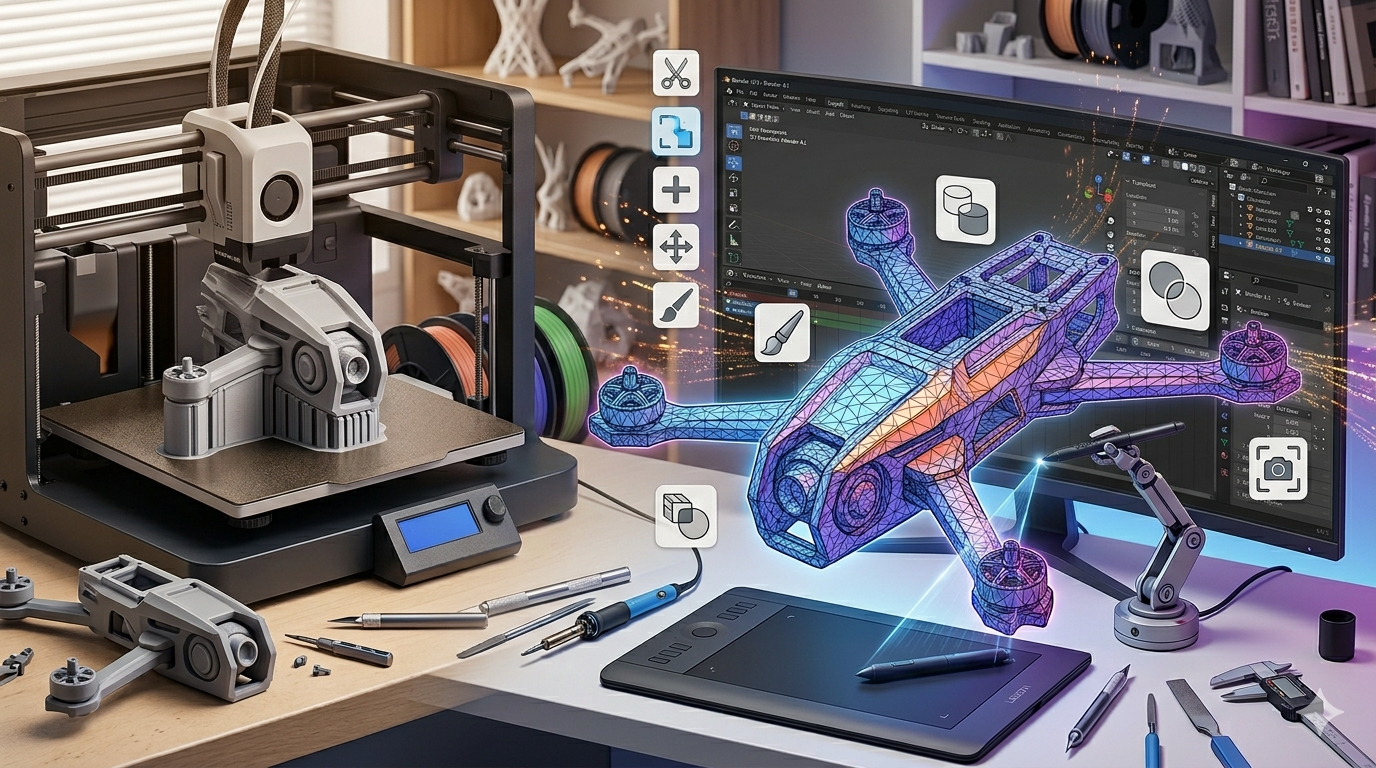
I recently worked on a project where I needed to modify a 3D model of a drone chassis that I downloaded online. The original design was great, but I needed to add a mounting bracket for a specific camera. I started by opening the STL file in a few different programs to see which one would be best for the job. I first used an STL file viewer to get a quick look at the model's structure. Then, I tried Tinkercad, but the model was too complex for its simple tools. I then moved on to Fusion 360. The process of converting the mesh to a solid body was straightforward, and from there, I was able to design and add the camera bracket with precision. The whole process took a couple of hours, but the result was a perfect custom-fit part for my drone. I also used Meshmixer to do a final check and repair any potential issues before sending it to the 3D printer.
Advanced Tips for modifying 3D models
Once you've mastered the basics, here are a few advanced techniques you can try:
Repairing Meshes
As mentioned earlier, Meshmixer is the king of mesh repair. Use its `Inspector` tool to automatically find and fix holes, non-manifold edges, and other errors in your model.
Reducing Polygon Count
High-polygon models can be difficult to work with and can slow down your software. Most mesh editing software has a tool for reducing the polygon count of a model. In Meshmixer, you can use the `Reduce` tool to intelligently remove triangles while preserving the overall shape of the model. Hyper3D's OmniCraft also has an excellent AI-powered polygon reduction feature.
Hollowing Models
Hollowing out a model is a great way to save material and reduce printing time, especially for resin printing. Meshmixer has a dedicated `Hollow` tool that makes this process easy. Just be sure to add drainage holes so that uncured resin can escape.
FAQ
Can I adjust a model in any CAD software?
Most modern CAD software can import STL files, but not all of them are great at editing them. For the best results, use a program that has good mesh editing or mesh-to-solid conversion capabilities, like Fusion 360 or FreeCAD.
What is the best free STL editor?
It depends on your needs. For beginners and simple edits, Tinkercad is a great choice. For mesh repair and sculpting, Meshmixer is hard to beat. For advanced modeling and sculpting, Blender is the most powerful option.
How do I convert an STL file to another format?
Most CAD and mesh editing software can export to a variety of file formats. Once you have your edited model, you can usually export it as an OBJ, STEP, or other common format. Hyper3D OmniCraft supports exporting to STL, FBX, OBJ, GLB, and USDZ.
Why is my edited STL file not 3D printable?
This is usually because the model has errors, such as holes or non-manifold geometry. Use a tool like Meshmixer or a dedicated 3D model repair service to fix these issues before printing.
Can AI help me edit 3D models?
Yes! AI is becoming increasingly useful in 3D modeling. Tools like Hyper3D's OmniCraft use AI to automate tasks like mesh repair, polygon reduction, and even texturing. This can save you a lot of time and effort, especially on complex models. You can learn more about Hyper3D's tools on their website.
For more tips and tutorials on 3D modeling and printing, check out the Hyper3D blog.