How to Optimize 3D Models: Reduce Poly Count with AI
Optimizing 3D models is a crucial step in any 3D workflow, whether you're creating assets for games, AR/VR experiences, or the web. A high polygon count can lead to slow loading times, poor performance, and a frustrating user experience. In this tutorial, we'll explore how to optimize your 3D models, with a focus on reducing the poly count using both traditional methods and AI-powered tools. We'll cover everything from the basics of what optimization is to a step-by-step guide and a comparison of the top tools available, including Blender, ZBrush, and Hyper3D, which is relevant when working with optimize 3d models.
What is 3D Model Optimization?: Optimize 3D Models
fundamentally, 3D model optimization is the process of reducing the file size and complexity of a 3D model without a significant loss in visual quality. This is essential for real-time applications where performance is key. The practice dates back to the early days of 3D graphics, when hardware limitations were a major constraint. As 3D models become more complex and are used in a wider range of applications, optimization has become more important than ever, which is relevant when working with optimize 3d models.
Optimize 3D Models: Understanding Polygon Count and its Impact
Every 3D model is made up of polygons, which are flat, two-dimensional shapes that form the surface of the model. The more polygons a model has, the more detailed it will appear. However, a high polygon count also means more data for the computer to process, which can lead to performance issues. This is especially true for web-based and mobile applications where bandwidth and processing power are limited. For example, a 3D model with millions of polygons might look great in a pre-rendered cinematic, but it would be completely unusable in a real-time mobile game, which is relevant when working with optimize 3d models.
The Goal: Balancing Quality and Performance
The main goal of 3D model optimization is to find the right balance between visual fidelity and performance. You want your models to look great, but they also need to run smoothly on your target platform. This often involves a series of trade-offs, and the right balance will depend on the specific needs of your project. For instance, a model for a high-end PC game can have a higher polygon count than a model for a mobile AR app. The key is to understand the technical limitations of your target platform and optimize your models accordingly, which is relevant when working with optimize 3d models.
How 3D Model Optimization Works
There are several techniques you can use to optimize your 3D models. Here are some of the most common ones:, which is relevant when working with optimize 3d models.
Key Techniques for Optimization
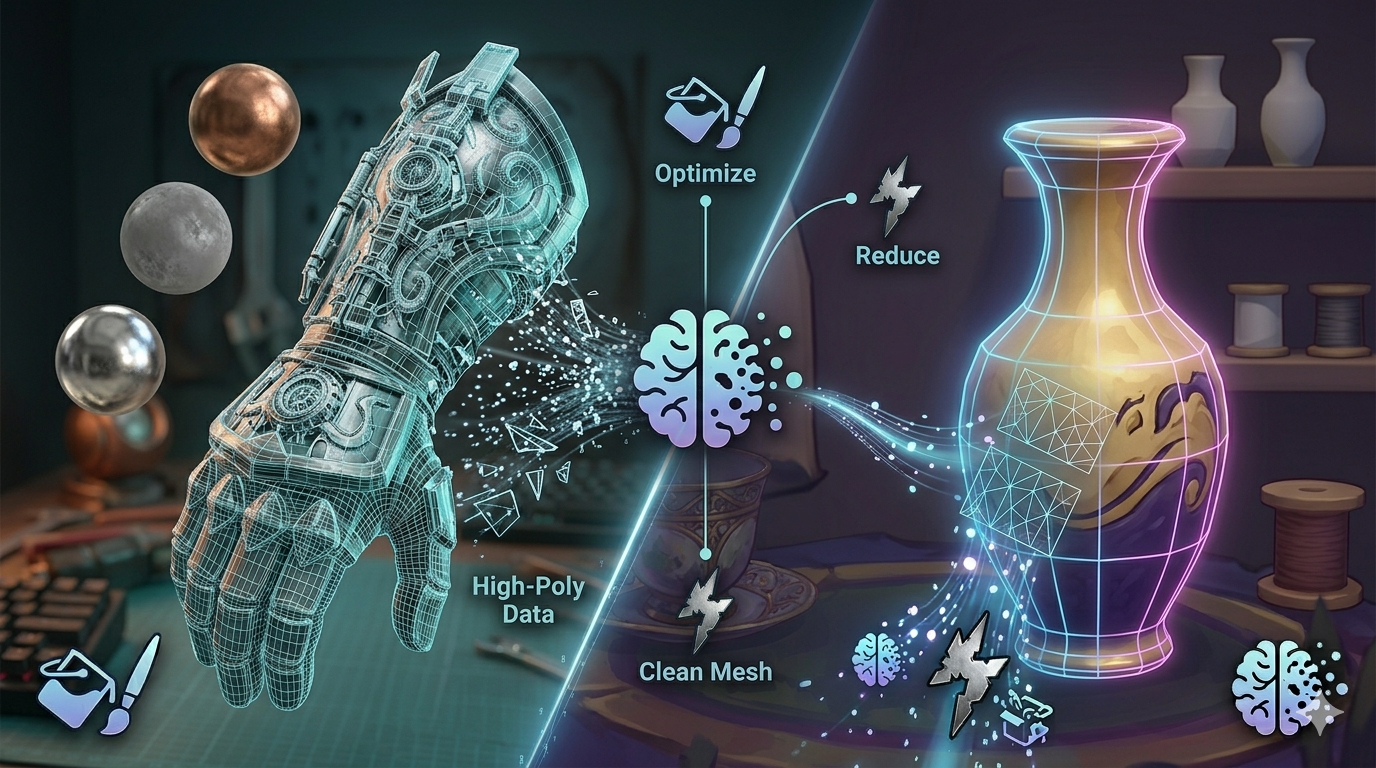
- Decimation: This is the process of reducing the number of polygons in a model. Most 3D modeling software has a decimation tool that can automatically reduce the polygon count. However, this can sometimes result in a loss of detail, so it's important to use it carefully. It's often a good first step in the optimization process, but it's rarely the only one.
- Retopology: This is the process of creating a new, cleaner mesh with fewer polygons. This is often done manually and can be a time-consuming process, but it gives you more control over the final result. A good retopology workflow is essential for creating high-quality, low-poly models. Automated retopology tools are becoming more common, but they still can't match the quality of a skilled artist.
- Texture Baking: This technique involves transferring details from a high-poly model to a low-poly model's texture maps. This allows you to create a model that looks highly detailed but has a low polygon count. Normal maps, ambient occlusion maps, and other texture maps can all be used to add detail to a low-poly model.
- LOD (Level of Detail): This involves creating multiple versions of a model with different polygon counts. The version that is displayed depends on the camera's distance from the model. This is a common technique used in video games to improve performance. For example, a character model might have a high-poly version for close-ups and a low-poly version for when it's far away.
- UV Unwrapping and Packing: Efficiently unwrapping your model's UVs and packing them into as few texture maps as possible can also significantly improve performance. This reduces the number of draw calls and the amount of memory required to render the model.
Top Tools for 3D Model Optimization: A Comparison
There are many tools available for 3D model optimization, each with its own strengths and weaknesses. Here's a comparison of some of the most popular options:, which is relevant when working with optimize 3d models.
Hyper3D's OmniCraft
- Pros: Hyper3D's AI 3D model optimizer is an AI-powered tool that makes it easy to optimize your 3D models. It's integrated with other Hyper3D tools like Rodin for generation and ChatAvatar for face generation, making it a great choice for users who are already in the Hyper3D ecosystem. It's also very user-friendly, making it a good option for both beginners and professionals. The AI can intelligently reduce polygon count while preserving important details, which can save a lot of time compared to manual optimization.
- Cons: As a cloud-based tool, it may offer less manual control compared to traditional desktop software. For those who need a production 3D model generator, this is a great option.
Blender
- Pros: Blender is a free and open-source 3D modeling software with a powerful set of optimization tools. It has a large and active community, so there are plenty of tutorials and resources available online. You can learn more about Blender at blender.org. Its Decimate modifier is a quick and easy way to reduce polygon count, and its manual retopology tools are very powerful.
- Cons: Blender has a steep learning curve and can be overwhelming for beginners. Its interface is not as intuitive as some other tools, and it can take some time to learn how to use its optimization tools effectively.
ZBrush
- Pros: ZBrush is the industry standard for digital sculpting and is known for its excellent retopology tools. It's a great choice for creating highly detailed models that are optimized for performance. Visit the ZBrush website at pixologic.com to learn more. Its ZRemesher tool is one of the best automated retopology tools available.
- Cons: ZBrush is a specialized tool that is primarily focused on sculpting. It's also quite expensive, which may be a barrier for some users. While it's great for creating optimized models, it's not a full-featured 3D modeling package.
Simplygon
- Pros: Simplygon is a powerful, automated optimization tool that is widely used in the gaming industry. It can quickly and easily optimize your models with minimal manual intervention. More information is available at simplygon.com. It's a great choice for studios that need to optimize a large number of assets on a regular basis.
- Cons: Simplygon is a commercial tool with a licensing fee, which can be expensive for individual artists or small studios. It's also a standalone tool, so it needs to be integrated into your existing workflow.
My First-Hand Experience with 3D Model Optimization
I recently worked on a project that involved creating a detailed 3D model of a car for a web-based configurator. The initial model had a very high polygon count, and it was causing performance issues in the browser. I used a combination of Blender and Hyper3D's OmniCraft to optimize the model. First, I used Blender's decimate modifier to reduce the polygon count. Then, I imported the model into OmniCraft to further optimize it using its AI-powered tools. The result was a model that looked almost identical to the original but had a significantly lower polygon count. This greatly improved the performance of the web configurator. The AI in OmniCraft was particularly helpful in preserving the fine details of the car's interior, which would have been very time-consuming to do manually, which is relevant when working with optimize 3d models.
Step-by-Step Guide to Optimizing a 3D Model
1. Analyze your model: The first step is to analyze your model to identify any areas that can be optimized. Look for areas with a high polygon density that don't contribute much to the overall detail of the model. Most 3D modeling software has tools for visualizing polygon density, which is relevant when working with optimize 3d models.
2. Choose the right tool: Choose the optimization tool that is best suited for your needs. If you're a beginner, you might want to start with a user-friendly tool like Hyper3D's OmniCraft. If you're a professional, you might prefer a more powerful tool like Blender or ZBrush, which is relevant when working with optimize 3d models.
3. Decimate your model: Use the decimation tool to reduce the polygon count of your model. Be sure to check the model after each decimation to ensure that you're not losing too much detail. It's a good idea to save a backup of your model before you start decimating it, which is relevant when working with optimize 3d models.
4. Retopologize your model: If necessary, retopologize your model to create a cleaner, more optimized mesh. This is especially important for models that will be animated.
5. Bake your textures: If you're using a high-poly to low-poly workflow, you'll need to bake your textures to transfer the details from the high-poly model to the low-poly model. This is a crucial step for achieving high-quality results with a low-poly model.
6. Test your model: Finally, test your model in your target application to ensure that it's performing well. This is an important step that should not be skipped. You should test your model on a variety of hardware to ensure that it performs well for all users.
Advanced Optimization Tips
- Use LODs: If your application supports it, use LODs to further improve performance. This is a must-have for any game with a large open world.
- Optimize your textures: In addition to optimizing your model's geometry, you should also optimize your textures. Use compressed texture formats and reduce the resolution of your textures where possible. For example, you don't need a 4K texture for a small prop that will only be seen from a distance.
- Use instances: If you have multiple copies of the same model in your scene, use instances instead of creating new copies of the model. This can significantly reduce memory usage.
- Optimize your shaders: Complex shaders can also be a performance bottleneck. Use simple shaders whenever possible, and avoid using too many shader effects.
FAQ
What is a good polygon count for a 3D model?
There is no one-size-fits-all answer to this question. A good polygon count depends on the specific needs of your project. For web and mobile applications, you'll want to keep the polygon count as low as possible, typically under 100,000 polygons. For high-end games and visual effects, you can get away with a higher polygon count, sometimes in the millions.
How do I check the polygon count of my model?
Most 3D modeling software will display the polygon count of your model in the user interface. You can also use a tool like Hyper3D's OmniCraft to analyze your model and get a detailed breakdown of its polygon count.
What is the difference between polygons and triangles?
Polygons are flat, two-dimensional shapes that can have any number of sides. Triangles are a specific type of polygon with three sides. In real-time graphics, all polygons are converted to triangles before they are rendered. This is because triangles are the simplest polygon and are very easy for graphics hardware to process.
Can I optimize a model without losing any quality?
It's not possible to optimize a model without losing some quality. However, with the right techniques, you can minimize the loss of quality and create a model that looks almost identical to the original. The key is to be smart about where you reduce detail. For example, you can remove polygons from flat surfaces without a noticeable loss in quality.
What are some other internal links I can use?
You can find more information about 3D modeling and optimization on the Hyper3D blog. You can also check out our 3D asset library for a collection of pre-optimized models. For more on our tools, see the main tools page.
What is the best file format for optimized 3D models?
For web-based applications, glTF and GLB are the recommended file formats. They are designed for efficient transmission and loading of 3D scenes and models. For other applications, FBX and OBJ are common choices. Hyper3D supports STL, FBX, OBJ, GLB, and USDZ formats.
Where can I find optimized 3D models?
If you're looking for pre-optimized 3D models, you can check out the Hyper3D asset library. It has a wide variety of models that are ready to use in your projects.