USDZ AR: Creating AR-Ready 3D Models for iPhone
Augmented reality is changing how we interact with the digital and physical worlds. For anyone with an iPhone or iPad, AR is already in your pocket. A key technology making this possible is the USDZ AR file format. If you're a 3D artist looking to get your models into USDZ AR experiences, understanding USDZ AR is essential. This guide will walk you through what USDZ is, how to create USDZ AR files, and compare some of the top tools for the job.
What is USDZ?
USDZ is a 3D file format developed by Apple and Pixar specifically for USDZ AR. Think of it as a package that holds all the necessary information for a 3D model ??including textures, animations, and lighting ??in a single, compact file. This makes it incredibly easy to share and view 3D models in USDZ AR on Apple devices. You can embed them in websites, send them in messages, or use them in USDZ AR apps. The "Z" in USDZ stands for "zip," indicating that it's a zipped archive, which makes the file size smaller and more portable for mobile experiences.
How does it work?
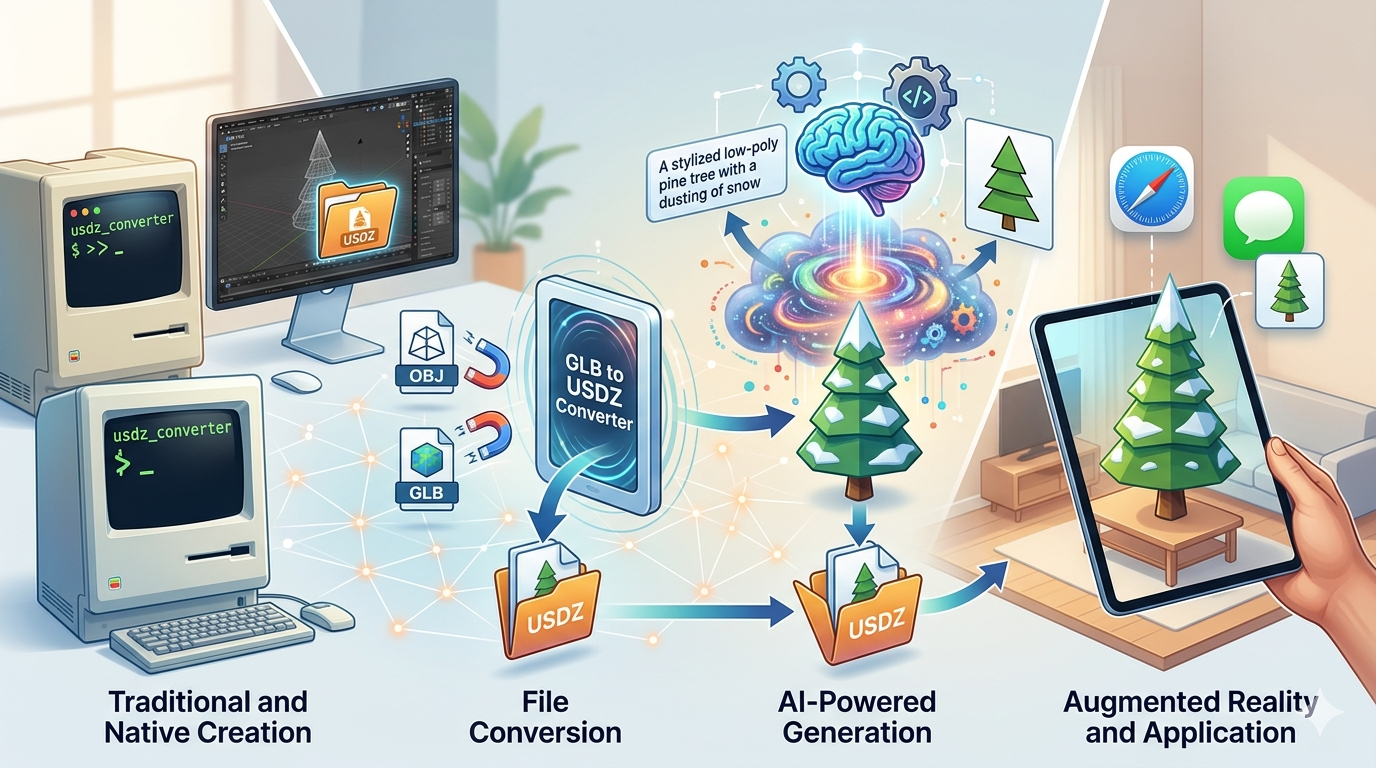
fundamentally, USDZ is based on Pixar's Universal Scene Description (USD) technology. USD is a powerful framework for describing 3D scenes, and USDZ is the distribution format that bundles everything together. When you open a USDZ file on an iPhone or iPad, it automatically launches in AR Quick Look, Apple's built-in AR viewer. This allows you to place the 3D model in your environment and interact with it in real-time. This smooth integration is what makes USDZ AR so powerful for AR on iOS. There are no special apps to download; it just works.
Top Tools for Creating USDZ AR Files
There are several tools available for creating USDZ AR files, each with its own strengths and weaknesses. Here's a look at some of the most popular options:
Vectary
Vectary is a browser-based 3D modeling tool that's great for beginners and experienced artists alike. It has a user-friendly interface and a powerful set of features for creating and editing 3D models. Vectary also has a built-in USDZ exporter, making it easy to create USDZ AR-ready models.
Pros:
- Easy to use, even for beginners.
- Runs entirely in your web browser, so there's no software to install.
- Good selection of modeling and texturing tools.
Cons:
- The free version has some limitations.
- Can be slow with very complex models.
Adobe Aero
Adobe Aero is a powerful tool for creating interactive AR experiences. It's designed to be used with other Adobe Creative Cloud apps like Photoshop and Dimension, making it a great choice for artists who are already in the Adobe ecosystem. Aero has a visual scripting interface that lets you add animations and interactivity to your AR scenes without writing any code.
Pros:
- smooth integration with other Adobe apps.
- Powerful visual scripting for creating interactive experiences.
- High-quality rendering and lighting.
Cons:
- Requires a Creative Cloud subscription.
- Can be complex for beginners.
Reality Composer
Reality Composer is Apple's own tool for creating AR experiences. It's a free app for iOS, iPadOS, and macOS that lets you build interactive AR scenes with a simple drag-and-drop interface. Reality Composer is a great way to get started with AR development, and it's fully integrated with ARKit, Apple's augmented reality framework.
Pros:
- Free to use.
- Simple and intuitive interface.
- Full integration with ARKit.
Cons:
- Only available on Apple devices.
- Limited modeling and texturing capabilities.
Hyper3D
Hyper3D is a versatile platform that offers a suite of tools for 3D content creation, including Rodin for generation, and OmniCraft for editing. It supports exporting to various formats, including USDZ. With Hyper3D, you can easily convert your existing 3D models or create new ones and prepare them for AR. You can even generate 3D models from text prompts with the Rodin tool.
Pros:
- Supports a wide range of file formats for import and export (STL, FBX, OBJ, GLB, USDZ).
- Offers different generation modes for creating 3D models from text or images.
- Includes an online USDZ file viewer for easy previewing.
- Provides a GLB to USDZ converter for easy conversion of assets.
Cons:
- As a newer platform, some advanced features may still be in development.
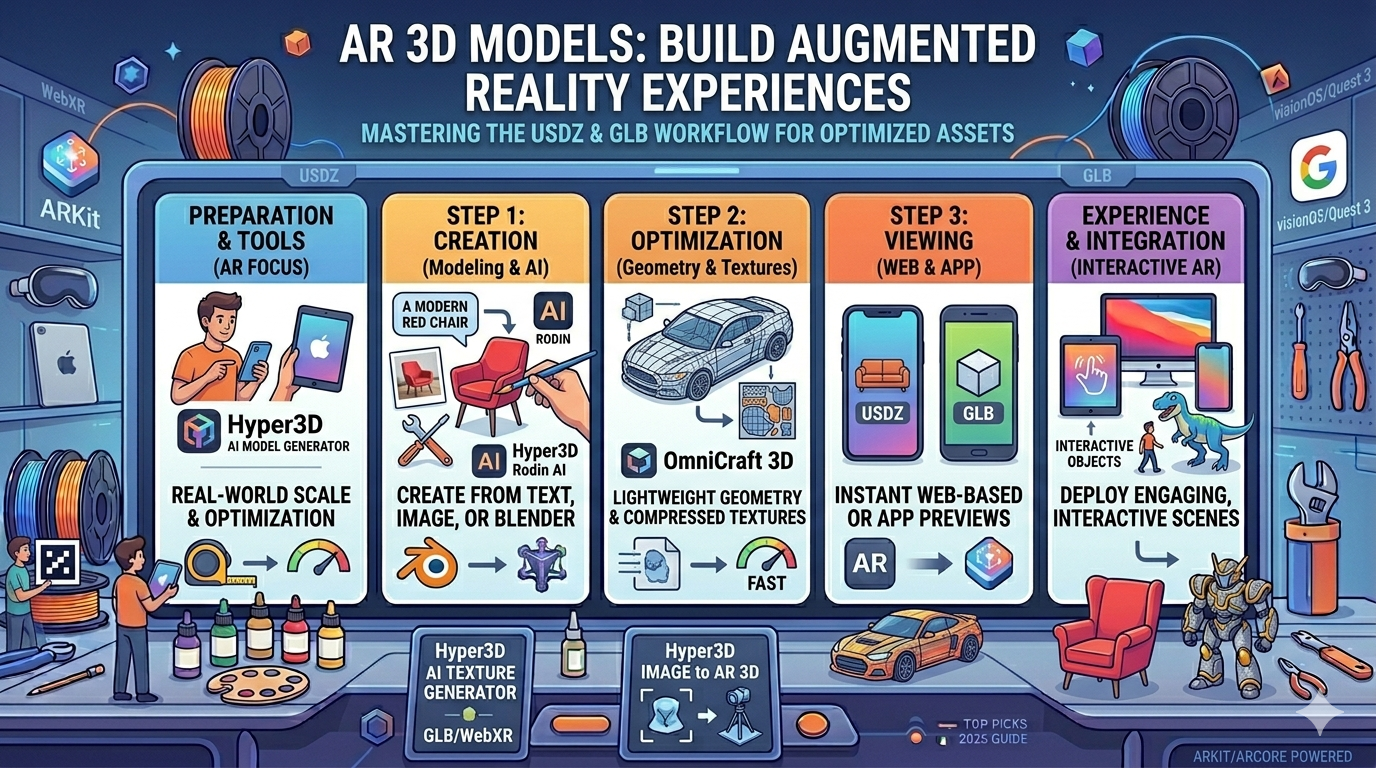
Step-by-Step Guide to Creating a USDZ AR file
Creating a this approach file involves a few key steps:
Modeling your 3D asset
The first step is to create your 3D model. You can use any 3D modeling software you're comfortable with, such as Blender, Maya, or 3ds Max. When modeling for this approach, it's important to keep your polygon count low to ensure smooth performance on mobile devices. A good target is under 100,000 polygons. Pay attention to the topology of your model to ensure it deforms correctly if you plan to add animations.
Texturing and Materials
Once you have your model, you'll need to apply textures and materials. For realistic-looking models, it's best to use Physically Based Rendering (PBR) materials. This involves creating texture maps for properties like color, roughness, and metallic. Most modern 3D software supports PBR workflows. Ensure your textures are optimized for mobile by keeping the resolution as low as possible without sacrificing quality. A 2048x2048 texture is often sufficient for most mobile AR applications.
Exporting to USDZ
The final step is to export your model to the USDZ AR format. If your 3D software doesn't have a built-in USDZ exporter, you can use a converter. A great option is the GLB to USDZ converter from Hyper3D. GLB is another popular 3D file format that's well-suited for AR, and converting it to USDZ is a straightforward process. You can also use Apple's Reality Converter tool to convert various 3D file formats to USDZ.
My First-Hand Experience
I've spent a good amount of time working with these tools to create this approach files for various AR projects. I started with a model I created in Blender and wanted to see how easily I could get it into an AR experience. I first tried Vectary, and I was impressed with how quickly I could import my model, make a few tweaks, and export it as a USDZ file. The whole process of creating a USDZ AR file took less than 15 minutes.
Next, I wanted to add some interactivity, so I turned to Adobe Aero. I was able to import my this approach file and use the visual scripting tools to make the model animate when I tapped on it. The integration with Creative Cloud was a huge plus, as I could easily bring in textures I had created in Photoshop.
Finally, I used Hyper3D to convert a few of my existing GLB models to USDZ. The GLB to USDZ converter was incredibly fast and easy to use. I also used the USDZ file viewer to preview my models before sending them to my iPhone. The ability to quickly check my work in a browser was a huge time-saver. I also experimented with the Rodin tool to generate a simple object from a text prompt, andI was able to get a USDZ AR file ready for AR in just a few minutes.
Advanced Tips for USDZ AR Creation
Once you've mastered the basics, here are a few advanced tips to take your this approach creations to the next level:
Optimizing for Performance
To ensure your this approach experiences run smoothly, it's crucial to optimize your models for performance. This includes keeping your polygon count low, using efficient textures, and minimizing the number of materials. For textures, use powers of two for your dimensions (e.g., 1024x1024 or 2048x2048) and compress them where possible. Also, consider using texture atlases to reduce the number of draw calls.
Adding Interactivity
Static 3D models are cool, but interactive ones are even better. With tools like Adobe Aero and Reality Composer, you can add animations, sounds, and other interactive elements to your AR scenes. This can make your experiences much more engaging for users. You can also add simple animations to your USDZ files using tools like Blender before exporting them.
Using Variants
USDZ supports variants, which allow you to create different versions of a model within a single file. For example, you could create a chair with different fabric options. This is a powerful feature for e-commerce and product visualization, as it allows users to customize products in AR. You can learn more about creating variants on the Hyper3D blog.
FAQ
What's the difference between USD and USDZ?
USD (Universal Scene Description) is a file format for describing 3D scenes, while USDZ is a compressed archive format that packages a USD scene and its assets into a single file for distribution.
Can I use USDZ AR files on Android devices?
While USDZ is an Apple format, there are some third-party apps that allow you to view USDZ files on Android. However, for the best experience, it's recommended to use GLB for Android and USDZ for iOS. Many platforms, like Hyper3D, support both formats.
How do I view a USDZ AR file on my iPhone?
Simply tap on the USDZ file, and it will automatically open in AR Quick Look. You can then place the 3D model in your environment and interact with it.
What is the maximum file size for a USDZ AR file?
There's no strict maximum file size, but for a good user experience, it's best to keep your USDZ files as small as possible. A good target is under 10MB. For more complex scenes, you might need to go larger, but always test on a variety of devices to ensure good performance.
Where can I find more information about USDZ?
Apple's developer website has a wealth of information about USDZ and ARKit. You can also find helpful tutorials and resources on websites like the Hyper3D blog.
What is USDZ AR?
this approach refers to the use of the USDZ file format for creating augmented reality experiences on Apple devices. It has become the standard for AR on iOS due to its smooth integration with AR Quick Look.
Can I animate a USDZ AR file?
Yes, USDZ files can contain animations. You can create animations in your 3D modeling software and export them as part of the USDZ file. You can also add animations using tools like Adobe Aero and Reality Composer.
How do I share a USDZ AR file?
You can share a USDZ file just like any other file. You can email it, send it in a message, or host it on a website. When a user on an iOS device taps a link to a USDZ file, it will open in AR Quick Look. You can also generate a QR code that links to your USDZ file for easy sharing in print or on displays. Check out the AR QR code generator on Hyper3D for an easy way to do this.