How to UV Unwrap in Blender: Step-by-Step
If you're a 3D artist, you've probably heard the term "UV unwrapping" thrown around. It might sound complicated, but it's a fundamental skill that's essential for creating realistic and detailed 3D models. Whether you're using Blender, Maya, 3ds Max, or another 3D software, understanding how to UV unwrap is a must. In this tutorial, we'll break down the process of UV unwrapping in Blender, step-by-step. And once you've mastered UV unwrapping, you can take your texturing to the next level with tools like Hyper3D's AI texture generator, which is relevant when working with uv unwrap blender.
What is UV Unwrapping?: Uv Unwrap Blender
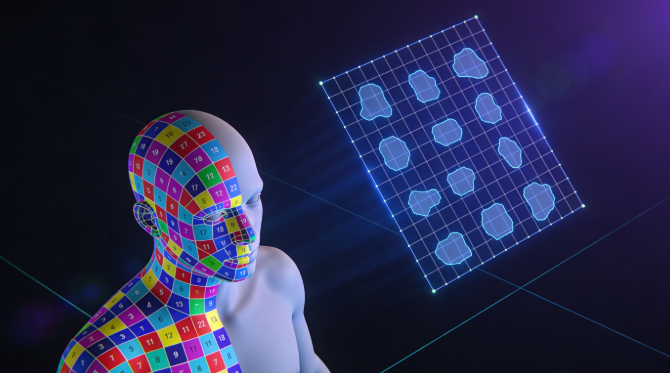
So, what exactly is UV unwrapping? Think of it like peeling an orange. You're taking the 3D surface of your model and flattening it out into a 2D image. This 2D representation is called a UV map. The "U" and "V" are the axes of the 2D texture, just like X, Y, and Z are the axes of the 3D model. By creating a UV map, you're telling the 3D software how to apply a 2D texture to your 3D object. Without a proper UV map, your textures will look stretched, distorted, and unprofessional, which is relevant when working with uv unwrap blender.
Proper UV unwrapping is crucial for creating smooth and realistic textures. It allows you to control exactly how a texture wraps around your model, ensuring that there are no visible seams or weird distortions. This is especially important for character models, where you need to apply detailed textures for skin, clothing, and accessories, which is relevant when working with uv unwrap blender.
How UV Unwrapping Works in Blender: Uv Unwrap Blender
In Blender, the UV unwrapping process involves a few key steps: marking seams, unwrapping the model, and then editing the UVs in the UV Editor. Blender offers several unwrapping methods, each with its own strengths and weaknesses. The most common methods are:, which is relevant when working with uv unwrap blender.
- Unwrap: This is the manual method, where you mark seams on your model to guide the unwrapping process. This gives you the most control over the final result.
- Smart UV Project: This is an automatic method that's great for quick and simple unwraps. However, it can sometimes create a lot of small UV islands, which can be difficult to work with.
- Project from View: This method unwraps the model based on the current view in the 3D viewport. It's useful for simple objects or for creating decals.
Top Tools for UV Unwrapping
While Blender's built-in UV unwrapping tools are powerful, there are also a number of third-party tools that can help you create even better UV maps. Here's a comparison of some of the top tools for UV unwrapping:, which is relevant when working with uv unwrap blender.
| Tool | Pros | Cons |
|---|---|---|
| Blender | Free, powerful, and well-integrated into the Blender workflow. | Can be time-consuming for complex models, packing algorithm isn't the most efficient. |
| UV Packmaster | Advanced packing algorithms for efficient use of UV space, many features for optimizing UVs. | Paid add-on. |
| RizomUV | Standalone software with a focus on UV unwrapping, very powerful and fast. | Paid software, requires exporting and importing models. |
Step-by-Step Guide to UV Unwrapping in Blender
Now, let's dive into the step-by-step process of UV unwrapping in Blender.
Preparing Your Model
Before you start unwrapping, it's important to prepare your model. This includes applying the scale and rotation of your object. You can do this by selecting your object and pressing `Ctrl+A` and choosing "All Transforms". It's also a good idea to check for and fix any common geometry issues, such as non-manifold geometry, which is relevant when working with uv unwrap blender.
Marking Seams
Marking seams is the most important step in the UV unwrapping process. Seams are what tell Blender where to "cut" the model to flatten it out. A good rule of thumb is to place seams along hard edges or in areas that are less visible, such as the inside of a character's arm or the bottom of a prop. To mark a seam, select an edge or a series of edges in Edit Mode, and then press `Ctrl+E` and choose "Mark Seam", which is relevant when working with uv unwrap blender.
Unwrapping Your Model
Once you've marked your seams, it's time to unwrap your model. In Edit Mode, select all of your model's faces, and then press `U` and choose "Unwrap". Blender will then unwrap your model based on the seams you've marked. You can also try the "Smart UV Project" method for a quick and automatic unwrap, which is relevant when working with uv unwrap blender.
Editing and Optimizing Your UVs
After you've unwrapped your model, you'll need to edit and optimize your UVs in the UV Editor. The UV Editor is where you can see your 2D UV map. You can move, rotate, and scale your UV islands to make the most of your texture space. It's also a good idea to straighten out any crooked UVs and to average the scale of your UV islands to ensure that your textures are applied evenly.
My First-Hand Experience with UV Unwrapping Tools
I've been using Blender for years, and I've unwrapped countless models. I remember one project in particular, a detailed character model for a short film. I spent hours manually marking seams and tweaking the UVs to get them just right. It was a tedious process, but the end result was worth it. The textures looke and realistic, and the character came to life on screen.
More recently, I've started using UV Packmaster, and it's been a huge time-saver. The packing algorithm is so much more efficient than Blender's default packer, and it has a ton of great features for optimizing UVs. I also tried RizomUV once, and while it's incredibly powerful, I found that the process of exporting and importing models was a bit of a hassle. For my workflow, I prefer to stay within Blender as much as possible.
Advanced UV Unwrapping Tips
Once you've mastered the basics of UV unwrapping, you can start to explore some more advanced techniques.
Working with Complex Models
Unwrapping complex models, such as characters or vehicles, can be a challenge. The key is to break the model down into smaller, more manageable pieces. For a character, you might unwrap the head, torso, arms, and legs separately. This will make it easier to manage your UVs and to get a clean unwrap.
Texel Density
Texel density is the amount of texture resolution that's applied to a given area of your model. It's important to maintain a consistent texel density across your model to ensure that your textures look uniform. You can use a checkerboard texture to help you visualize the texel density of your model.
UDIMs
UDIMs (U-Dimension) are a way of using multiple UV grids for a single model. This is useful for models that require a lot of texture detail, such as a high-resolution character or a detailed environment. By using UDIMs, you can assign different textures to different parts of your model, which can help to improve performance and to make your textures more manageable.
FAQ
How do I know where to place seams?
A good rule of thumb is to place seams along hard edges or in areas that are less visible. For organic models, like characters, you'll want to place seams in natural creases, like the inside of the arms or the back of the legs.
Why are my textures stretched or distorted?
Stretched or distorted textures are usually a sign of a bad UV unwrap. Make sure that you've marked your seams correctly and that you've applied the scale and rotation of your object.
What is the best UV unwrapping method?
There's no single "best" method for UV unwrapping. The best method will depend on the complexity of your model and on your personal workflow. For simple models, the "Smart UV Project" method can be a quick and easy solution. For more complex models, you'll want to use the manual "Unwrap" method to get the most control over your UVs.
Can I UV unwrap multiple objects at once?
Yes, you can unwrap multiple objects at once in Blender. Simply select all of the objects you want to unwrap, and then enter Edit Mode. You can then mark seams and unwrap the objects as if they were a single object.
How can I make my UVs more efficient?
To make your UVs more efficient, you'll want to pack your UV islands as tightly as possible. This will help to minimize wasted texture space. You can also use a tool like UV Packmaster to automatically pack your UVs for you.
Conclusion
UV unwrapping is a fundamental skill for any 3D artist. It may seem daunting at first, but with a little practice, you'll be able to create clean and efficient UV maps for all of your models. And once you've mastered UV unwrapping, you can take your texturing to the next level with tools like Hyper3D's AI texture generator and image to 3D converter. So what are you waiting for? Start practicing your UV unwrapping skills today!
And if you're looking for more ways to enhance your 3D models, be sure to check out our other tools, like the 3D model converter and the 3D model viewer. We also have a great article on how to create a 3D model from photos.