What Is USDZ? Apple AR File Format Explained
In the world of 3D, we??e constantly juggling different file formats. Whether you??e a seasoned 3D artist or just starting, you??e likely heard of formats like OBJ, FBX, and GLB. But there?? another format that?? been gaining traction, especially in the area of augmented reality: USDZ. What is USDZ, and why should you care about it? In this guide, we'll explore what this format is, how it works, and how you can use it in your projects. We'll also look at some of the best tools for creating and viewing USDZ files, including options from various platforms to give you a clear picture of the landscape.
What is the USDZ File Format?: What Is Usdz
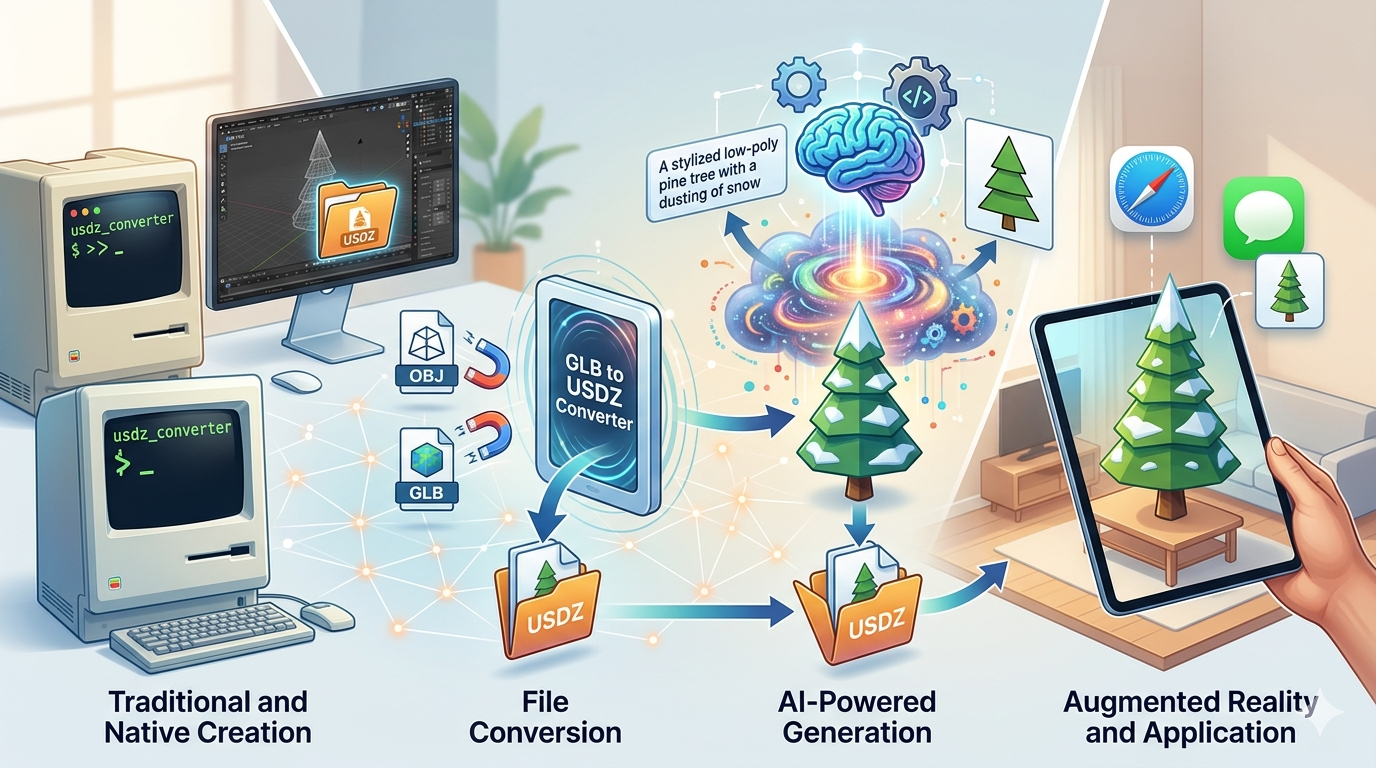
USDZ, which stands for Universal Scene Description Zip, is a 3D file format developed by Apple in collaboration with the animation wizards at Pixar. It was introduced back in 2018 with a clear goal: to make sharing and experiencing 3D and augmented reality (AR) content on Apple devices incredibly simple. The best way to think about it is as a self-contained package or a container. It?? a zip file that bundles everything needed to display a 3D model??he geometry, materials, textures, and even complex animations??nto a single, easy-to-share file, which is relevant when working with what is usdz.
The foundation of USDZ is Pixar's open-source Universal Scene Description (USD) technology. USD is a powerful and flexible framework for exchanging 3D scene data between different applications, and it's used heavily in the visual effects industry. The 'Z' in USDZ simply signifies that it's a zipped, or packaged, version of a USD scene. This packaging makes it a portable and highly efficient format for AR experiences on iPhones and iPads, primarily through Apple's AR Quick Look feature, which is relevant when working with what is usdz.
While other formats like GLB and glTF are more universally used across different platforms (including web and Android), USDZ is the go-to native format for AR on iOS. If you've ever tapped on a product on a shopping website with your iPhone and instantly viewed it in your room, you've likely experienced the magic of USDZ, which is relevant when working with what is usdz.
How Does USDZ Work?: What Is Usdz
fundamentally, a USDZ file is a zero-compression Zip archive. This might sound a bit technical, but it's a key feature. It means that while it?? a package of multiple files, an application can see and use the files inside without having to decompress the entire archive first. This is crucial for the fast, real-time performance needed in AR applications. You don't want to wait for a file to slowly unpack before you can see the 3D object, which is relevant when working with what is usdz.
Inside this package, you'll typically find a few different types of files:
- USD files (.usd, .usda, .usdc): These are the main event. They contain the 3D scene description, which includes the model's structure (geometry), its appearance (materials), and how it moves (animations).
- Image files (.png, .jpeg): These files are the textures??he detailed surface images that are wrapped around the 3D models to make them look realistic. Think wood grain, fabric weave, or metallic sheens.
- Audio files (.m4a, .mp3, .wav): These files can be included to add sound effects or ambient audio to the AR experience, making it more immersive.
One of the most powerful features of USDZ is its solid support for Physically-Based Rendering (PBR) materials. PBR is a method that simulates how light interacts with surfaces in the real world. It uses specific texture maps??ike albedo (the base color), metallic (how much it looks like metal), roughness (how matte or shiny it is), and normal (for faking surface details)??o create incredibly realistic 3D models that look correct and believable in any lighting condition. USDZ also supports various animation types, from simple object movements to complex character rigs, allowing for the creation of dynamic and interactive AR scenes, which is relevant when working with what is usdz.
Top USDZ Tools Compared
Now that we have a good understanding of what USDZ is, let's look at the tools you can use. The ecosystem has grown, and there are great options for viewing, converting, and creating these files, which is relevant when working with what is usdz.
USDZ Viewers
| Tool | Pros | Cons |
|---|---|---|
| Hyper3D USDZ Viewer | - Web-based, no installation needed. - Simple drag-and-drop interface. - Supports other formats like GLB and OBJ. | - Requires an internet connection. - May not have advanced inspection tools. |
| Apple AR Quick Look | - Native to iOS, smooth experience. - No app to install. - Integrated into Safari, Mail, and Messages. | - Only available on Apple devices. - No editing or inspection capabilities. |
| Vectary | - Powerful online 3D editor with viewing. - Can inspect and edit materials and geometry. - Part of a larger creative suite. | - Can be overkill for just simple viewing. - Free tier has limitations. |
USDZ Converters
| Tool | Pros | Cons |
|---|---|---|
| Hyper3D GLB to USDZ Converter | - Fast and easy online conversion. - Ideal for converting existing GLB assets. - Free to use. | - Focused specifically on GLB to USDZ. - Requires uploading your file. |
| Apple Reality Converter | - Official tool from Apple. - Simple drag-and-drop for various formats (OBJ, GLTF, FBX). - Allows for material editing before conversion. | - Mac only. - Requires software installation. |
| Blender | - Free and open-source. - Full control over the export process. - Can handle complex scenes and materials. | - Steep learning curve for beginners. - Exporting to USD can sometimes require troubleshooting. |
My First-Hand Experience
As a 3D artist who spends a lot of time in Blender, I've worked with my fair share of file formats. My first real dive into USDZ was for a project that required an AR product preview for an e-commerce site. I had my model ready as a GLB file, complete with PBR textures. I used the Hyper3D GLB to USDZ converter to see how quickly I could get it running on my iPhone. The process was painless?? uploaded the GLB, and a few moments later, I had a USDZ file. I airdropped it to my phone, and it opened instantly in AR Quick Look. The model looked fantastic, and the materials rendered just as I had designed them, which is relevant when working with what is usdz.
For another project, I wanted to create a more interactive scene. I used Apple's Reality Converter to batch-process a few OBJ files into USDZ, then brought them into Reality Composer. Reality Composer was a pleasant surprise. I was able to add simple animations and even a trigger that played a sound when you tapped the object. While it's not a full-fledged 3D animation suite, the ability to create engaging, interactive AR content without writing a single line of code is a huge advantage for artists and designers.
Step-by-Step Guide to Creating a USDZ File
Ready to create your own USDZ file? Here?? a general workflow that applies to most projects.
1. Create or Obtain a 3D Model: Start with a 3D model. You can build one from scratch using software like Blender or Maya, or download a pre-made asset from a marketplace like Sketchfab or TurboSquid. Ensure the model is in a common format like OBJ, FBX, or GLB.
2. Prepare Your Textures: Make sure you have your PBR texture maps ready. This typically includes albedo, roughness, metallic, and normal maps. These are essential for a realistic appearance.
3. Convert the Model to USDZ: Use one of the converter tools mentioned above. For a quick online solution, a tool like Hyper3D's converter is perfect. If you're on a Mac and need more control, Apple's Reality Converter is an excellent choice.
4. Preview and Test: This is a critical step. Open your new USDZ file on an iPhone or iPad to test it with AR Quick Look. Check the scale, materials, and animations to ensure everything looks and works as expected.
5. Share Your Creation: Once you??e happy with the result, you can share your USDZ file. You can embed it on a website, send it in a message, or use it in an AR application. For more information on 3D content creation, you can always visit Hyper3D.ai.
Frequently Asked Questions (FAQ)
What is the difference between USDZ and GLB?
USDZ and GLB are both modern 3D file formats designed for efficient delivery and rendering. The key difference is their primary ecosystem. USDZ is the native format for AR Quick Look on Apple devices, making it the best choice for targeting iPhones and iPads. GLB (the binary version of glTF) is an open standard and has broader support across the web, Android, and various 3D engines. You can learn more about different 3D file formats on the Hyper3D blog.
Can I use USDZ files on Android devices?
Natively, no. Android's equivalent for AR viewing on the web is typically GLB/glTF. While there are some third-party apps on the Google Play Store that can view USDZ files, it's not a smooth, built-in experience like it is on iOS.
How do I create a USDZ file with a transparent background?
To create a USDZ with transparency, you need to ensure your source 3D model's material properties include an opacity map or alpha channel in the main texture. When you convert the file, the tool must be able to interpret and translate this transparency information into the USDZ's material description. Most modern converters that handle PBR materials can do this correctly.
Can I animate a USDZ file?
Absolutely. USDZ supports animations, including skeletal animations for characters and simple object transformations (move, rotate, scale). You would typically create these animations in your primary 3D software (like Blender) and export them with the model. You can also add simple behaviors and animations using Apple's Reality Composer.
Where can I find free USDZ files?
There are several great resources for free USDZ files. Apple maintains an AR Quick Look Gallery with high-quality examples. Websites like Sketchfab allow you to filter and download many models in USDZ format. As you get more comfortable, creating your own with the tools in this guide is also a great option. For more resources and to connect with other creators, check out the Hyper3D community forum.