

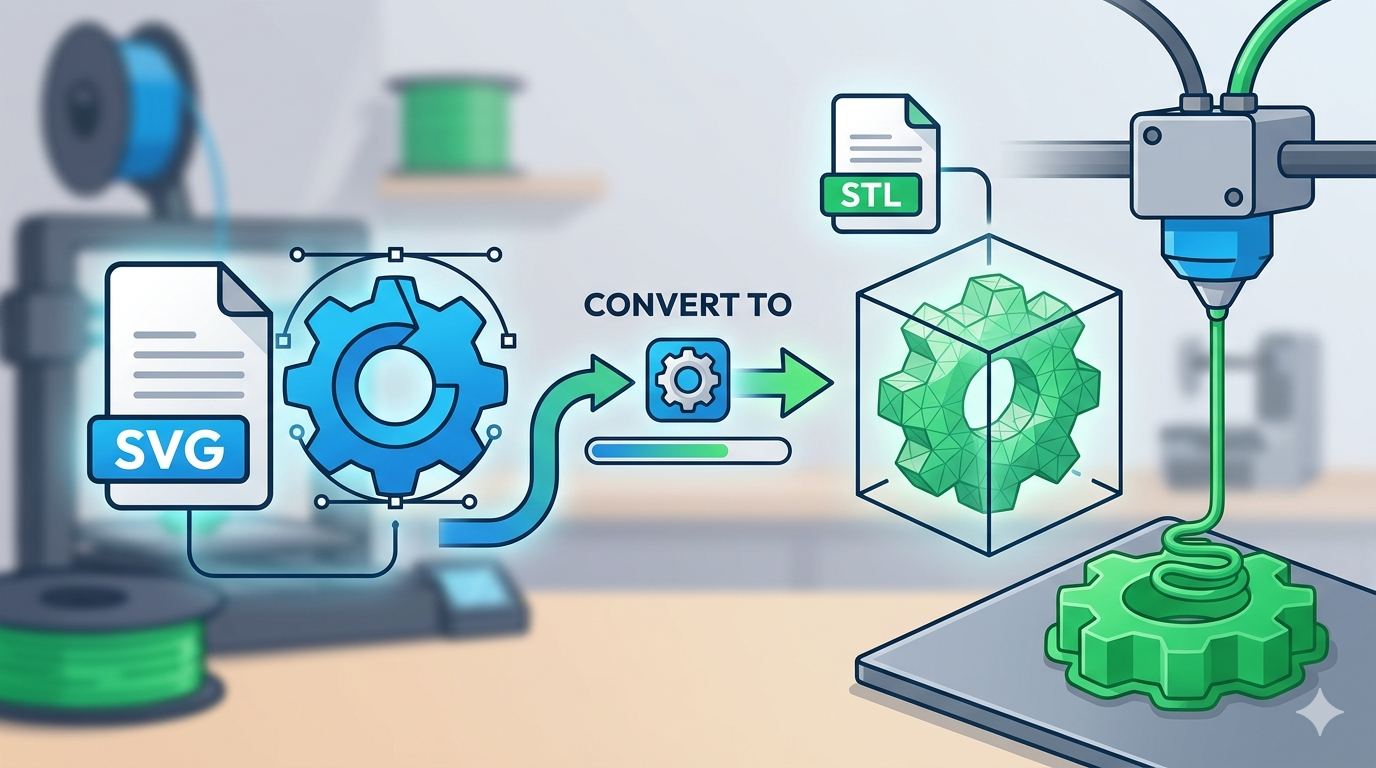
SVG to STL: Convert Vector Files for 3D Printing
So, you have a 2D vector graphic, an SVG file, and you want to bring it into the three-dimensional world through 3D printing. You're in the right place. The journey from a flat design to a physical object is an exciting one, and it all starts with converting your file to the right format. For 3D printers, that format is almost always STL. This article will guide you through the process of converting your SVG to STL, exploring different methods and tools to help you find the best fit for your project.
Whether you're using a dedicated online SVG to STL converter, desktop software like Blender, or other design platforms, the fundamental principle is the same: giving depth to your 2D design. We'll look at the simple methods for quick conversions and more advanced techniques for those who need greater control over the final 3D model.
Understanding the Basics: SVG and STL Files
Before we jump into the conversion process, let's quickly get familiar with the two file formats at the center of this task.
What is an SVG?
SVG, or Scalable Vector Graphic, is a web-friendly vector file format. Unlike raster images like JPEGs or PNGs which are made of pixels, SVGs are based on XML code that defines shapes, lines, and colors. This means you can scale an SVG to any size without losing quality, making it a popular choice for logos, icons, and other design elements.
What is an STL?
STL, short for stereolithography, is the most common file format for 3D printing. It represents a 3D model's surface geometry using a mesh of triangles. Your 3D printer's slicer software reads this file to understand the object's shape and generate the printing instructions. While other formats exist, STL is the universal language of desktop 3D printing.
How to Convert SVG to STL: The Online Converter Route
For many, the quickest and most straightforward way to get a printable 3D model from a 2D design is by using an online converter. These web-based tools are often free and don't require any software installation. The process is typically as simple as uploading your file, adjusting a few settings, and downloading the result.
Here?? a general workflow you can expect from most online SVG to STL converters:
1. Upload your SVG file: Most converters have a simple drag-and-drop interface or a file selection button.
2. Set the extrusion height: This is the most critical setting. It determines the thickness of your 3D model. Some tools offer more advanced options, like changing the extrusion direction or adding a base.
3. Convert and download: Once you're happy with the settings, you click a button, and the tool generates your STL file, ready for download.
There are many online converters available, each with a slightly different interface and feature set. Some popular options include SVG2STL.com and ImageToSTL.com. For those looking for a more integrated experience, Hyper3D's OmniCraft suite includes a powerful Vecto3D tool designed for this exact purpose.
A Deeper Look at SVG to STL Conversion Methods
While online converters are convenient, understanding the underlying methods can help you achieve better results, especially with more complex designs. There are two primary techniques for converting an SVG to an STL: extrusion and heightmap.
The Extrusion Method
Extrusion is the most common method for converting SVGs. Imagine pushing your 2D shape through a press to give it depth. That's essentially what extrusion does. It takes the paths and shapes in your SVG file and extends them along the Z-axis to create a 3D object. This method is perfect for designs with clear, defined shapes like logos, text, or simple icons. The result is a 3D model with a uniform thickness.
The Heightmap Method
For more intricate designs with gradients or varying shades, the heightmap method offers a different approach. A heightmap is a grayscale image where the brightness of each pixel corresponds to a specific height. When converting an SVG using this method, the tool interprets the colors in your image as height information. For example, black might represent the lowest point, and white the highest. This technique is less common for SVG to STL conversion but can be useful for creating 3D models from more detailed, image-like SVGs. It's a similar process to converting a standard image to STL.
My First-Hand Experience: Putting SVG to STL Tools to the Test
To get a real feel for the process, I decided to take a simple logo I designed and convert it for 3D printing. I wanted a small, embossed version of the logo to put on another 3D printed part. I tried a few different tools to see how they compared in terms of ease of use and the quality of the final STL file.
My first stop was a popular free online converter. The process was fast, but the options were limited. I could only set a single extrusion height for the entire design. The resulting STL was decent, but it lacked some of the finer details of my original SVG.
Next, I tried Tinkercad, a free, web-based 3D modeling tool. Importing an SVG into Tinkercad is straightforward, and it gives you more control over the model. I could easily adjust the size and thickness, and even combine it with other shapes. However, it required a few more steps than the simple online converter.
Finally, I used the Vecto3D tool within Hyper3D's OmniCraft. The experience was smooth. I uploaded my SVG, and the tool immediately gave me a 3D preview. I had precise control over the extrusion depth and could even choose different generation modes to fine-tune the result. The final STL was clean and preserved all the details of my original design. For someone who values both simplicity and control, this was the sweet spot. I could even take the model directly into Hyper3D's Rodin for further creative manipulation or use the text to 3D model tool for other projects.
An Objective Look at SVG to STL Conversion Tools
Choosing the right tool depends on your specific needs and technical comfort level. Here's a comparison of some popular options:
| Tool | Best For | Pros | Cons |
|---|---|---|---|
| Online Converters (e.g., SVG2STL) | Quick, simple conversions | Free, fast, no installation required | Limited options, may lose detail |
| Tinkercad | Beginners and simple modifications | Free, easy to use, web-based | Basic features, not ideal for complex models |
| Blender | Advanced users needing full control | Powerful, versatile, free | Steep learning curve, overkill for simple tasks |
| Hyper3D Vecto3D | Users wanting a balance of simplicity and control | Integrated workflow, precise controls, high-quality results | Part of a larger platform, may be more than needed for one-off conversions |
For simple, one-off conversions, a free online tool is a great choice. If you're new to 3D modeling and want to do some basic editing, Tinkercad is an excellent starting point. For professionals and hobbyists who need maximum control, Blender is the industry standard. And for those who want a streamlined experience with high-quality results, Hyper3D's Vecto3D offers a compelling solution.
Advanced Tips for a Perfect Conversion
To get the best possible 3D print from your SVG, a little preparation can go a long way.
Preparing Your SVG
- Simplify Paths: Complex SVGs with many overlapping paths can confuse converters. Clean up your design by simplifying paths and removing unnecessary points.
- Convert Text to Paths: Most converters can't handle live text. Before exporting your SVG, make sure to convert all text to paths or shapes.
- Check for Open Paths: Ensure all your shapes are closed paths. Open paths can lead to errors and incomplete 3D models.
Post-Processing Your STL
Sometimes, the generated STL file might need a little cleanup. Tools like Meshmixer or even Blender can be used to repair any holes in the mesh, smooth out rough surfaces, or make other adjustments before sending the file to your slicer.
Frequently Asked Questions (FAQ)
What is the best free SVG to STL converter?
The
best" converter depends on your needs. For quick, simple jobs, online converters are great. For more control, a tool like Tinkercad or a feature within a larger platform like Hyper3D's Vecto3D might be better.
Can I convert a complex SVG to STL?
Yes, but it might require more work. For complex SVGs, you'll want to use a tool that gives you more control over the conversion process. You may also need to simplify your SVG file before converting it to get the best results.
How do I add thickness to my SVG file for 3D printing?
Adding thickness is the core of the SVG to STL conversion process. This is done through extrusion, where the 2D shape is extended along the Z-axis. All the tools mentioned in this article allow you to set the thickness or extrusion height.
Why is my STL file not working in my slicer software?
This can happen for a few reasons. The most common issue is a non-manifold mesh, which means your STL file has holes or other errors. This is often caused by an imperfect SVG file with open paths. Using a tool to repair the STL, like Meshmixer, can often fix these issues.
Can I convert a color SVG to a color 3D model?
Standard STL files do not contain color information. However, some newer 3D file formats, like 3MF and GLB, do support color. Some advanced converters, including some features within the Hyper3D ecosystem, can create color 3D models from SVGs, but you'll need to use a compatible file format and a 3D printer that supports color printing.
Conclusion
Converting an SVG to an STL is a fundamental step in bringing your 2D designs to life with a 3D printer. From simple online converters to powerful desktop software, there's a tool for every user and every project. The key is to understand the basics of extrusion and to choose the right tool for your specific needs. Don't be afraid to experiment with different settings and tools to get the perfect 3D print.
Ready to start converting your own designs? Give the SVG to STL converter in Hyper3D's OmniCraft a try for a smooth and powerful conversion experience. With its intuitive interface and advanced options, you'll be turning your vector graphics into stunning 3D models in no time.