

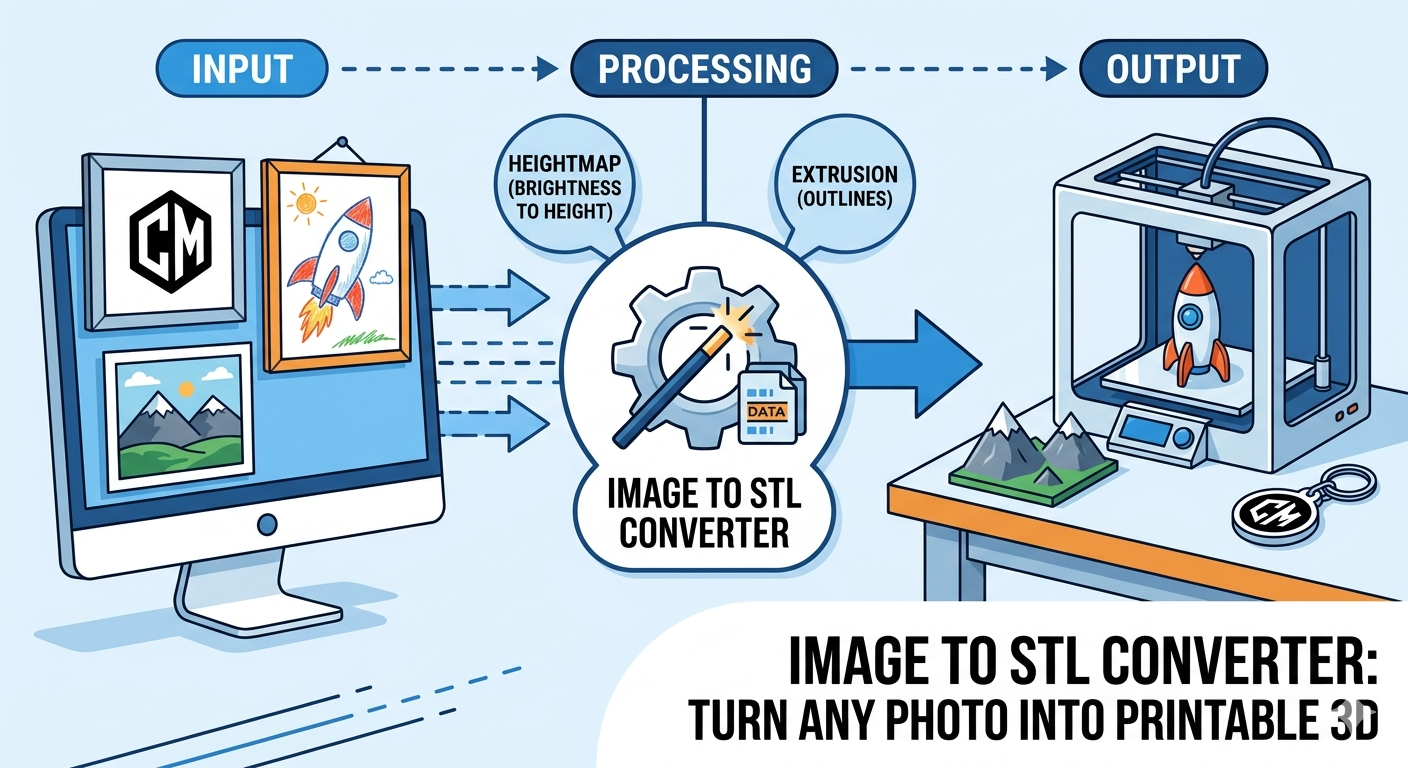
Image to STL Converter: Turn Any Photo Into Printable 3D
An idea strikes?? personalized cookie cutter from a child's drawing, a 3D model of a company logo, or a lithophane that brings a cherished photo to life. Just a few years ago, turning a flat, 2D image into a physical 3D object was a complex process reserved for those with specialized software and skills. Today, a new generation of tools has made this transformation accessible to everyone. With a specialized converter, you can take almost any picture and prepare it for 3D printing or digital design. Platforms like Hyper3D, ImageToSTL.com, and others offer powerful, often free, solutions to convert your photos into tangible creations.
This article explores the world of this conversion process. We will look at how these tools work, compare some of the most popular options available, and walk through the process with some first-hand experience. Whether you are a hobbyist looking to start a new project or a professional seeking to streamline your workflow, you will find the information needed to turn your 2D concepts into 3D realities.
What is an Image to STL Converter and How Does It Work?
Fundamentally, a converter is a tool that translates the two-dimensional information of a picture into a three-dimensional model. The most common file format for 3D printing is STL (Standard Triangle Language), which describes a model's surface geometry using a series of interconnected triangles. The converter's job is to interpret the pixels of your image and build that triangular mesh.
Understanding the Conversion Process
The magic behind this conversion lies in how the software interprets pixel data. Every pixel in your image has a value, typically representing its color and brightness. The converter uses this information to determine the height or depth of the corresponding point on the 3D model. There are two primary methods for this:
- Heightmap-Based Conversion: This is the most common technique. The converter analyzes the brightness of each pixel. Brighter pixels are translated into taller sections of the model, while darker pixels remain lower. This is perfect for creating 3D reliefs, terrains, or lithophanes where the image's light and dark areas create a sense of depth.
- Extrusion-Based Conversion: This method is better suited for logos, text, or simple shapes. The converter identifies the edges and outlines in your image and extrudes them to a specified thickness, creating a clean, uniform 3D object. This is less about capturing tonal variation and more about creating a solid object from a 2D silhouette.
Key Features to Look for in a Converter
While the basic premise is simpwhile the quality and versatility of a converter depend on its features.hen evaluating different tools, consider the following:
- Detail and Resolution Control: The ability to adjust the level of detail is crucial. Higher settings will capture more nuance from your image but result in larger, more complex files. Lower settings create simpler models that are easier to print.
- Model Adjustments: Look for options to add a solid base to your model for stability, invert the geometry (making high points low and vice-versa), and apply smoothing to reduce jagged edges.
- Color Support: Some advanced converters can interpret color data to create multi-color 3D models, although this requires a 3D printer capable of handling multiple materials or colors.
Top Tools for Converting Images to STL Files
Many excellent tools are available for converting images to STL files, each with its own strengths. Some are standalone web-based converters, while others are part of a larger suite of 3D modeling tools.
Hyper3D's Image to STL Tool
As part of a comprehensive 3D creation platform, Hyper3D offers a powerful image to STL tool that benefits from the platform's advanced AI capabilities. It's designed to be intuitive for beginners while offering the precision needed by professionals. The tool is integrated within the Hyper3D ecosystem, allowing you to smoothly move your converted model into OmniCraft for further editing and format conversion or use it with models generated by Rodin.
Other Popular Online Converters
- ImageToSTL.com: This is a popular, free online tool that offers a good range of features, including both heightmap and extrusion methods. It provides a decent amount of control over the conversion process, with options for smoothing, adding a base, and inverting the output.
- Tripo3D: Tripo3D provides a fast and straightforward image to STL converter. It focuses on delivering high-fidelity, watertight models that are ready for 3D printing with minimal fuss. It supports various image formats and is a great option for quick conversions.
- Meshy.ai: Meshy.ai also offers a free online converter that is simple to use. It's a good choice for users who want a no-frills tool to quickly convert an image and download an STL file.
My First-Hand Experience: Testing Image to STL Converters
To get a real feel for the process, I decided to test out a couple of these tools. I started with a simple black and white logo to see how well the converters could handle clean lines and shapes. My goal was to create a 3D printable keychain.
I began with Hyper3D's image to STL tool. The interface was clean and straightforward. I uploaded my PNG file, and the tool immediately gave me a 3D preview of the model. I was impressed by the initial result; the lines were sharp, and the extrusion was uniform. I played around with the settings, adjusting the thickness to get the right feel for a keychain. The whole process, from upload to downloading the final STL file, took less than a minute. The resulting file was clean and ready for my 3D printer's slicer software.
Next, I tried the same image on ImageToSTL.com. The process was similar: upload the image and adjust the settings. This tool offered a few more manual adjustments, which could be useful for more complex images. However, for my simple logo, the default settings worked well. The final model was comparable to the one from Hyper3D, though I found Hyper3D's interface to be a bit more modern and the preview to be faster to load.
For a second test, I used a more complex image?? photograph of a mountain range??o see how the heightmap functionality would perform. I wanted to create a small 3D landscape. With Hyper3D's image to 3d tool, the results were impressive. The AI-powered conversion did an excellent job of interpreting the different shades in the photo, creating a detailed and realistic 3D terrain. The ability to quickly generate a 3D model from a photo opens up a lot of creative possibilities, and I can see how this would be a fantastic feature for artists and designers.
Objective Comparison of Image to STL Converters
To help you choose the right tool for your needs, here is a comparison of three popular converters. This comparison is based on my own testing and research, focusing on the key aspects that matter most to users.
| Feature | Hyper3D | ImageToSTL.com | Tripo3D |
|---|---|---|---|
| Ease of Use | Very intuitive, with a modern interface and fast previews. | Simple and straightforward, but with a slightly dated interface. | Extremely easy to use; a very minimalist and fast workflow. |
| Conversion Quality | Excellent, with AI-powered features that produce detailed models. | Good quality for both simple and complex images. | High-fidelity, watertight models that are ready for printing. |
| Speed | Very fast, with near-instant previews and quick conversion times. | Fast, but the preview can sometimes be slow to load. | Very fast, one of the quickest converters available. |
| Advanced Options | Good range of options integrated into a user-friendly interface. | A wide array of manual settings for those who want more control. | Fewer options, focusing on a simple and direct conversion process. |
| Pricing | Offers a free tier with paid plans for more advanced features. | Free to use. | Free to use. |
| Best For... | Users who want a high-quality, AI-powered tool within a larger 3D ecosystem. | Users who want a free tool with a lot of manual control over the conversion process. | Users who need a fast, simple, and reliable converter for 3D printing. |
Ultimately, the best tool for you will depend on your specific needs. For those who want the highest quality and the power of an integrated 3D platform, Hyper3D is an excellent choice. For users who need a free tool with extensive manual controls, ImageToSTL.com is a solid option. And for anyone who values speed and simplicity, Tripo3D is hard to beat.
Frequently Asked Questions (FAQ)
What is the best image format for converting to STL?
For the best results, it is recommended to use high-resolution PNG or JPG files. PNG files are often preferred for images with sharp lines and transparency, such as logos, while JPG files are great for photographs and more complex images with gradients.
Can I convert a color image to a color 3D model?
Some advanced converters, including some of the tools on Hyper3D, can interpret color data and generate a 3D model with a color texture map. However, to print this model in full color, you will need a 3D printer that supports multiple colors or materials. The standard STL format does not support color, so you would need to use a different format like OBJ or GLB.
How can I edit or modify the STL file after conversion?
Once you have your STL file, you can import it into any standard 3D modeling software, such as Blender, Meshmixer, or Fusion 360. These programs will allow you to refine the model, fix any imperfections, or combine it with other 3D objects. For more straightforward edits and format changes, you can use a 3D format converter.
Are these online image to STL converters free to use?
Many of the most popular image to STL converters, including the basic versions of the tools mentioned in this article, are free to use. Some platforms, like Hyper3D, offer more advanced features and higher processing limits on their paid plans, but the free tiers are typically very capable for most projects.
What's the difference between an STL file and other 3D formats like OBJ or FBX?
STL is one of the oldest and most widely supported 3D file formats, but it only contains information about the surface geometry of a model. Other formats, like OBJ and FBX, are more advanced and can store additional data, including color, textures, and animations. The best format to use will depend on your specific needs and the software you are using.
Conclusion
Turning a simple 2D image into a 3D object is no longer a futuristic concept; it's a reality accessible to everyone. With the right image to STL converter, you can unlock a new dimension of creativity, whether you're a hobbyist making personalized gifts, an artist exploring new mediums, or an engineer prototyping the next big thing. By understanding how these tools work and how to prepare your images, you can create high-quality 3D models with just a few clicks.
As we've seen, there are many great tools available, each with its own advantages. Platforms like Hyper3D are pushing the boundaries with AI-powered features and integrated workflows, making the process more seamless than ever. We encourage you to explore these tools, experiment with different images and settings, and see what you can create. The journey from a flat picture to a physical object is a rewarding one, and it all starts with that first conversion.