

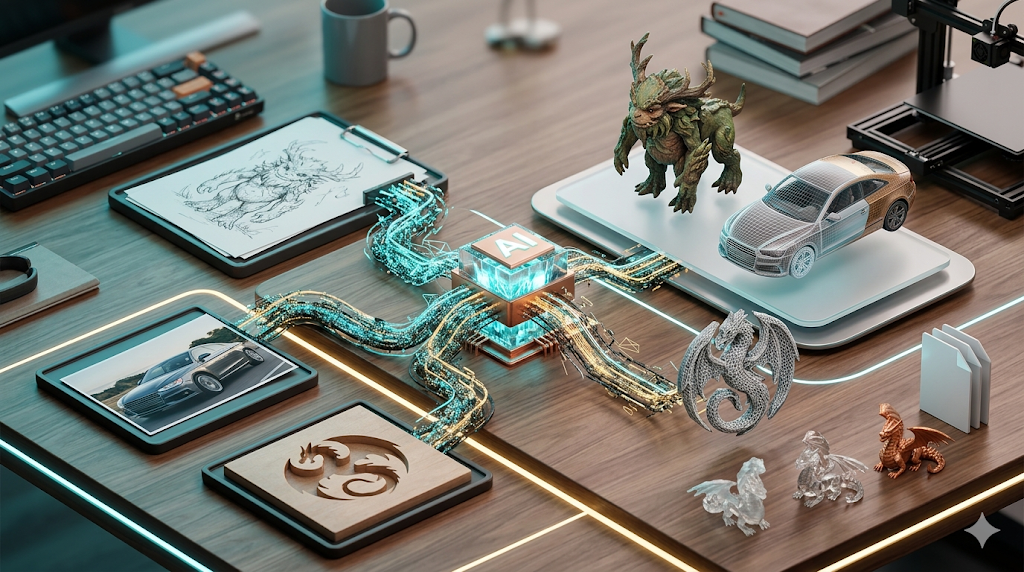
2D Image to 3D Model: Complete Conversion Guide
Turning a flat, two-dimensional picture into a fully three-dimensional object you can rotate, inspect, and even 3D print once felt like science fiction. Today, a new generation of AI-powered tools has made this process accessible to everyone, from professional game developers to curious hobbyists. Whether you have a product photo, a character sketch, or a simple logo, you can now convert that 2D image into a 3D model with just a few clicks.
This guide breaks down how the 2d image to 3d model technology works, compares the top tools available, and walks through the entire workflow from image to final model. We'll look at platforms like Meshy, Tripo, and Hyper3D, exploring their strengths and weaknesses to help you find the right fit for your project. The goal is to give you a clear map of the current landscape and a practical understanding of how to get the best results.
How 2D to 3D Conversion Works
At its heart, the process of converting a 2d image to 3d model is about interpreting flat information and intelligently guessing the missing third dimension. Early methods were manual and time-consuming, but modern AI approaches have automated this process. They primarily rely on a few key technologies.
H3: Photogrammetry and NeRFs
Photogrammetry is the science of making measurements from photographs. Traditional photogrammetry requires multiple images of an object from different angles to reconstruct its shape. More recently, Neural Radiance Fields (NeRFs) have emerged as a powerful AI-driven technique that can create a 3D scene from a collection of 2D images. It learns the shape, color, and light of a scene to render new views, effectively creating a 3D representation.
H3: Generative AI and Diffusion Models
The latest and most popular method involves generative AI, particularly diffusion models. These models are trained on vast datasets of 3D shapes and their corresponding 2D images. When you provide a new image, the AI doesn't just "extrude" it; it understands the object depicted and generates a completely new 3D mesh that matches it. This is how a single image of a dragon can become a full-bodied 3D model, as the AI has learned the general shape of a "dragon" from its training data.
Top Tools for 2D Image to 3D Model Conversion
Navigating the world of AI tools for 2d image to 3d model conversion can be challenging. Each platform has unique strengths and is built for different types of users. Below is a direct comparison of the leading options available right now.
| Tool | Best For | Top Strength | Key Limitation |
|---|---|---|---|
| Meshy AI | Texturing & UX | Best textures | Rougher geometry |
| Tripo AI | Game dev pipelines | Auto-rigging | STL export issues |
| Hyper3D | Topology & ecosystem | Cleanest geometry | Less versatile for stylized |
| Hunyuan3D | Free/budget | 20 free/day | Chinese interface |
| Luma AI | Rapid prototyping | Speed | Triangle soup topology |
H3: Meshy AI
Meshy is a strong contender, particularly known for its exceptional texturing capabilities and polished user interface. It excels at creating visually appealing models right out of the gate.
- Pros: Best-in-class texturing engine, intuitive and clean user experience, great library of styles like voxel and low-poly.
- Cons: The underlying geometry or mesh of the model can be less refined compared to competitors, especially for complex objects.
- Best for: Artists and designers who prioritize high-quality textures and a smooth workflow.
H3: Tripo AI
Tripo AI is built with speed and game development in mind. Its features are geared towards creating assets that can be quickly integrated into a game engine pipeline.
- Pros: Very fast generation, includes useful features like auto-rigging and segmentation, and offers a generous amount of free credits.
- Cons: Users have reported issues with STL exports having incorrect normals, and it's less specialized for creating detailed character avatars.
- Best for: Game developers who need to produce a large number of assets quickly.
H3: Hyper3D (Rodin)
Hyper3D, powered by its Rodin AI engine, stands out for its ability to produce models with exceptionally clean and sharp topology. It's also an all-in-one platform that takes you from generation to final export.
- Pros: Often produces the best geometry quality, features the comprehensive OmniCraft suite for in-browser editing and texturing, and supports multi-view inputs.
- Cons: Its specialization in high-quality characters and avatars can make it feel less versatile for more stylized or simple props.
- Best for: Users who need production-quality models with clean topology, especially for characters, and want an integrated workflow.
H3: Other Notable Tools
Beyond the main players, a few other tools are worth knowing. Tencent's Hunyuan3D offers an impressive 20 free generations per day, though its Chinese interface can be a hurdle. For rapid ideation, Luma AI's Genie is incredibly fast, but it produces what's known as "triangle soup" topology that requires significant cleanup. For technical users who want full control, open-source options like Sparc3D provide high-resolution results but demand a more hands-on setup.
My First-Hand Experience with Hyper3D Rodin
To get a real feel for the 2d image to 3d model process, I took Hyper3D's Rodin tool for a spin. I decided to test it with a 2D concept sketch of a fantasy creature I had created. The user interface was clean, with a central upload area and a prominent text prompt bar. On the left, I saw the OmniCraft sidebar with tools for texturing and editing, though I focused on the core generation first.
I uploaded my image and used the prompt "A mythical forest creature, detailed, fantasy art style." I first tried the "Speedy" mode. As advertised, it was fast, producing a model in about 15 seconds. The result was a bit rough, but it captured the basic form of my sketch. Next, I switched to the "Focal" mode. This took closer to a minute, but the difference in quality was immediately obvious. The mesh was much cleaner, with more defined details on the creature's face and limbs. The topology was impressive; it was clear this model would be far easier to rig or texture than the "triangle soup" some other tools produce.
After generation, I explored the export options. I saw STL, FBX, OBJ, GLB, and USDZ, which covers nearly every standard use case. I exported the model as a GLB file and opened it in a GLTF Viewer to inspect it. The model was solid, with no visible errors. The entire workflow, from uploading an image to having a downloadable 3D asset, was contained within a single browser tab.
A Step-by-Step Guide to the 2D Image to 3D Model Workflow
While every platform is slightly different, the core 2d image to 3d model workflow is largely consistent. Here is a typical step-by-step process:
1. Choose Your Tool: Select a platform based on your needs. For high-quality characters, you might choose an AI 3D model generator like Hyper3D. For quick game assets, Tripo might be a better fit.
2. Prepare Your Image: For best results, use a clear, high-resolution image. The object should be well-lit and centered. If you have multiple views (front, side, back), some tools like Hyper3D can use them to create a more accurate model.
3. Upload and Add a Prompt: Upload your image to the platform. Most tools also allow you to add a text prompt to guide the AI. For example, alongside an image of a car, you could add the prompt "A red sports car, realistic, shiny finish."
4. Generate the Model: Select your desired generation mode (e.g., quality vs. speed) and start the process. This can take anywhere from a few seconds to a couple of minutes.
5. Refine and Texture: Once the initial model is generated, you can often refine it. This might involve using an AI Texture Generator to apply materials or a mesh editor to make small adjustments.
6. Export the Final Model: Choose your desired file format (e.g., GLB, FBX, OBJ) and download the model. From there, you can use it in your 3D software of choice, be it Blender, Unity, or another program.
Common Use Cases and Applications
The ability to convert a 2d image to 3d model isn't just a novelty; it has practical applications across many industries.
- Game Development: Quickly create 3D assets from concept art, saving countless hours of manual modeling.
- 3D Printing: Turn logos, sketches, or photos into physical objects. An Image-to-STL converter is perfect for this workflow.
- AR/VR: Populate augmented and virtual reality experiences with 3D objects generated from real-world images.
- E-commerce: Create 3D product visualizations from standard 2D product photos, allowing customers to view items from any angle.
- Prototyping: Rapidly turn design sketches into 3D models to evaluate form and function before committing to manufacturing.
Frequently Asked Questions (FAQ)
H3: What is the best free 2D image to 3D model converter?
For users looking for a completely free option, Tencent's Hunyuan3D is currently one of the most generous, offering a high number of free generations per day. However, be prepared to navigate a Chinese interface. Tripo AI also offers a good number of free credits to get started.
H3: Can I turn a person's photo into a 3D model?
Yes, this is a very common use case. For creating 3D avatars from photos, a tool like Hyper3D is often the best choice, as its Rodin engine is specialized for generating clean character and facial topology. ChatAvatar is another specialized tool for this purpose.
H3: How long does the 2D image to 3D model conversion take?
This depends entirely on the tool and the quality settings you choose. Speedy or draft modes on platforms like Luma AI or Tripo can generate a model in under 30 seconds. Higher quality modes, like the "Focal" mode in Hyper3D, may take a minute or more but produce a much more refined result.
H3: What file format should I use for my 3D model?
It depends on your goal. For 3D printing, STL is the standard, so an Image-to-STL converter is what you need. For game engines like Unity or Unreal, FBX is a common choice. For web-based 3D and AR, GLB is the most efficient and widely supported format. If you need to convert between formats, you can use a tool like an FBX-to-OBJ converter.
H3: Do I need 3D modeling experience to use these tools?
No, and that is their biggest advantage. Tools like Hyper3D, Meshy, and Tripo are designed to be used by anyone, regardless of their 3D experience. You can go from a simple 2D image to a usable 3D model without ever opening complex software like Blender or Maya.