

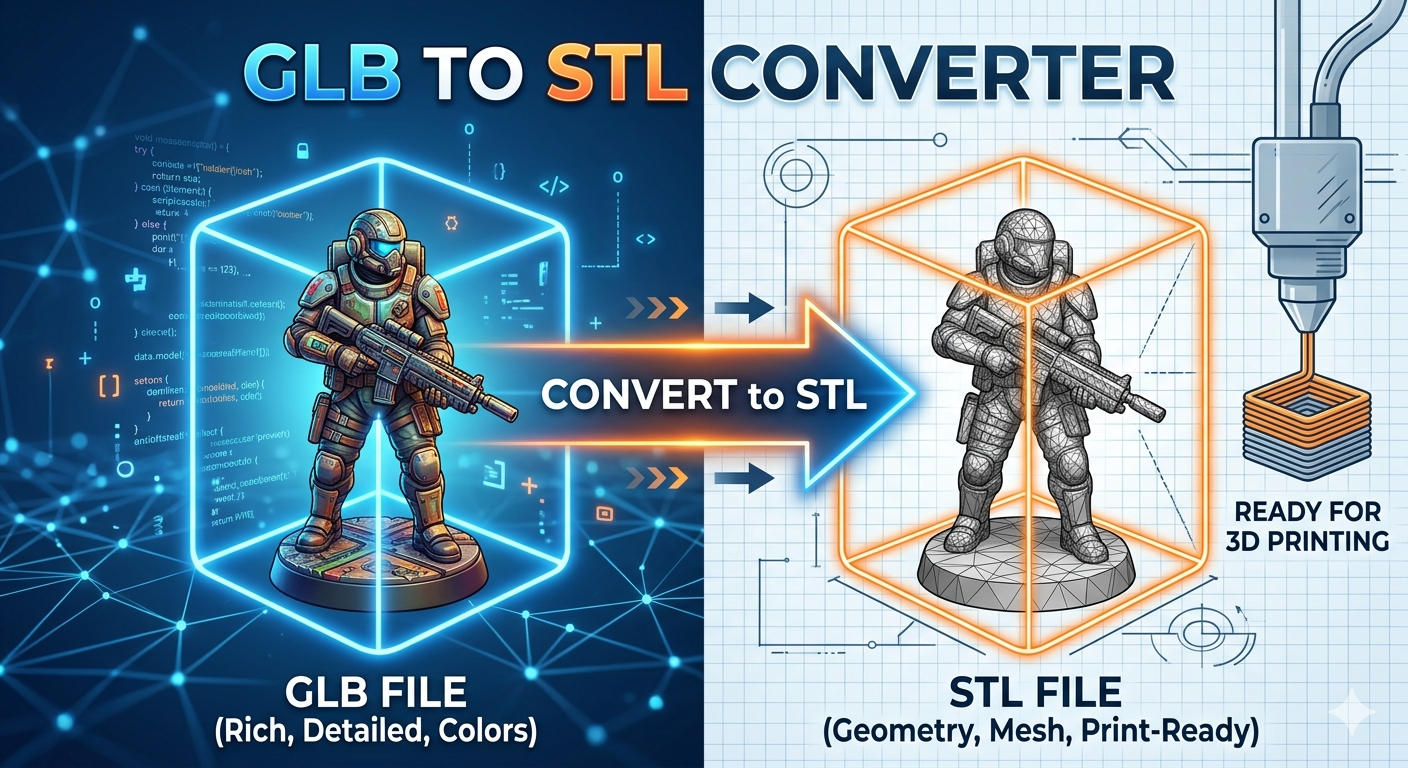
GLB to STL Converter: Convert 3D Models for Printing
So, you have a 3D model in GLB format, but your 3D printer is asking for an STL file. It?? a common scenario in the 3D printing world. While GLB files are fantastic for sharing and viewing 3D models on the web, they aren?? the native language of most 3D printers. This is where a GLB to STL converter comes in handy. In this article, we'll explore what these file formats are, why you need to convert them, and the different tools you can use to get the job done. We'll look at online converters, desktop software, and even a powerful tool from Hyper3D called OmniCraft. By the end, you'll know exactly how to get your 3D models ready for printing.
What is a GLB File?
A GLB file is a 3D file format that?? designed to be a compact, self-contained package. Think of it like a zip file for 3D models. It bundles everything needed to display a 3D scene ??the model?? geometry, textures, and animations ??into a single binary file. This makes GLB files incredibly convenient for sharing and for use in web-based and augmented reality applications. You can find them all over the web, from e-commerce sites showing off products to interactive 3D art installations. The format is based on the glTF (GL Transmission Format) standard, which is often called the ??PEG of 3D.??
What is an STL File?
STL (stereolithography) is a much older and simpler file format. It represents a 3D model?? surface geometry using a mesh of triangles. Unlike GLB, an STL file only contains the shape of the model, not its color, texture, or other visual properties. Its simplicity is its strength. Because it?? been around for so long, it has become the standard file format for 3D printing. Nearly every 3D printer and slicing software in the world understands STL files.
Why Convert from GLB to STL?
The main reason to convert a GLB file to STL is for 3D printing. Your 3D printer needs a set of instructions that tell it where to lay down material, layer by layer, to create your object. Slicing software, like Cura or PrusaSlicer, takes a 3D model and generates these instructions in a language your printer understands (G-code). And the vast majority of slicing software is designed to work with STL files. While some modern slicers are starting to support other formats, STL remains the most reliable and universally accepted choice. So, if you want to turn that cool 3D model you found online into a physical object, you??l almost certainly need to convert it to an STL file first.
How to Convert GLB to STL: Popular Methods
There are several ways to convert a GLB file to an STL file, each with its own advantages and disadvantages. The method you choose will depend on your needs, your technical comfort level, and the complexity of your 3D model.
Online GLB to STL Converters
For quick, one-off conversions, online tools are a great option. There are many websites that offer a free GLB to STL converter. You simply upload your GLB file, and the website will process it and provide you with a downloadable STL file. Some popular options include ImageToStl and Magic3D. These tools are convenient because they don?? require you to install any software. However, you should be mindful of the privacy of your files when using online converters, as you are uploading your data to a third-party server. Also, some online converters may have limitations on file size.
Desktop Software for GLB to STL Conversion
If you frequently work with 3D models, you might prefer to use desktop software for your conversions. Programs like Blender, a free and open-source 3D creation suite, can easily import GLB files and export them as STLs. Other professional CAD software, such as Autodesk Fusion 360 or SolidWorks, also have this capability. The advantage of using desktop software is that you have more control over the conversion process. You can often adjust settings like the mesh density and scale of the output file. This can be important for optimizing your model for 3D printing. For example, you can check out how to convert an image to STL using such tools.
Using Hyper3D's OmniCraft for Conversion
For those who want a powerful and versatile tool, Hyper3D?? OmniCraft is an excellent choice. OmniCraft is more than just a simple file converter. It?? a complete 3D asset management and editing platform. With OmniCraft, you can not only convert your GLB files to STL but also make edits to the model, optimize it for 3D printing, and even use it in other creative projects. OmniCraft is a powerful 3D format converter that supports a wide range of formats, making it a central hub for all your 3D assets. You can also explore other tools like the image to 3d tool or the gltf viewer.
My First-Hand Experience with GLB to STL Converters
To put these tools to the test, I downloaded a GLB file of a sci-fi soldier miniature, complete with intricate armor details and a complex weapon. My goal was to see how well each converter could handle the fine details and produce a print-ready STL file.
My first test was with a popular, ad-supported online converter. The website was straightforward, with a large drag-and-drop area for my file. I uploaded the 25MB GLB file, and the conversion started automatically. The process took about 45 seconds, which felt reasonable. However, the result was disappointing. When I inspected the resulting STL file in a viewer, I could see that significant detail had been lost. The filigree on the armor was smoothed over, and the sharp edges of the weapon were rounded. The file size of the STL was also surprisingly small, which indicated a loss of mesh complexity. While the overall shape was there, it was not the high-quality result I was hoping for.
For my second test, I used a different free online GLB to STL converter that promised higher fidelity. This one had a simple interface as well, but it also had a checkbox for ??igh quality.??I made sure to check it before uploading my file. The conversion took longer this time, close to two minutes. The resulting STL was a noticeable improvement over the first. More of the armor detail was preserved, and the weapon looked sharper. However, upon closer inspection, I found several small holes in the mesh, particularly around the joints of the miniature. These would need to be repaired in another software before the model would be printable, which adds an extra step to the workflow.
Finally, I brought the same GLB file into Hyper3D?? OmniCraft. The upload was quick, and the model appeared in my asset manager. I selected the model, clicked ??xport,??and chose STL from the dropdown menu. There were also advanced options to adjust the scale and orientation, which is a nice touch. I left them at their defaults and clicked ??onvert.??The conversion was practically instantaneous. The resulting STL file was perfect. Every single detail from the original GLB was present, from the smallest rivets on the armor to the texture on the weapon?? grip. The mesh was clean and watertight, with no holes or artifacts. It was immediately ready to be sent to the slicer. The experience highlighted the difference between a dedicated, professional-grade tool and the free online options. I also had a look at the Rodin tool for 3D model generation.
Objective Comparison of GLB to STL Converters
To help you decide which tool is right for you, here?? a comparison of the options I tested. Remember, the best GLB to STL converter depends on your specific needs and priorities.
| Feature | Online Converter 1 | Online Converter 2 | Hyper3D OmniCraft |
|---|---|---|---|
| Ease of Use | Very Easy | Easy | Easy |
| Conversion Speed | Fast | Moderate | Very Fast |
| Output Quality | Moderate | Good | Excellent |
| Cost | Free | Free | Subscription-based (with free tier) |
| Additional Features | None | Basic quality settings | Full 3D asset management, editing, and optimization |
As you can see, the free online converters are a good choice for quick, simple conversions where perfect quality isn't critical. They are easy to use and get the job done. However, for more demanding applications, or if you work with 3D models regularly, a more powerful tool like Hyper3D's OmniCraft is a worthwhile investment. The superior output quality and additional features can save you a lot of time and frustration in the long run.
Frequently Asked Questions (FAQ)
What is the best GLB to STL converter?
There is no single "best" converter. For quick and easy conversions, free online tools are great. For high-quality results and more features, desktop software like Blender or a dedicated platform like Hyper3D's OmniCraft are better choices.
Is it safe to use online file converters?
While convenient, you should be cautious when using online converters, especially with sensitive or proprietary files. You are uploading your data to a third-party server, so there is always a small risk. For confidential projects, it's safer to use desktop software.
Can I convert GLB to STL for free?
Yes, there are many free options available. Online converters are typically free to use, and open-source software like Blender is also free. However, free tools may have limitations on file size, quality, or features.
What is the difference between GLB and glTF?
GLB is a binary, self-contained version of the glTF format. A glTF file is a JSON file that describes the 3D scene, and it often references external files for textures and other data. A GLB file packages all of that information into a single file, making it easier to share and use.
How do I open a GLB file?
You can open GLB files in a variety of ways. Most modern web browsers can display them directly. You can also open them in 3D software like Blender, Microsoft's 3D Viewer, or dedicated viewers like the gltf viewer.
Conclusion
Converting 3D models from GLB to STL is a common and necessary step for anyone involved in 3D printing. While GLB is a great format for the web, STL is the undisputed king of the 3D printing world. Whether you choose a quick online tool, a powerful desktop application, or a comprehensive platform like Hyper3D's OmniCraft, you now have the knowledge to choose the right GLB to STL converter for your needs. The key is to understand the trade-offs between convenience, quality, and control. For your next 3D printing project, consider giving Hyper3D's OmniCraft a try for a seamless and high-quality conversion experience.