

GLB vs GLTF: What Is the Difference?
Choosing the right file format for your 3D models can feel like a small decision, but it has a big impact on your workflow, especially when you're working with web-based 3D, augmented reality (AR), or virtual reality (VR). Among the many formats out there, GLB and GLTF have become the go-to standards for the web. But what's the difference between them, and which one should you use? As a 3D artist who's spent countless hours wrangling polygons and textures, I'm here to give you the lowdown, which is relevant when working with glb vs gltf.
What are these 3D File Formats?: Glb Vs Gltf
At their core, both are file formats for 3D scenes and models. They were created by the Khronos Group, the same consortium that manages OpenGL and Vulkan, to be an efficient, interoperable, and easy-to-use format for the 3D ecosystem. Think of them as the modern, web-friendly successors to older, heavier formats like OBJ or FBX, which is relevant when working with glb vs gltf.
Glb Vs Gltf: The Text-Based Format: A Look Inside
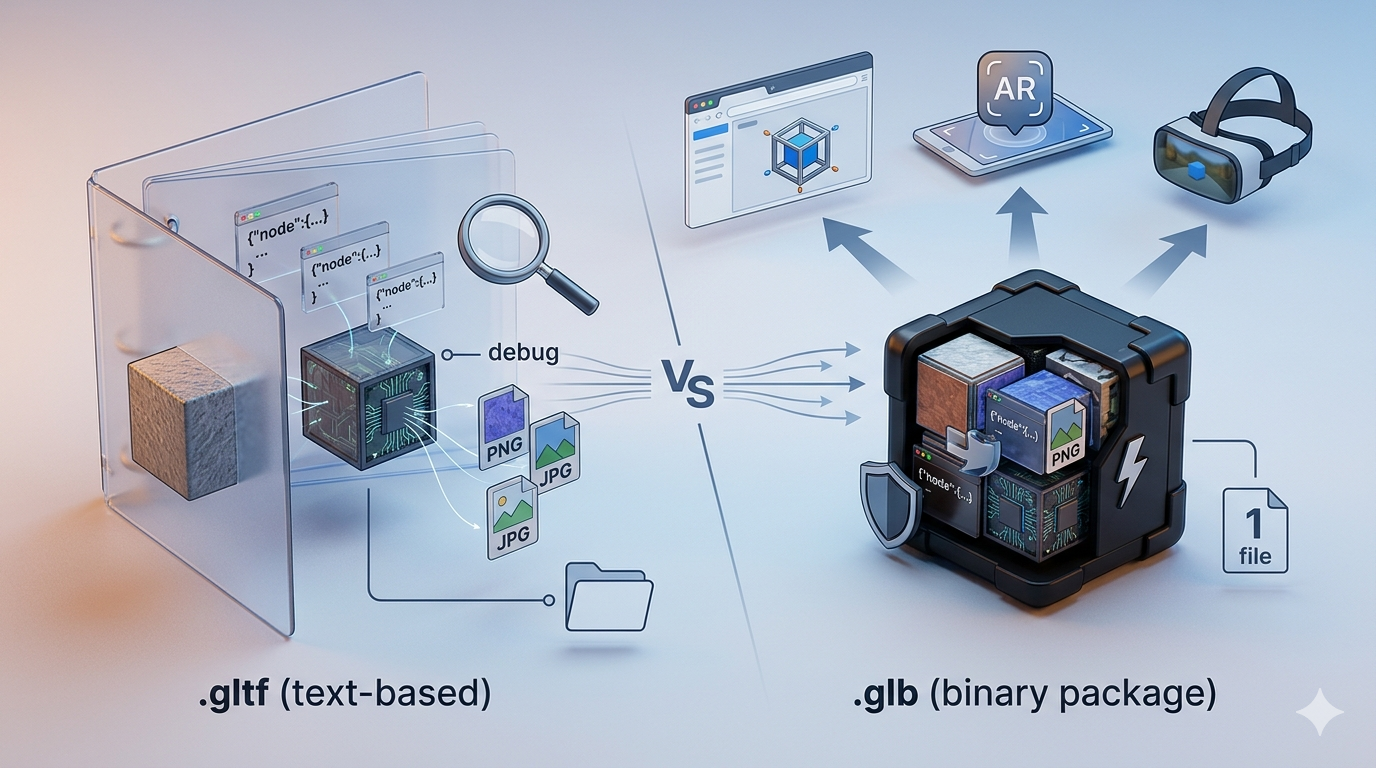
Think of the text-based version as the "JPEG of 3D." It uses JSON (JavaScript Object Notation) to describe the 3D scene. This means you can open a .gltf file in a text editor and see a human-readable description of the model's structure, including its nodes, materials, cameras, and animations. Because it's text-based, it's great for debugging and editing. I've often found myself tweaking a material property or animation setting directly in the file, which can be a real time-saver, which is relevant when working with glb vs gltf.
However, the file itself doesn't contain the 3D model's geometry or textures. Instead, it references external files: a .bin file for the geometry and image files (like .jpg or .png) for the textures. This makes it more flexible, but also means you have to manage multiple files. It's like having a web page with separate HTML, CSS, and image files, which is relevant when working with glb vs gltf.
The Binary Format: An All-in-One Package
The binary format, on the other hand, packages everything into a single file. The .glb file contains the JSON description from the text-based file, the binary data from the .bin file, and all the texture images. This makes it much easier to share and use, as you only have to deal with one file. Because it's a binary format, it's also more compact and faster to load, which is a huge advantage for web and mobile applications. It's like having a self-contained application, with all its resources bundled together, which is relevant when working with glb vs gltf.
How They Work: A Tale of Two Containers
To really understand the difference, let's look at how each format stores its data, which is relevant when working with glb vs gltf.
The Text-Based File Structure
A typical project using the text-based format will have a folder with at least three files:, which is relevant when working with glb vs gltf.
- model.gltf: The JSON file that describes the 3D scene.
- model.bin: The binary file that contains the geometry data (vertices, normals, etc.).
- texture.png: One or more image files for the textures.
When you load a file of this type, the application has to fetch each of these files separately. This can be slower, especially on the web, where each file requires a separate HTTP request. It's not a huge deal for small projects, but for complex scenes with many textures, the overhead can add up, which is relevant when working with glb vs gltf.
The Binary File Structure
A project using the binary format is much simpler. You just have one file:
- model.glb: A single binary file that contains everything.
This makes these files much easier to manage and faster to load, as the application only needs to fetch one file. This is why this format is preferred for most web-based 3D viewers and AR applications, which is relevant when working with glb vs gltf.
Top Tools for these Formats
Whether you need to convert, edit, or view these files, there are plenty of great tools available. Here are a few of the best:
Converters
| Tool | Pros | Cons |
|---|---|---|
| Hyper3D OmniCraft | Supports a wide range of formats, including STL, FBX, OBJ, GLB, and USDZ. Easy to use, with a focus on quality. | Requires a Hyper3D account. |
| Convert3D.org | Free, easy to use, supports many formats. | Online only, file size limits. |
| 3Dpea.com | Free, fast, good for 3D printing. | Limited to a few formats. |
| Meshy.ai | High-quality conversions, free. | Requires an account for some features. |
Editors
| Tool | Pros | Cons |
|---|---|---|
| gltfeditor.com | Online, easy to use, good for quick edits. | Limited features compared to desktop software. |
| Blender | Free, open-source, incredibly powerful. | Steep learning curve for beginners. |
| three.js Editor | Great for web developers, integrates with three.js. | Not a full-featured 3D modeling tool. |
My First-Hand Experience with these Tools
I recently worked on a project where I needed to create a 3D product viewer for a client's website. I started with a high-poly model from a 3D artist, which was in FBX format. I used Blender to clean up the model, reduce the polygon count, and bake the textures. Then, I exported it as a text-based file so I could inspect the JSON structure and make sure everything was correct. I noticed that one of the material's roughness values was off, so I was able to quickly open the file in a text editor and change the value from 0.8 to 0.2. It was a small change, but it made a big difference in the final render.
Once I was happy with the result, I used the Hyper3D OmniCraft to convert it to a binary file. The process was quick and easy, and the resulting file was significantly smaller than the original FBX and the collection of text-based files. I then used the binary file in a web-based 3D viewer, and the loading time was incredibly fast. For anyone looking for a great GLTF viewer, I'd recommend checking out Hyper3D's tool. It's fast, easy to use, and has some great features for inspecting and debugging your models.
Step-by-Step Guide: Converting with Blender
Blender is a fantastic free tool for working with 3D models. Here's how you can use it to convert from the text-based format to the binary one:
1. Open Blender: If you don't have it, you can download it for free from blender.org.
2. Import: Go to `File > Import > glTF 2.0 (.gltf/.glb)` and select your .gltf file.
3. Export: Go to `File > Export > glTF 2.0 (.gltf/.glb)`. In the export settings on the right, choose `glTF Binary (.glb)` from the `Format` dropdown.
4. Save: Choose a name for your file and click `Export glTF 2.0`.
That's it! You now have a compact, easy-to-use binary file.
Advanced Tips for 3D Artists
Optimizing File Size
Whether you're using the binary or text-based format, file size is crucial for web performance. Here are a few tips for keeping your files small:
- Use Draco compression: Draco is a library for compressing and decompressing 3D geometric meshes and point clouds. It can significantly reduce the size of your .bin file. Most modern 3D tools, including Blender and the Hyper3D OmniCraft, support Draco compression.
- Optimize your textures: Use a tool like TinyPNG to compress your texture images. Also, make sure your textures are no larger than they need to be. A 2K texture is often more than enough for a web-based 3D model.
- Use a good 3D format converter: A good converter will have options for optimizing your models during the conversion process. Look for features like mesh simplification, texture resizing, and Draco compression.
When to Use Which Format
- Use the text-based format when:
- You need to edit the 3D scene's data by hand.
- You want to share textures between multiple models.
- File size and loading speed are not the top priority.
- Use the binary format when:
- You need the smallest possible file size.
- You want the fastest possible loading times.
- You're building a web-based 3D application, AR/VR experience, or game.
FAQ
Is the binary format always better?
Not necessarily. While the binary format is generally better for web and mobile applications due to its smaller size and faster loading, the text-based format is better for development and debugging because it's human-readable.
Can I edit a binary file?
Yes, but it's not as straightforward as editing a text-based file. You'll need to use a tool like Blender or a specialized editor to make changes. You can also use a converter to convert the binary file back to the text-based format, make your edits, and then convert it back.
Which format is better for AR?
For AR applications, the binary format is almost always the better choice. The fast loading times and small file size are essential for a smooth AR experience. Most AR platforms, including ARKit and ARCore, have excellent support for it.
Do I lose quality when converting?
No, you shouldn't lose any quality. The conversion process simply packages the files together in a different format. However, if you use a converter that also performs optimization (like Draco compression or texture resizing), you may see a small reduction in quality, but the file size savings are usually worth it.
What is the best viewer?
There are many great viewers available, both online and as desktop applications. Some popular choices include the Hyper3D GLTF viewer, the Babylon.js Sandbox, and the Don's GLTF Viewer. The best one for you will depend on your specific needs. If you need a quick and easy way to view your models, an online viewer is a great choice. If you need more advanced features, a desktop application like Blender might be a better option.
How does Hyper3D's Rodin tool fit into this?
Hyper3D's Rodin is a generative AI tool that can create 3D models from text or images. When you use Rodin to generate a model, you can export it in several formats, including GLB. This makes it incredibly easy to go from an idea to a web-ready 3D model in just a few minutes.
Conclusion
Both formats are powerful and flexible for working with 3D models. The right choice for you will depend on your specific needs. If you're a developer building a web-based 3D application, the binary format is probably the way to go. If you're a 3D artist who needs to edit and debug your models, the text-based format might be a better fit. No matter which you choose, you'll be in good company, as they've become the industry standard for 3D on the web.
To learn more about 3D file formats, check out our other articles on STL vs OBJ vs FBX and what is a USDZ file. And if you're looking for a powerful tool for creating and editing 3D models, be sure to check out Hyper3D's OmniCraft.