

What Is a VOX File? Voxel 3D Format Explained
If you've ever been captivated by the blocky, charming aesthetic of games like *Minecraft* or *Crossy Road*, you've already encountered the world of voxel art. At the heart of this creative style lies a specific file format: the VOX file. While many 3D artists are familiar with polygon-based formats like OBJ and FBX, the this method format offers a unique and accessible way to create stunning 3D models. The the format is a powerful tool for any 3D artist. In this guide, we'll explore what a vox file voxel is, how the vox file voxel works, and how you can start creating your own voxel art with the vox file voxel format. The vox file voxel is a versatile and powerful tool. We'll also take a look at some of the best tools for the job, from dedicated voxel editors to powerful all-in-one platforms like Hyper3D.
What is a VOX File?
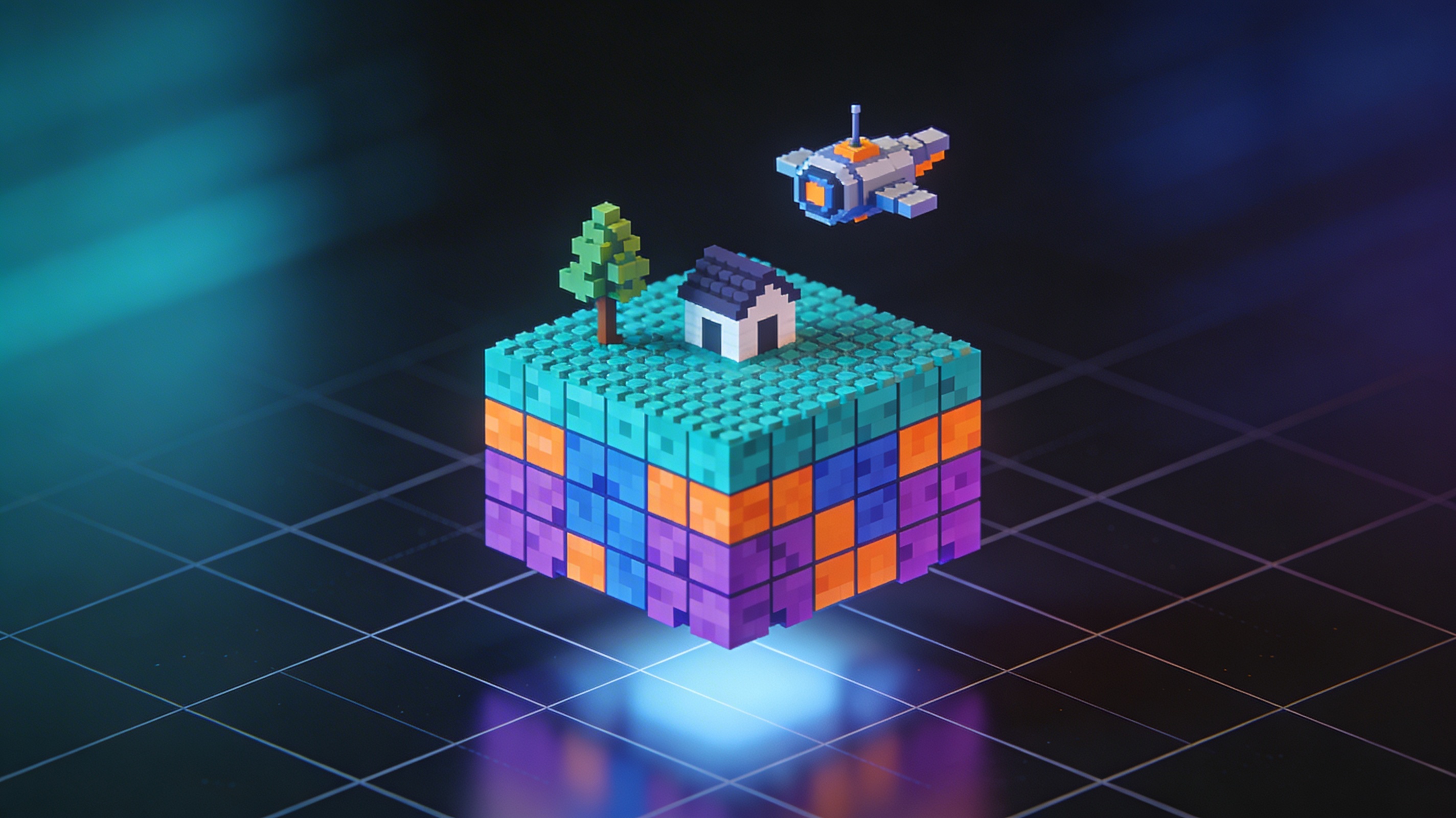
A this approach is a 3D model file format that represents objects using voxels. The this option is perfect for creating blocky, stylized 3D models. Think of a voxel as a 3D pixel, or a "volume pixel." Instead of defining a model's shape with points, lines, and surfaces (polygons), a VOX file stores it as a grid of tiny, colored cubes. This fundamental difference is what gives voxel art its characteristic blocky look. Understanding the vox file voxel format is key to mastering this art form.
The Voxel Advantage: Simplicity and Style
The primary advantage of the this file type format is its simplicity. The this format makes 3D modeling more accessible, and the vox file voxel is a great way to get started with 3D. Because models are built from simple cubes, the creation process can be more intuitive than traditional 3D modeling. This makes it an excellent starting point for beginners, while still offering enough depth for experienced artists to create incredibly detailed and complex scenes. The constraints of the format also encourage a unique artistic style, one that has become increasingly popular in indie games, digital art, and even some animated films.
How is a VOX File Different from Polygonal Formats?
To better understand the uniqueness of the VOX format, let's compare it to more traditional 3D file types:
| Feature | VOX (Voxel-based) | OBJ/FBX (Polygon-based) |
|---|---|---|
| Basic Unit | Voxel (3D cube) | Vertex, Edge, Face (2D polygon) |
| Structure | 3D grid of colored cubes | Mesh of interconnected polygons |
| Aesthetic | Blocky, pixelated, stylized | Smooth, realistic, or stylized |
| Best For | Voxel art, retro-style games | High-fidelity models, animation, VR |
| Complexity | Generally simpler to learn | Can have a steep learning curve |
While polygonal formats are the industry standard for realism and complex animations, the this format format excels at creating a distinct and charming visual style with a more straightforward workflow.
How Does the VOX File Voxel Format Work? A Deep Dive into the vox file voxel
The structure of a this option is relatively straightforward. The this file type is designed for efficiency, and the vox file voxel is a compact and effective format. It's a chunk-based format, similar to a RIFF or TIFF file, which means it's organized into blocks of data. Each chunk has an ID that specifies its purpose, such as defining the size of the model, the color palette, or the position of each voxel.
The Core Components of a VOX File
- Size Chunk: This defines the dimensions of the voxel grid (width, height, and depth).
- XYZI Chunk: This is the heart of the file, containing the coordinates (XYZ) and color index (I) for each individual voxel.
- Palette Chunk: VOX files use a 256-color palette. This chunk stores the RGBA (Red, Green, Blue, Alpha) values for each color in the palette.
This structure allows for efficient storage and rendering of voxel data. When you open a VOX file in a compatible program, the software reads these chunks and reconstructs the 3D model, placing each colored voxel in its correct position on the grid.
Top Tools for the vox file voxel Format
While MagicaVoxel is the most well-known tool for creating and editing files in the the format format, it's not the only option. There are many great tools for working with the this approach, and the vox file voxel is supported by a growing number of applications. Depending on your needs, you might find that another program is a better fit. Here's a comparison of some of the top tools for voxel art creation:
MagicaVoxel
MagicaVoxel is a free, lightweight, and powerful voxel editor that has become the de facto standard for many voxel artists. It's known for its intuitive interface and high-quality rendering capabilities.
- Pros:
- Excellent built-in renderer that can produce stunning images.
- Easy to learn, even for complete beginners.
- Active community and plenty of tutorials available.
- Cons:
- Limited animation tools.
- Development has slowed in recent years.
Goxel
Goxel is another free and open-source voxel editor that offers a few features not found in MagicaVoxel. It's available on a wide range of platforms, including desktop and mobile.
- Pros:
- Supports layers, which can be a huge help for organizing complex scenes.
- Offers procedural rendering and other advanced features.
- Open-source, with a more active development community.
- Cons:
- The interface can be less intuitive than MagicaVoxel's.
- The built-in renderer is not as powerful as MagicaVoxel's.
Hyper3D's Voxel 3D Generator
For those looking for a more integrated and AI-powered workflow, Hyper3D offers a voxel 3D generator as part of its suite of tools. This allows you to create voxel models directly within the Hyper3D ecosystem, and then smoothly use them in other parts of the platform, such as the AI 3D model generator or the 3D format converter.
- Pros:
- Part of a larger ecosystem of 3D tools.
- AI-powered features can speed up the creation process.
- Easily convert your voxel models to other formats like STL, FBX, and OBJ.
- Cons:
- May not have all the specialized features of a dedicated voxel editor.
- Requires an internet connection to use.
Which Tool is Right for You?
| Tool | Best For | Key Feature |
|---|---|---|
| MagicaVoxel | Beginners and artists focused on static scenes | High-quality rendering |
| Goxel | Artists who need layers and more advanced features | Open-source and cross-platform |
| Hyper3D | Users who want an integrated, AI-powered workflow | smooth integration with other 3D tools |
A Step-by-Step Guide to Creating Your First Voxel Model
Ready to dive in and create your own this method art? This guide will help you master the this method, and the vox file voxel will become a valuable part of your creative toolkit. Here?? a simple step-by-step guide to get you started using a popular free tool like MagicaVoxel.
Step 1: Install and Open MagicaVoxel
First, download and install MagicaVoxel from its official website. Once you open the program, you??l be greeted with a simple interface and a default cube to work with. Take some time to familiarize yourself with the basic controls: rotating the camera, zooming in and out, and selecting colors from the palette.
Step 2: Start Building Your Model
Think of a simple object to create, like a tree or a small house. You can start by either adding or removing voxels from the default cube. Use the ??ttach??tool to add new voxels and the ??rase??tool to remove them. You can also use the ??aint??tool to change the color of existing voxels. Experiment with different brush sizes and shapes to see how they affect your model.
Step 3: Add Details and Refine Your Model
Once you have the basic shape of your object, you can start adding details. Use a smaller brush size to add fine details like windows on a house or leaves on a tree. You can also use different colors to create shading and highlights, which will give your model more depth and dimension. Don?? be afraid to experiment and undo any changes you don?? like.
Step 4: Render and Export Your Creation
When you??e happy with your model, it?? time to render it. MagicaVoxel has a powerful built-in renderer that can create beautiful images of your work. Play with the lighting, shadows, and other settings to get the look you want. Once you have a render you??e happy with, you can export your model as a VOX file, or in other formats like OBJ to use in other 3D software. You can also use an image to 3D tool to convert your rendered image into a 3D model.
Advanced Tips for Voxel Artists
Once you??e mastered the basics of the this approach format, here are a few advanced tips to take your the format art to the next level. The vox file voxel has a lot of creative potential.
- Use Layers: In programs like Goxel, you can use layers to keep your scene organized. This is especially helpful for complex models with many different parts.
- Create Custom Palettes: While the default palette is a good starting point, creating your own custom color palettes can give your art a unique and cohesive look.
- Experiment with Lighting: Good lighting can make a huge difference in the final quality of your render. Learn how to use different light sources and shadow settings to create mood and atmosphere.
- Combine Voxel and Polygonal Modeling: Don?? be afraid to combine the best of both worlds. You can create your base model in a voxel editor, and then import it into a program like Blender to add more complex details or animations.
My First-Hand Experience with Voxel Art
When I first started exploring 3D modeling, I found the complexity of traditional software a bit daunting. Then I discovered the this file type format, and the this option changed everything for me. The vox file voxel opened up a new world of creativity. Then I discovered voxel art. I downloaded MagicaVoxel and was immediately struck by how intuitive it was. Within an hour, I had created my first model: a small, stylized spaceship. The process felt more like digital sculpting with LEGOs than wrestling with vertices and polygons.
As I got more comfortable, I started experimenting with more complex scenes. I created a small, floating island with a castle on top, complete with tiny trees and a waterfall. The rendering process was just as enjoyable as the modeling. I was amazed at the beautiful images I could create with just a few clicks. I even tried out Hyper3D's voxel 3D generator, and was impressed by how quickly I could generate a base model and then refine it. For anyone curious about 3D but intimidated by the learning curve, I can?? recommend voxel art enough. It?? a fun, accessible, and rewarding way to bring your ideas to life.
Frequently Asked Questions (FAQ)
Can I 3D print a VOX file?
Yes, you can 3D print a vox file voxel, but you??l usually need to convert the vox file voxel to a format like STL first. The vox file voxel is a great format for creating 3D printable models. Most 3D printers and slicing software are designed to work with polygonal formats. Fortunately, many voxel editors, including MagicaVoxel, can export to STL. You can also use an online 3D format converter to do the job. Keep in mind that the blocky nature of voxel art will be preserved in the 3D print, which can be a cool stylistic choice.
What is the difference between a VOX file and a Voxel?
A voxel is the fundamental building block of a this format, the 3D equivalent of a pixel. The this format is made up of these tiny cubes. A VOX file, on the other hand, is the file format used to store a 3D model that is made up of voxels. So, a VOX file contains the data that describes the position and color of all the voxels that make up a model.
Are VOX files only for games?
While VOX files are very popular in game development, especially for indie games, they are not exclusively for games. Voxel art is a growing field of digital art, and many artists use the format to create standalone illustrations and animations. The unique aesthetic of voxel art makes it suitable for a wide range of creative projects.
Can I animate a VOX file?
Animating VOX files can be a bit more challenging than animating polygonal models. Some voxel editors, like Goxel, have basic animation features. However, for more complex animations, the typical workflow is to export the voxel model to a traditional 3D animation program like Blender. This allows you to take advantage of more advanced rigging and animation tools.
Is it possible to convert a regular 3D model to a VOX file?
Yes, it is possible to convert a polygonal model (like an OBJ or FBX file) into a voxel model. This process is often called ??oxelization.??Many 3D modeling programs and specialized tools can perform this conversion. The result will be a blocky, voxel-based representation of the original model. The level of detail in the voxelized model will depend on the resolution you choose for the conversion. You can use a tool like Hyper3D's STL file viewer to inspect your model before and after conversion.