

FBX to STL: Convert for 3D Printing
So, you have a detailed 3D model in an FBX file, and you want to bring it to life with a 3D printer. There?? just one catch: most 3D printers speak a different language, the language of STL. This means you??l need to convert your file, and that?? where the this conversion process comes in. Don?? worry, though. I??e been through this process more times than I can count, and I?? here to share what I??e learned. Whether you prefer a quick online tool or a more powerful desktop application, there?? a solution for you. We??l explore a few options for this conversion, including the handy FBX to STL converter from Hyper3D, as well as other great tools available online.
What are FBX and STL Files?
Before we dive into the this format conversion process, let?? quickly go over what makes these two file types different. Understanding their strengths and weaknesses will make it clear why a this file type conversion is necessary.
Understanding the FBX Format
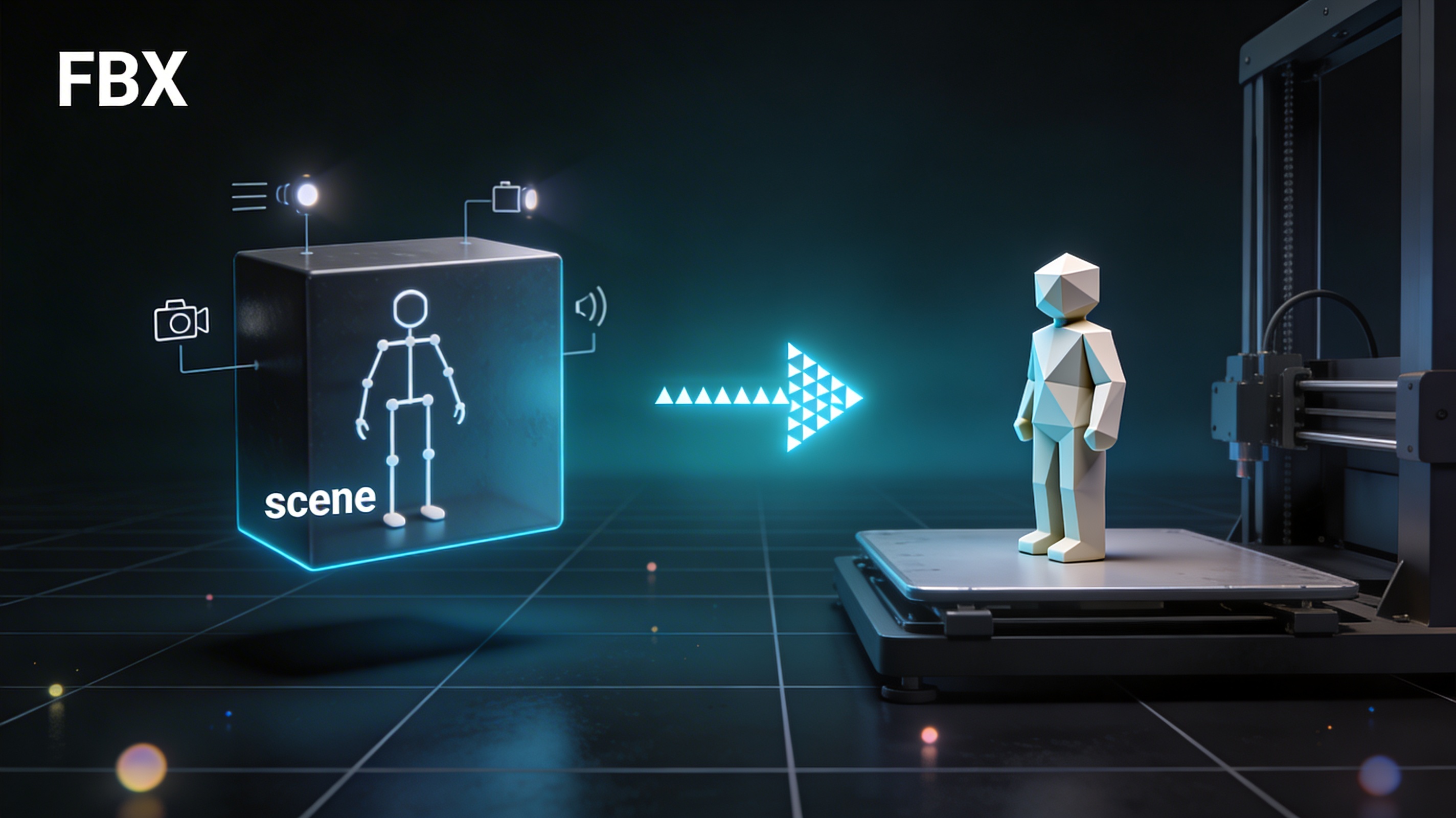
FBX, which stands for Filmbox, is a popular file format developed by Autodesk. It?? a powerhouse for 3D artists, animators, and game developers because it can store a whole scene in a single file. This includes not just the 3D model?? geometry, but also materials, textures, lighting, and even animations. This makes it incredibly versatile for digital content creation, but all that extra data can be a problem for 3D printing.
Why STL is the Standard for 3D Printing
STL, or Stereolithography, is the undisputed king of 3D printing formats. It has a much simpler job than FBX: it describes the surface geometry of a 3D object using a mesh of triangles. That?? it. No colors, no textures, no animations. This simplicity is its greatest strength for 3D printing, as it provides a clear, unambiguous blueprint for the slicing software to create the toolpath for the printer.
How Does FBX to STL Conversion Work?
The this option conversion is essentially a process of simplification. The converter extracts the core 3D model geometry from the FBX file and discards all the other data like textures, materials, and animations. It then rebuilds the model?? surface as a triangular mesh and saves it as an STL file. While this sounds straightforward, the quality of the this approach conversion can vary depending on the tool you use and the complexity of your model.
Top Tools for FBX to STL Conversion
There are many tools available for converting FBX files to STL, each with its own set of pros and cons. Let?? take a look at some of the most popular options for the format conversion.
Online Converters
Online converters are a great choice for quick, one-off conversions. They??e easy to use and don?? require any software installation. Here are a few of the best:
| Tool | Pros | Cons |
|---|---|---|
| Hyper3D | Fast, easy to use, and produces high-quality conversions. | Limited to file uploads, no batch processing. |
| Aspose | Supports a wide range of formats, good for batch conversions. | Can be slower with larger files. |
| Convert3D | Simple drag-and-drop interface, no sign-up required. | Fewer advanced options. |
| ImageToStl | Fast and free, with a simple interface. | Basic functionality, may not handle complex models well. |
Desktop Software
For more complex models or for those who need more control over the conversion process, desktop software is the way to go. These applications often include tools for repairing and optimizing your models before conversion.
- Blender: This free and open-source 3D creation suite is a powerful tool for converting and editing 3D models. It has a steeper learning curve than online converters, but it offers a huge amount of flexibility.
- Autodesk FBX Converter: Autodesk provides its own free tool for converting FBX files. It?? a simple, no-frills application that gets the job done.
Step-by-Step Guide: Converting FBX to STL with an Online Tool
Using an online converter is the easiest way to get your FBX file ready for 3D printing. Here?? a general guide that applies to most online tools:
1. Find a reliable online converter. A quick search for "FBX to STL converter" will give you plenty of options. I recommend starting with a reputable tool like Hyper3D?? 3D format converter.
2. Upload your FBX file. Most online converters have a simple upload button or a drag-and-drop interface.
3. Select STL as the output format. Make sure you??e chosen STL as the target format for your conversion.
4. Start the conversion. Click the "Convert" button and wait for the tool to process your file.
5. Download your STL file. Once the conversion is complete, you??l be able to download your new STL file.
My First-Hand Experience with FBX to STL Converters
I recently had to convert a complex architectural model from FBX to STL for a client. The model was highly detailed, with lots of small features and intricate textures. I first tried a few of the free online converters, but I ran into some issues. Some of them struggled with the file size, while others produced a messy STL file with a lot of errors. I then tried Hyper3D?? converter, and it handled the file perfectly. The conversion was fast, and the resulting STL file was clean and ready to print. The key difference was in how the converters handled the complex, non-manifold geometry of the architectural model. The free online tools seemed to struggle with this, resulting in a messy STL with lots of holes. Hyper3D?? converter, on the other hand, seemed to have a more advanced algorithm for handling these kinds of issues, which resulted in a much cleaner and more printable file. This experience taught me that for complex fbx to stl conversions, it's worth using a more powerful tool. For those looking to create their own 3D models from scratch, an AI 3D model generator can be a great starting point.
Advanced Tips for a Flawless FBX to STL Conversion
For the best results, there are a few things you should do before and after converting your file.
Checking for Manifold Errors
Manifold errors, or holes in your 3D model, can cause major problems during 3D printing. Before you convert your file, it?? a good idea to check for and repair any manifold errors. Tools like Meshmixer or Blender can help you with this.
Simplifying Your Model
If your FBX file is very large or complex, it?? a good idea to simplify it before converting. This can help to reduce the file size and prevent errors during the conversion process. You can do this in most 3D modeling software by reducing the polygon count of your model.
Verifying the STL File
After you??e converted your file, it?? always a good idea to open it in an STL file viewer to make sure everything looks right. This will allow you to check for any errors or issues before you send the file to your 3D printer. This is a critical step in the fbx to stl workflow. If you need to convert an image to a 3D model, you can use an image to 3D tool.
Understanding Polygon Count
The polygon count of your model can have a big impact on the success of your this method conversion. A higher polygon count will result in a more detailed model, but it will also create a larger file that is more difficult to process. For most 3D printing applications, a polygon count of around 200,000 is a good starting point. If your model has a much higher polygon count, you may want to consider reducing it before you convert to STL. This can be done in most 3D modeling software using a process called decimation.
Choosing the Right Converter for FBX to STL
With so many options available, choosing the right this approach converter can be a challenge. For simple models and one-off conversions, an online tool is usually the best option. They are fast, easy to use, and don't require any software installation. For more complex models, or for those who need more control over the conversion process, a desktop application like Blender is a better choice. These applications often include tools for repairing and optimizing your models before conversion, which can help to ensure a successful print. Ultimately, the best this method converter for you will depend on your specific needs and the complexity of your model.
Choosing the Right STL Format
There are two types of STL files: ASCII and binary. Binary STL files are much smaller than ASCII files, so they are generally the preferred format for 3D printing. When you are converting your this file type, make sure you choose the binary format if it is available.
Frequently Asked Questions (FAQ)
Can I convert an animated FBX to STL?
No, the STL format does not support animations. When you convert an animated this format, the animation data will be lost. The STL file will only contain the static 3D model at the frame you exported it from.
Will I lose my textures when converting from FBX to STL?
Yes, you will lose your textures. The STL format does not support colors or textures. If you need to 3D print in color, you??l need to use a different file format, such as VRML or 3MF.
What is the best fbx to stl converter?
There is no single "best" converter. The best tool for you will depend on your needs. For quick and easy conversions, an online tool like Hyper3D is a great option. For more complex models, you may need to use a desktop application like Blender.
Is it safe to use online FBX to STL converters?
Most reputable online converters are safe to use. However, you should always be careful about uploading sensitive or confidential files to any online service. If you??e concerned about privacy, you can use a desktop application to convert your files locally.
How large can the FBX file be for conversion?
The maximum file size for conversion will vary depending on the tool you use. Most online converters have a limit of around 100 MB. If you have a larger file, you may need to use a desktop application or a paid online service.