

STL File Converter: Convert Any 3D Format to STL
Whether you're a seasoned 3D artist or just starting, you've likely encountered the need to convert a 3D model into the STL format. It's a universal language for 3D printers and a common currency in the world of 3D modeling. But with so many different 3D file formats out there, how do you get them all to play nicely and convert to STL? In this guide, we'll explore the best STL file converters, from powerful online tools like Hyper3D's 3D format converter to versatile desktop software. A good STL converter is an essential tool for any 3D printing enthusiast. We'll break down the options, so you can find the perfect tool for your workflow. We'll also touch on how to use an STL file viewer to inspect your converted files.
What is an STL File and Why Convert to It?
Before we dive into the converters, let's quickly touch on what an STL file is and why it's so important in the 3D printing and modeling world. This will help you understand why a reliable STL converter is so important. The STL format has a long history, dating back to the 1980s when it was developed for the first 3D printers. Its simplicity and directness are what have made it so enduring. While newer formats have emerged with more features, STL remains the bedrock of 3D printing. Understanding its strengths and limitations is key to getting the best results from your 3D printer. You can learn more about the history of 3D printing and the STL format in our article on the evolution of 3D modeling.
Understanding the STL Format
STL, which stands for Stereolithography, is a file format that represents a 3D model's surface geometry using a mesh of triangles. Think of it as a 3D model's skin, but without any information about color, texture, or material. This simplicity is its greatest strength, making it a lightweight and widely supported format, especially for 3D printing. When you send a model to a 3D printer, it's almost always in the STL format.
Common 3D File Formats You Might Need to Convert
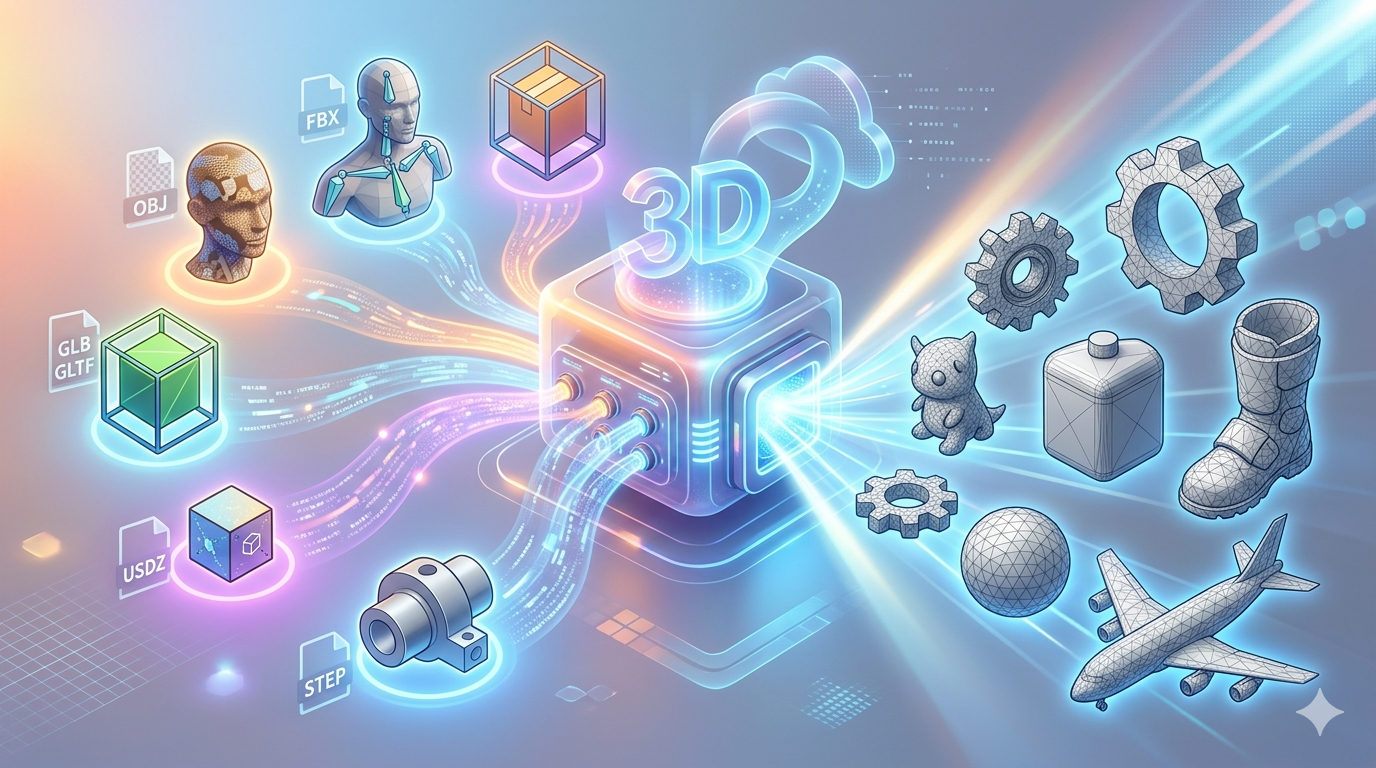
The 3D world is full of different file formats, each with its own strengths and weaknesses. Here are a few you might need to convert to STL. A good STL converter will be able to handle all of these formats and more. You can also check out our in-depth comparison of STL vs OBJ vs FBX for a more detailed breakdown of these popular formats:
- OBJ: A popular and versatile format that can store color and texture information, making it great for 3D graphics.
- FBX: Developed by Autodesk, FBX is a go-to format for animation and is widely used in the gaming and film industries.
- GLB/GLTF: These formats are designed for efficient transmission of 3D scenes and models, often used in web-based and AR/VR applications.
- USDZ: Developed by Apple and Pixar, USDZ is optimized for AR experiences on iOS devices.
- STEP: A format that represents 3D models with mathematical precision, making it ideal for engineering and manufacturing.
Top Online STL Converters
Online converters are a fantastic option for quick and easy file conversions without the need to install any software. An online STL converter is perfect for when you need to convert a file on the go. They're perfect for when you're on the go or don't want to clutter your computer with extra programs. Here are some of the best options available:
Hyper3D's OmniCraft
Hyper3D's OmniCraft is more than just an STL converter; it's a powerful 3D model editing and optimization tool. As a 3D format converter, it supports a wide range of input formats and can export to STL, FBX, OBJ, GLB, and USDZ. This makes it an incredibly versatile STL converter for any 3D artist's toolbox.
Pros:
- Supports a wide range of formats.
- Powerful editing and optimization features.
- Cloud-based, so you can access it from anywhere.
Cons:
- Requires an internet connection.
- May have limitations on file size for free users.
Other Online STL Converters
- Convert3D: A simple and straightforward online converter that supports a variety of 3D formats. It's a great option for quick, one-off conversions.
- Meshconvert: Another easy-to-use online tool that focuses on converting 3D mesh files. It's fast, free, and gets the job done.
- Aspose File Converter: This converter supports a huge range of file formats, including 3D models, documents, and images. It's a versatile tool, but the interface can be a bit cluttered.
Best Desktop Software for STL Conversion
For more complex projects or when you need to work offline, a desktop STL converter is the way to go. These programs offer more control and features than their online counterparts, making them ideal for professional artists and designers. Here are some of the top contenders:
Blender
Blender is a free and open-source 3D creation suite that can do just about anything, including file conversion. It's a powerful STL converter, but it can be overkill for simple conversions. It has a steep learning curve, but its power and versatility are unmatched.
Pros:
- Completely free and open-source.
- Incredibly powerful and versatile.
- Large and active community for support.
Cons:
- Steep learning curve for beginners.
- Can be overkill for simple file conversions.
Autodesk Fusion 360
Fusion 360 is a professional-grade CAD/CAM software that's popular among engineers and product designers. It has solid file conversion capabilities and can handle even the most complex models.
Pros:
- Professional-grade features.
- Excellent for parametric modeling.
- Integrates with other Autodesk products.
Cons:
- Can be expensive.
- Steeper learning curve than some other options.
SelfCAD
SelfCAD is an all-in-one 3D modeling software that's designed to be easy to use, even for beginners. It includes a built-in STL converter and a slicer for preparing models for 3D printing.
Pros:
- User-friendly interface.
- All-in-one solution for modeling and printing.
- Good for beginners.
Cons:
- Not as powerful as some other options.
- Subscription-based pricing.
Step-by-Step Guide: How to Convert a File to STL
Now that you know the options, let's walk through the process of converting a file to STL using both an online STL converter and a desktop STL converter.
Using an Online STL Converter (Hyper3D)
1. Go to the Hyper3D OmniCraft page: https://hyper3d.ai/omnicraft/formatcon
2. Upload your file: Drag and drop your 3D model file onto the page or click to browse your computer.
3. Choose your output format: Select STL from the list of available formats.
4. Convert and download: Click the convert button and wait for the process to complete. Then, download your new STL file.
Using a Desktop STL Converter (Blender)
1. Open Blender and import your model: Go to `File > Import` and select the format of your 3D model.
2. Select your model: Make sure your model is selected in the viewport.
3. Export as STL: Go to `File > Export > Stl (.stl)`.
4. Choose your export settings: You can adjust the scale and other settings before exporting.
5. Save your file: Choose a name and location for your new STL file and click `Export STL`.
My First-Hand Experience with STL Converters
I've used a lot of different STL converters over the years, and I've found that the best STL converter for the job really depends on the project. For quick and simple conversions, I love the convenience of an online STL converter like Hyper3D's OmniCraft. I recently had to convert a batch of OBJ files to STL for a 3D printing project, and OmniCraft handled it without a hitch. The interface is clean and intuitive, and the conversions were fast and accurate. I was able to upload my files, select STL as the output format, and have the converted files ready to download in minutes. This is a huge time-saver compared to the more involved process of using desktop software. I also appreciate that I can use it on any computer with an internet connection, without having to worry about installing software or updates. For another project, I needed to convert a high-poly ZBrush sculpt into a 3D-printable STL. The model was incredibly detailed, and I was worried about losing detail in the conversion process. I used Hyper3D's OmniCraft with the 'Focal' generation mode, and I was blown away by the results. The final STL file was perfectly optimized for 3D printing, with all the fine details of the original sculpt preserved. You can learn more about our different generation modes in our guide to Hyper3D's generation modes.
For more complex projects, I usually turn to a desktop STL converter like Blender. I recently worked on a project that required me to not only convert a file to STL but also to make some modifications to the mesh. Blender's powerful editing tools were a lifesaver, and I was able to get the model exactly how I wanted it before exporting it to STL. It took a bit more time and effort, but the results were worth it. For example, I had to repair some non-manifold geometry and simplify the mesh to reduce the file size. Blender's built-in 3D-Print Toolbox was invaluable for this task. It allowed me to quickly identify and fix any issues with the model, ensuring that it would print without any problems. While Blender has a steeper learning curve than some of the other options, the level of control it provides is unmatched. If you're serious about 3D printing, it's a tool that's well worth learning.
Advanced Tips for Your STL Converter
- Repairing and Optimizing STL Files: Sometimes, you'll end up with an STL file that has errors, such as holes or non-manifold edges. Tools like Meshmixer or the 3D-Print Toolbox in Blender can help you repair these issues and optimize your model for 3D printing.
- Batch Conversion: If you have a lot of files to convert, look for a tool that supports batch conversion. This will save you a ton of time and effort.
- Choosing the Right Conversion Parameters: When you export a file to STL, you'll often have the option to adjust the resolution or tolerance. A higher resolution will result in a more detailed model, but it will also create a larger file. It's a good idea to experiment with these settings to find the right balance for your project.
FAQ about STL Converters
What is the best free STL converter? There are many great free STL converters available, so the best one for you will depend on your specific needs.
For a free and powerful desktop solution, Blender is hard to beat. For a quick and easy online converter, Hyper3D's OmniCraft and Convert3D are both great options.
Can I convert an image to an STL file with an STL converter?
Yes, there are several online tools that can convert 2D images to 3D STL files. These tools work by creating a heightmap from the image, where the brightness of the pixels determines the height of the 3D model.
How do I view an STL file? Many STL converters also include a built-in STL file viewer.
There are many free STL file viewers available, both online and as desktop applications. Hyper3D also offers a free STL file viewer that you can use to inspect your models.
Can I edit an STL file? Yes, but it's often better to edit the original file before using an STL converter.
Yes, you can edit STL files using 3D modeling software like Blender, Fusion 360, or SelfCAD. However, it's often easier to make changes to the original model before converting it to STL.
Why is my STL file so large? The size of your STL file will depend on the complexity of your model and the settings you use in your STL converter.
The size of an STL file is determined by the number of triangles in the mesh. A more detailed model will have more triangles and a larger file size. You can reduce the file size by simplifying the mesh, but this will also reduce the level of detail.
What are the best practices for converting files to STL?
When converting files to STL, it's important to keep a few best practices in mind. First, always check your model for errors before converting it. This will help to ensure that the final STL file is printable. Second, choose the right conversion parameters for your project. A higher resolution will result in a more detailed model, but it will also create a larger file. Finally, always inspect your STL file in a viewer before sending it to the printer. This will allow you to catch any potential issues before they become a problem. You can learn more about 3D printing best practices in our article on how to get started with 3D printing.
Conclusion
Choosing the right STL converter is an important decision for any 3D artist or designer. A good STL converter can save you a lot of time and frustration. Whether you opt for a powerful online STL converter like Hyper3D's OmniCraft or a versatile desktop STL converter like Blender, the right tool will help you to get your models ready for 3D printing with ease. By understanding the different options available and following a few best practices, you can ensure that your conversions are always successful.
What is the best tool for stl converter?
The best tool depends on your needs. For AI-assisted workflows, Hyper3D and Meshy are strong options. For manual control, Blender remains the industry standard free tool.
Is stl converter difficult to learn?
The basics are straightforward, especially with AI tools that automate much of the process. Traditional methods have a steeper learning curve but offer more control.
Can I do stl converter for free?
Yes. Blender is completely free for manual work, and several AI platforms offer free tiers ??Hyper3D gives free credits to new users, and Tencent's Hunyuan3D is free.