

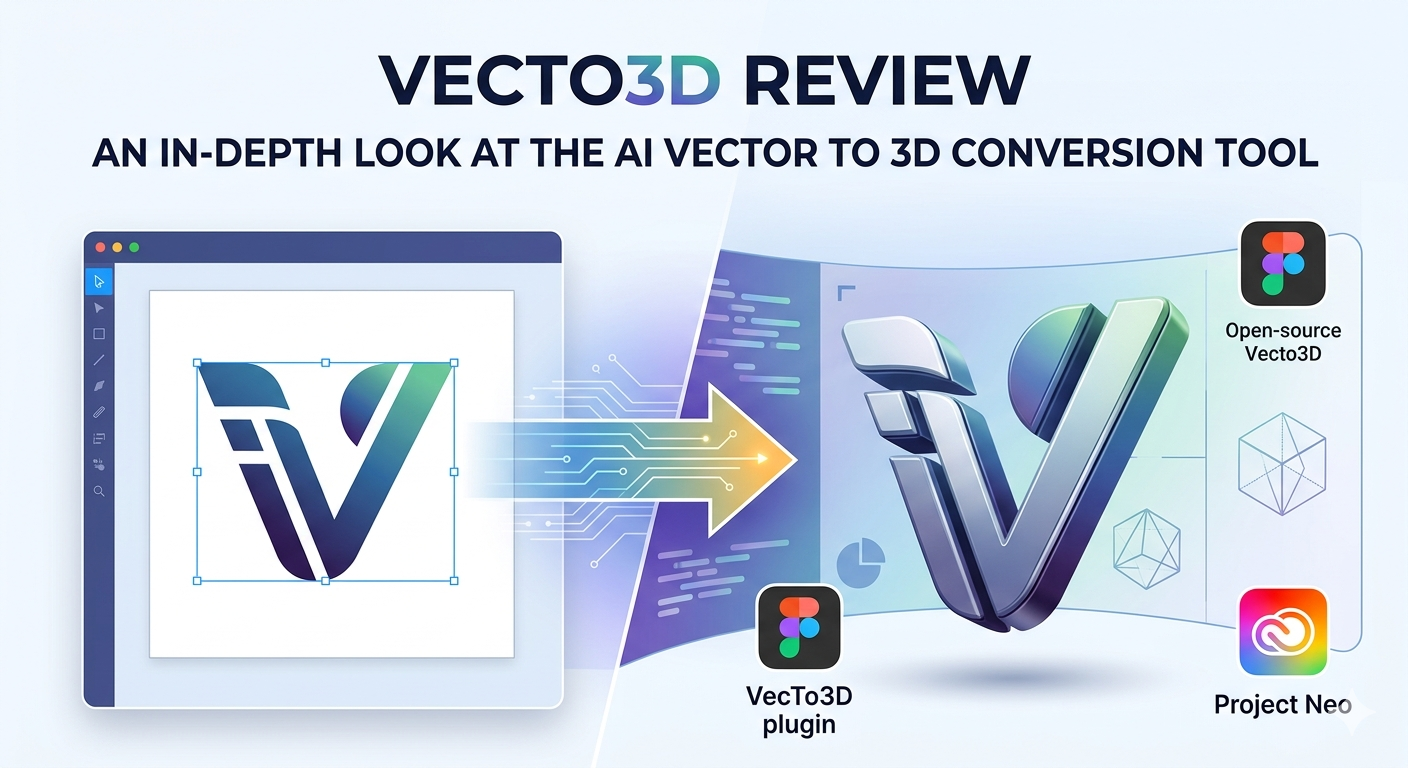
Vecto3D Review: An In-Depth Look at the AI Vector to 3D Conversion Tool
Turning a flat, 2D design into a three-dimensional object used to be a complex task reserved for seasoned 3D artists. But as technology has advanced, a new wave of tools has emerged to simplify this process, making it accessible to designers of all skill levels. Platforms like Adobe's Project Neo, the versatile Spline, and the innovative Vecto3D are changing the way we think about 3D creation. These tools offer unique approaches to converting simple vector graphics, like logos and icons, into fully-fledged 3D models, each with its own set of strengths and ideal use cases.
In this review, we'll take a close look at the Vecto3D ecosystem, exploring its different versions, and see how it stacks up against other popular vector-to-3D solutions. We'll dive into first-hand experiences, compare features, and help you decide which tool is the right fit for your creative workflow.
What is Vecto3D?
The name "Vecto3D" can be a bit confusing because it refers to two distinct tools that share a common origin. One is a free, open-source web tool, and the other is a more advanced plugin for Figma that incorporates AI features. Understanding the difference is key to choosing the right one for your needs.
The Original Open-Source Vecto3D Tool
The original Vecto3D is a browser-based tool created by developer Lakshay Bhushan. It was born out of a desire to create a fast and easy way to convert SVG files into 3D models without the steep learning curve of professional software like Blender. It's a straightforward, no-frills solution for quick conversions.
You simply upload an SVG file, and the tool provides a set of intuitive controls to adjust the model's geometry, such as its thickness and bevel. You can also experiment with different materials and lighting environments. Once you're happy with the result, you can export the model in common 3D formats like GLB, STL, and GLTF, or even as a high-resolution PNG image. It's a fantastic resource for designers who need a quick 3D version of a logo or icon for a mockup or presentation.
The VecTo3D Figma Plugin with AI
Building on the foundation of the open-source project, a separate developer created the VecTo3D plugin for Figma. While it shares the core functionality of converting vectors to 3D, this plugin is a more feature-rich and commercially-oriented product. It's deeply integrated into the Figma environment, allowing designers to create 3D assets without ever leaving their primary design tool.
This version offers more advanced modeling methods, including extrude, lathe, and inflate, giving users more creative control. Its most significant feature, however, is the integration of AI-powered rendering. By connecting your own Replicate API key, you can transform your basic 3D models into photorealistic images, complete with advanced lighting and materials. This makes it a powerful tool for creating high-fidelity product mockups and marketing visuals directly within Figma.
My First-Hand Experience with Vector to 3D Tools
To get a real feel for these tools, I took them for a spin. I wanted to see how they handled a simple logo and what the overall workflow felt like, from import to export. My goal was to understand the practical differences and where each tool shines.
Testing the Open-Source Vecto3D
My first stop was the original Vecto3D web tool. Unfortunately, I hit a roadblock immediately as the official website was down due to an SSL error. However, since it's an open-source project, the code is publicly available on GitHub. For a developer, setting it up locally would be an option, but for the average designer, this is a significant barrier. Based on documentation and user reviews, the experience is generally smooth and intuitive when the tool is operational. The main appeal is its simplicity and the fact that it's free, making it a great starting point for basic conversions.
Exploring the VecTo3D Figma Plugin
Next, I jumped into Figma to try the VecTo3D plugin. The installation was smooth, and the plugin immediately felt at home within the Figma UI. I selected a vector logo I had prepared, and with a single click, it was extruded into a 3D object. The real-time preview was responsive, and I could easily adjust the depth, add bevels, and experiment with materials. The material library is extensive, with presets for everything from plastic to metal. The AI rendering feature is the main event here. While it requires an external API key, the promise of photorealistic results is a huge draw for designers looking to create stunning visuals without leaving their design environment.
A Look at Adobe's Project Neo
Finally, I explored Adobe's Project Neo. As someone familiar with the Adobe ecosystem, Project Neo felt very intuitive. It uses familiar concepts like shape building and anchor points, but in a 3D space. I imported an SVG, and the conversion was flawless. The integration with Illustrator is a massive advantage. Being able to move a design from a 3D environment back to a fully editable vector in Illustrator is a powerful workflow. The "Scene to image" feature, which uses AI to generate different design variations, is also a unique and compelling addition. Project Neo is clearly aimed at designers already invested in the Adobe Creative Cloud, and for them, it offers a smooth and powerful experience.
Vecto3D vs. The Competition: An Objective Comparison
Choosing the right tool depends entirely on your specific needs, budget, and existing workflow. There's no single "best" option, as each has its own advantages and disadvantages.
| Feature | Vecto3D (Open-Source) | VecTo3D (Figma Plugin) | Adobe Project Neo | Hyper3D OmniCraft's Vecto3D |
|---|---|---|---|---|
| Cost | Free | Freemium (with AI costs) | Subscription (Adobe CC) | Included in Hyper3D Suite |
| Platform | Web (when available) | Figma | Web & Illustrator | Web (Integrated in Hyper3D) |
| Ease of Use | Very Easy | Easy | Moderate | Easy |
| Key Feature | Simplicity, quick conversion | AI rendering, Figma integration | Seamless Illustrator workflow | Part of an end-to-end 3D toolkit |
| Export Formats | STL, GLB, GLTF, PNG | Figma Canvas, PNG | SVG (to Illustrator) | STL, FBX, OBJ, GLB, USDZ |
Vecto3D (Open-Source): The Quick and Free Option
- Pros: It's free, incredibly simple to use, and provides essential export formats. It's the perfect tool for a designer who occasionally needs to turn a logo into a basic 3D model without any fuss.
- Cons: Its biggest drawback is its reliability, as seen with the website being down. It also lacks the advanced features and professional polish of its competitors.
VecTo3D (Figma Plugin): For the Figma Power User
- Pros: The deep integration with Figma is a massive workflow enhancement. The AI rendering capabilities are a standout feature, allowing for the creation of high-quality visuals directly within the design tool.
- Cons: The reliance on an external API key for AI features adds a layer of complexity and potential cost. It's also limited to the Figma ecosystem.
Adobe Project Neo: For the Adobe Faithful
- Pros: The smooth round-trip editing between 3D and 2D vector formats in Illustrator is a major advantage for designers in the Adobe ecosystem. The tool feels familiar and powerful.
- Cons: It's tied to an Adobe Creative Cloud subscription, making it an expensive choice if you're not already a user. The workflow is very Adobe-centric.
When to Use Which Tool?
- For a quick, one-off conversion: The open-source Vecto3D is your best bet (if it's accessible).
- For designers working primarily in Figma: The VecTo3D plugin is a natural fit, especially if you need high-quality, AI-powered renderings.
- For designers heavily invested in Adobe Illustrator: Project Neo offers an unmatched, integrated workflow.
- For a comprehensive 3D workflow: If you need more than just vector-to-3D conversion, a tool like Hyper3D's Vecto3D tool within the OmniCraft suite provides an end-to-end solution, from creation and editing to conversion and beyond.
Beyond Vector to 3D: Exploring Other Hyper3D Tools
While converting vectors is a great starting point, the world of 3D creation is vast. Once you have your 3D model, you might need to edit it, convert it to a different format, or even create entirely new models from text or images. This is where a comprehensive platform like Hyper3D shines. The Vecto3D tool is just one piece of the powerful OmniCraft suite.
After converting your vector, you can use OmniCraft's solid editing tools to refine your model. If you need to convert your file to a format not supported by other tools, the FormatCon tool can handle almost any 3D file type, including professional formats like FBX and USDZ. But Hyper3D's capabilities don't stop there. You can explore other creative avenues, such as turning a simple photo into a detailed model with the image to 3D tool, or generating complex 3D objects from a text description using the text-to-3D model generator. For generative art and storytelling, the Rodin tool offers another dimension of creative expression.
Frequently Asked Questions about Vecto3D
What is the difference between the open-source Vecto3D and the Figma plugin?
The open-source Vecto3D is a simple, free web tool for basic SVG to 3D conversion. The VecTo3D Figma plugin is a more advanced, paid tool with features like AI rendering and deep integration into the Figma workflow.
Can I use Vecto3D for free?
Yes, the original, open-source version of Vecto3D is free to use, though its availability can be inconsistent. The Figma plugin offers a freemium model, where core features may be free but advanced capabilities like AI rendering require a subscription or API key costs.
What are the best alternatives to Vecto3D?
Popular alternatives include Adobe Project Neo for users of the Adobe suite, Spline for collaborative 3D design, and professional tools like Blender for those needing maximum power and control. For an integrated experience, Hyper3D's own Vecto3D tool is a strong contender.
What file formats does Vecto3D support for export?
The open-source Vecto3D exports to STL, GLB, and GLTF. The Figma plugin primarily exports back to the Figma canvas. For a wider range of options, including FBX, OBJ, and USDZ, a tool like Hyper3D's FormatCon is recommended.
How does Vecto3D's AI feature work?
The AI feature is exclusive to the VecTo3D Figma plugin. It uses an external service called Replicate to process your 3D model and a text prompt, generating a photorealistic image. This requires you to have your own Replicate API key and will incur costs based on your usage.