

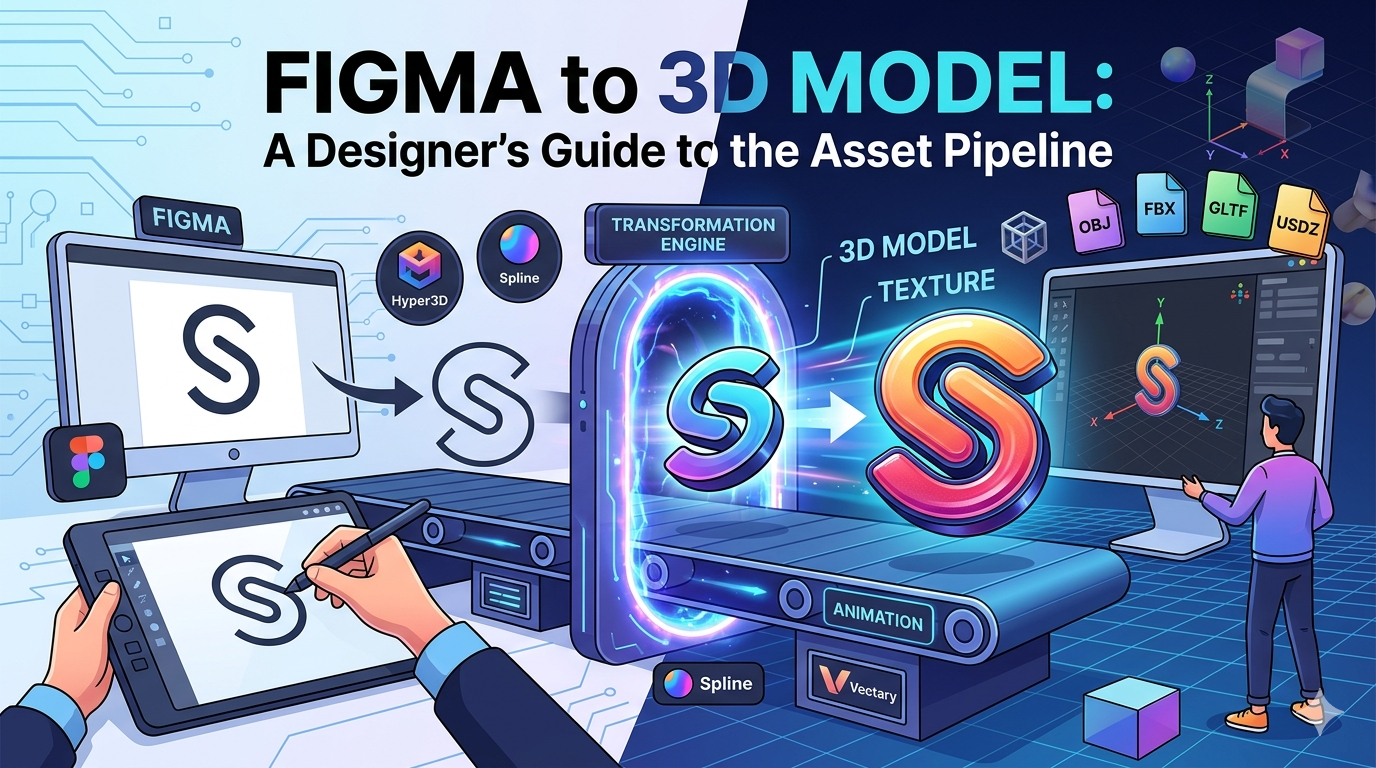
Figma to 3D Model: A Designer's Guide to the Asset Pipeline
In the fast-paced world of digital design, the distinction between 2D and 3D is becoming less defined. Designers are always looking for new ways to bring their ideas to life, and converting Figma designs into 3D models has become a popular topic. This article breaks down the process of turning your 2D Figma designs into immersive 3D assets. We'll cover the tools, techniques, and best practices for a smooth workflow.
Why Turn Figma Designs into 3D Models?
The need for 3D content is growing, and for good reason. 3D models provide a level of interaction and realism that 2D designs can't offer. Here are some of the main advantages of converting your Figma designs to 3D:
Better Product Visualization
For those who design products, 3D models are a vital tool. They let you show off your products from every angle, giving potential customers a more complete and engaging experience. Imagine being able to rotate, zoom, and interact with a product as if it were right there. That's the power of 3D, and it starts with a solid process to get from a Figma to 3D model.
Interactive Web Experiences
3D models can change a static webpage into something users can interact with. Whether it's a product builder, a virtual tour, or an animated character, 3D elements can grab your audience's attention and keep them interested for longer. With the growth of WebGL and other web-based 3D technologies, it's easier than ever to add 3D content to your site.
Simpler Prototyping
Turning your Figma prototypes into 3D can also make your design process more efficient. Instead of making separate 2D and 3D mockups, you can now do it all in one workflow. This not only saves time but also leads to a more consistent design. The ability to quickly go from a Figma design to a 3D model is a big plus for any design team.
Popular Tools for Figma to 3D Conversion
Several tools are available to help you convert your Figma designs to 3D models. Here are a few of the most well-known options:
Hyper3D's Vecto3D
Hyper3D's Figma to 3D converter is a strong tool that lets you turn your 2D vector shapes into 3D models with just a few clicks. It's a great choice for designers who are new to 3D because it's very easy to use. You can also use it for image to 3D conversion.
Spline
Spline is a popular 3D design tool that works directly with Figma. It lets you create and edit 3D scenes and then place them in your Figma designs. Spline is a great option for designers who want more say over their 3D creations.
Vectary
Vectary is another capable 3D design tool with a Figma plugin. It's a bit more complex than Spline, but it also provides more features and flexibility. With Vectary, you can build detailed 3D models and animations and then bring them into your Figma designs.
My First-Hand Experience with Figma to 3D Model Conversion: From 2D Vector to 3D Asset
As a designer, I was curious about the process of turning a Figma design into a 3D model. I decided to test the tools mentioned earlier, and I was happy with what I found. My main goal was to find the most effective Figma to 3D model pipeline for my own work.
I began with a simple logo I made in Figma. I used Hyper3D's Vecto3D to turn it into a 3D model. The process was very straightforward. I just had to select my vector shape and click the "Convert to 3D" button. In seconds, I had a 3D version of my logo. The speed and simplicity of this conversion were impressive. The tool also offers various customization options, allowing me to adjust the extrusion depth and material properties to get the exact look I wanted.
The quality of the 3D model was impressive. It was a perfect copy of my 2D design, and I could export it in many formats, including STL, FBX, OBJ, GLB, and USDZ. I also tried the different generation modes, like Gen-2, Default, and Speedy, to see how they changed the final output. The variety of export options makes this a versatile tool for any designer's toolkit.
Next, I tried Spline. I found it more involved than Vecto3D, but it also gave me more creative freedom. I was able to make a more detailed 3D scene with custom lights and materials. I then put the scene into my Figma design, which created a really neat interactive element. The real-time collaboration feature in Spline is also a huge plus, as it allowed me to work on the 3D scene with a colleague simultaneously.
Finally, I gave Vectary a shot. As I expected, it was the most advanced of the three. It took me some time to get used to it, but once I did, I could create some amazing 3D models. I was especially impressed with the animation features, which let me bring my designs to life. Vectary's extensive library of pre-made 3D assets and materials also saved me a lot of time.
Having a portfolio that showcases your ability to work with both 2D and 3D design is a huge advantage in the current job market. It shows that you're a versatile designer who is comfortable working with a variety of tools and technologies. By mastering the Figma to 3D model workflow, you can create a portfolio that will stand out from the crowd.
Objective Comparison of Figma to 3D Tools
| Tool | Pros | Cons |
|---|---|---|
| Hyper3D's Vecto3D | - Very easy to use - Quick conversion times - Supports many export formats | - Limited creative options |
| Spline | - Works directly with Figma - Good mix of ease of use and creative control | - Can be slow at times |
| Vectary | - Powerful and full of features - Great for making complex 3D models and animations | - Has a steep learning curve |
The Future of 3D in Design
The field of 3D design is always changing, and we can expect to see even more new developments in the coming years. The workflow to create a Figma to 3D model is just the start.
The Growth of AI in 3D Modeling
AI is already making a big difference in 3D modeling. With tools like Hyper3D's text-to-3d-model generator, you can now create 3D models from a simple text description. This is only the beginning, and we can expect to see even more advanced AI-powered 3D modeling tools soon. This will make the process of creating a Figma to 3D model even simpler.
AR/VR Integration
Augmented reality (AR) and virtual reality (VR) are two other technologies that are set to change the world of 3D design. With AR and VR, you'll be able to create immersive and interactive experiences that once seemed like science fiction. Hyper3D's Rodin is a good example of a tool that is already using this trend. A good pipeline for Figma to 3D model creation is key for making assets for these platforms.
No-Code 3D Interactions
In the past, making interactive 3D experiences required a lot of coding skill. That's not the case anymore. With the growth of no-code platforms, it's now possible to create interactive 3D experiences without writing any code. This is great for designers, as it means they can now make more engaging and interactive experiences without needing help from developers.
Frequently Asked Questions About Figma to 3D Model (FAQ)
What is the best Figma to 3D converter?
There's no single answer to this. The best Figma to 3D model converter for you depends on your specific needs and skill level. If you're new to 3D, I'd suggest starting with a tool like Hyper3D's Vecto3D. If you have more experience, you might want to check out Spline or Vectary.
Can I export my Figma designs directly to a 3D format?
No, you can't directly export your Figma designs to a 3D format. You'll need to use a third-party tool, like the ones mentioned in this article, to convert your designs to 3D.
Do I need to know how to code to create 3D models from Figma?
No, you don't need to know how to code to create 3D models from Figma. There are many no-code tools available that make it easy to create 3D models without writing a single line of code.
What are the best file formats for web-based 3D models?
The best file formats for web-based 3D models are glTF and GLB. These formats are made for the web and are supported by all major browsers. You can use a tool like Hyper3D's OmniCraft to convert your 3D models to these formats.
How can I optimize my 3D models for performance?
There are several things you can do to optimize your 3D models for performance. This includes lowering the polygon count, using compressed textures, and using lazy loading.
Conclusion
The ability to turn Figma designs into 3D models is a huge step forward for designers. It opens up a whole new range of creative options and lets you create more engaging and interactive experiences for your users. Whether you're an experienced 3D artist or a total beginner, there's a tool out there that can help you bring your Figma designs to life in 3D. Learning the Figma to 3D model workflow is a valuable skill for any designer today.