

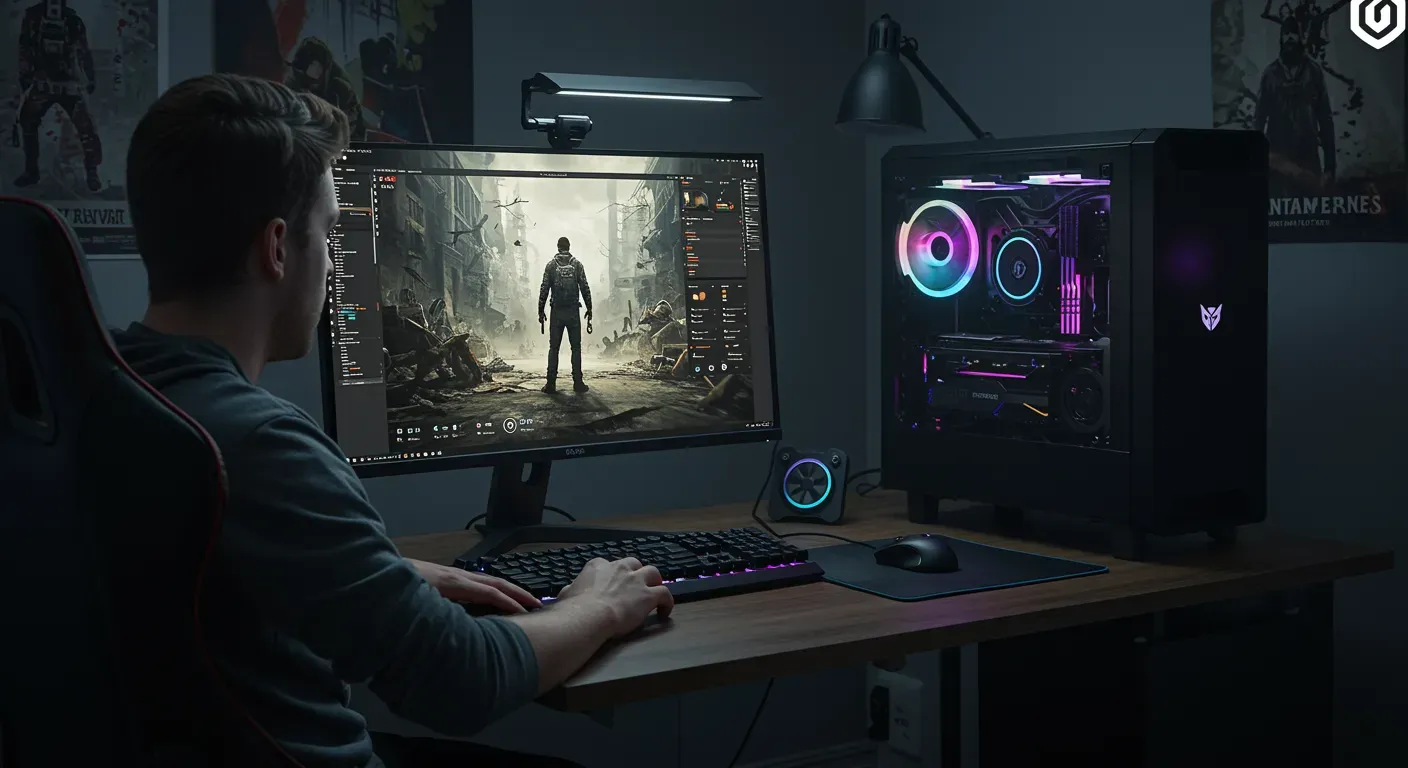
World War Z is an exhilarating co-op shooter that pits players against hordes of zombies in thrilling scenarios. However, to truly enjoy the high-octane action, it's crucial to optimize your game settings for peak performance. In this guide, we'll walk you through essential tips and tricks to enhance your gaming experience, ensuring smooth gameplay and stunning visuals.
Understanding Your System Requirements
Before diving into specific settings, it's important to know the minimum and recommended system requirements for World War Z. Here's a quick overview:
- Minimum Requirements:
- OS: Windows 7/8/10 (64-bit)
- Processor: Intel Core i5-750 or AMD Phenom II X4 955
- Memory: 8 GB RAM
- Graphics: NVIDIA GeForce GTX 660 or AMD Radeon HD 7500
- DirectX: Version 11
- Recommended Requirements:
- OS: Windows 10 (64-bit)
- Processor: Intel Core i5-4670 or AMD FX-8350
- Memory: 8 GB RAM
- Graphics: NVIDIA GeForce GTX 960 or AMD Radeon R9 280
- DirectX: Version 11
Knowing your system specifications helps you tailor settings that maximize performance without compromising quality.
Adjusting Graphics Settings
Graphics settings can significantly impact performance. Here are key adjustments to consider:
a. Resolution
While playing at a higher resolution provides better visuals, it can strain your GPU. If you experience lag, consider lowering the resolution. A common compromise is to play at 1920�1080 instead of 4K.
b. Texture Quality
High texture quality enhances detail, but it requires more VRAM. If you have limited memory, set texture quality to medium. This adjustment often yields a good balance between visuals and performance.
c. Anti-Aliasing
Anti-aliasing smooths jagged edges, but it can be demanding on your GPU. If you're struggling with frame rates, try turning it off or lowering the setting to FXAA, which is less intensive.
Optimizing Gameplay Settings
Beyond graphics, there are gameplay settings that can improve your experience:
a. Field of View (FOV)
Increasing the FOV can provide a broader view of the battlefield, which is advantageous in chaotic zombie encounters. However, a higher FOV may reduce performance. A setting around 90-100 degrees is often optimal.
b. Frame Rate Limit
Setting a frame rate limit can stabilize performance. While higher frame rates are desirable, capping it to 60 FPS can prevent fluctuations that lead to stuttering.
Utilizing Performance Monitoring Tools
To effectively optimize your game, consider using performance monitoring tools like MSI Afterburner or Fraps. These tools provide real-time statistics on frame rates, CPU and GPU usage, and memory consumption. By analyzing this data, you can identify bottlenecks and adjust settings accordingly.
Ethical Considerations in Gaming Performance
While optimizing settings for better performance, it's essential to consider the ethical implications of gaming. For instance, using third-party software to gain an unfair advantage in multiplayer modes can ruin the experience for others. Always aim to enhance your gameplay within fair boundaries, promoting a healthy gaming community.
As technology advances, the gaming landscape continues to evolve. Regularly updating your graphics drivers and keeping an eye on new patches for World War Z can ensure optimal performance. By following the tips outlined in this post, you can maximize your gaming experience now and in the future.
In the end, the goal is to enjoy the thrilling battles against the undead. With the right settings, you can immerse yourself fully in the action without the frustration of lag or poor performance.