Image to DXF: Convert Photos to CAD Format
Converting an image to a DXF file is a common task for many designers, engineers, and hobbyists. It allows you to take a 2D image, like a company logo or a design sketch, and turn it into a vector format that can be used in CAD software for things like laser cutting, CNC machining, or 3D modeling. There are many ways to accomplish this, from simple online tools to more advanced desktop software. In this article, we'll explore the process of converting an this format, compare some of the top tools available, and provide a step-by-step guide to help you get the best results. This process is often referred to as an this file type conversion.
What is an Image to DXF Conversion?
fundamentally, converting an this option is the process of turning a raster image into a vector image. This this approach process is essential for many workflows. To understand what that means, we need to look at the fundamental differences between these two image types.
Understanding Raster vs. Vector Graphics
Raster images, such as JPEGs, PNGs, and GIFs, are made up of a grid of tiny squares called pixels. Each pixel has a specific color, and when combined, they create the image you see. The problem with raster images is that they don't scale well. If you try to enlarge a raster image, it becomes blurry and pixelated because you're just making the individual pixels bigger.
Vector graphics, on the other hand, are made up of mathematical equations that define points, lines, and curves. This means that you can scale a vector image to any size without losing quality. DXF (Drawing Exchange Format) is a vector file format developed by Autodesk for their AutoCAD software. It has since become a standard for exchanging drawings between different CAD programs.
Why Convert an Image to DXF?
There are many reasons why you might need to convert an the format. For example, you might have a company logo that you want to have laser-engraved on a product. Or you might have a hand-drawn sketch of a part that you need to model in CAD. By converting the this method, you can easily import it into your CAD software and use it as a starting point for your design. The ability to convert an image to DXF is a powerful tool for any designer.
How Does Image to DXF Conversion Work?
The process of converting an this method involves a technique called "tracing" or "vectorization." This is the fundamental technology behind any the format converter. This is where the software analyzes the raster image and tries to identify the shapes and lines within it. It then creates a vector representation of those shapes and lines.
The Role of Tracing Algorithms
Tracing algorithms are the heart of any this approach converter. They look for areas of similar color and contrast to identify the edges of objects in the image. The complexity and sophistication of these algorithms can vary greatly from one tool to another. Some simple online converters use basic algorithms that work well for simple images, while more advanced desktop software uses sophisticated algorithms that can handle more complex images.
Manual vs. Automated Conversion
There are two main approaches to converting an this file type: manual and automated. Manual conversion involves tracing the image by hand in a vector graphics program like Adobe Illustrator or Inkscape. This gives you the most control over the final result, but it can be a time-consuming process, especially for complex images.
Automated conversion, on the other hand, uses software to do the tracing for you. An automated this format converter can save you a significant amount of time. This is much faster than manual conversion, but the results can be less accurate, especially with low-quality or complex images. Many automated tools also offer a range of settings that you can adjust to fine-tune the conversion process.
Top Tools for Image to DXF Conversion
There are many tools available for converting images to DXF, from simple online converters to powerful desktop software. Here are a few of the most popular options:
Online Converters
Online converters are a great option for simple conversions. They're easy to use and don't require you to install any software. Some popular online converters include Convertio, Imagetostl, and Vectorizer.ai. These tools are generally best for simple, high-contrast images like logos and silhouettes.
Desktop Software
For more complex conversions, you'll want to use desktop software. These programs offer more advanced features and give you more control over the conversion process. Some popular desktop options include Inkscape, a free and open-source vector graphics editor, and Scan2CAD, a commercial program specifically designed for converting images to CAD formats.
Hyper3D's image to DXF converter
Hyper3D offers a powerful and easy-to-use image to DXF converter that is perfect for a wide range of applications. When you use Hyper3D for your image to DXF needs, you can export your models to a variety of formats, including STL, FBX, OBJ, GLB, and USDZ. The platform offers several generation modes like Gen-2, Default, Focal, Zero, and Speedy to give you control over the final output. It uses advanced AI algorithms to produce high-quality conversions, even from complex images. Hyper3D also offers a suite of other tools, including a DWG to DXF converter and a 3D format converter.
Comparison Table
| Tool | Type | Price | Pros | Cons |
|---|---|---|---|---|
| Convertio | Online | Free (with limitations) | Easy to use, no installation required | Limited features, may not work well with complex images |
| Inkscape | Desktop | Free | Powerful and feature-rich, great for manual tracing | Can have a steep learning curve for beginners |
| Scan2CAD | Desktop | Paid | Professional-grade tool with advanced features | Can be expensive for casual users |
| Hyper3D | Online | Freemium | AI-powered for high-quality conversions, integrated with other tools | Requires an internet connection |
Step-by-Step Guide to Converting an Image to DXF
Here is a general guide to converting an this option using both online and desktop tools.
Using an Online Converter
1. Choose an online converter: There are many to choose from, so pick one that suits your needs.
2. Upload your image: Most online converters have a simple drag-and-drop interface.
3. Select DXF as the output format: Make sure you choose DXF from the list of available formats.
4. Adjust the settings (if available): Some online converters allow you to adjust settings like color tolerance and corner smoothing.
5. Convert and download: Click the convert button and download your DXF file.
Using Desktop Software
1. Open your image in the software: Open your chosen desktop software and import your image.
2. Use the tracing tool: Most vector graphics programs have a tracing tool that you can use to automatically or manually trace the image.
3. Adjust the tracing settings: You can usually adjust settings like the number of colors, the level of detail, and the smoothness of the curves.
4. Clean up the vector paths: After tracing, you may need to clean up the vector paths by removing any stray points or lines.
5. Export as DXF: Once you're happy with the result, export the file as a DXF.
My First-Hand Experience with Image to DXF Converters
I've used a variety of tools to convert images to DXF over the years, and I've found that the best tool for the job really depends on the image you're working with. For simple logos and graphics, I've had good luck with online converters like Convertio. They're quick and easy to use, and they usually produce a decent result.
For more complex images, I've found that desktop software like Inkscape is a better option. It gives you more control over the tracing process and allows you to clean up the vector paths after conversion. I recently used Inkscape to convert a detailed illustration into a DXF file for a laser cutting project, and I was very happy with the results.
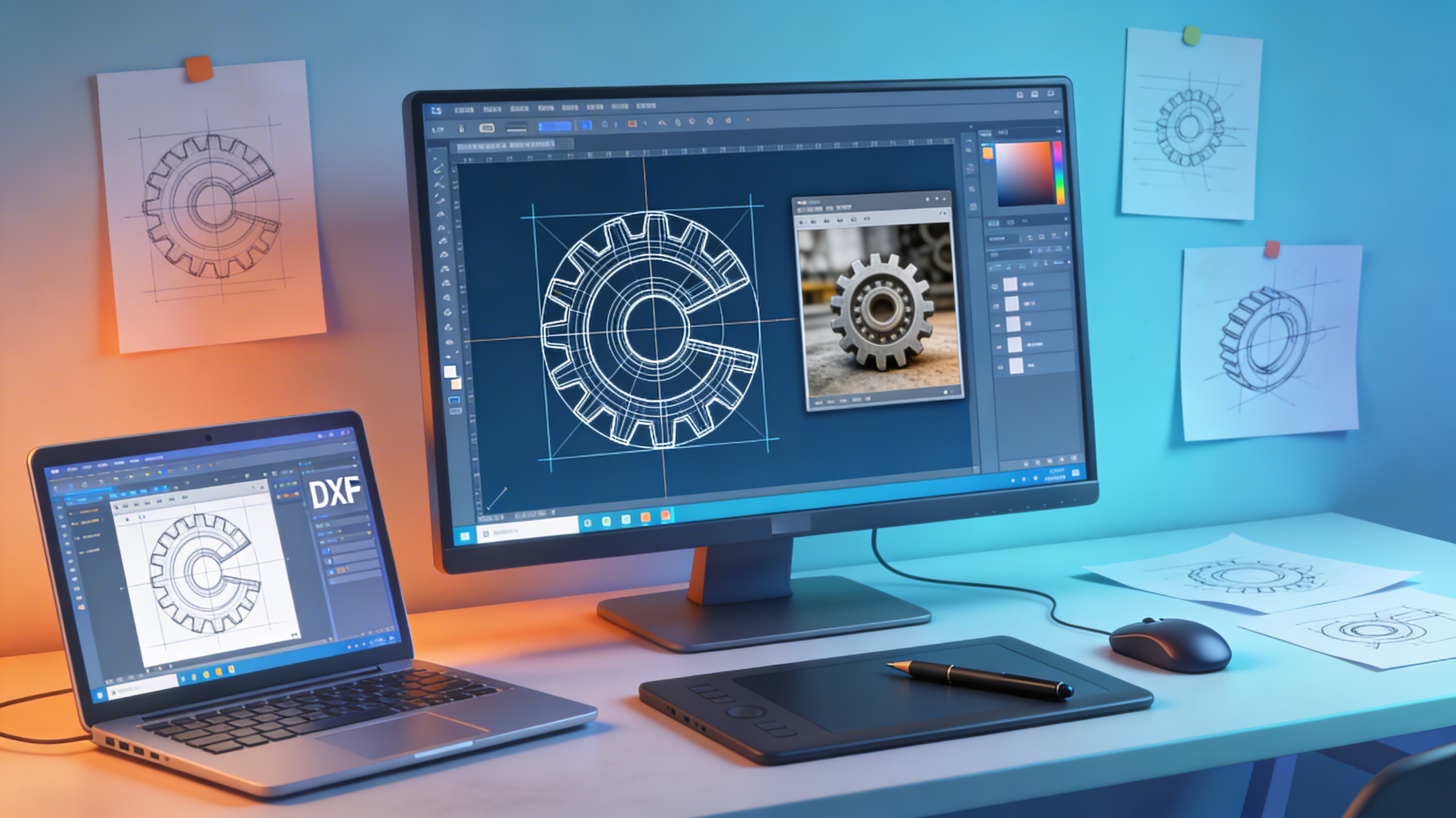
I also recently tried out Hyper3D's image to DXF converter and was impressed with its performance. The image to DXF conversion was fast and accurate. I used it to convert a photo of a gear into a DXF file, and it did a great job of capturing the details of the teeth. I was also able to easily import the DXF file into my CAD software and use it to create a 3D model of the gear. For those looking to go from a 2D image to a 3D model, Hyper3D also has an image to 3D tool and an AI 3D model generator.
Advanced Tips for Better Conversions
Here are a few tips to help you get the best results when performing an the format conversion:
Preparing Your Image for Conversion
- Start with a high-quality image: The better the quality of your source image, the better the conversion will be.
- Increase the contrast: If your image is low-contrast, try increasing the contrast in an image editor before converting it.
- Simplify the image: If your image has a lot of unnecessary detail, try simplifying it before converting it.
Post-Conversion Cleanup
- Remove any stray points or lines: After conversion, you may need to clean up the vector paths by removing any stray points or lines.
- Smooth out any rough curves: If the curves in your DXF file are rough, you can use a smoothing tool to smooth them out.
- Check for open loops: Make sure that all of the shapes in your DXF file are closed loops. If there are any open loops, you may have problems when you try to use the file for CNC machining or 3D printing.
FAQ about Image to DXF Conversion
What is the best image format for DXF conversion?
For the best results for an this method conversion, you should use a lossless image format like PNG or TIFF. These formats preserve all of the original image data, which can help to produce a more accurate conversion.
Can I convert a complex photo to DXF?
Yes, but it can be challenging. A complex photo to DXF conversion will likely require some manual cleanup. The more complex the photo, the more difficult it will be to get a good conversion. You may need to use a more advanced desktop software and do some manual cleanup after the conversion.
Is it better to use online or desktop software for image to DXF conversion?
It depends on your needs. For a quick this approach conversion, an online tool is often sufficient. For simple conversions, an online converter is a good option. For more complex conversions, you'll want to use desktop software.
How do I edit a DXF file after conversion?
You can edit a DXF file in any CAD program or vector graphics editor that supports the DXF format. This is an important step in the this file type workflow. This includes programs like AutoCAD, SolidWorks, Inkscape, and Adobe Illustrator.
Are there any free tools for image to DXF conversion?
Yes, there are several free tools available for this format conversion, including Inkscape and many online converters. These tools are a great way to get started with converting images to DXF without having to spend any money.