

Photo to 3D Model Free: No-Cost AI Tools Compared
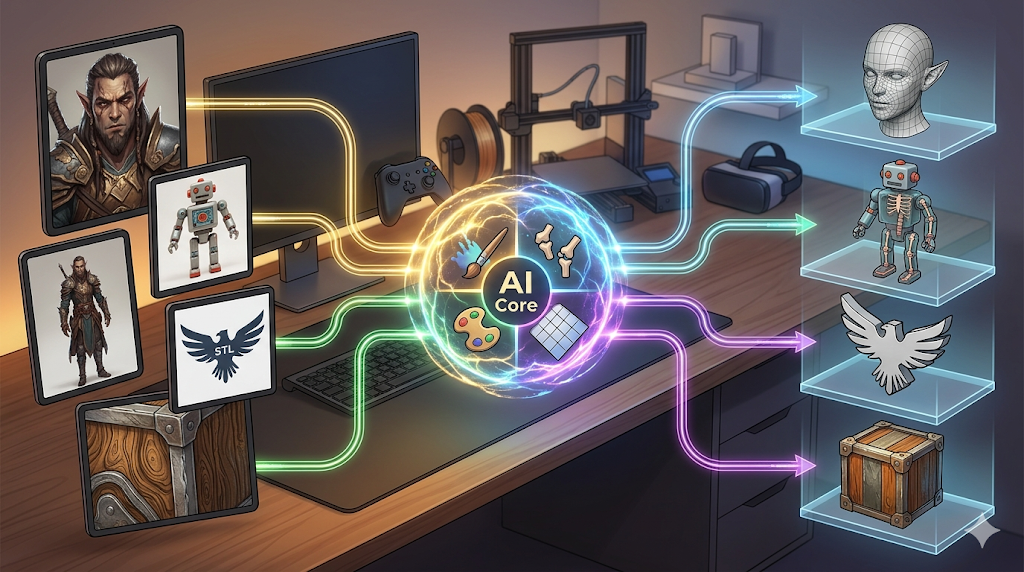
Turning a simple photograph into a detailed three-dimensional object once sounded like science fiction. Today, AI-powered tools make it possible for anyone to create a photo to 3D model with just a few clicks, often completely free. This technology is reshaping workflows in game development, 3D printing, and digital art, making the process to get a photo to 3D model free of the old barriers.
Whether you're a hobbyist looking to bring a character to life or a professional needing a quick prototype, a variety of platforms are available. These tools use different AI techniques to interpret your 2D image and generate a 3D mesh. While some specialize in creating game-ready assets with clean topology, others focus on speed or high-fidelity textures. This article compares the top free tools available, helping you choose the right one for your project.
Photo To 3D Model Free: What is Photo to 3D Model Conversion?
Photo to 3D model conversion is the process of using software to analyze a two-dimensional image and generate a three-dimensional, digital representation of the object or scene it depicts. Traditionally, this was done through a technique called photogrammetry, which required stitching together dozens or even hundreds of photos taken from different angles. Modern AI approaches, however, can often achieve impressive results from a single image.
How AI Simplifies 3D Creation
AI models are trained on massive datasets of images and their corresponding 3D shapes. When you ask a tool to create a photo to 3D model free of charge, it uses this training to understand the object. When you upload a photo, the AI recognizes patterns, shapes, and textures to infer the object's geometry. It builds a 3D mesh?? collection of vertices, edges, and faces??nd often applies a texture map to recreate the surface appearance from the photo. This process automates what used to be hours of manual modeling work.
Key Technologies Involved
Different tools use different underlying technologies, which affects their output. Some use generative adversarial networks (GANs) to produce the model, while others rely on Large Reconstruction Models (LRMs) to create a high-quality mesh from a single picture. The result can range from a rough, untextured shape to a fully detailed and colored model ready for use in other applications. Understanding these differences is key to picking the best tool for your needs.
Top Photo to 3D Model Free Tools Compared
Navigating the world of AI 3D generation can be tricky, as each tool has its own strengths and weaknesses. Here?? a breakdown of the most popular free options and what they do best.
| Tool | Best For | Top Strength | Key Limitation |
|---|---|---|---|
| Meshy AI | Texturing & UX | Best textures | Rougher geometry |
| Tripo AI | Game dev pipelines | Auto-rigging | STL export issues |
| Hyper3D | Topology & ecosystem | Cleanest geometry | Less versatile for stylized props |
| Luma AI | Rapid prototyping | Speed | "Triangle soup" topology |
Meshy AI
Meshy is widely praised for its polished user interface and powerful texturing capabilities. If your priority is creating a visually stunning model with high-quality materials, Meshy is a strong contender.
- Pros: Its texturing engine is arguably the best in the field, and its style library offers creative options like voxel and low-poly aesthetics.
- Cons: The underlying geometry of the models can be less refined, especially for complex objects. It can also be more expensive per generation if you move beyond the free tier.
- Best for: Artists and designers who need beautiful, textured models for visualization or digital art.
Tripo AI
Tripo AI is built for speed and efficiency, making it a favorite among game developers. It offers a generous free tier and features that streamline the asset creation pipeline.
- Pros: It generates models very quickly and includes useful features like auto-rigging and segmentation. The free credits are a great starting point for new users.
- Cons: Some users report issues with STL exports having incorrect normals, which can cause problems for 3D printing. Its specialization is less on avatars and more on general objects.
- Best for: Game developers who need to produce a large number of assets quickly for prototyping or background elements.
Hyper3D (Rodin)
Hyper3D's Rodin engine excels at producing models with exceptionally clean geometry and topology. This makes it ideal for character creation and workflows that require further editing.
- Pros: It is known for generating the cleanest meshes, especially for organic shapes like characters and avatars. The integrated OmniCraft suite provides an all-in-one workflow for texturing, editing, and converting models without leaving the browser.
- Cons: While excellent for realistic characters, it can be less versatile for creating highly stylized or non-organic props compared to other tools.
- Best for: 3D artists and animators who need high-quality character models with clean topology for animation, games, or further sculpting.
Luma AI (Genie)
Luma AI's Genie is designed for rapid ideation. It's incredibly fast, allowing you to turn concepts into 3D sketches in seconds.
- Pros: Speed is its main advantage. It?? perfect for brainstorming and exploring different visual ideas without committing to a final design.
- Cons: The output is often described as "triangle soup," meaning the mesh is messy and not suitable for production without significant cleanup in software like Blender.
- Best for: Concept artists and designers who need a quick way to visualize ideas in 3D before moving to a more powerful modeling tool.
My First-Hand Experience with Hyper3D
To get a better sense of the workflow, I tested Hyper3D's Rodin engine with a few images. The interface is straightforward, featuring a dark-themed workspace that's easy on the eyes. The main screen prompts you to upload an image, and the OmniCraft sidebar on the left provides access to post-generation tools like the AI Texture Generator and mesh editors.
I uploaded a front-facing portrait of a fantasy character. I first tried the Speedy generation mode, and a 3D model was ready in about 45 seconds. The result was impressive for the speed, but some finer details were soft. Next, I ran the same image using the Focal mode. This took longer, around 90 seconds, but the resulting geometry was noticeably sharper and more detailed, especially around the facial features. After generating, I clicked the GENERATE button again to refine the texture and then exported the model as an FBX file to inspect in a viewer. The topology was clean and quad-based, making it suitable for rigging.
Step-by-Step Guide to Creating a 3D Model from a Photo
Creating your first photo to 3D model free of charge is a simple process with most modern tools. Here?? a general workflow:
1. Choose Your Tool: Select a platform based on your project's needs (e.g., Hyper3D for characters, Tripo for props).
2. Prepare Your Image: Use a clear, well-lit image. For best results, the object should be centered and not obscured. Some tools work better with the background removed.
3. Upload and Generate: Drag your image into the upload area and select your desired generation settings, such as quality or style. Click the generate button.
4. Refine and Texture: Once the initial model is created, use the platform's built-in tools to apply textures, adjust the mesh, or run refinement processes.
5. Export Your Model: Select your desired file format (e.g., OBJ, FBX, GLB, or STL for 3D printing). Hyper3D offers a useful Image-to-STL converter for this purpose.
Use Cases and Applications
AI-driven photo-to-3D conversion has practical applications across many industries.
- Game Development: Quickly create 3D assets for characters, props, and environments, saving countless hours of manual modeling.
- 3D Printing: Hobbyists and professionals can turn photos of real-world objects into printable models, from custom figurines to replacement parts.
- AR/VR: Generate realistic 3D models for use in augmented and virtual reality applications, enhancing immersive experiences.
- E-commerce: Create 3D product visualizations from standard product photos, allowing customers to view items from any angle.
FAQ
What is the best free AI for photo to 3D model creation?
It depends on your goal. For the cleanest character geometry, Hyper3D is a top choice. For fast game assets, Tripo AI is excellent. For the best texturing, many prefer Meshy AI.
Can I use my phone to create a 3D model from photos?
Yes, several apps like Polycam and KIRI Engine use photogrammetry to create 3D scans using your phone's camera. These are great for capturing real-world objects but function differently from single-image AI generators.
What file formats are best for 3D models?
GLB and USDZ are modern formats ideal for web and AR because they package textures and model data into a single file. FBX is a standard for game engines like Unity and Unreal, while OBJ is a widely compatible, older format. STL is the most common format for 3D printing.
How many photos do I need for photogrammetry?
Traditional photogrammetry requires at least 20-30 photos from various angles to create a good model, and professional scans can use hundreds. However, new AI tools can often produce a high-quality photo to 3D model free from just a single image.
Can I turn a logo into a 3D model?
Yes. Tools like the Image-to-STL converter are specifically designed for this. You can upload a flat logo image (like a PNG or JPG) and the tool will extrude it to create a 3D version suitable for printing or use in design projects.
Is there a completely free photo to 3D model tool?
Yes, many platforms like Tripo AI and Tencent Hunyuan3D offer generous free tiers that are sufficient for many users. Open-source tools like Meshroom are also completely free but require more technical setup. You can also use a GLTF Viewer to check your models.