

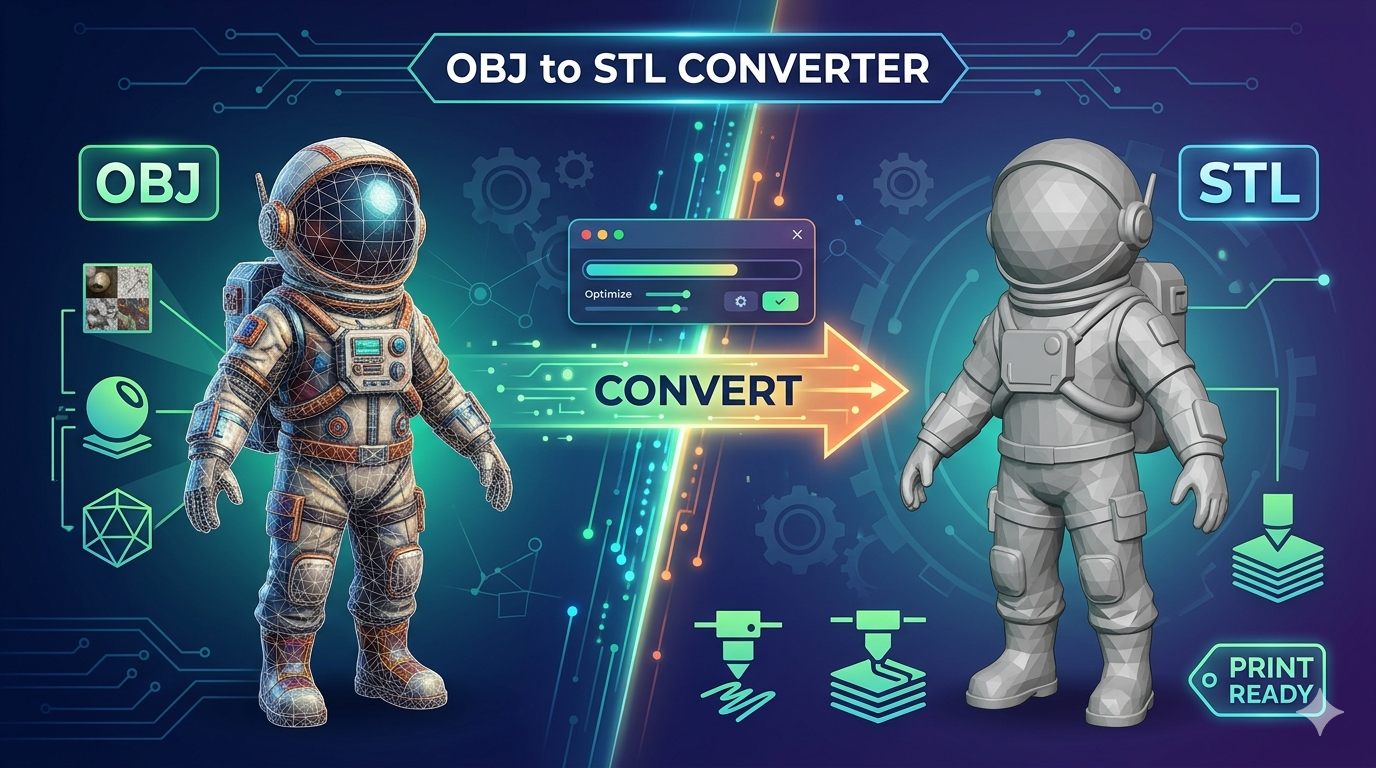
OBJ to STL Converter: How to Convert 3D Formats
In the world of 3D printing and modeling, you??l often encounter different file formats. Two of the most common are OBJ and STL. While both are widely used, there are times when you need to convert an OBJ file to an STL file. This might be for compatibility with a specific 3D printer, or to use a particular software that only supports STL. Fortunately, there are many tools available to help you with this conversion, from simple online converters to more advanced 3D modeling software. In this article, we'll explore some of the best options and walk you through the process of converting your 3D models from OBJ to STL.
Why Convert from OBJ to STL?
The primary reason for converting an OBJ file to an STL file is for 3D printing. STL (Stereolithography) is the standard file format for most 3D printers. While some modern printers and slicers can handle OBJ files, STL is still the most universally accepted format. Converting your model to STL ensures that it will be compatible with the widest range of 3D printing hardware and software.
Another reason to convert is for use in certain 3D modeling or CAD software that may have limited support for the OBJ format. By converting to STL, you can ensure that your model can be imported and edited without any issues. The conversion process can also help to simplify the model's geometry, which can be beneficial for certain applications.
How to Convert OBJ to STL Online
One of the easiest ways to convert an OBJ file to STL is by using an online converter. These tools are typically free, fast, and don?? require any software installation. Here?? a general step-by-step guide on how to use an online 3D format converter:
1. Find an online converter: A quick search for ??BJ to STL converter??will give you plenty of options. Some popular choices include Convert3D, ImageToSTL, and MeshInspector.
2. Upload your OBJ file: Most online converters have a simple drag-and-drop interface or an ??pload??button. Select the OBJ file you want to convert.
3. Select the output format: Choose STL as the desired output format.
4. Convert and download: Click the ??onvert??button and wait for the process to complete. Once it?? done, you??l be able to download your new STL file.
Many of these online tools also offer batch conversion, allowing you to convert multiple files at once. However, be mindful of file size limitations, which can vary from one service to another. For those looking to convert images directly to 3D models, there are also specialized tools like an image to STL converter that can be very useful.
Best OBJ to STL Converter Tools
There are many tools available for converting OBJ files to STL, each with its own strengths and weaknesses. Here?? a look at some of the best options, both online and offline, to help you find the right one for your needs.
Online Converters
Online converters are a great option for quick, one-off conversions. They are easy to use and don?? require any software installation. Here are a few of the most popular choices:
| Tool | Pros | Cons |
|---|---|---|
| Hyper3D OmniCraft | Easy to use, fast conversions, supports a wide range of formats, includes editing and optimization features. | Requires a free account for some features. |
| Convert3D | Simple interface, no sign-up required, supports a variety of 3D formats. | Limited features compared to other tools. |
| ImageToSTL | Good for batch conversions, supports up to 200 files at once. | 100MB file size limit. |
| MeshInspector | Includes a 3D viewer and editing tools, secure and unlimited conversions. | Can be slower with large files. |
Offline Software
For more complex projects or if you need to convert files frequently, offline software is a better choice. These tools offer more features and are not dependent on an internet connection.
| Tool | Pros | Cons |
|---|---|---|
| Blender | Free and open-source, powerful 3D modeling and editing capabilities, supports a wide range of formats. | Can have a steep learning curve for beginners. |
| MeshLab | Free and open-source, advanced mesh processing and editing tools, great for repairing and cleaning up models. | Interface can be intimidating for new users. |
| Autodesk Meshmixer | Free, great for 3D printing preparation, includes tools for sculpting, and repairing models. | No longer in development, but still a very capable tool. |
When choosing a tool, consider the complexity of your models, how often you need to convert files, and your level of experience with 3D software. For most users, an online converter like Hyper3D's OmniCraft will be more than sufficient. For more advanced users or those who need more control over the conversion process, a tool like Blender or MeshLab is a better choice. You can also explore other tools like our gltf viewer for viewing different 3D file formats.
My First-Hand Experience with OBJ to STL Converters
To give you a real-world perspective, I decided to test out a few of these converters myself. I started with a moderately complex OBJ model of a character I created in Hyper3D Rodin, which has some intricate details and textures. My goal was to see how well each tool handled the conversion to STL and what the final 3D print would look like.
First, I tried an online converter. I used Hyper3D's own OmniCraft since I'm already familiar with the platform. The process was straightforward: I uploaded my OBJ file, selected STL as the output, and hit convert. The conversion was incredibly fast, taking only a few seconds. The resulting STL file looked great in the preview, with all the details preserved. I then sent it to my 3D printer, and the print came out perfectly. The whole process was seamless and took less than five minutes.
Next, I wanted to try a desktop application, so I downloaded Blender. As a free and powerful tool, it's a popular choice for many 3D artists. Importing the OBJ file was easy, but I did have to spend some time navigating the interface to find the export options. Once I found it, exporting to STL was simple. The final STL file was also high quality, and the 3D print was just as good as the one from OmniCraft. The main difference was the time and effort required. While Blender offers a lot more control, it also has a steeper learning curve. For a simple conversion, it felt like overkill.
My takeaway from this experience is that for most users, an online converter is the way to go. It's fast, easy, and produces excellent results. For those who need more advanced features or want to edit their models before converting, a desktop application like Blender is a great choice. It's also worth exploring other tools like our image to 3d converter for different kinds of 3d model creation.
Frequently Asked Questions (FAQ)
What is the difference between OBJ and STL files?
OBJ files can store more complex information than STL files, including color, material, and texture data. STL files, on the other hand, only store the geometry of the 3D model. This makes STL files smaller and simpler, which is why they are the preferred format for 3D printing.
Can I convert an OBJ file with textures to STL?
While you can convert an OBJ file with textures to STL, the texture information will be lost in the process. The resulting STL file will only contain the 3D geometry of the model. If you need to preserve the textures, you should use a different file format, such as FBX or GLB.
Are there any free OBJ to STL converters?
Yes, there are many free OBJ to STL converters available, both online and offline. Some of the best free options include Blender, MeshLab, and many online converters like Convert3D and ImageToSTL. Hyper3D's OmniCraft also offers free conversions with some limitations.
How do I open an STL file?
STL files can be opened with a wide variety of software, including 3D modeling programs like Blender and Autodesk Maya, as well as 3D printing slicers like Cura and PrusaSlicer. You can also use a dedicated STL viewer to open and inspect your files.
What is the best OBJ to STL converter for Mac/Windows?
The best OBJ to STL converter depends on your specific needs. For users on both Mac and Windows who want a powerful, free, and versatile tool, Blender is an excellent choice. For those who prefer a simpler, more user-friendly experience, an online converter like Hyper3D's OmniCraft is a great option that works on any platform with a web browser.
Understanding the Conversion Process
Have you ever wondered what happens behind the scenes when you convert an OBJ file to an STL file? It?? a fascinating process that involves translating the data from one format to another. While it may seem like a simple click of a button, there?? a lot going on under the hood. Let's break down the technical details of how an OBJ to STL converter works.
Reading the OBJ File
The first step in the conversion process is to read the source OBJ file. An OBJ file is a plain text file that contains 3D geometry data. This data includes information about vertices, faces, normals, and texture coordinates. When an OBJ to STL converter reads this file, it's primarily interested in the vertices and faces, as this is the core information needed to build the 3D model's geometry.
OBJ files can also contain information about materials and textures, which define the appearance of the model. However, the STL format does not support colors, materials, or textures. Therefore, this information is usually ignored during the conversion process. The focus is solely on the geometric structure of the model.
Processing the 3D Data
Once the OBJ file data is read, the converter processes it to create an internal representation of the 3D model. During this stage, the converter may also perform some optimization and repair tasks. This can include removing duplicate vertices, fixing any holes or non-manifold edges in the mesh, and ensuring that the model is watertight. A watertight model is essential for 3D printing, as it ensures that the printer can correctly interpret the geometry and create a solid object.
Triangulating the Mesh
The STL format represents 3D models as a collection of interconnected triangles. Therefore, the next step is to triangulate the mesh. If the OBJ file contains polygons with more than three vertices (quads or n-gons), the converter will break them down into triangles. This process is crucial for ensuring that the model is compatible with the STL format.
Generating the STL File
Finally, the converter takes the processed and triangulated 3D model and saves it in the STL format. The STL format has two variations: ASCII and binary. The binary format is much more compact and is the preferred choice for most applications. The converter will write the triangular facet data to the STL file, including the coordinates of the three vertices and the normal vector for each triangle. The normal vector indicates the direction that the triangle is facing, which is important for determining the inside and outside of the model.
By understanding this process, you can better appreciate the work that goes into converting your 3D models. It also highlights the importance of using a good quality OBJ to STL converter that can handle the complexities of the conversion process and produce a clean, printable STL file.