

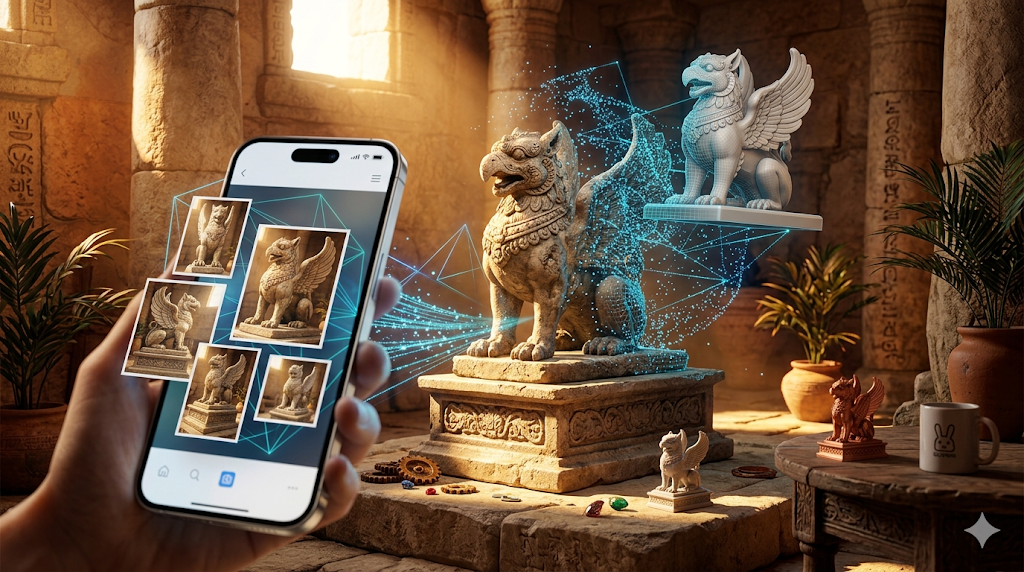
3D Model from Photo: iPhone & Android Guide
Creating a 3D model from a simple photo once sounded like science fiction, but it's now a reality accessible right from your smartphone. Whether you're using an iPhone or an Android device, a variety of apps and web-based tools can turn your pictures into detailed 3D assets. This technology, known as photogrammetry, is no longer confined to expensive desktop software, opening up a world of creative possibilities for artists, designers, and hobbyists alike.
This guide explores the best 3d model from photo app tools available for turning photos into 3D models on your mobile device. We'll compare the top apps, walk through the process step-by-step, and share some first-hand experience using these powerful tools. Whether you're looking to create assets for 3D printing, game development, or just for fun, you'll find everything you need to get started.
What is a 3D Model from Photo App and How Does It Work?
A 3d model from photo app is a tool that simplifies the complex process of photogrammetry, making it accessible to everyone.
A 3D model from photo app uses a process called photogrammetry to analyze multiple images of an object from different angles and reconstruct its three-dimensional shape. More advanced tools can even generate a 3D model from a single image, using AI to infer the object's geometry.
The Magic of Photogrammetry
At the basic level, photogrammetry works by identifying matching points across a series of photographs. By calculating the position of these points in 3D space, the software builds a point cloud, which is then converted into a mesh?? collection of vertices, edges, and faces that define the object's shape. The more photos you provide, and the more overlap between them, the more accurate the resulting 3D model will be.
Key Technologies Involved
Modern photogrammetry apps often employ sophisticated AI algorithms to improve the quality and speed of 3D reconstruction. Technologies like Neural Radiance Fields (NeRF) and Gaussian Splatting allow for the creation of highly detailed models, even from a limited number of images. These AI-driven approaches are particularly good at handling complex surfaces and textures, producing results that were previously only possible with professional equipment.
The General Workflow
The process of creating a 3D model from photos is surprisingly straightforward with today's tools:
1. Capture Photos: Take a series of pictures of your object, ensuring you capture it from all angles with good, even lighting.
2. Upload to the App: Import your photos into your chosen 3D modeling app or web tool.
3. Cloud Processing: The app uploads your images to the cloud, where powerful servers handle the heavy lifting of processing the data and generating the 3D model.
4. Download and Refine: Once the model is ready, you can download it in various formats (like OBJ, FBX, or STL) and refine it further in 3D editing software like Blender.
Top 3D Model from Photo Apps Compared
Choosing the right app depends on your specific needs, from the level of detail required to your budget. Here?? a comparison of some of the most popular options available today.
| Tool | Best For | Top Strength | Key Limitation |
|---|---|---|---|
| Polycam | LiDAR & Room Scanning | Excellent for capturing spaces | Photogrammetry can be slow |
| KIRI Engine | High-Quality Quad Mesh | Produces clean, production-ready models | Free version has export limits |
| Hyper3D (Rodin) | Clean Topology & All-in-One Workflow | Best-in-class geometry and integrated toolset | More focused on object and character models |
| Meshy AI | Texturing & Polished UX | Superior texturing capabilities | Geometry can be less precise |
| Tripo AI | Game Developers | Fast generation and auto-rigging | STL exports can have issues |
Polycam
Polycam is a powerhouse, especially if you have an iPhone or iPad with a LiDAR scanner. It excels at capturing entire rooms and large objects with remarkable accuracy. Its photogrammetry mode is also solid, making it a versatile choice for a wide range of applications.
- Pros: Best-in-class LiDAR scanning, easy to use, offers a free tier.
- Cons: Photogrammetry processing can be slower than some competitors, best features require a subscription.
- Best for: Architects, interior designers, and anyone needing to capture large-scale environments.
KIRI Engine
KIRI Engine has gained a loyal following for its ability to produce high-quality quad mesh models, which are ideal for animation and further editing. It runs on both Android and iOS, with all processing done in the cloud, so it won?? tax your phone?? resources.
- Pros: Generates clean, production-ready quad meshes, PBR material support.
- Cons: The free version has limitations on exports, and processing can take time.
- Best for: 3D artists and animators who need clean topology to work with.
Hyper3D (Rodin)
Hyper3D's Rodin AI stands out for its exceptional geometry quality, particularly for character and object models. It's part of a larger ecosystem of tools, the OmniCraft Suite, which allows you to go from generation to texturing and editing all within your browser. As a Gold Enterprise Sponsor of Blender, their commitment to quality is clear.
- Pros: Produces some of the cleanest geometry available, all-in-one workflow with integrated tools, strong multi-view support.
- Cons: Can be less versatile for stylized or abstract props compared to other tools.
- Best for: Character artists, product designers, and anyone who prioritizes high-quality topology in a photo to 3D model workflow.
Meshy AI
Meshy AI is a strong contender, particularly known for its excellent texturing capabilities. If your priority is creating a visually polished model with realistic materials, Meshy is a great choice. The user interface is also very polished and intuitive.
- Pros: Best-in-class texturing engine, polished and user-friendly interface.
- Cons: The underlying geometry of the models can sometimes be less refined than competitors.
- Best for: Artists and designers who need high-quality textures and a smooth user experience.
Tripo AI
For game developers on a deadline, Tripo AI is a fantastic option. It's incredibly fast and offers features like auto-rigging, which can save hours of manual work. The generous free credit system also makes it very accessible.
- Pros: Very fast generation, built-in auto-rigging, generous free credits.
- Cons: Exported STL files can sometimes have issues with normals, less specialized for avatar creation.
- Best for: Game developers who need to quickly create and rig assets for their projects.
My First-Hand Experience: Testing Hyper3D's Image-to-3D Tool
To get a feel for the workflow, I took Hyper3D's Rodin for a spin. The interface is clean, with a dark-themed workspace that?? easy on the eyes. On the left, the OmniCraft sidebar provides quick access to a suite of tools, including an AI Texture Generator. I started by uploading a single photo of a small statue.
I clicked the prominent "GENERATE" button and was presented with a few generation modes. I first tried "Speedy" mode, and true to its name, a 3D model was ready in under a minute. The result was impressive for the speed, but I wanted more detail. I ran it again using "Focal" mode. This took a bit longer, but the resulting mesh was noticeably sharper and more detailed.
The final model was available for download in several formats, including STL, FBX, OBJ, GLB, and USDZ. I downloaded the GLB file and was able to immediately view it in my browser. The entire process was smooth and intuitive, making it easy to go from a simple photo to a usable 3D asset.
Step-by-Step Guide: Creating Your First 3D Model from a Photo
Ready to try it yourself? Here?? a general workflow that applies to most 3D model from photo apps.
1. Choose Your Subject and Take Photos: Pick an object with a matte, textured surface. Avoid reflective or transparent objects. Walk around the object, taking photos every 10-15 degrees. Ensure you get shots from above and below if possible. Overlap your shots by at least 60%.
2. Select an App and Upload: Choose one of the apps from our comparison and create an account. Follow the instructions to upload your set of photos.
3. Process and Generate: The app will then begin processing your images. This can take anywhere from a few minutes to an hour, depending on the number of photos and the complexity of the object.
4. Refine and Export: Once the model is generated, you can often preview it in the app. Many tools offer basic editing features. When you're happy with the result, export it in your desired format. For 3D printing, an Image-to-STL converter is what you'll need.
Common Use Cases and Applications
Once you have your 3D model, what can you do with it? The possibilities are vast.
- 3D Printing: Turn your digital creations into physical objects.
- Game Development: Create unique assets for your games.
- AR/VR Experiences: Bring your models into augmented or virtual reality.
- E-commerce: Showcase products with interactive 3D viewers.
- Digital Art: Use your models as a base for digital sculptures and paintings.
FAQ
What is the best 3d model from photo app?
The "best" app really depends on your needs. For architectural and room scanning, Polycam is excellent. For high-quality character models, Hyper3D's Rodin is a top choice. For game developers, Tripo AI's speed and auto-rigging are hard to beat.
Can I get a 3D model from a single photo?
Yes, many modern tools, including Hyper3D and Meshy AI, can generate a 3D model from a single image using AI. However, for the most accurate results, providing multiple photos is still the recommended approach.
Are 3D scanning apps free?
Most 3D scanning apps offer a free tier that allows you to try out the basic features. However, to unlock advanced features like high-resolution exports and unlimited processing, you'll typically need a paid subscription.
What is the difference between photogrammetry and LiDAR?
Photogrammetry uses photos to create 3D models, while LiDAR (Light Detection and Ranging) uses a laser to measure distances and create a point cloud. LiDAR is generally more accurate for capturing the geometry of large spaces, but photogrammetry is better at capturing an object's texture and color.
How do I choose the right 3d model from photo app?
Consider your primary use case. If you need architectural models, an app with strong LiDAR support like Polycam is a great choice. If you're a game developer, the speed and auto-rigging of Tripo AI might be the best fit. For high-quality character models, Hyper3D's clean topology is a major advantage. Always try the free tier of a few apps before committing to a subscription.
What file formats are used for 3D models?
Common 3D model formats include OBJ, FBX, STL, GLB, and USDZ. STL is widely used for 3D printing, while FBX and GLB are popular in game development and AR applications. Many tools, including Hyper3D's text-to-3D model generator, support a wide range of these formats.