

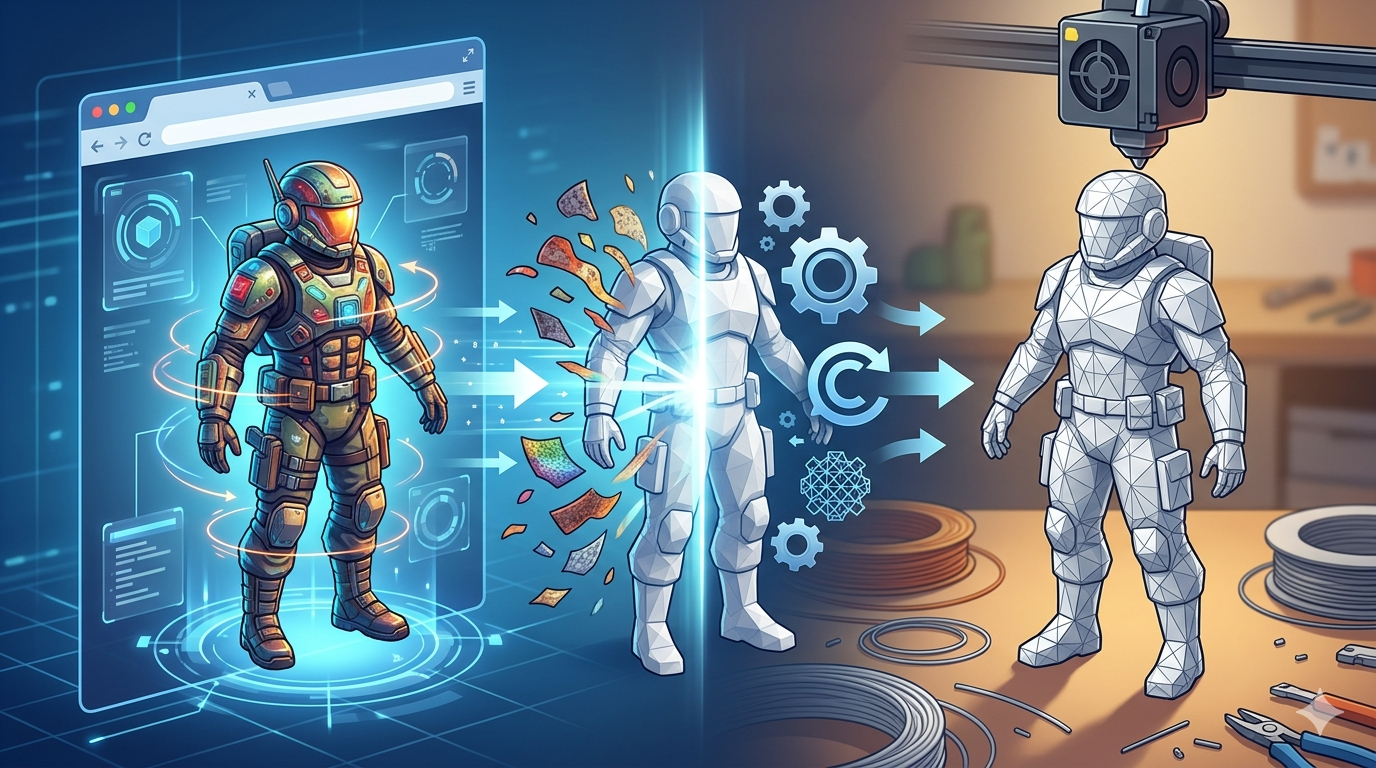
GLB to STL Converter: Convert 3D Web Files for Printing
So, you??e got a GLB file and you need to get it ready for your 3D printer. You??e in the right place. The web is full of GLB models, which are fantastic for online viewers and AR experiences, but they aren't the native language of most 3D printers. For that, you typically need an STL file. This guide will walk you through exactly how to make that conversion, comparing some of the popular tools out there and giving you a step-by-step process.
We'll look at online converters, standalone software, and even some more advanced options. Whether you're using a free online tool like those from Aspose or a powerful editor like Blender, the goal is the same: turning that web-ready model into a printable object. We??l also touch on how platforms like Hyper3D are expanding the toolset available to 3D artists for both creation and format conversion.
What Exactly is a GLB File?
A GLB file is a 3D model saved in the GL Transmission Format (glTF). Think of it as the JPEG of 3D models. It's a compact, efficient format designed to be shared and loaded quickly on the web. The "B" in GLB stands for binary, and it means the file bundles everything it needs??he 3D geometry, textures, and materials??nto a single, neat package. This is why it's so popular for web-based 3D viewers, AR applications on your phone, and online marketplaces.
However, that all-in-one convenience comes with a trade-off. The complex data, including textures and animations, isn't what a 3D printer?? slicer software is designed to understand.
And What is an STL File?
STL (Stereolithography) is the old guard of 3D printing. It?? a much simpler format that describes only the surface geometry of a 3D object using a mesh of triangles. It doesn't include any information about color, texture, or materials. It?? just the raw shape. For a deeper dive, you can read our article on what an STL file is.
Because of this simplicity, it has become the standard format for most 3D printers and slicer software. Your printer doesn?? need to know if the model is supposed to be red or shiny; it just needs to know where to lay down the filament, layer by layer.
Why Convert from GLB to STL?
The primary reason is simple: 3D printing. Most slicer programs, which prepare your model for the printer, work best with STL files. When you try to import a GLB, the slicer might not recognize the file or might fail to interpret the geometry correctly, ignoring the textures and materials that make the GLB file larger and more complex.
Converting from GLB to STL strips away all the extra data and leaves you with the pure, printable geometry. This makes the file lighter and ensures the slicer can read it without any issues. It?? a necessary step to bridge the gap between web-based 3D assets and the physical world of 3D printing.
Top GLB to STL Converter Tools
There are many tools available to get the job done, from simple web-based converters to full-featured 3D modeling software. Here?? a comparison of some of the most popular options.
| Tool | Type | Price | Pros | Cons |
|---|---|---|---|---|
| Hyper3D OmniCraft | Web-based Editor | Freemium | Integrated suite for editing, not just converting. Supports multiple formats (STL, FBX, OBJ, USDZ). | Requires an account. Conversion is part of a larger toolset. |
| Convert3D.org | Web-based | Free | Simple drag-and-drop interface. No registration needed. | Limited to conversion only. File size limits may apply. |
| Aspose 3D Converter | Web-based | Free | Supports a wide range of formats. Clean and fast. | Can have ads. Lacks any editing features. |
| Blender | Desktop Software | Free | Powerful and versatile. Can edit, repair, and optimize the mesh before exporting. | Steep learning curve for beginners. Overkill for a simple conversion. |
| ImageToStl.com | Web-based | Free | Also offers other tools like a great image to STL converter. | Basic interface. Focused on one-off conversions. |
For artists who need more than just a quick format change, a tool like OmniCraft provides a more solid solution. It?? not just a 3D format converter; it?? a full editing suite where you can refine your model before exporting. For those just starting out with the basics of 3D printing, a simple online tool might be all you need.
How to Convert GLB to STL: A Step-by-Step Guide
Let's walk through the process using a free online tool, as it's the most straightforward method for most people. We'll use Aspose as an example because of its clean interface.
Step 1: Find Your GLB File
First, locate the GLB file on your computer. Make sure you know where it is and that it?? ready to be uploaded.
Step 2: Open the Online Converter
Navigate to the Aspose GLB to STL converter website or any of the other free online tools mentioned above.
Step 3: Upload Your File
You??l see an area to drag and drop your file or a button to browse your computer. Select your GLB file and upload it. The tool will begin processing it automatically.
Step 4: Convert and Download
Once the file is processed, you will see an option to download the converted STL file. Click the download button, and the STL file will be saved to your computer. It?? now ready to be imported into your slicer software.
My First-Hand Experience
I??e used all these methods in my own projects. For quick, one-off jobs where I just need a printable file, the online converters are my go-to. I recently downloaded a cool sci-fi helmet model as a GLB from a marketplace. I ran it through Convert3D.org, and within about 30 seconds, I had an STL ready for my Prusa slicer. The print came out perfectly.
However, for more complex models, I always open them in Blender first. A few weeks ago, I was working with a character model that had some very thin parts. The initial GLB to STL conversion using an online tool resulted in a non-manifold mesh, which would have caused printing errors. By importing the GLB into Blender, I was able to use its mesh analysis tools to find and repair the errors, thicken the fragile sections, and then export a clean, watertight STL. It took more time, but it saved me a failed print.
I've also been exploring Rodin by Hyper3D for generating models from text prompts. When I export those models, I have the choice of GLB, STL, and other formats right from the start, which often saves me a conversion step altogether.
Advanced Tips for Conversion
- Check for Manifold Errors: After converting, always check your STL file for manifold errors (holes in the mesh). Most slicers have a tool for this, or you can use software like Meshmixer or Blender.
- Simplify the Mesh: GLB files can have very dense meshes. If your STL file is excessively large, consider simplifying or decimating the mesh in a program like Blender before slicing. This can reduce printing time without a noticeable loss in quality.
- Orientation Matters: Before you export from a tool like Blender, orient your model in the position you intend to print it. This can save you time setting it up in the slicer.
Frequently Asked Questions (FAQ)
Can I convert an STL back to a GLB?
Yes, but you will lose all the texture and color information. The conversion will only carry over the geometry. You would need to re-apply materials and textures in a 3D editor.
Will my model's animations be converted?
No, the STL format does not support animations. All animation data will be lost during the GLB to STL conversion.
Why is my converted STL file so much smaller than the GLB?
Your STL file is smaller because it only contains the raw geometry of the model. The GLB file included textures, materials, and other data that were stripped out during the conversion.
What if my GLB file is too large for an online converter?
If your file exceeds the size limit of an online tool, your best bet is to use desktop software like Blender. It can handle much larger files and gives you more control over the export process.
Do I need to install any software?
For online converters, no installation is needed. For a more powerful workflow, installing a free program like Blender is highly recommended for any serious 3D printing enthusiast.