

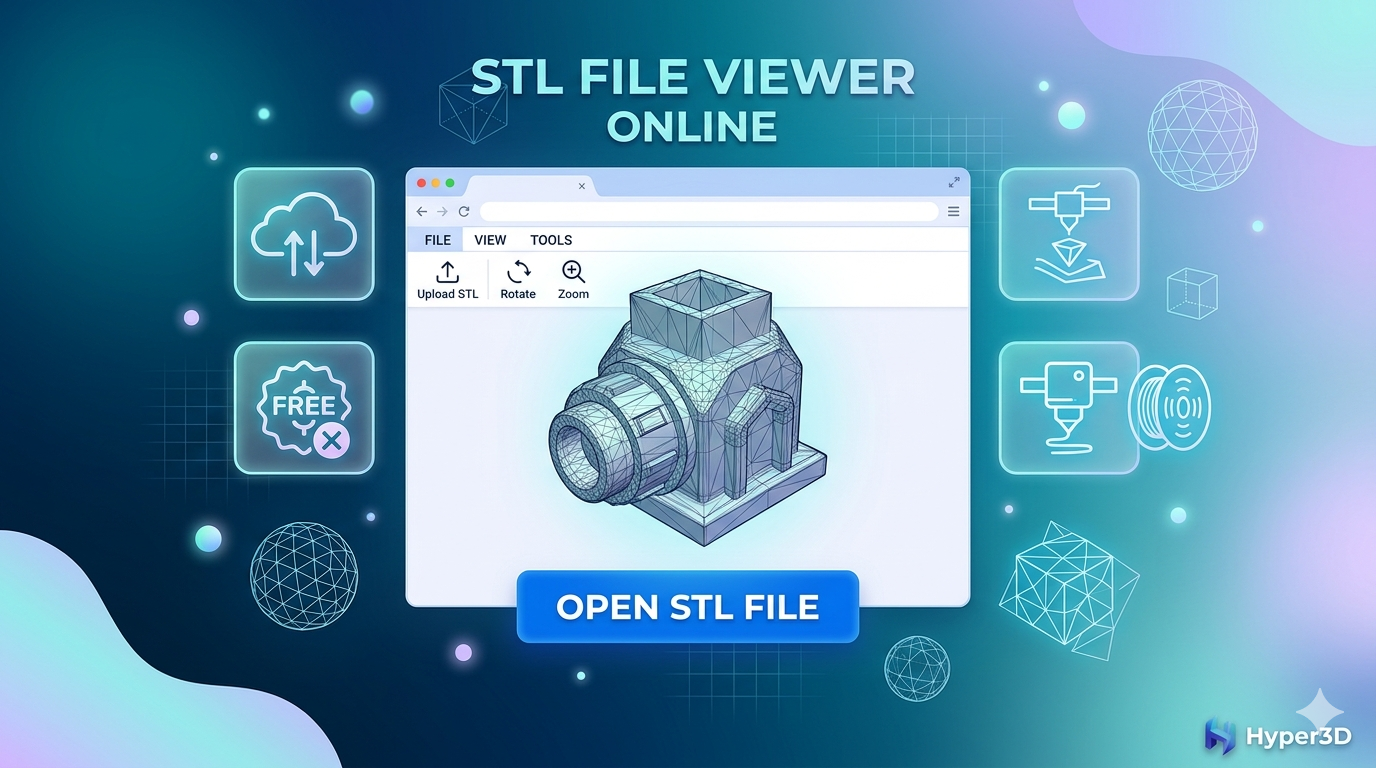
STL File Viewer Online: Open & View 3D Models Free
Whether you're a seasoned 3D printing enthusiast or just starting to explore the world of 3D modeling, you've likely encountered STL files. They are the most common file format for 3D printing, but viewing them can sometimes be a challenge without the right software. Fortunately, a variety of tools are available, from downloadable desktop applications to convenient online platforms. An online tool allows you to open and inspect your 3D models directly in your web browser, no installation required. In this article, we'll explore the best options for viewing your STL files, including the powerful and free STL file viewer online from Hyper3D.
What is an STL File?
STL, which stands for stereolithography, is a 3D file format that represents the surface geometry of a 3D object using a collection of interconnected triangles. Think of it as a digital mesh that defines the shape of your model. This simplicity is both a strength and a weakness. On one hand, it makes STL files universally compatible with nearly all 3D printers and CAD software. On the other hand, STL files do not contain information about color, texture, or material, which can be a limitation for more advanced applications.
The Structure of an STL File
An STL file describes a raw, unstructured triangulated surface by the unit normal and vertices of the triangles. It's a simple and straightforward way to represent a 3D model's surface geometry. This simplicity has made it the de facto standard for 3D printing, but it also means that the files can be large and that the resolution of the model is dependent on the number of triangles used.
Why Use an Online STL File Viewer?
The primary advantage of an online viewer is convenience. There's no need to download and install bulky software on your computer. You can simply upload your file to a website and start viewing it immediately. This is particularly useful for quick checks, sharing models with collaborators who may not have specialized software, or viewing files on different devices, including tablets and smartphones. An online viewer is an essential tool for anyone who works with 3D models.
Top Online STL File Viewers
There are many great online STL viewers available, each with its own set of features. Here are some of the best options:
- Hyper3D's STL File Viewer: A powerful and easy-to-use online viewer that is part of a larger suite of 3D tools. It's fast, reliable, and integrates smoothly with other Hyper3D products like Rodin for 3D model generation and OmniCraft for file conversion.
- ViewSTL: A very popular and straightforward online STL viewer. It's fast, free, and supports various viewing modes, including flat shading, smooth shading, and wireframe.
- 3DViewerOnline: A versatile viewer that supports a wide range of file formats beyond STL. It offers features like measurement tools and the ability to share models via a link.
- ShareCAD: A free online CAD viewer that supports STL and many other 2D and 3D file formats. It's a good option for users who work with a variety of file types.
- Meshy.ai: A newer online viewer with a clean interface and good performance. It's a solid choice for quickly viewing STL files.
My First-Hand Experience with Online STL Viewers
To get a better sense of how these tools perform in the real world, I spent some time testing a few of them with a variety of STL files, from simple geometric shapes to complex, high-polygon models. I focused on Hyper3D's STL file viewer online, ViewSTL, and 3DViewerOnline.
My experience with Hyper3D's viewer was impressive. The interface is clean and intuitive, and files loaded quickly, even the larger ones. The viewing controls are smooth and responsive, allowing for easy rotation, panning, and zooming. What I appreciated most was the smooth integration with Hyper3D's other tools. After viewing a model, I could easily send it to OmniCraft to convert it to another format or make some quick edits. This integrated workflow is a huge time-saver.
ViewSTL also performed well. It's a no-frills viewer that does its job effectively. The different viewing modes are a nice touch, and the ability to change the model's color is helpful for visualization. 3DViewerOnline was also a solid performer, and its measurement tools are a useful addition for those who need to take quick dimensions from their models.
Objective Comparison of Online STL Viewers
To help you choose the right tool for your needs, here's a comparison of the top online tools:
| Feature | Hyper3D | ViewSTL | 3DViewerOnline | ShareCAD | Meshy.ai |
|---|---|---|---|---|---|
| Supported Formats | STL, OBJ, FBX, GLB, USDZ | STL, OBJ, 3MF | STL, STEP, IGES, OBJ | STL, DWG, DXF, and more | STL, OBJ, USDZ, GLTF |
| Viewing Modes | Shaded, Wireframe | Flat, Smooth, Wireframe | Shaded, Wireframe | Shaded, Wireframe | Shaded, Wireframe |
| Measurement Tools | No | No | Yes | Yes | No |
| Sharing/Collaboration | Yes | No | Yes | Yes | Yes |
| Mobile Friendly | Yes | Yes | Yes | Yes | Yes |
| Price | Free | Free | Free (with premium option) | Free | Free |
Pros and Cons:
- Hyper3D:
- Pros: Fast, easy to use, integrates with a powerful suite of 3D tools, supports multiple formats.
- Cons: No measurement tools in the basic viewer.
- ViewSTL:
- Pros: Very fast and simple, multiple viewing modes.
- Cons: Limited features, only supports a few file formats.
- 3DViewerOnline:
- Pros: Supports many file formats, includes measurement tools.
- Cons: The interface can be a bit cluttered.
Ultimately, the best online tool for you will depend on your specific needs. For a simple, fast viewer, ViewSTL is a great choice. If you need measurement tools, 3DViewerOnline is a good option. For a powerful, integrated workflow, Hyper3D is the clear winner.
How to View an STL File with Hyper3D
Using Hyper3D's STL file viewer online is incredibly simple. Here's a step-by-step guide:
1. Go to the Hyper3D website: Navigate to the STL file viewer online page.
2. Upload your file: Drag and drop your STL file into the viewer, or click to browse your computer.
3. View your model: Your 3D model will appear in the viewer. You can use your mouse to rotate, pan, and zoom to inspect it from all angles.
It's that easy! The intuitive interface makes it simple for anyone to view their 3D models without any prior experience.
Beyond Viewing: Editing and Converting STL Files
Viewing an STL file is often just the first step. You may need to edit the model, convert it to a different format, or prepare it for 3D printing. This is where Hyper3D's integrated suite of tools really shines. With OmniCraft, you can easily convert your STL files to other formats like OBJ, FBX, or GLB. You can also make edits to your models, such as repairing meshes or simplifying geometry. And if you need to create a 3D model from a 2D image, Hyper3D's image to STL converter is a powerful tool. There is also a more general image to 3D tool available.
Frequently Asked Questions (FAQ)
What is the best free STL viewer?
The
best free online tool depends on your needs. For a simple, no-frills viewer, ViewSTL is a great option. For a more feature-rich experience with measurement tools, 3DViewerOnline is a good choice. For a powerful, integrated workflow, Hyper3D's STL file viewer online is the top contender.
Can I view STL files on my phone?
Yes, many online STL viewers, including Hyper3D, are mobile-friendly. You can upload and view STL files directly in the browser on your smartphone or tablet.
How do I open an STL file without CAD software?
An online viewer is the perfect solution. You can open and view STL files without needing to install any specialized CAD software. Simply upload your file to a website like Hyper3D's viewer.
What's the difference between an STL viewer and an STL editor?
An STL viewer, as the name suggests, allows you to view and inspect STL files. An STL editor, on the other hand, allows you to modify the 3D model itself. Some tools, like Hyper3D's OmniCraft, offer both viewing and editing capabilities.
Can I edit an STL file in an online viewer?
Most online viewers are for viewing only. However, some platforms, like Hyper3D, offer integrated editing tools. While you can't edit the model directly in the viewer, you can easily send it to an editor like OmniCraft to make changes.
Conclusion
In the world of 3D modeling and printing, having a reliable and convenient way to view STL files is essential. Online STL viewers have made it easier than ever to inspect, share, and collaborate on 3D models. While there are many great options available, Hyper3D's STL file viewer online stands out for its speed, ease of use, and smooth integration with a powerful suite of 3D tools. Whether you need to quickly check a model, convert it to a different format, or create a new one from an image, Hyper3D has you covered. Stop struggling with clunky desktop software and start viewing your STL files the easy way with an online viewer.