Gratis Remix immagini IA
unisci riferimenti con i prompt

Carica fino a tre riferimenti, taggali con una @menzione e genera un’unica immagine combinata da un solo prompt. Inizia gratis nel browser e scarica il risultato in PNG.

Image Remix Blend references
Prompt-guided editing
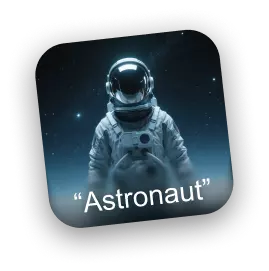
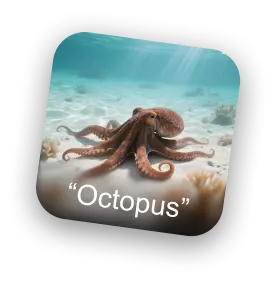
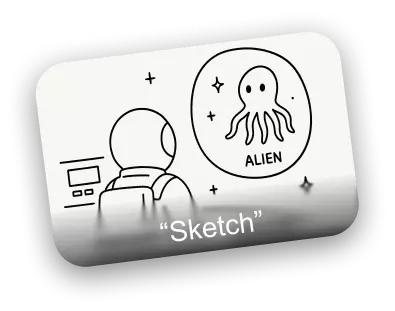
Astronaut reference image Octopus reference image Sketch composition reference
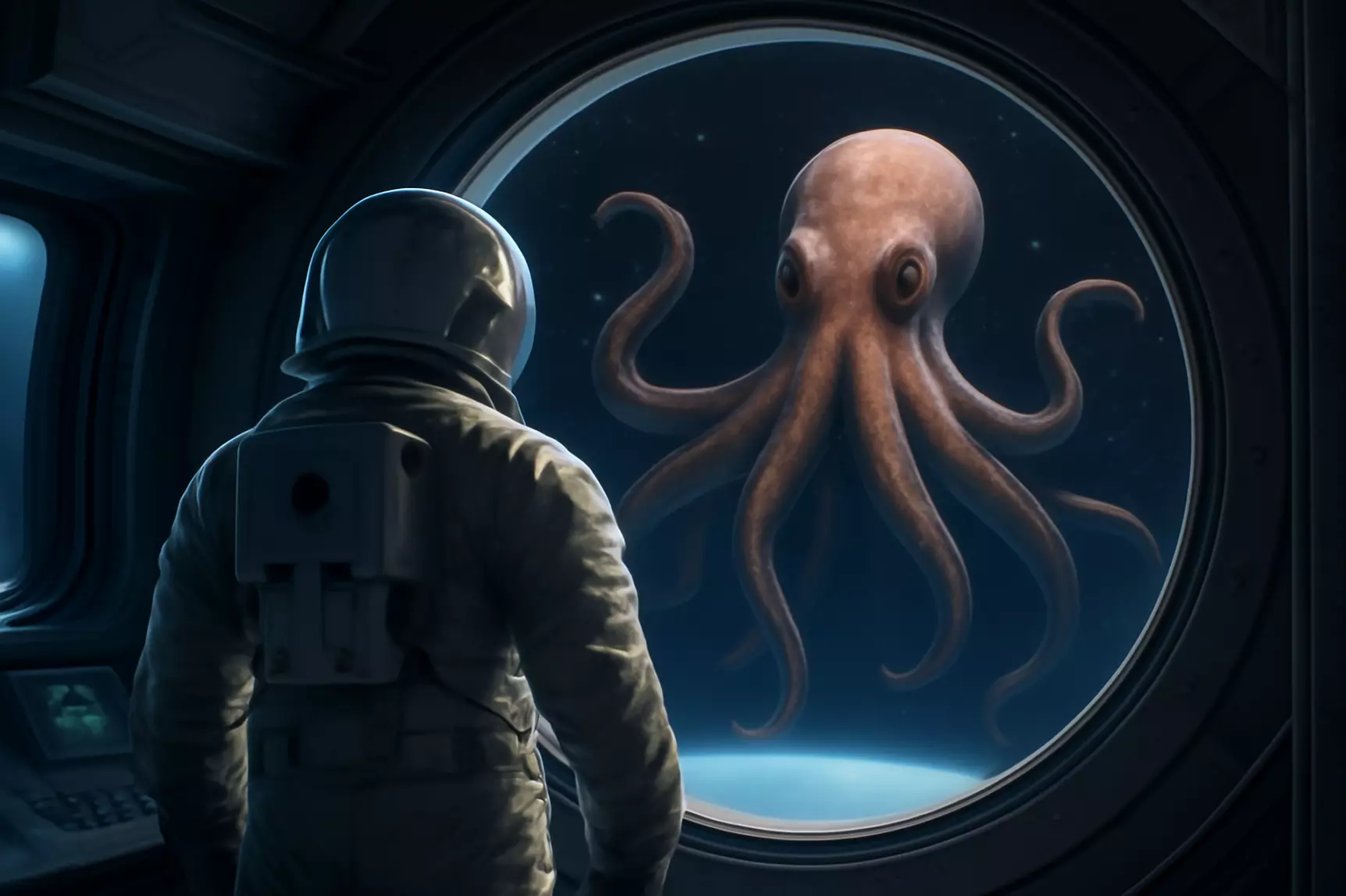
AI remixed astronaut and octopus scene
Composed result
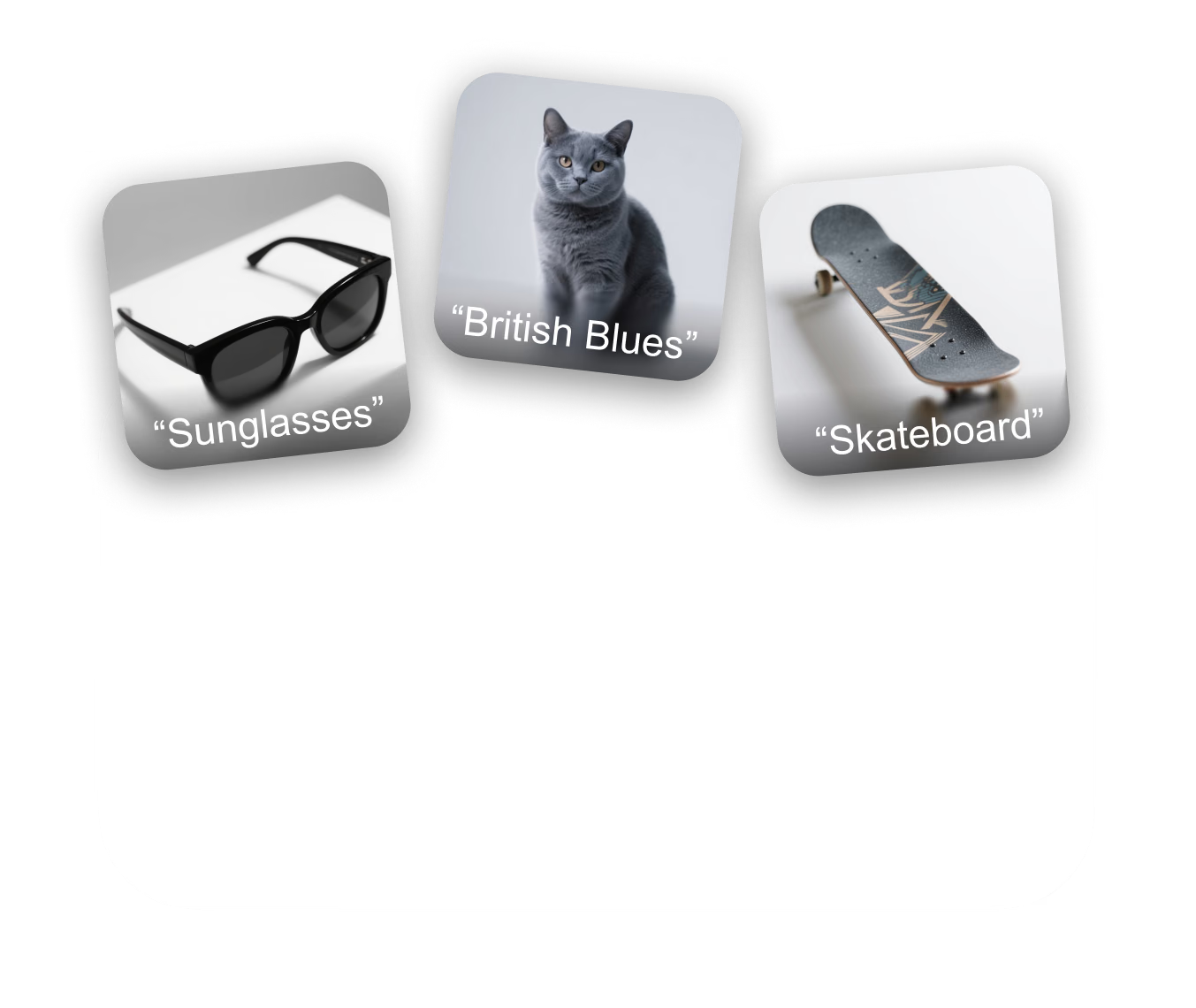
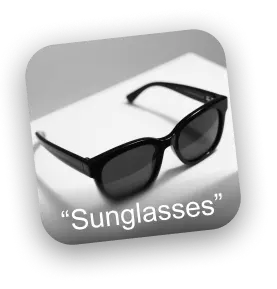
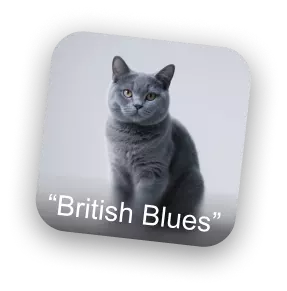
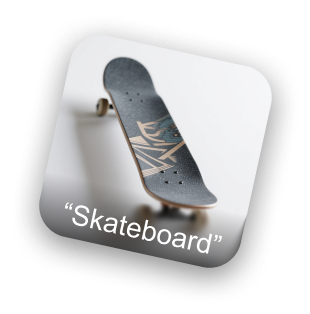
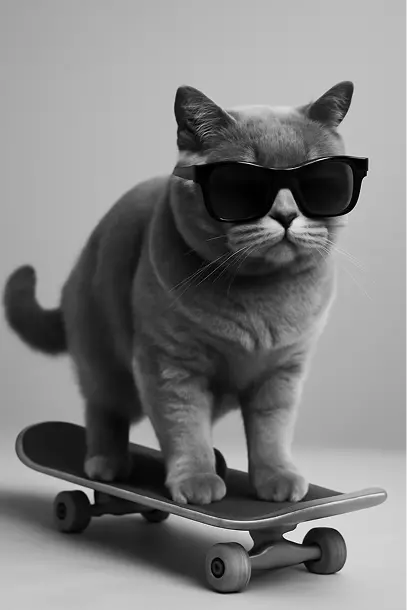
Sunglasses reference image British blue cat reference image Skateboard reference image
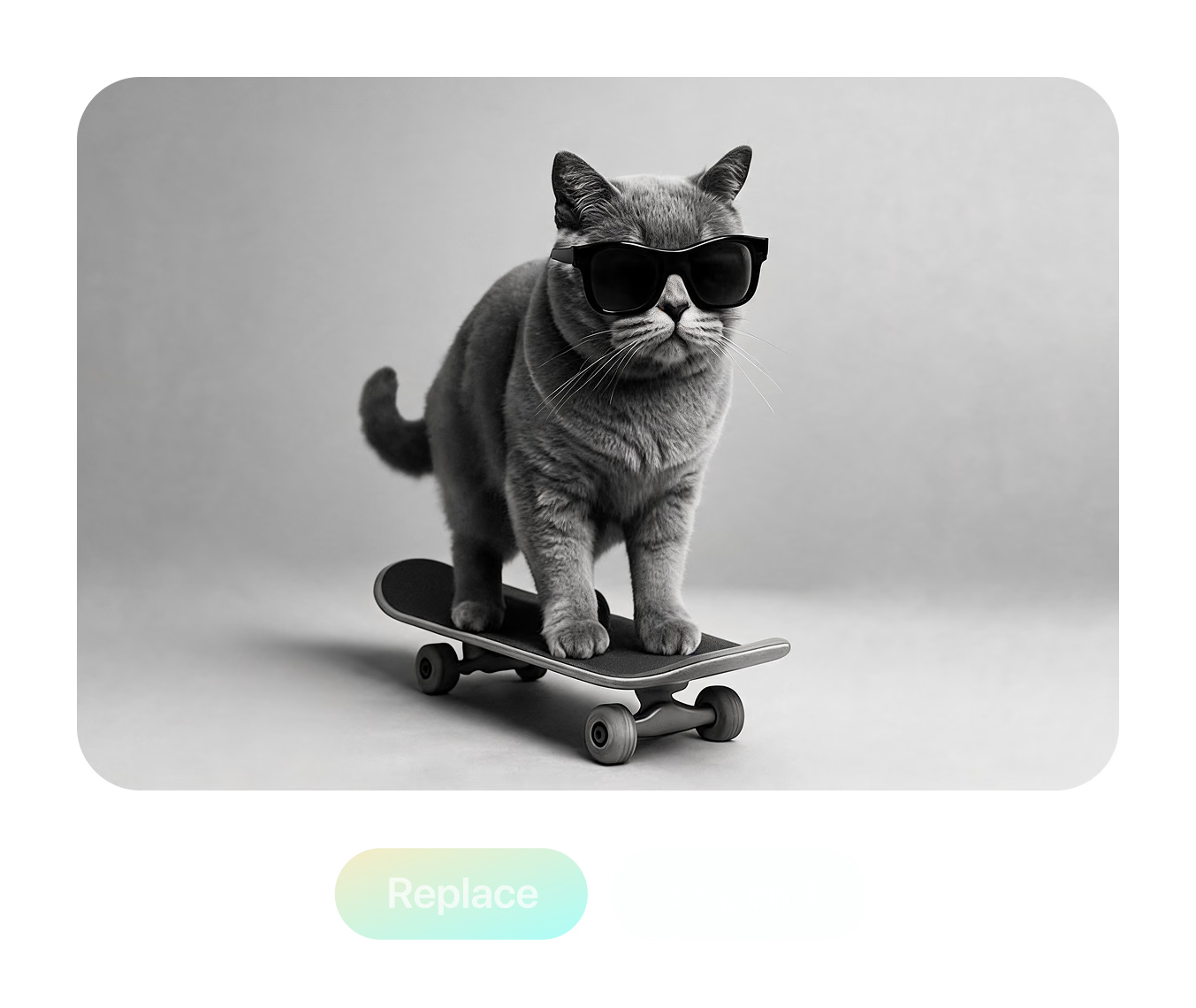
AI remixed cat wearing sunglasses on a skateboard
Edited result
Prompt

Merge @Astronaut and @Octopus into one scene, following @Sketch composition.

Remix in tre passaggi

Lo stesso flusso del workspace Remix — carica, scrivi il prompt con le @menzioni, genera, confronta e scarica.

  1. Passo 1 — Carica
    Remix upload panel with a named IMG_1 reference slot and two empty add-image slots

    Aggiungi fino a tre riferimenti

    Click or drag JPG, PNG, or WebP files into the three slots. Each reference gets an editable name like IMG_1 — rename it to "Astronaut" or "Sketch".

    JPG / PNG / WebP · ≤3 MB each
  2. Passo 2 — Prompt
    Prompt naming three references with @mentions: merge @Astronaut and @Octopus following @Sketch

    Punta il prompt su ogni immagine

    Type @ to mention any reference by name and give it a role — which subject to keep, which style to copy, which layout to follow — or start from a preset.

    @Astronaut · @Octopus · @Sketch
  3. Passo 3 — Genera
    Result panel with comparison thumbnails, style preset chips, and Redo and Replace buttons

    Genera, confronta, scarica

    Generate the remix, rate results, re-roll with the same prompt, or refine the winner in Edit mode — then download the finished image as a PNG.

    PNG output · re-roll · Edit mode

Tre riferimenti, un prompt, una scena

This scene ships with the tool as a live demo: an "Astronaut" photo, an "Octopus" photo, and a hand-drawn "Sketch" that defines the layout. The prompt names each reference with an @mention and asks Remix to merge the two subjects into a single scene while strictly following the sketch composition — the finished image is what you see here.

Prova questo remix
Prova questo remix

Prompt used in the tool: "Please merge image @Astronaut and @Octopus into a single scene, strictly following the composition and layout described in @Sketch."

Controlli reali dietro
ogni remix

Tutto quello che segue esiste già nello strumento — due modalità di generazione, testo-a-immagine nello slot e una libreria di preset pensata per output 3D-ready.
Multi-Reference Gen Mode

Multi-Reference Gen Mode

Blend up to three reference images in one generation. @mention each image to assign its role — merge subjects from two photos while a third sketch controls the composition and layout.

Conversational Edit Mode

Conversational Edit Mode

Load one image and edit it turn by turn — type an instruction, get a new version, and keep refining. Each result stacks into a scrollable history you can compare and branch from.

Turbo Gen References

Turbo Gen References

Missing a reference? Type a description into any empty image slot and Turbo Gen creates one from text on the spot — no need to leave the workspace to hunt for source material.

3D-Ready Style Presets

3D-Ready Style Presets

One-click prompts built for 3D workflows: Collectible figurine, Sculptural, Cinematic, four-view Turnaround, Back-view, Side-view, Clay, Anime, Brick, Voxel, and Toy — most tuned to output clean white backgrounds ready for image-to-3D.

Remix immagini IA —
Domande frequenti

What is AI Image Remix?

Remix is a browser tool in Hyper3D's OmniCraft suite that regenerates images from your references. Upload up to three images, describe the blend or edit in plain language, and generate a new image — merging subjects, transferring styles, changing viewpoints, or restyling entirely.

How many reference images can I use?

Gen mode accepts up to three reference images at once, in JPG, JPEG, PNG, or WebP format. Uploads are compressed automatically, with a 3 MB per-file limit after compression. Edit mode works on a single image at a time.

How do @mentions work in the prompt?

Every uploaded image gets a name — IMG_1, IMG_2, IMG_3 by default — and you can rename each one, for example to "Astronaut" or "Sunglasses". Typing @ in the prompt opens a picker so you can assign each image a role: which subject to keep, which style to copy, which layout to follow.

What's the difference between Gen and Edit mode?

Gen mode combines up to three references into a new image from a single prompt. Edit mode is conversational: load one image, type an instruction, get a revision, and keep iterating — the whole edit history is preserved so you can step back to any version.

What is Turbo Gen?

Turbo Gen is a text-to-image shortcut built into the upload slots. If you don't have a reference on disk, type a description into an empty slot and Remix generates one for you, which then behaves like any uploaded image — you can name it, @mention it, and remix it.

Which style presets are included?

Multi-image presets cover Fuse (combine subjects), Style (transfer style between images), and Layout (regenerate one image following the layout of another). Single-image presets include Collectible figurine, Sculptural, Cinematic, four-view Turnaround, Back-view, Side-view, Clay, Anime, Brick, Voxel, and Toy — most designed to output clean white backgrounds.

What format are the results, and can I download them?

Generated images preview directly in the workspace and download as PNG files with one click. You can rate each result with thumbs up or down, regenerate with the same prompt, or continue refining a result in Edit mode.

Is AI Image Remix free to use?

You need a free Hyper3D account to generate. Remix generation is included for subscribers, while other accounts spend account credits per generation. If your balance runs out you can top up or subscribe at any time — browsing the workspace and demos costs nothing.

Can I use remixed images for 3D generation?

Yes — that's a core workflow. Presets like Turnaround, Back-view, Side-view, and the white-background styles are designed to produce clean source images for image-to-3D generation with Rodin, and remixed concepts feed directly into the rest of the OmniCraft toolset.

Scelto da creator che costruiscono veri asset 3D

I team di produzione usano Hyper3D per trasformare riferimenti visivi e prompt in modelli 3D modificabili e pronti per l’esportazione più rapidamente.

L’AI 3D ha raggiunto una nuova soglia. Rodin Gen-2.5 offre geometria rapida, supporto high-poly, struttura pulita e output pronti per la produzione.

Sabir Hussain

Sabir Hussain

Appassionato di IA e tecnologia

Mesh più pulite, dettagli di superficie più nitidi e maggiore coerenza multi-angolo. I risultati sembrano adatti a un workflow reale.

BubbleBrain

BubbleBrain

Appassionato di IA

L’AI 3D ha raggiunto una nuova soglia. Rodin Gen-2.5 offre geometria rapida, supporto high-poly, struttura pulita e output pronti per la produzione.

Sabir Hussain

Sabir Hussain

Appassionato di IA e tecnologia

Mesh più pulite, dettagli di superficie più nitidi e maggiore coerenza multi-angolo. I risultati sembrano adatti a un workflow reale.

BubbleBrain

BubbleBrain

Appassionato di IA

L’AI 3D ha raggiunto una nuova soglia. Rodin Gen-2.5 offre geometria rapida, supporto high-poly, struttura pulita e output pronti per la produzione.

Sabir Hussain

Sabir Hussain

Appassionato di IA e tecnologia

Trasforma i riferimenti in
nuove immagini

Carica riferimenti, scrivi un prompt e scarica PNG pronti per la produzione — poi manda il fotogramma migliore direttamente all'immagine-a-3D. Nessun software richiesto.