Grátis Remix de Imagem IA
combine referências com prompts

Envie até três referências, marque cada uma com @menção e gere uma única imagem combinada a partir de um prompt. Comece grátis no navegador — o resultado sai em PNG.

Image Remix Blend references
Prompt-guided editing
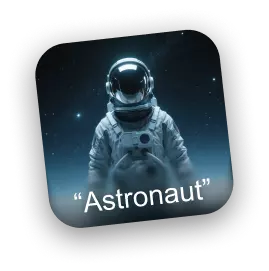
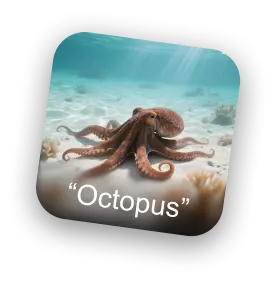
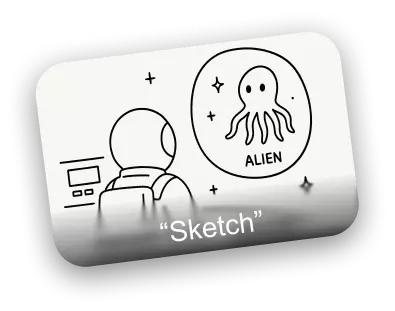
Astronaut reference image Octopus reference image Sketch composition reference
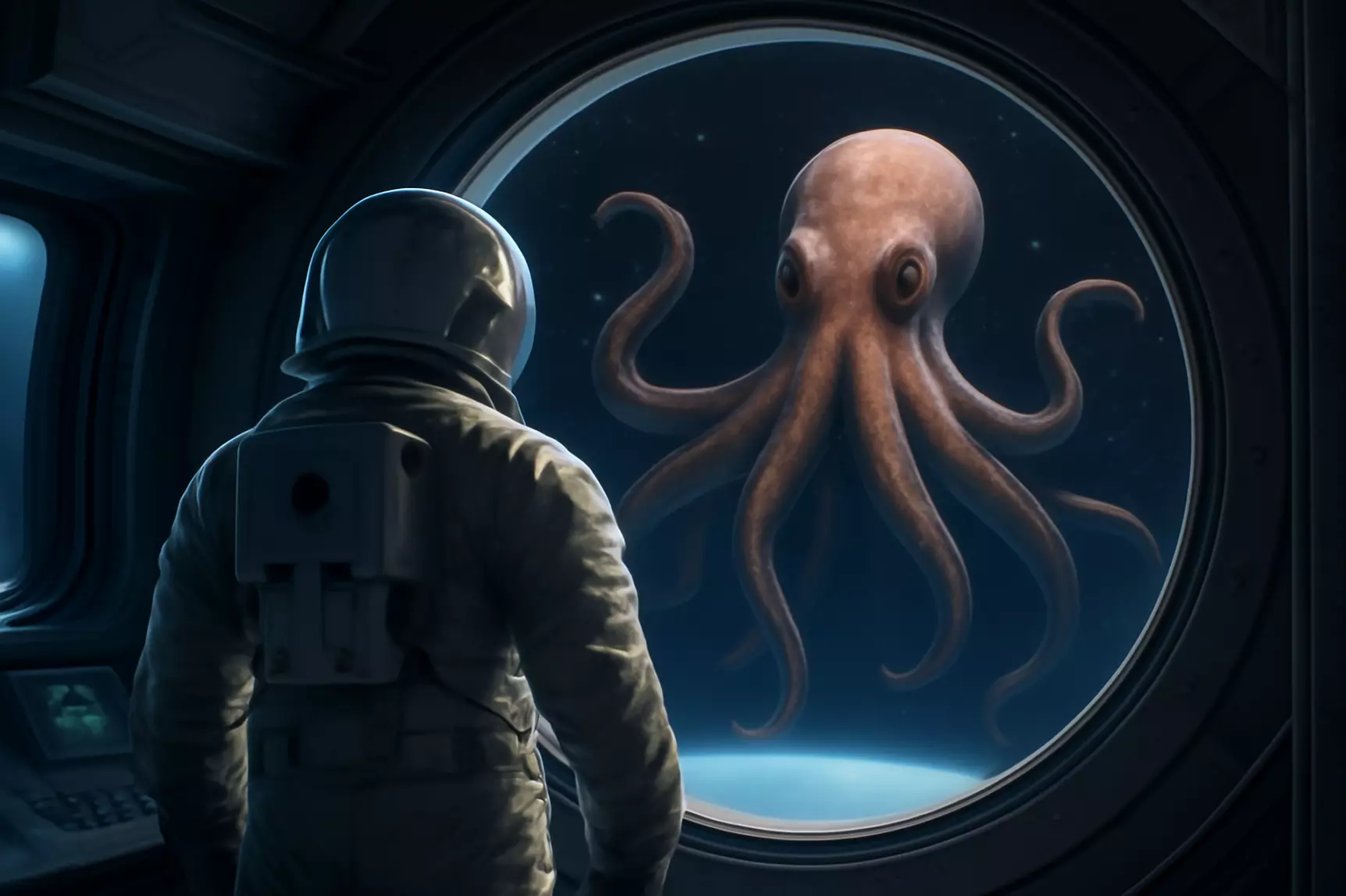
AI remixed astronaut and octopus scene
Composed result
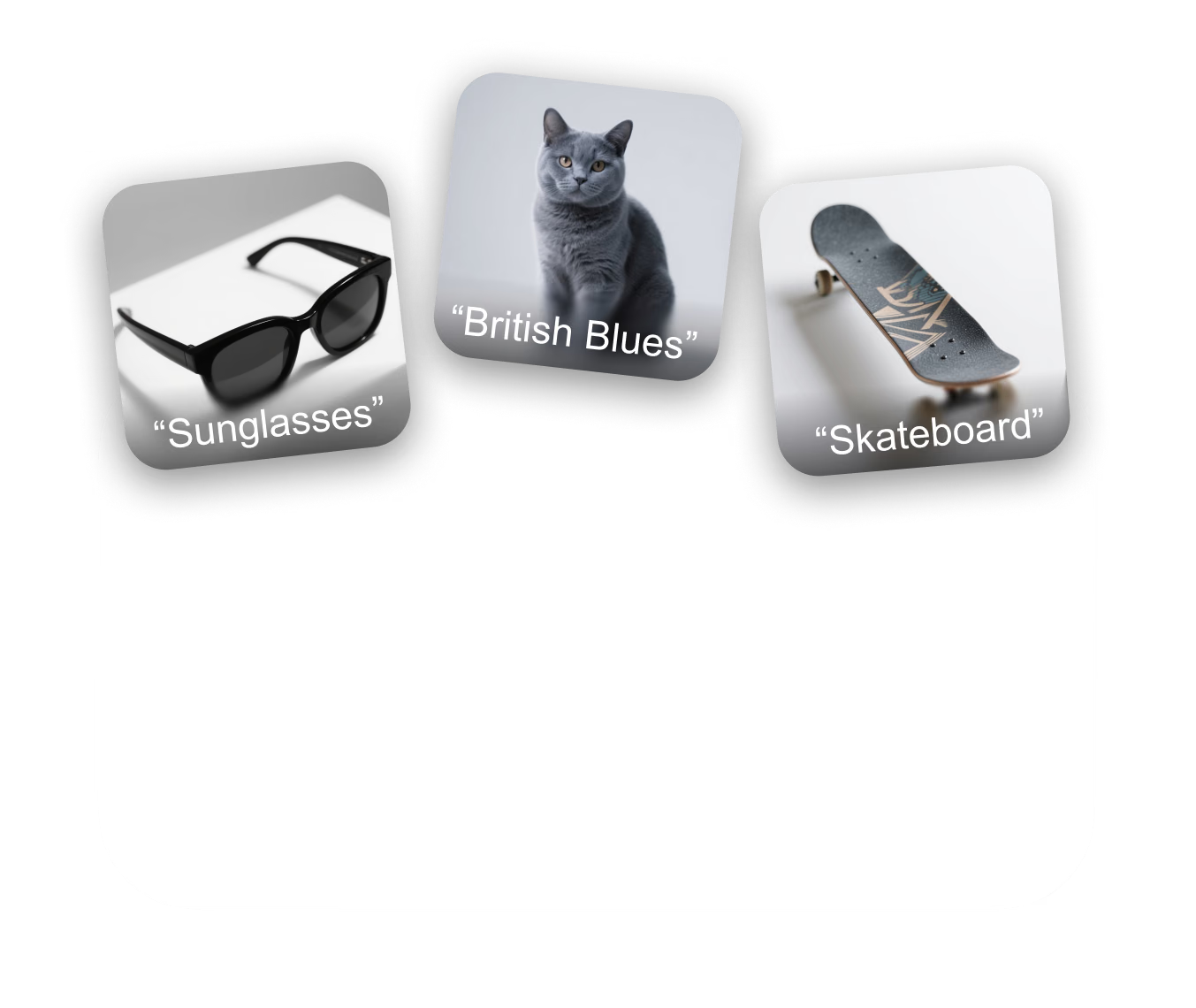
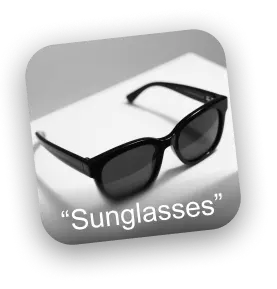
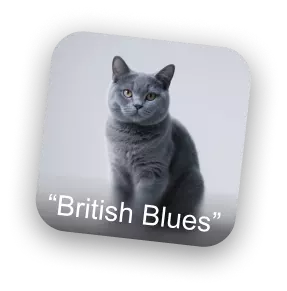
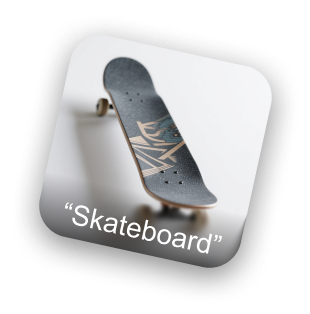
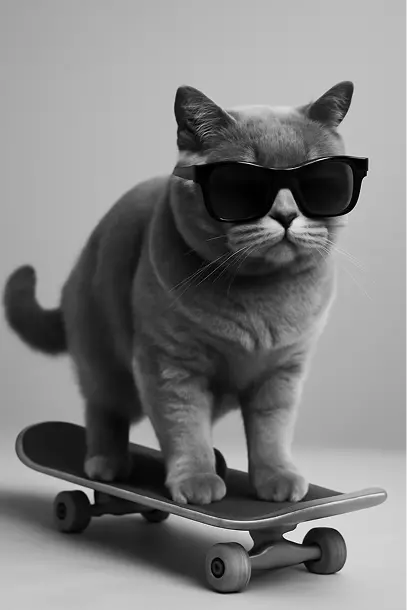
Sunglasses reference image British blue cat reference image Skateboard reference image
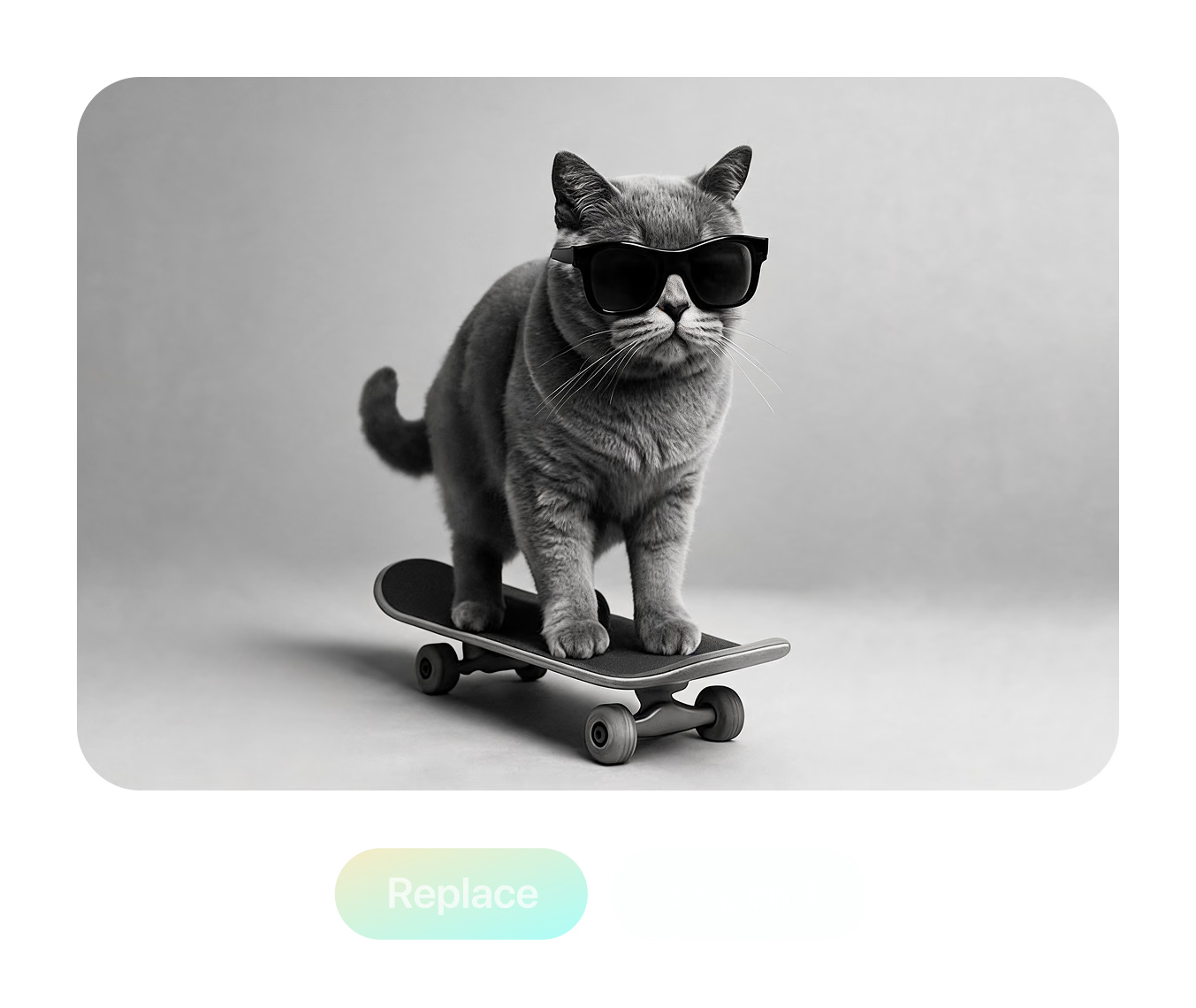
AI remixed cat wearing sunglasses on a skateboard
Edited result
Prompt

Merge @Astronaut and @Octopus into one scene, following @Sketch composition.

Remix em três passos

O mesmo fluxo do workspace do Remix — envie, escreva o prompt com @menções, gere, compare e baixe.

  1. Passo 1 — Enviar
    Remix upload panel with a named IMG_1 reference slot and two empty add-image slots

    Adicione até três referências

    Click or drag JPG, PNG, or WebP files into the three slots. Each reference gets an editable name like IMG_1 — rename it to "Astronaut" or "Sketch".

    JPG / PNG / WebP · ≤3 MB each
  2. Passo 2 — Prompt
    Prompt naming three references with @mentions: merge @Astronaut and @Octopus following @Sketch

    Aponte o prompt para cada imagem

    Type @ to mention any reference by name and give it a role — which subject to keep, which style to copy, which layout to follow — or start from a preset.

    @Astronaut · @Octopus · @Sketch
  3. Passo 3 — Gerar
    Result panel with comparison thumbnails, style preset chips, and Redo and Replace buttons

    Gere, compare e baixe

    Generate the remix, rate results, re-roll with the same prompt, or refine the winner in Edit mode — then download the finished image as a PNG.

    PNG output · re-roll · Edit mode

Três referências, um prompt, uma cena

This scene ships with the tool as a live demo: an "Astronaut" photo, an "Octopus" photo, and a hand-drawn "Sketch" that defines the layout. The prompt names each reference with an @mention and asks Remix to merge the two subjects into a single scene while strictly following the sketch composition — the finished image is what you see here.

Testar este remix
Testar este remix

Prompt used in the tool: "Please merge image @Astronaut and @Octopus into a single scene, strictly following the composition and layout described in @Sketch."

Controles reais por trás de
cada remix

Tudo abaixo existe na ferramenta hoje — dois modos de geração, texto-para-imagem no próprio slot e uma biblioteca de presets voltada a saídas prontas para 3D.
Multi-Reference Gen Mode

Multi-Reference Gen Mode

Blend up to three reference images in one generation. @mention each image to assign its role — merge subjects from two photos while a third sketch controls the composition and layout.

Conversational Edit Mode

Conversational Edit Mode

Load one image and edit it turn by turn — type an instruction, get a new version, and keep refining. Each result stacks into a scrollable history you can compare and branch from.

Turbo Gen References

Turbo Gen References

Missing a reference? Type a description into any empty image slot and Turbo Gen creates one from text on the spot — no need to leave the workspace to hunt for source material.

3D-Ready Style Presets

3D-Ready Style Presets

One-click prompts built for 3D workflows: Collectible figurine, Sculptural, Cinematic, four-view Turnaround, Back-view, Side-view, Clay, Anime, Brick, Voxel, and Toy — most tuned to output clean white backgrounds ready for image-to-3D.

Remix de Imagem IA —
Perguntas frequentes

What is AI Image Remix?

Remix is a browser tool in Hyper3D's OmniCraft suite that regenerates images from your references. Upload up to three images, describe the blend or edit in plain language, and generate a new image — merging subjects, transferring styles, changing viewpoints, or restyling entirely.

How many reference images can I use?

Gen mode accepts up to three reference images at once, in JPG, JPEG, PNG, or WebP format. Uploads are compressed automatically, with a 3 MB per-file limit after compression. Edit mode works on a single image at a time.

How do @mentions work in the prompt?

Every uploaded image gets a name — IMG_1, IMG_2, IMG_3 by default — and you can rename each one, for example to "Astronaut" or "Sunglasses". Typing @ in the prompt opens a picker so you can assign each image a role: which subject to keep, which style to copy, which layout to follow.

What's the difference between Gen and Edit mode?

Gen mode combines up to three references into a new image from a single prompt. Edit mode is conversational: load one image, type an instruction, get a revision, and keep iterating — the whole edit history is preserved so you can step back to any version.

What is Turbo Gen?

Turbo Gen is a text-to-image shortcut built into the upload slots. If you don't have a reference on disk, type a description into an empty slot and Remix generates one for you, which then behaves like any uploaded image — you can name it, @mention it, and remix it.

Which style presets are included?

Multi-image presets cover Fuse (combine subjects), Style (transfer style between images), and Layout (regenerate one image following the layout of another). Single-image presets include Collectible figurine, Sculptural, Cinematic, four-view Turnaround, Back-view, Side-view, Clay, Anime, Brick, Voxel, and Toy — most designed to output clean white backgrounds.

What format are the results, and can I download them?

Generated images preview directly in the workspace and download as PNG files with one click. You can rate each result with thumbs up or down, regenerate with the same prompt, or continue refining a result in Edit mode.

Is AI Image Remix free to use?

You need a free Hyper3D account to generate. Remix generation is included for subscribers, while other accounts spend account credits per generation. If your balance runs out you can top up or subscribe at any time — browsing the workspace and demos costs nothing.

Can I use remixed images for 3D generation?

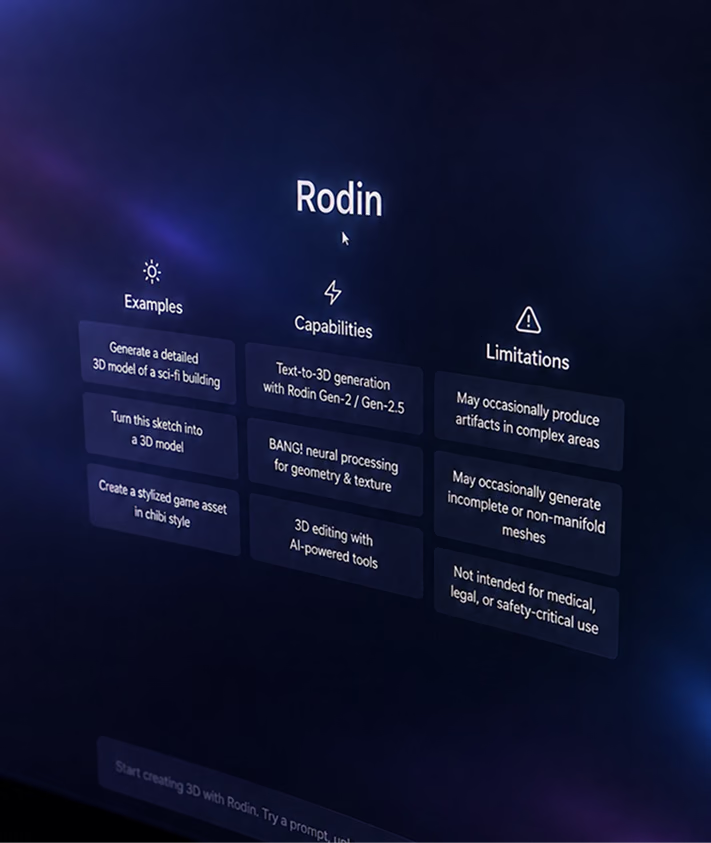
Yes — that's a core workflow. Presets like Turnaround, Back-view, Side-view, and the white-background styles are designed to produce clean source images for image-to-3D generation with Rodin, and remixed concepts feed directly into the rest of the OmniCraft toolset.

Confiado por criadores de ativos 3D reais

Equipes de produção usam o Hyper3D para transformar referências de imagem e prompts em modelos 3D editáveis e prontos para exportação com mais rapidez.

AI 3D chegou a um novo patamar. Rodin Gen-2.5 entrega geometria rápida, suporte high-poly, estrutura limpa e resultados prontos para produção.

Sabir Hussain

Sabir Hussain

Entusiasta de IA e tecnologia

Malhas mais limpas, detalhes de superfície mais nítidos e melhor coerência multiângulo. Os resultados parecem prontos para iterar em um fluxo real.

BubbleBrain

BubbleBrain

Entusiasta de IA

AI 3D chegou a um novo patamar. Rodin Gen-2.5 entrega geometria rápida, suporte high-poly, estrutura limpa e resultados prontos para produção.

Sabir Hussain

Sabir Hussain

Entusiasta de IA e tecnologia

Malhas mais limpas, detalhes de superfície mais nítidos e melhor coerência multiângulo. Os resultados parecem prontos para iterar em um fluxo real.

BubbleBrain

BubbleBrain

Entusiasta de IA

AI 3D chegou a um novo patamar. Rodin Gen-2.5 entrega geometria rápida, suporte high-poly, estrutura limpa e resultados prontos para produção.

Sabir Hussain

Sabir Hussain

Entusiasta de IA e tecnologia

Transforme referências em
novas imagens

Envie referências, escreva um prompt e baixe PNGs prontos para produção — depois mande o melhor quadro direto para imagem-para-3D. Sem software de design.