




Choose Rodin Model and Generation Settings
Select Gen-2.5 for more capable, adjustable reasoning or Gen-1.5 for faster simple-model generation, then set privacy, batch size, and reusable presets. Judge the geometry first and make topology, normal, and texture decisions during the confirmation stage.
Choose Models and Generation Settings in Rodin Workspace
Rodin Workspace separates model choice from privacy, batching, and later topology or texture decisions. Set each control for the current task instead of assuming that every maximum setting produces the best production asset.
Choose between Gen-2.5 and Gen-1.5
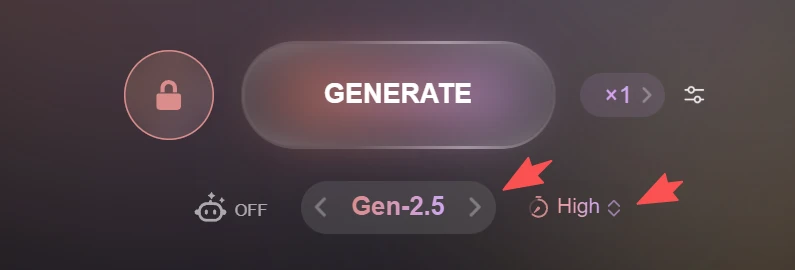
Gen-2.5 is labeled as the most capable current model. Its Thinking Effort choices range from Extreme-Low, Low, Medium, and High to Extreme-High; the workspace shows approximate generation times beside each choice. Use lower effort for fast iteration and higher effort when the reference has difficult structure or fine geometry.
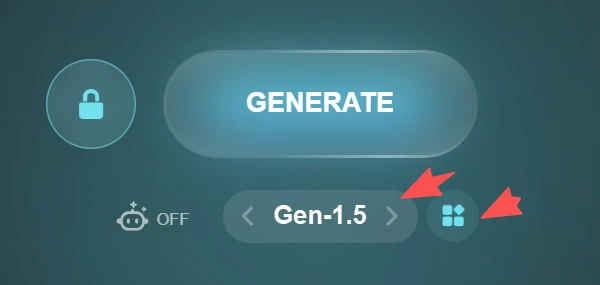
Gen-1.5 is described as faster and better suited to simple models. Its modes are Default for balanced quality and speed, Focal for more detail at a slower pace, Zero for a clearer and sharper result, and Speedy for the fastest pass.
Set privacy and batch size before generation
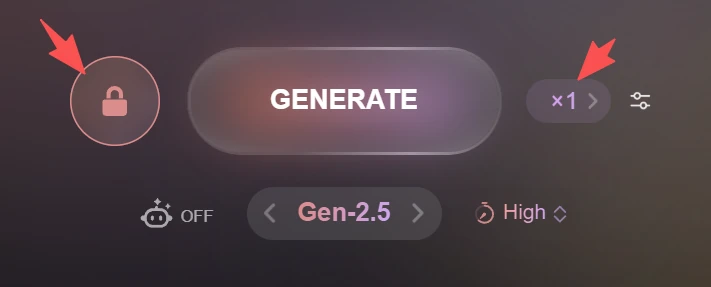
Enable Private when the result must not be public and your account has private generations available. Batch size controls how many alternatives are created from the same setup. The workspace exposes 1 result by default; 5x and 10x are marked as Business-plan options. More results consume more credits, so confirm the button label before submitting.
Use presets for repeatable input
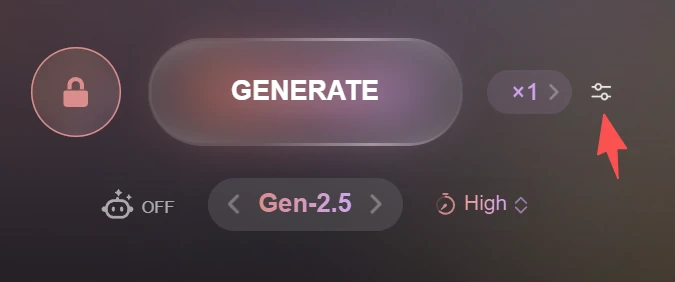
Presets help reuse a working configuration for similar assets. Keep the subject and destination consistent when comparing outputs, and change one major setting at a time so you can tell which control improved the result.
Leave topology and texture decisions for the correct stage
First judge whether the generated shape is worth keeping. After geometry is ready, use the confirmation controls for face count, topology, normal baking, and supported material or texture options. The labels shown in your active workspace and plan are the source of truth for availability and credit cost.