




Create 3D Models From Images in Rodin Workspace
Rodin Workspace turns one or more reference images into a 3D asset. The full workflow lives at Rodin Workspace: choose the input path, prepare the references, select the model and generation options, generate, then review the result in Assets before continuing to topology, texture, or export.
Start in Image to 3D
Select Image to 3D at the top of the creation panel. Upload one complete subject with a readable silhouette. Use a simple background when possible, keep thin parts visible, and avoid cropped objects, severe occlusion, motion blur, and reflections that hide the shape.
Add references only when they add information
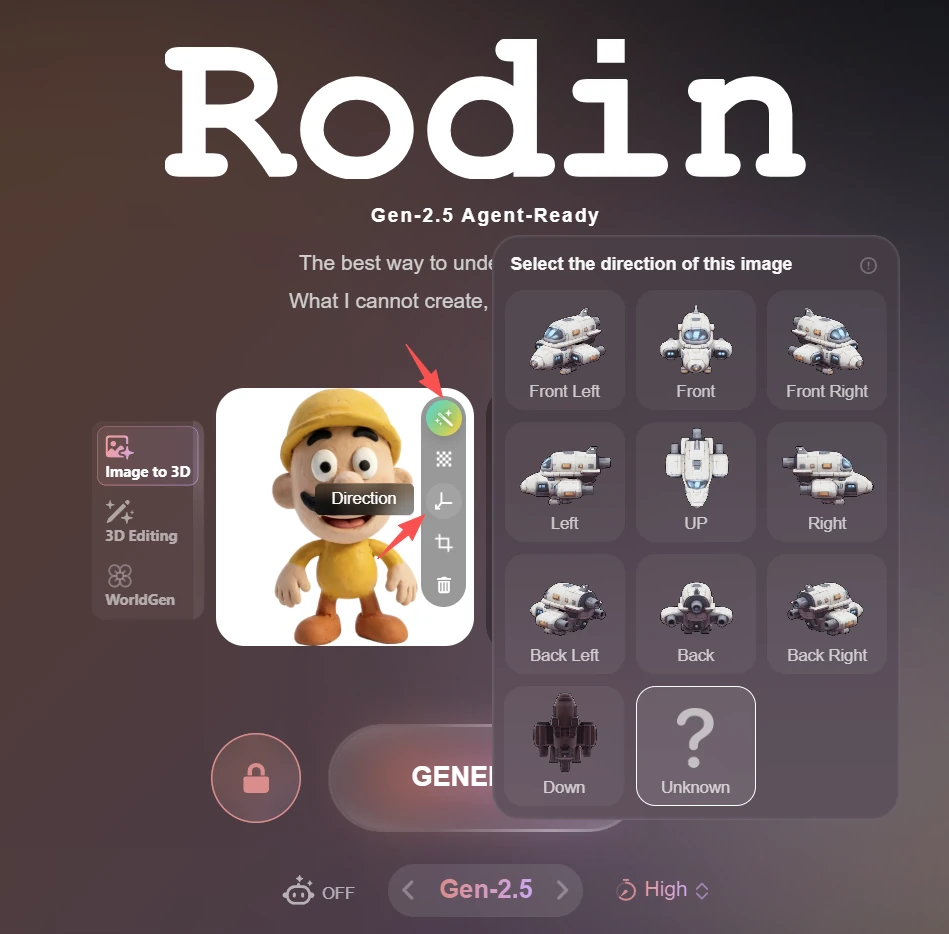
A single image is enough for many objects. Add side, rear, top, or other views when the first image cannot explain hidden geometry or asymmetrical details. For every uploaded image, open its direction control and choose Front, Front Left, Front Right, Left, Right, Back, Back Left, Back Right, Up, Down, or Unknown. Direction labels help Rodin align the views.
Choose the generation setup
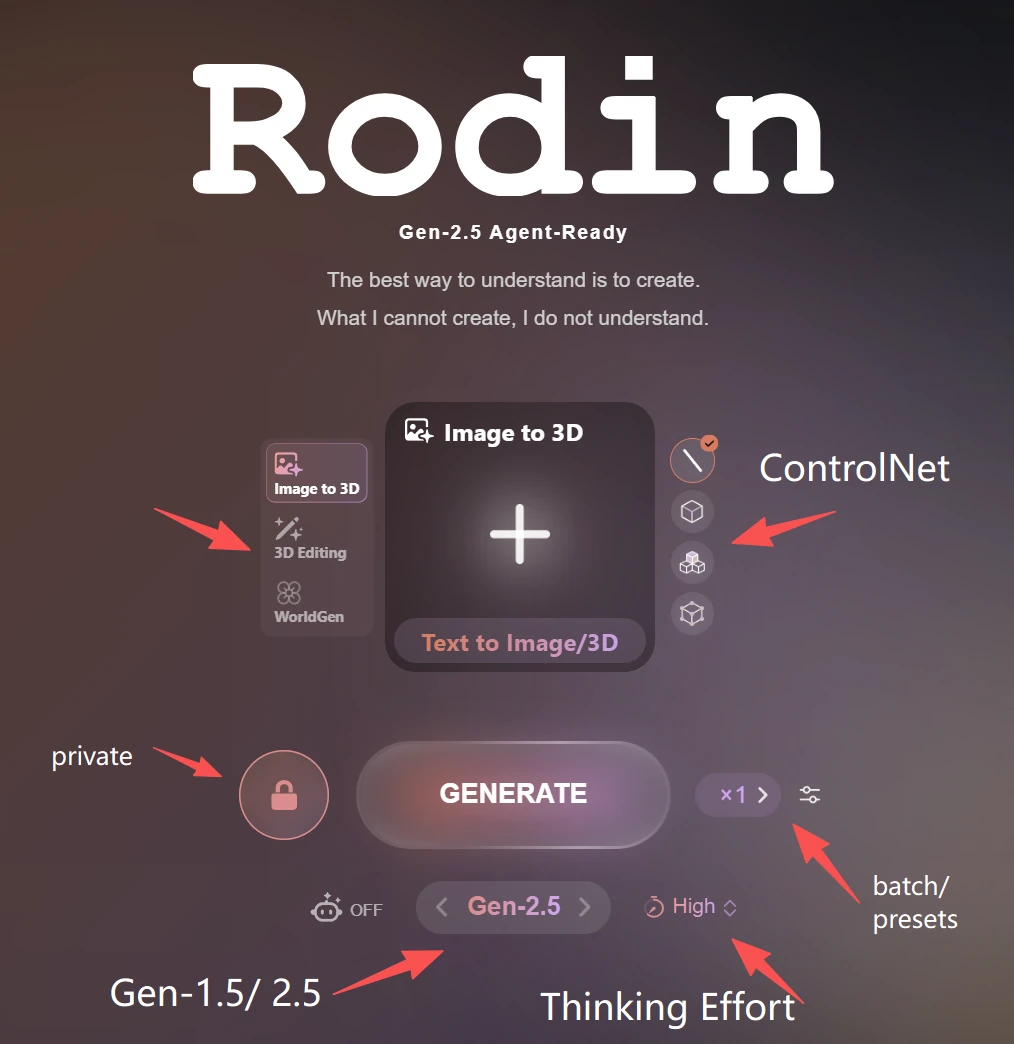
Select Gen-2.5 or Gen-1.5 from Model Selection, then choose the effort or mode that fits the task. The panel also exposes privacy, batch size, presets, and compatible ControlNet inputs. Read the credit amount on the Generate button before submitting because it can change with the active setup.
# Use Multiple Reference Images in Rodin Workspace
Rodin Workspace supports multiple images of the same subject when one view does not explain the full shape. Multi-view input is most useful for asymmetrical products, characters, vehicles, and objects with important side, rear, top, or underside details. You can upload up to 5 reference images.
Keep every image consistent
Use the same object in the same configuration. Materials, proportions, removable parts, and major design features should match across views. Do not mix concept variants, mirrored references, or images taken before and after the subject changed.
Assign Image Directions (Optional)
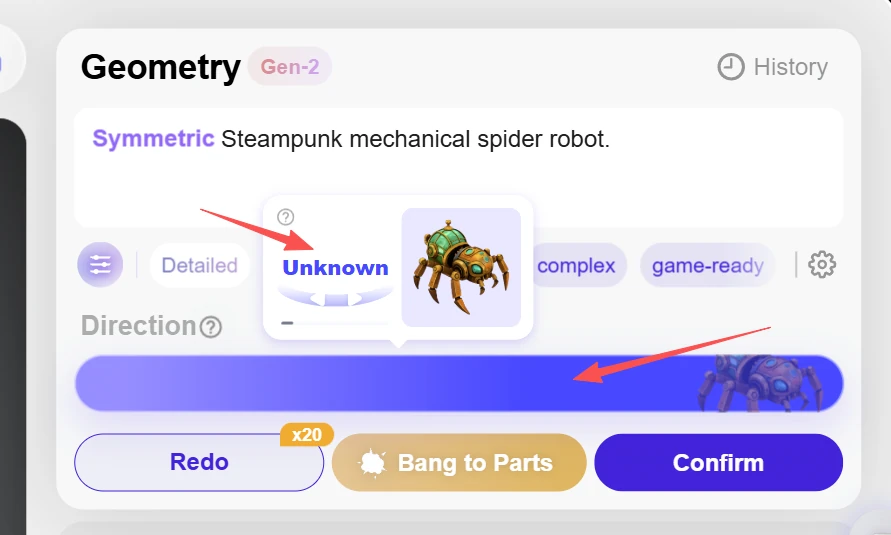
After uploading an image, open its direction selector and choose Front, Front Left, Front Right, Left, Right, Back, Back Left, Back Right, Up, Down, or Unknown.
You do not need to manually assign a direction to every image. AI can automatically detect image orientations and generate the 3D model. If you want more explicit control over how different reference images correspond to specific views, you can also assign directions manually to help guide the generation process.
Remove conflicting evidence
More images do not automatically improve the model. If parts duplicate, surfaces twist, or details jump between sides, remove the least reliable view, correct any direction labels, and generate again. Review the resulting back, underside, thin parts, and transitions between views before moving to topology or texture.
Review the generated task
Open the result from Assets and rotate it through every side. Check silhouette, back and underside geometry, thin features, symmetry, seams, and texture placement. Continue to confirmation or post-generation controls only after the base geometry is useful; this avoids spending additional time on a result that should be regenerated from a clearer reference.