




Geometry Preview
Open 3D assets in the browser to check mesh visibility, object scale, orientation, and basic scene structure.
Describe the requirements in Kimi Code CLI, Codex or Claude Code. Create 3D models using Hyper3D Rodin MCP, query the generation progress and obtain the download link for the models.
codex mcp add hyper3d-rodin --url https://api.hyper3d.com/api/mcp The Windows configuration file is usually located at C:\Users\<username>\.codex\config.toml
Please add the following configuration:
[mcp_servers.hyper3d-rodin] url = "https://api.hyper3d.com/api/mcp" Run in PowerShell:
codex mcp login hyper3d-rodin *The Codex will open the browser. Log in to your Hyper3D account, verify the client identity, select the billing workspace, and confirm the authorization.
claude mcp add --transport http hyper3d-rodin --scope user https://api.hyper3d.com/api/mcp The Windows configuration file is usually located at C:\Users\<username>\.claude.json
Please add the following configuration:
{ "mcpServers" : { "hyper3d-rodin" : { "type" : "http" , "url" : "https://api.hyper3d.com/api/mcp" } } } Run in PowerShell:
claude mcp login hyper3d-rodin *Claude Code will open the browser. Log in to the Hyper3D account, verify the client identity, select the billing workspace, and confirm the authorization.
Please add a global MCP for the user: Name: hyper3d-rodin URL: https://api.hyper3d.com/api/mcp The Windows configuration file is usually located at C:\Users\<username>\.kimi-code\mcp.json
Please add the following configuration:
{ "mcpServers" : { "hyper3d-rodin" : { "url" : "https://api.hyper3d.com/api/mcp" } } } Enter in the Kimi Code CLI:
/mcp-config login hyper3d-rodin *Kimi will open the browser, log in to your Hyper3D account, select the workspace, and confirm authorization.


Use the viewer before import, review, conversion, publishing, or AI generation.
Open 3D assets in the browser to check mesh visibility, object scale, orientation, and basic scene structure.
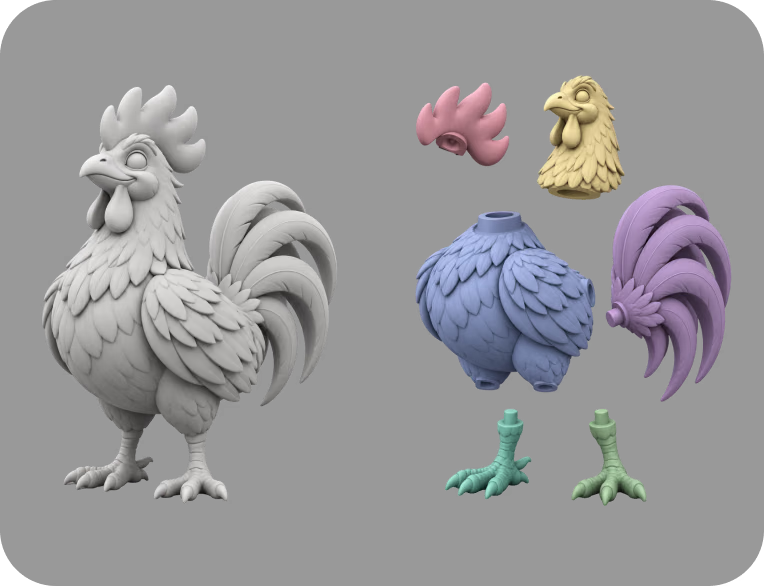
Upload companion material, texture, or binary files when the format references them, then inspect if the preview resolves correctly.
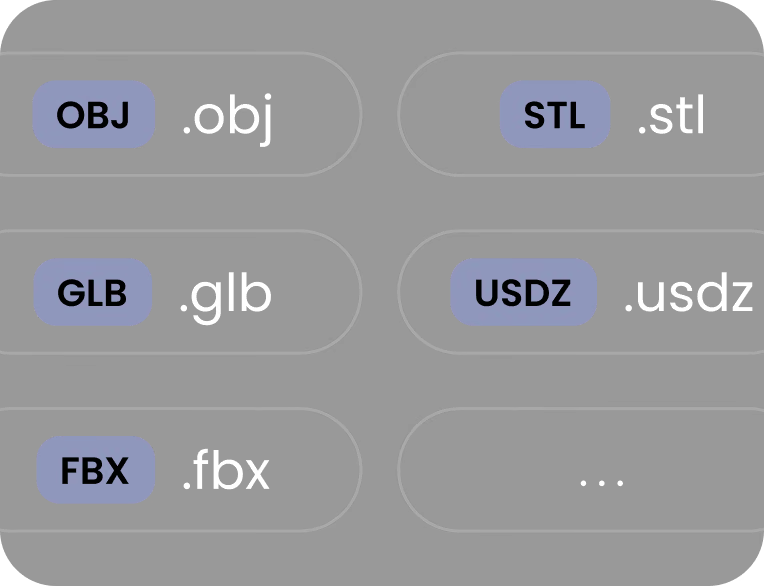
Use the viewer before moving files into Blender, Unity, Unreal Engine, CAD tools, AR viewers, slicers, or ecommerce pipelines.
Turn natural language into ready-to-use 3D models effortlessly.
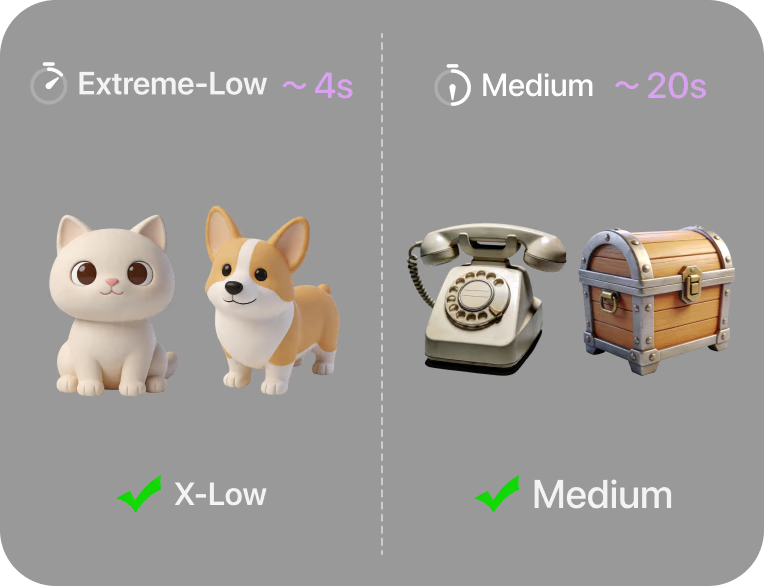
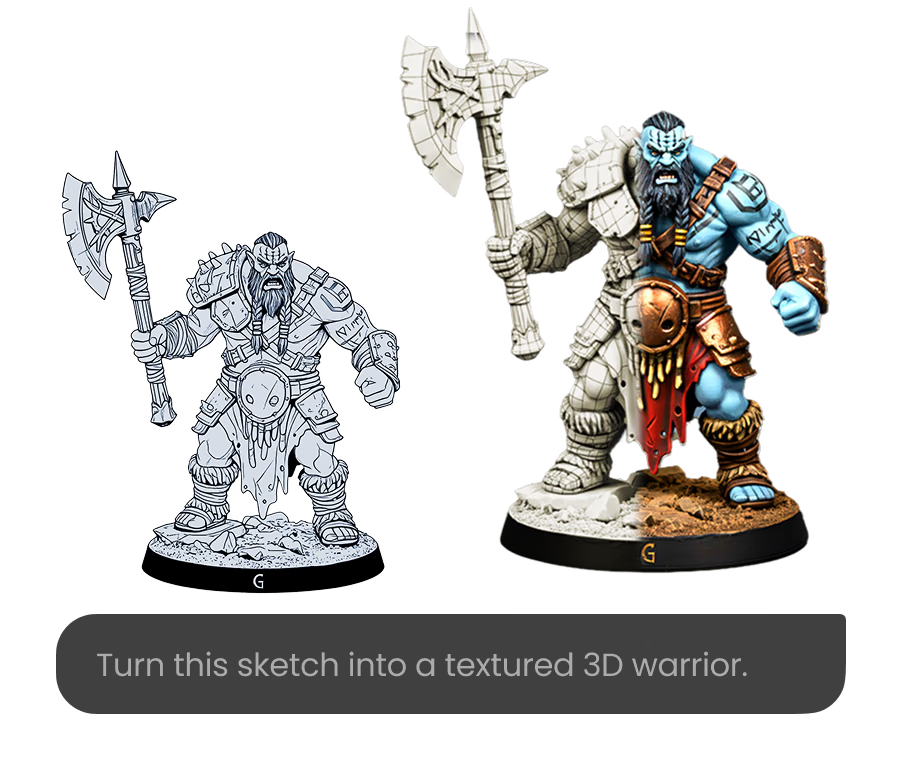
Supports Gen-2.5-Medium and Gen-2.5-Extreme-Low, choose the generation mode as needed.
Query the progress of the submitted tasks in the client-side conversation.
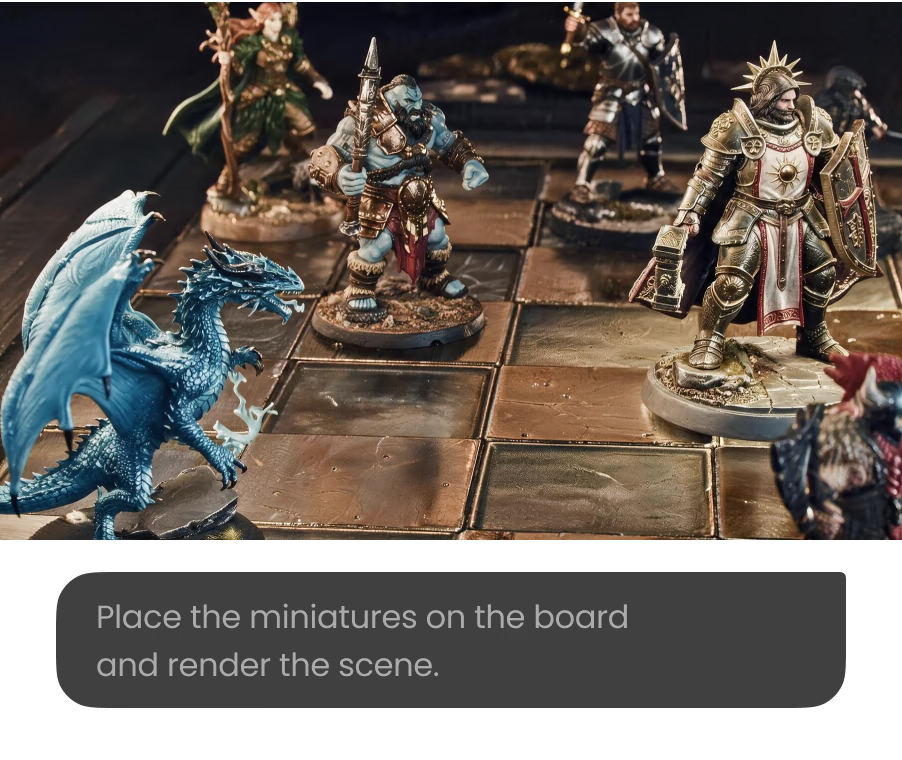
After the generation is completed, obtain the result link.
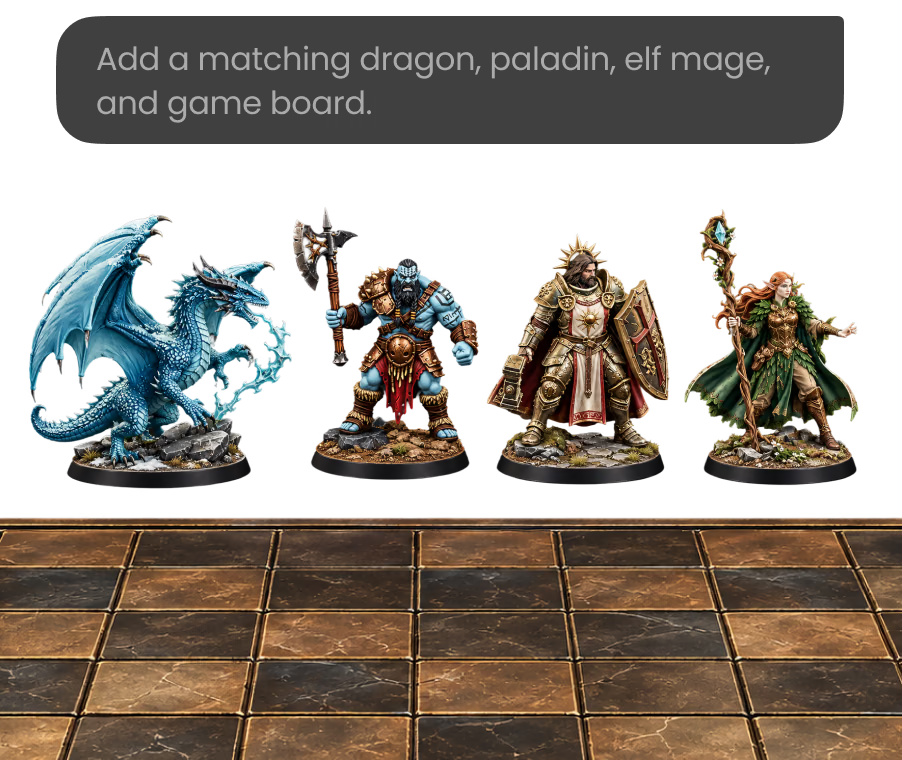
Hyper3D handles the modeling and texturing; you keep the creative calls.
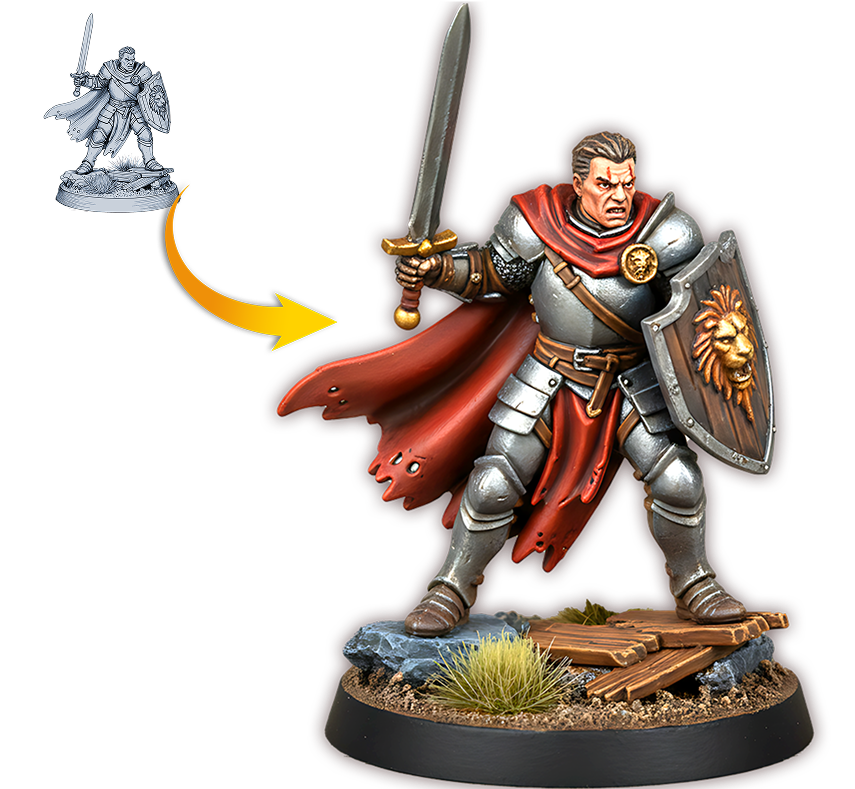

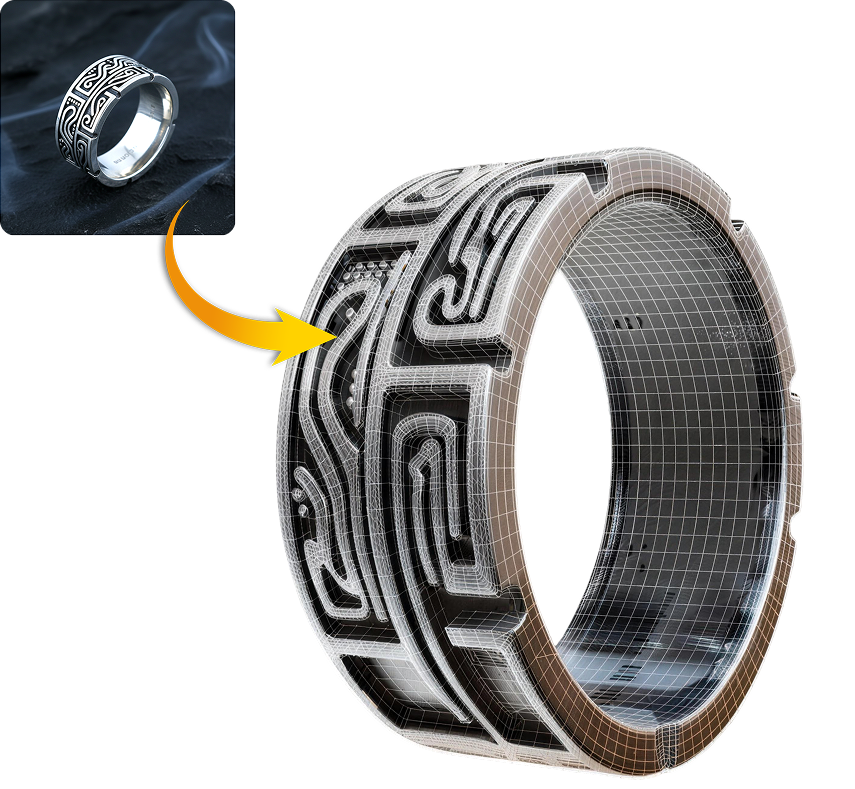
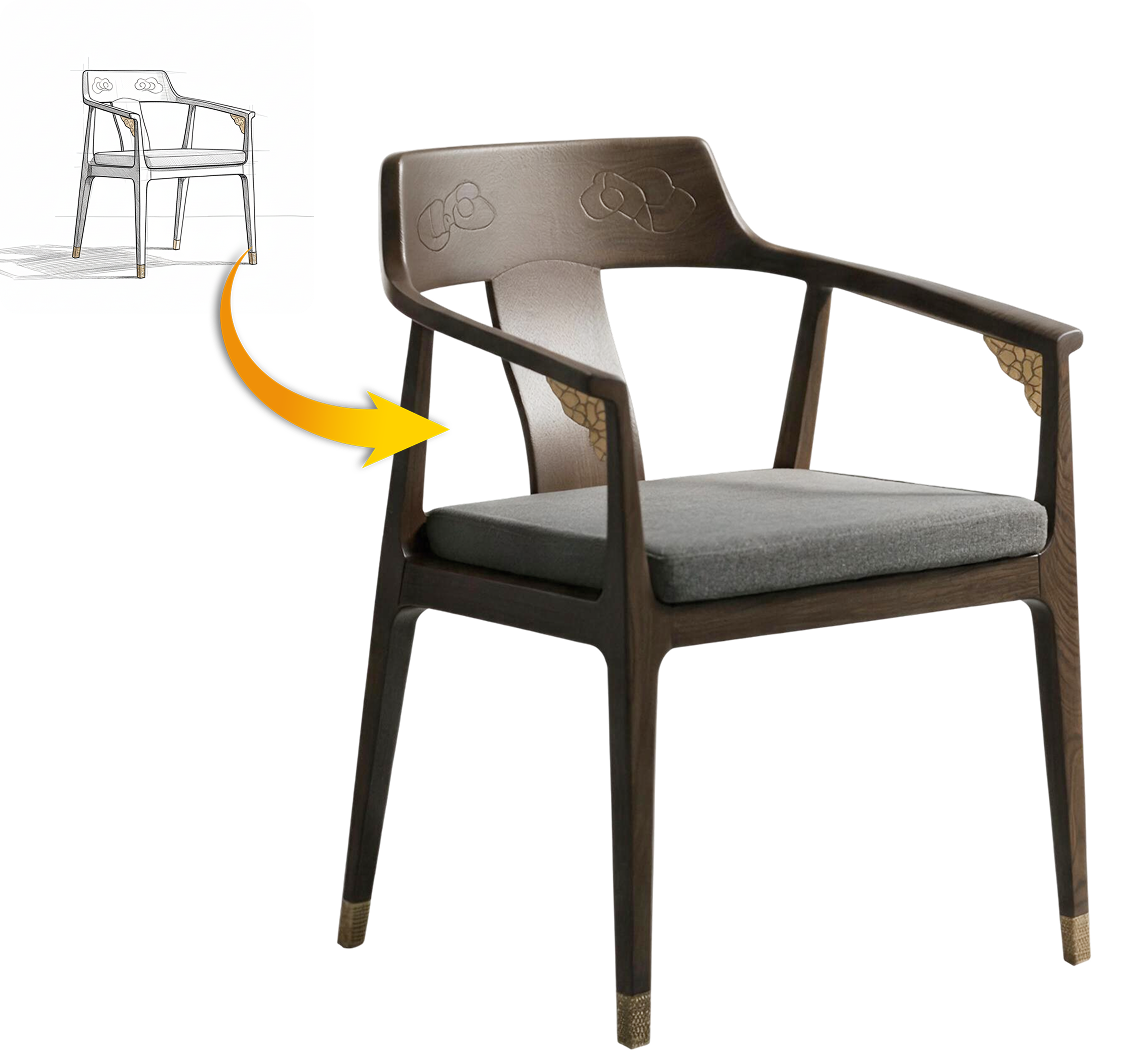
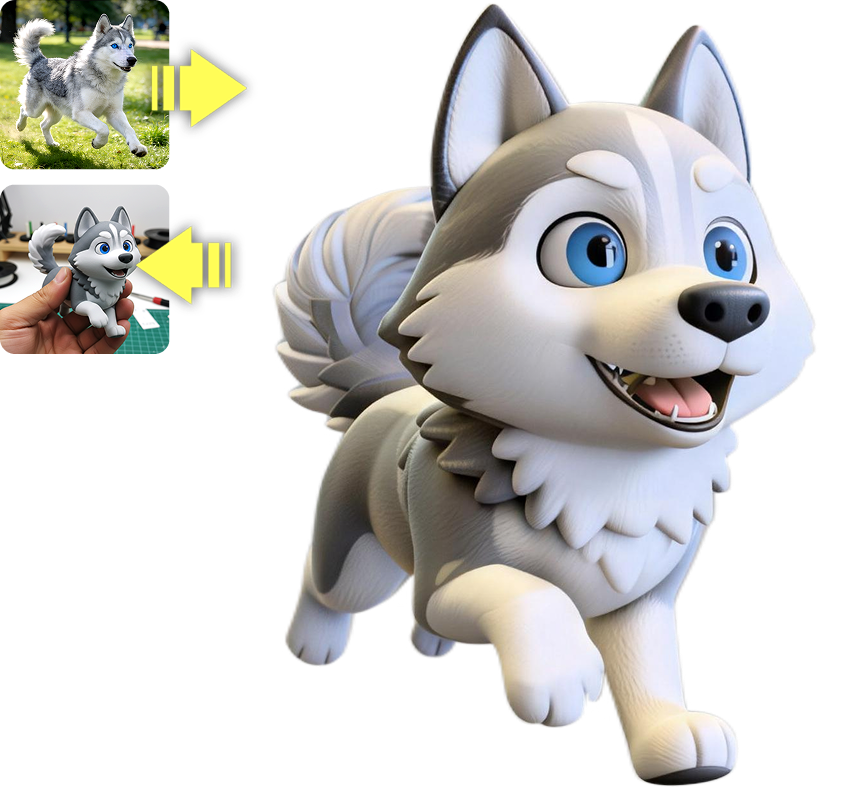

Answers for connecting Kimi Code CLI, Codex, or Claude Code to Hyper3D Rodin MCP and creating 3D assets.