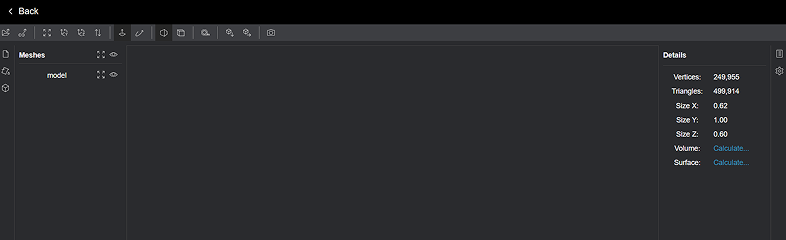








Convert
Move 3D models seamlessly between browser-supported formats.
Open OBJ, FBX, USDZ, STL, GLB, GLTF, 3MF, PLY, DAE, 3DS, 3DM, STEP, STP, IGES, and IFC files online.
Local history
Uploaded models will appear here.
Trusted by creators and teams


3D preview
Preparing preview...
Generate 3D models from text or images, and export for games, products, and 3D printing.
Move 3D models seamlessly between browser-supported formats.
Inspect both source and converted files directly online.
Create new 3D assets from text descriptions or uploaded images.
Preview common 3D model formats before importing them into a design, game, CAD, AR, print, or ecommerce workflow.

Open FBX, OBJ, GLB, GLTF, and texture-heavy assets before bringing them into Unity, Unreal Engine, or a DCC tool.
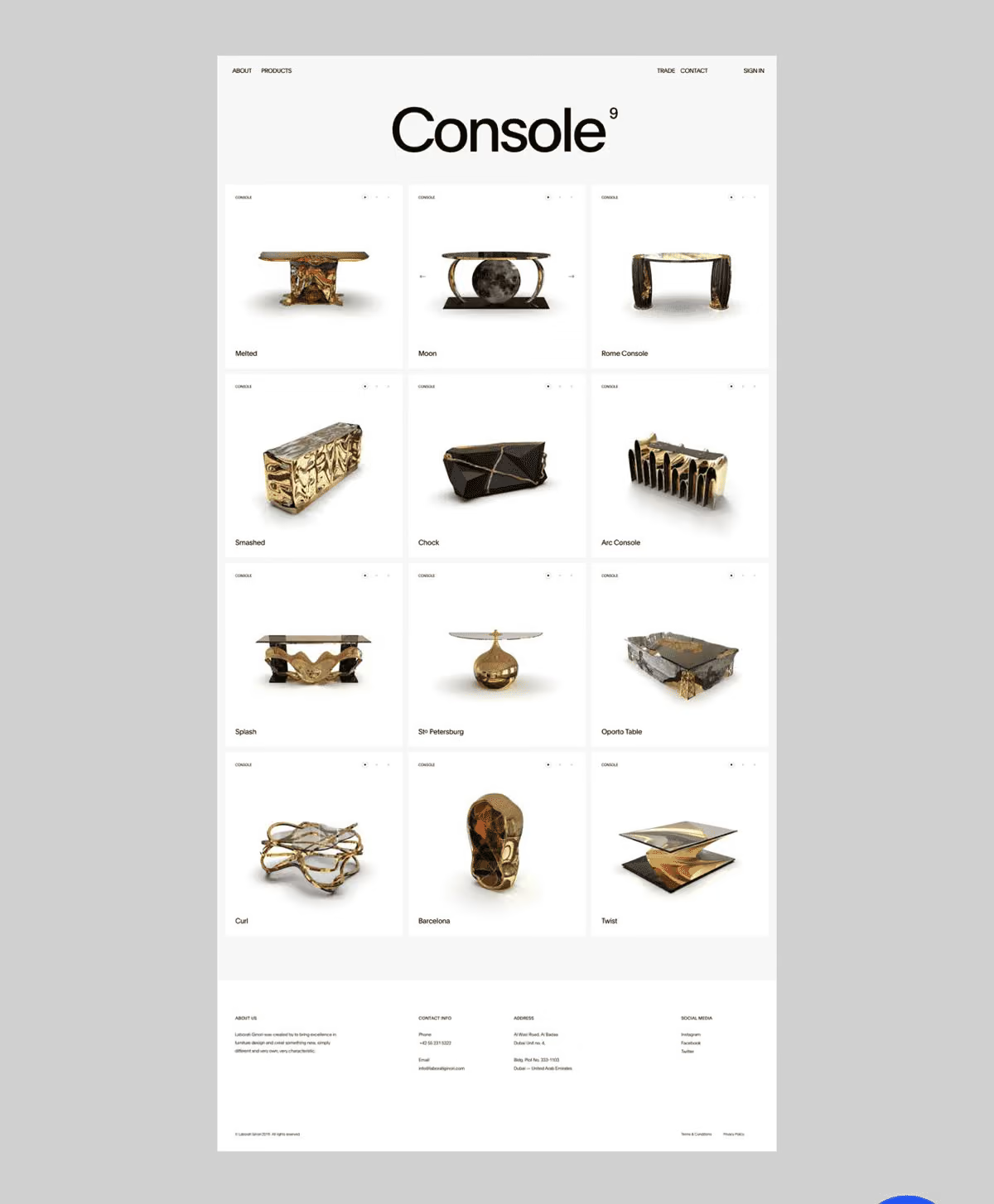
Inspect USDZ, GLB, and GLTF product models for e-commerce, AR previews, configurators, and stakeholder reviews.

Preview STL, 3MF, OBJ, and PLY files before slicing so you can catch orientation, scale, and mesh visibility issues earlier.

Open STEP, STP, IGES, 3DM, and IFC files for quick browser-based product, architecture, and engineering review.
Use the viewer before import, review, conversion, publishing, or AI generation.
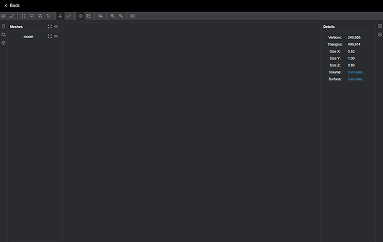
Open 3D assets in the browser to check mesh visibility, object scale, orientation, and basic scene structure.

Upload companion material, texture, or binary files when the format references them, then inspect if the preview resolves correctly.
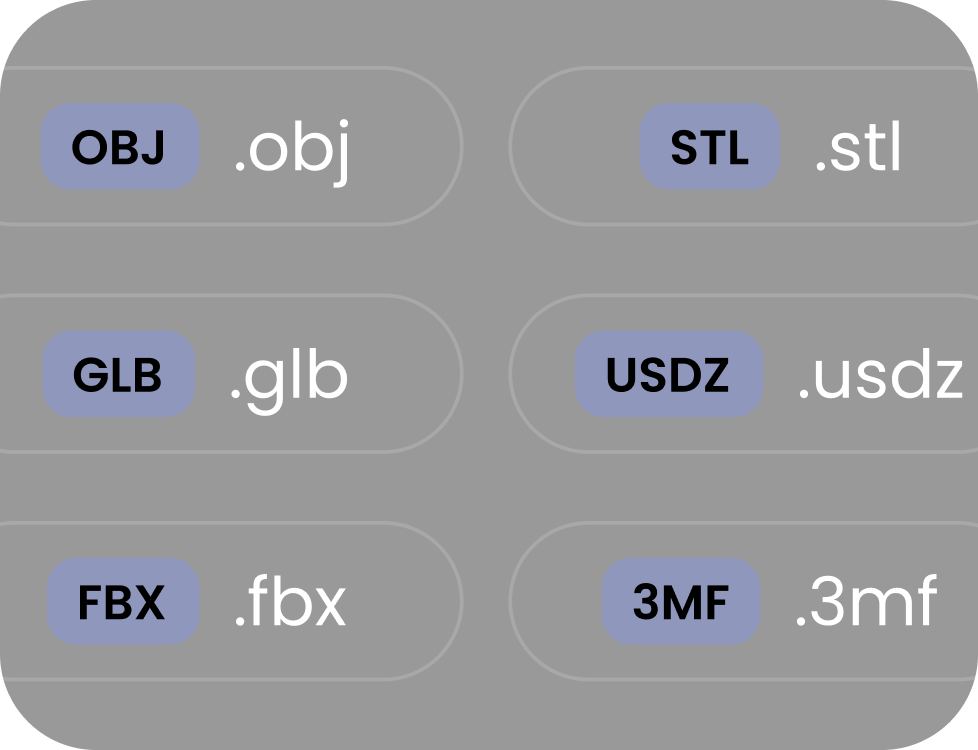
Use the viewer before moving files into Blender, Unity, Unreal Engine, CAD tools, AR viewers, slicers, or ecommerce pipelines.

Preview files in the browser and keep recent uploads in local device history without creating an account for basic viewing.
Choose a format, upload your file, inspect it in the modal viewer, and reopen recent uploads from local browser history.
Answers for creators, developers, product teams, print users, and 3D artists working with model files in the browser.