





Using Hyper3D Rodin MCP
in the Codex CLI
Create 3D models directly in the Codex CLI, check the generation progress, and obtain the download link for the models.
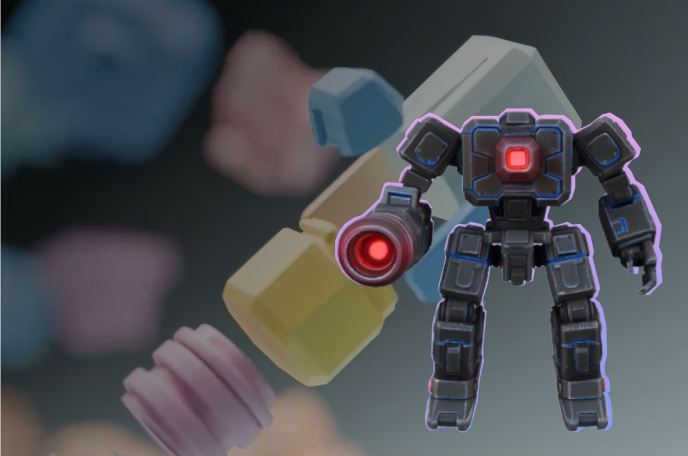
Please use hyper3d-rodin to create a low-poly style robot 3D model. Let me know the parameters and billing workspace you'll be using before submission, and I'll confirm before starting generation.


Three steps to start your first 3D creation
Connect the MCP service, authorize your workspace, and generate your first model.
1
Install the MCP Server
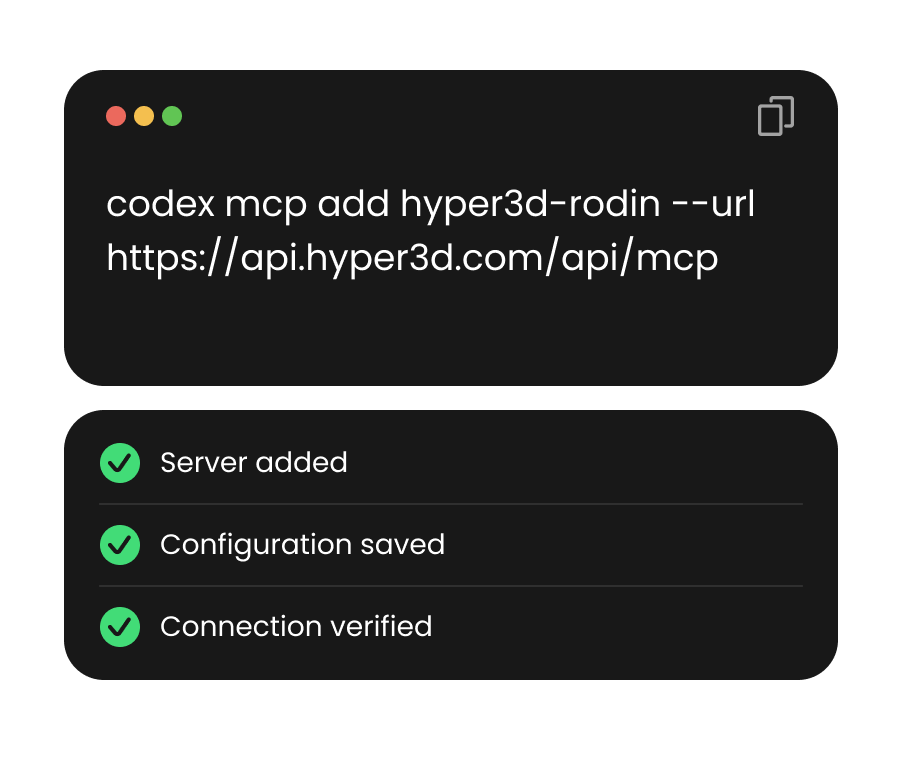
Run codex mcp add hyper3d-rodin --url MCP_URL in your terminal, replacing MCP_URL with the MCP service URL.
2
Authorize Your Workspace
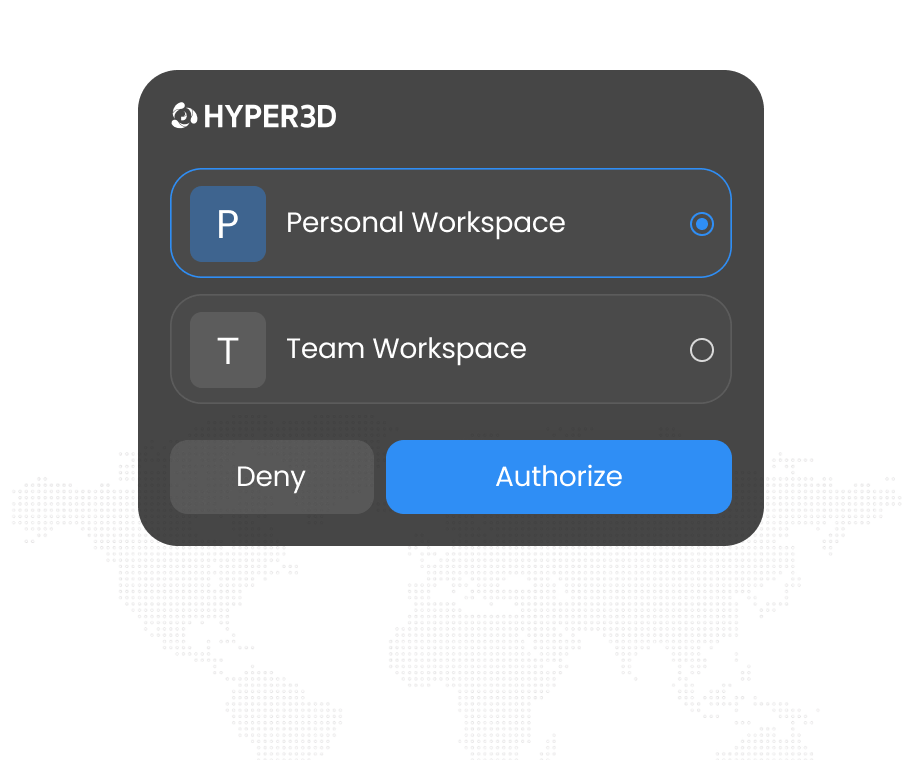
Run codex mcp login hyper3d-rodin in your terminal. Log in through your browser and select a workspace. No API key required. Then start or restart Codex CLI.
3
Generate Your 3D Model
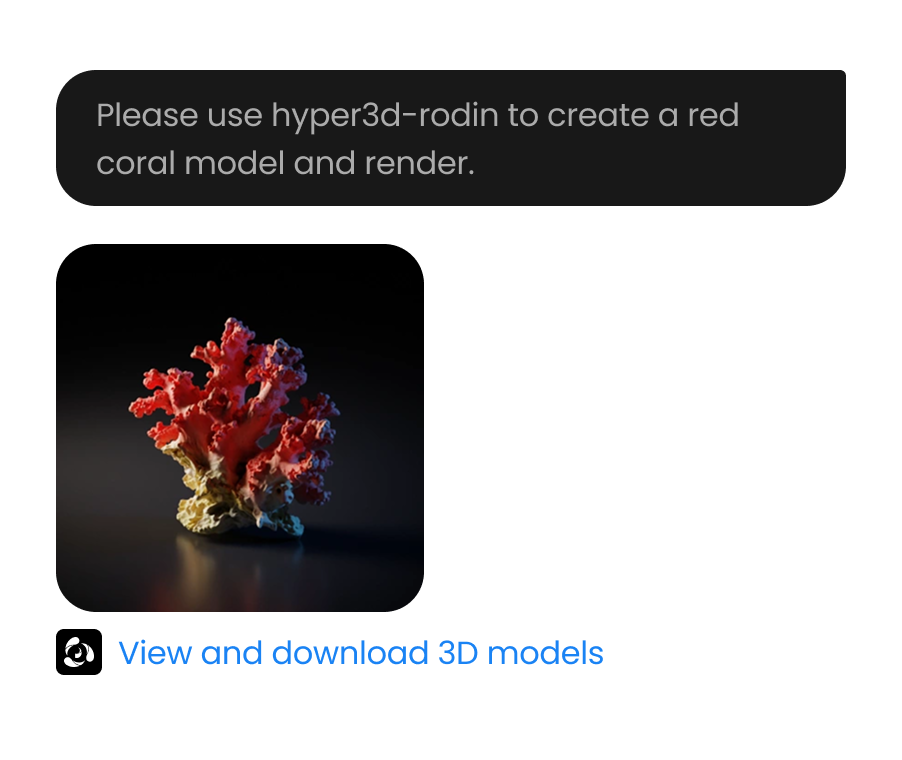
Prompt Codex to use hyper3d-rodin. Confirm parameters and workspace before submitting, as generation consumes credits.
How to View 3D Models Online
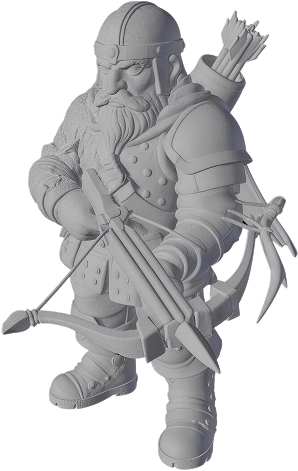
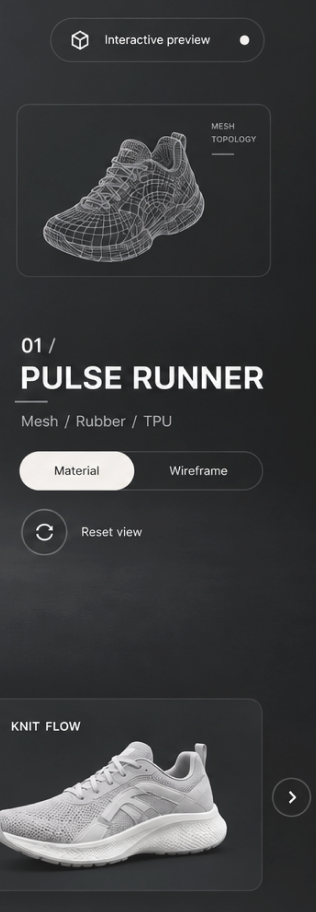
Choose a format, upload your file, inspect it in the modal viewer, and reopen recent uploads from local browser history.






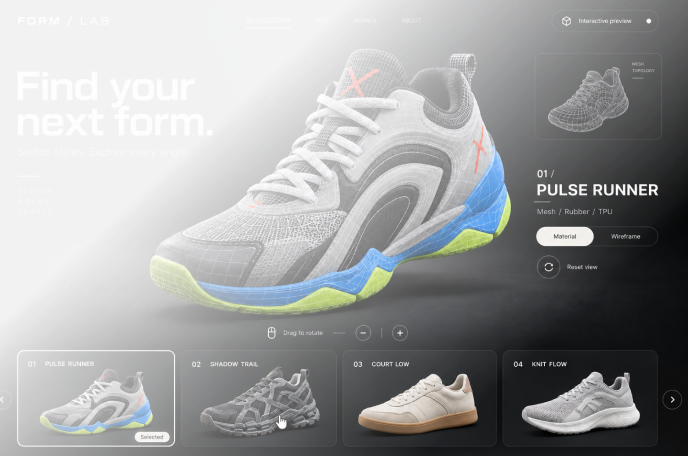
Integrate 3D generation into your daily work
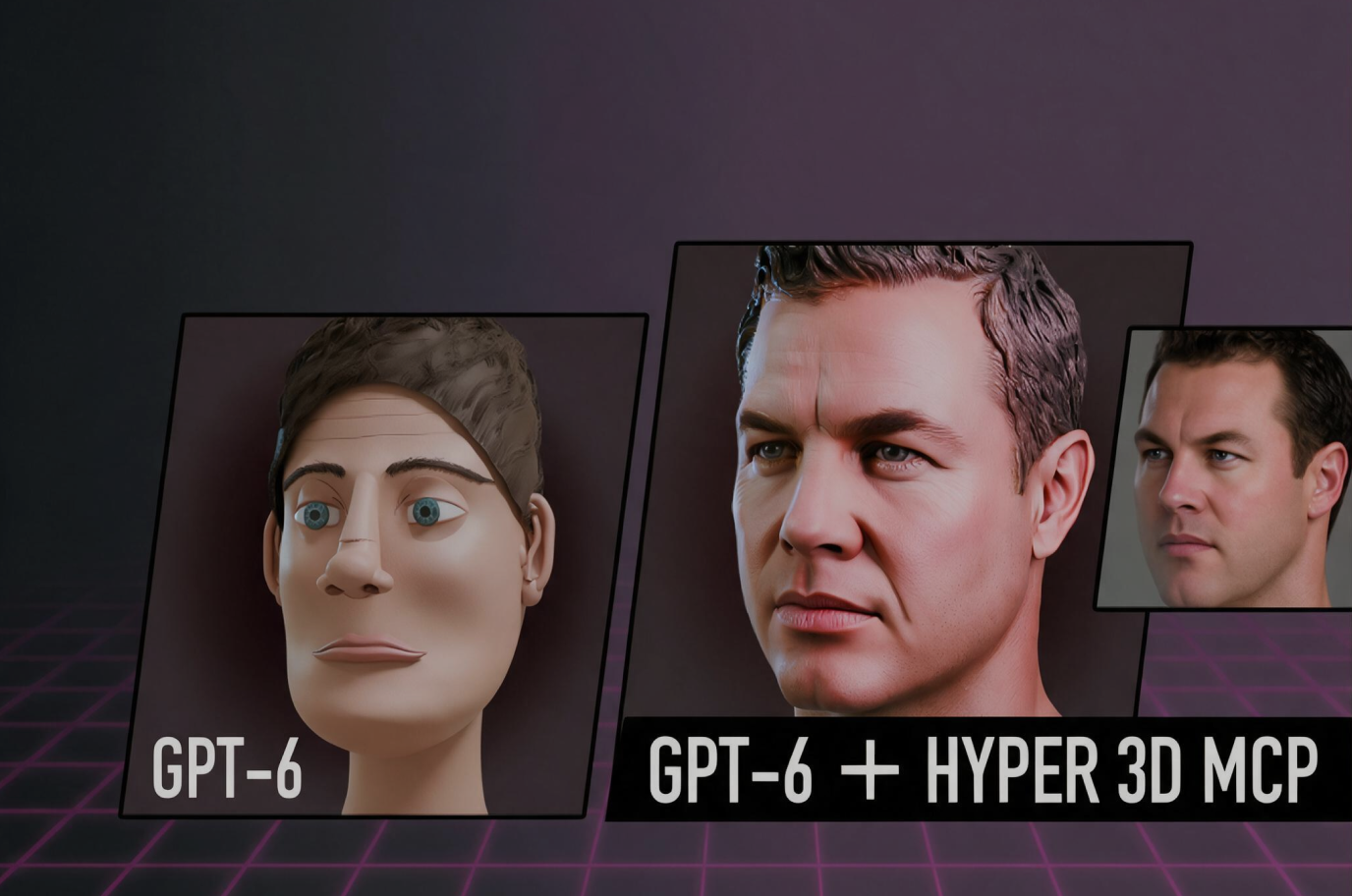
Hyper3D handles the modeling and texturing; you keep the creative calls.
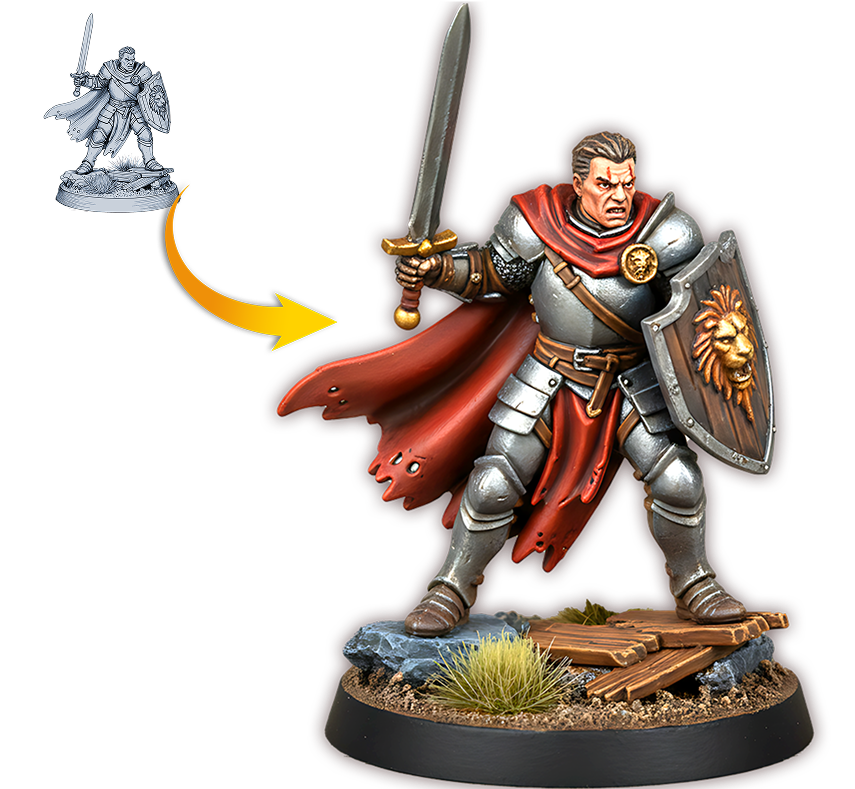
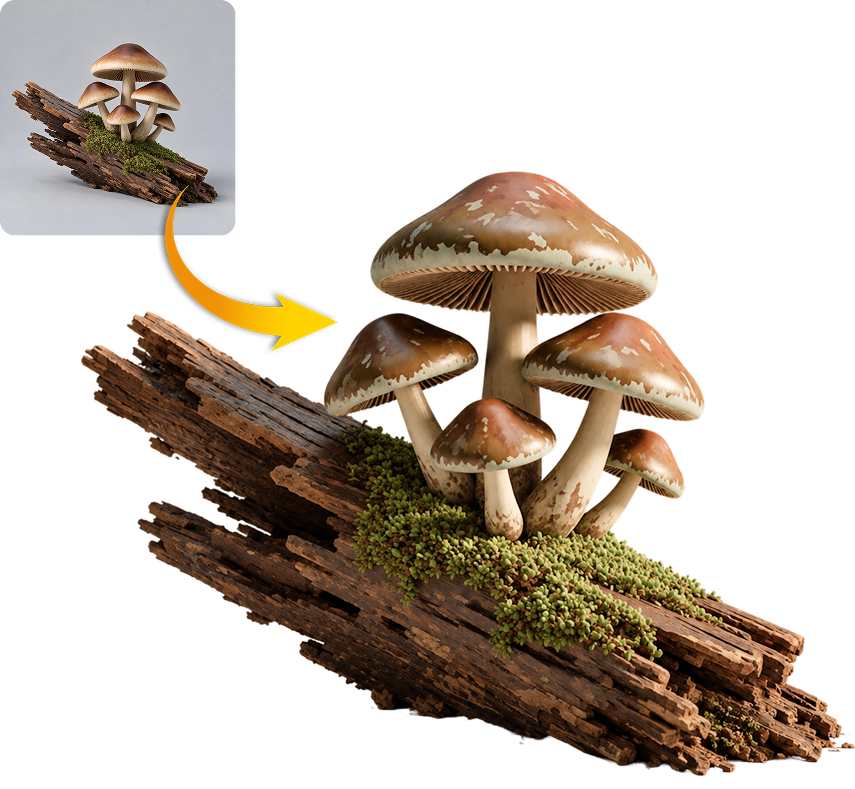
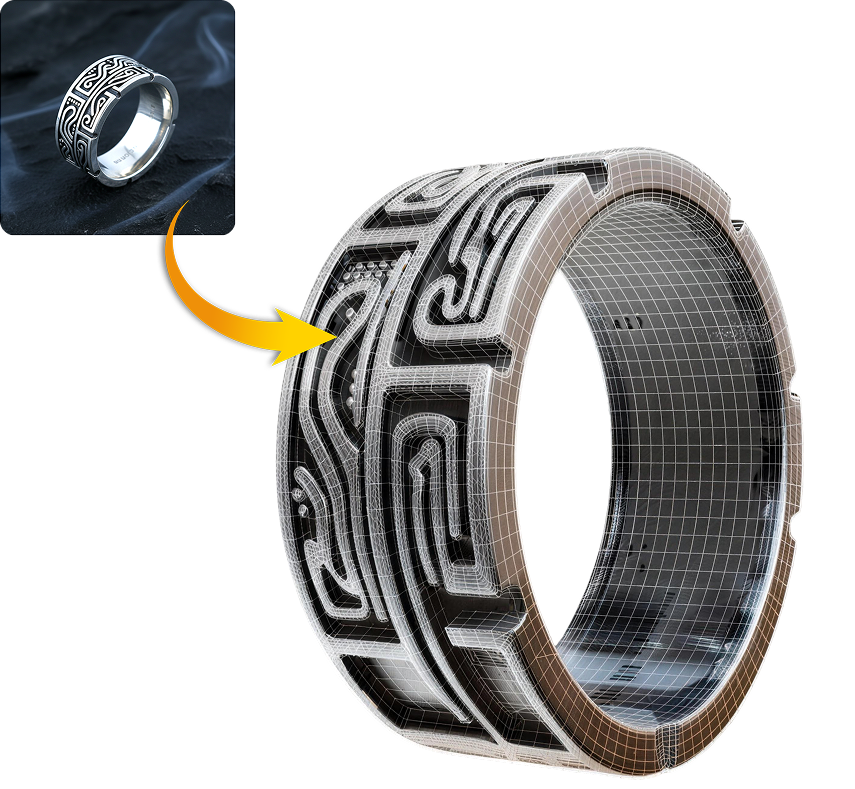


Your workspace. A clear start.
Connect through your browser, choose your workspace, and ask Claude to confirm the details before generating.
Connect without an API key.

Connect without an API key.
Log in to Hyper3D in the browser and confirm the authorization, then you can connect to Claude Code.
Choose your workspace.

Choose your workspace.
When authorizing, select the Hyper3D workspace to be used. The model generation process may consume the quota of the selected workspace.
Review before you generate.

Review before you generate.
You can ask Claude to explain the generation parameters and workspace before submitting, and wait for your confirmation before proceeding.
Check your connection.

Check your connection.
In Claude Code, use /mcp to check the connection status. After confirming that the Rodin MCP is connected, start creating.