




Edit Existing 3D Models in Rodin Workspace
3D Editing is a dedicated path in Rodin Workspace for changing an existing asset. It is separate from generating a new object and separate from the local OmniCraft Mesh Editor.
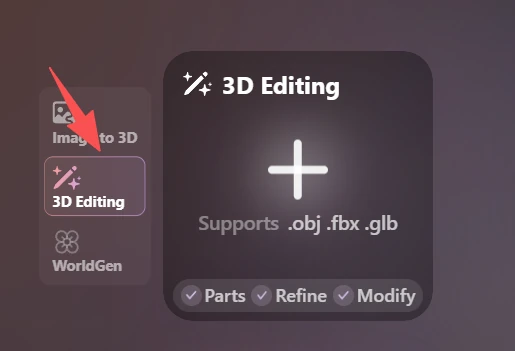
Open 3D Editing and upload the model
Select 3D Editing at the top of the Rodin creation panel. The current uploader lists OBJ, FBX, and GLB as supported source formats. Use a clean file with the intended scale, orientation, material assignments, and visible geometry.
Add a reference only when it clarifies the edit
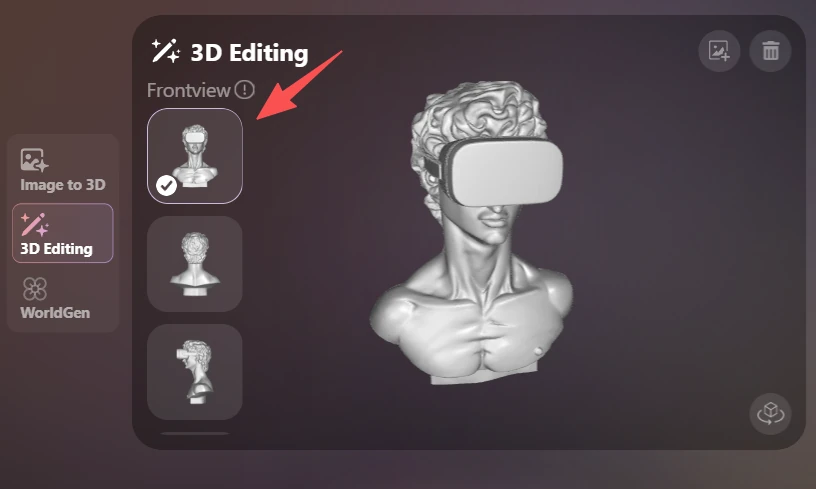
You can upload a custom reference image when the requested change needs visual guidance. Select the image view carefully because the workspace notes that view selection affects editing results. Keep the reference consistent with the model and show the part you want to change.
Choose the editing intent
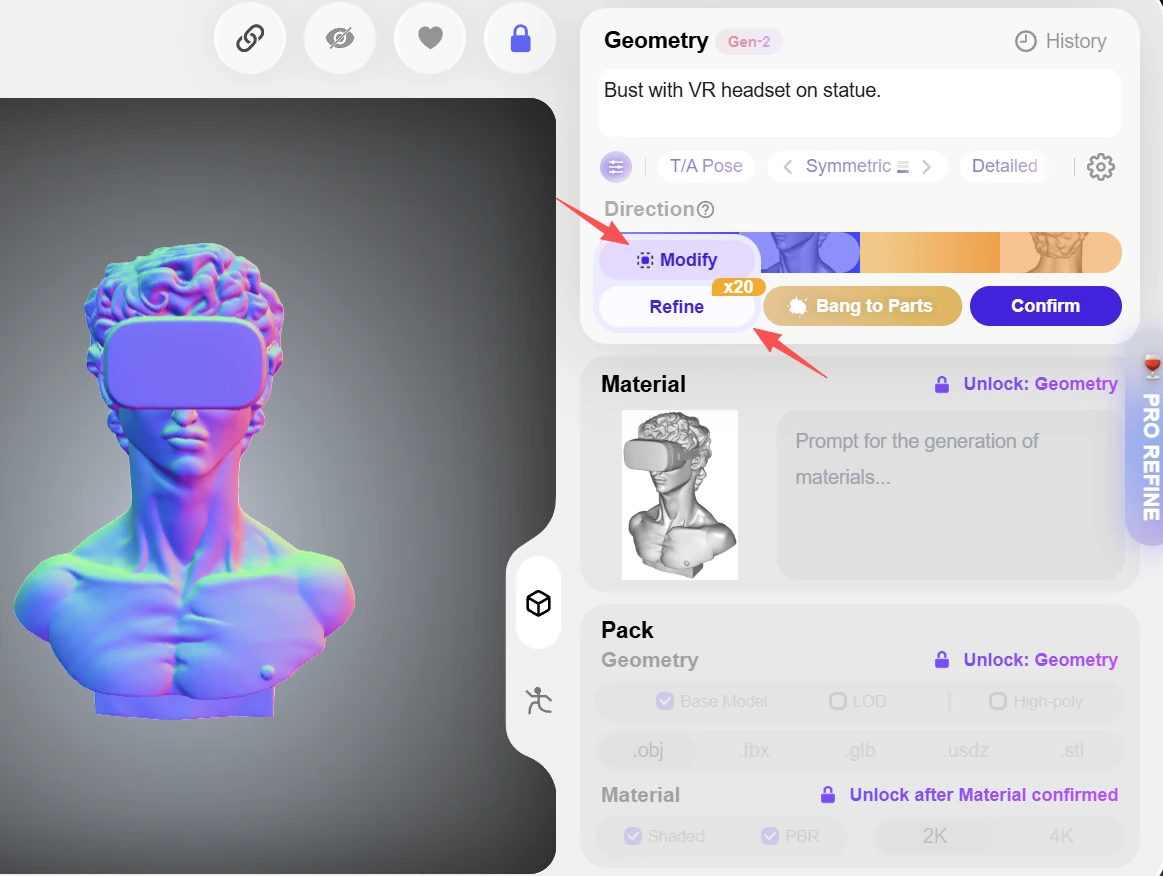
- Parts is for working with the model as meaningful components.
- Refine is for improving an existing result while preserving its overall identity.
- Modify is for a directed shape or design change.
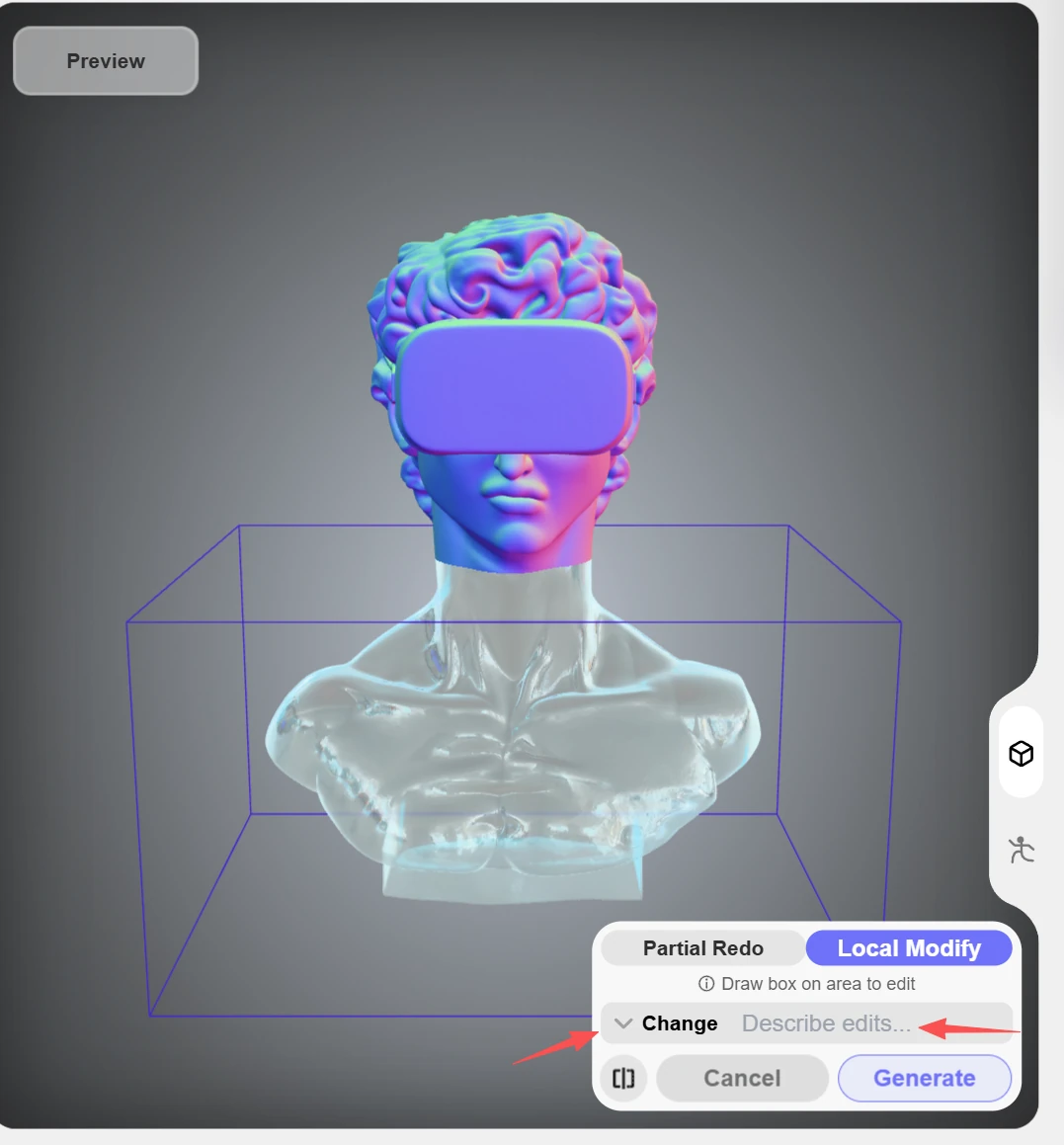
Describe the intended change precisely and avoid instructions that contradict geometry outside the target area.
Preview before committing
The workspace presents the edit action as a free preview before later processing. Inspect proportions, part boundaries, seams, normals, UVs, and material continuity. Continue only when the preview preserves the parts of the model that were meant to stay unchanged.