How to Open GLB Files: Viewers and Tools
GLB files are a popular format for 3D models, but opening them can be a challenge if you don't have the right software. Whether you're a 3D artist, a developer, or just someone who needs to view a 3D model, there are a variety of tools available to help you open and view GLB files. In this article, we'll explore the different ways to open GLB files, from online viewers to desktop software. We'll also provide a step-by-step guide to opening GLB files and offer some advanced tips for working with this versatile 3D format, which is relevant when working with how to open glb file.
What is a GLB file?: How To Open Glb File
A GLB file is a 3D file format that's used to store and exchange 3D models. It's a binary file format, which means that it's a compact and efficient way to store 3D data. GLB files are based on the glTF 2.0 specification, which is an open standard for 3D content. This means that GLB files can be used in a wide variety of applications, from 3D modeling software to web-based 3D viewers, which is relevant when working with how to open glb file.
One of the key advantages of the GLB format is that it's a self-contained file. This means that all of the data for a 3D model, including the geometry, materials, and textures, is stored in a single file. This makes it easy to share and transfer 3D models, as you don't have to worry about sending multiple files. Another advantage of the GLB format is that it's optimized for web-based applications. GLB files are typically smaller than other 3D file formats, which means that they can be loaded quickly in a web browser, which is relevant when working with how to open glb file.
How to Open GLB Files
There are several ways to open GLB files, each with its own advantages and disadvantages. The best method for you will depend on your specific needs and the software you have available.
Online GLB Viewers
Online GLB viewers are a great option if you need to quickly view a GLB file without installing any software. These viewers run in your web browser and allow you to upload and view GLB files directly. Some online viewers also offer additional features, such as the ability to inspect the 3D model's properties and hierarchy.
Here are some of the most popular online GLB viewers:
| Viewer | Pros | Cons |
|---|---|---|
| Hyper3D GLB Viewer | Easy to use, fast loading, supports other formats | Limited features compared to desktop software |
| glTF Viewer | Simple drag-and-drop interface | Basic functionality |
| Babylon.js Sandbox | Supports various file formats, advanced features | Can be overwhelming for beginners |
| 3D Viewer Online | Supports a wide range of formats | Slower loading times for large files |
Desktop Software for Opening GLB Files
If you need more advanced features, such as the ability to edit or convert GLB files, you'll need to use desktop software. There are a number of 3D modeling and viewing applications that support the GLB format.
Here are some of the most popular desktop applications for opening GLB files:
| Software | Pros | Cons |
|---|---|---|
| Blender | Free and open-source, powerful editing features | Steep learning curve for beginners |
| Autodesk FBX Review | Free, supports various 3D formats | Limited editing capabilities |
| Windows 3D Viewer | Pre-installed on Windows 10, easy to use | Basic functionality |
| Adobe Substance 3D Stager | Advanced staging and rendering features | Requires a subscription |
Step-by-Step Guide to Opening GLB Files
Opening a GLB file is a straightforward process, whether you're using an online viewer or desktop software. Here?? how you can do it.
Using an Online GLB Viewer
For this example, we'll use the Hyper3D GLB file viewer, a simple and effective tool for this purpose.
1. Navigate to the Viewer: Open your web browser and go to the Hyper3D GLB viewer website.
2. Upload Your File: You can either drag and drop your .glb file directly onto the viewer or click the upload button to select the file from your computer.
3. View Your Model: The model will load in the viewer. You can use your mouse to rotate, pan, and zoom to inspect the model from all angles.
Using Desktop Software
For those who prefer desktop applications, Blender is a powerful, free, and open-source option.
1. Open Blender: Launch the Blender application.
2. Import the GLB File: Go to `File > Import > glTF 2.0 (.glb/.gltf)`.
3. Locate Your File: Navigate to the location of your GLB file on your computer and select it.
4. Confirm Import: Click the "Import glTF 2.0" button. Your 3D model will now appear in the Blender viewport.
My First-Hand Experience
As a 3D artist, I work with GLB files all the time. For quick checks and sharing previews with clients, I find online viewers to be incredibly efficient. I recently used the Hyper3D GLB file viewer to check a model before sending it off. The drag-and-drop feature is a real time-saver, and the model loaded almost instantly. It was great for a quick validation that all the textures and materials were displaying correctly.
For more detailed work, I always turn to Blender. Just last week, I had to import a GLB file to make some adjustments to the mesh and UV maps. The import process was smooth, and Blender?? extensive toolset allowed me to make the necessary changes without any issues. I then exported it back to GLB format for use in a web application. If you're serious about 3D modeling, learning Blender is a must.
I also had to convert a batch of models from OBJ to GLB. Instead of doing it one by one, I used a 3D format converter which streamlined the process. It handled the batch conversion perfectly, saving me a ton of time.
Advanced Tips for Working with GLB Files
Once you've mastered the basics of opening and viewing GLB files, you can start exploring some more advanced techniques. Here are a few tips to help you get the most out of your GLB files:
- Optimize Your Models: When creating or exporting GLB files, it's important to optimize your models for performance. This includes reducing the polygon count, using compressed textures, and minimizing the number of materials. This is especially important for web-based applications, where loading times are critical. You can use tools like OmniCraft to help with optimization.
- Use PBR Materials: The glTF 2.0 specification includes support for Physically Based Rendering (PBR) materials. PBR materials allow you to create more realistic 3D models by simulating how light interacts with different materials. When creating your GLB files, be sure to use PBR materials to achieve the best possible visual quality.
- use Draco Compression: Draco is a library for compressing and decompressing 3D geometric meshes and point clouds. It can be used to significantly reduce the size of your GLB files. Many 3D modeling applications and web viewers support Draco compression, so be sure to take advantage of it to improve loading times.
- Generate new models: If you need a new 3D model, you can use a generative AI tool like Rodin to create one from a text prompt. This can be a great way to quickly create assets for your projects.
FAQ
How do I open a GLB file on a Mac?
You can open GLB files on a Mac using several methods. You can use online viewers like the Hyper3D GLB viewer directly in your browser. For desktop software, Blender is an excellent free option that runs on macOS. Additionally, you can use the built-in Preview app on newer macOS versions, which has some basic 3D viewing capabilities.
Can I open a GLB file in Photoshop?
Yes, you can open GLB files in Adobe Photoshop. Photoshop has 3D capabilities that allow you to import, edit, and paint on 3D models, including those in the GLB format. To open a GLB file, go to `File > Open` and select your .glb file.
What is the difference between GLB and GLTF?
GLB and GLTF are both part of the same glTF 2.0 specification, but they differ in how they store the data. A GLTF file is a JSON file that describes the 3D scene, with references to external files for the geometry, textures, and other assets. A GLB file, on the other hand, is a binary file that packages all of the 3D model's data into a single file. This makes GLB files more portable and easier to share.
How do I convert other 3D formats to GLB?
There are many tools available to convert other 3D formats, such as OBJ or FBX, to GLB. For a straightforward and efficient solution, you can use an online 3D format converter. Desktop software like Blender also provides solid conversion capabilities. In Blender, you would import the model in its original format and then export it as a GLB file.
Is it possible to view GLB files on a mobile device?
Yes, it is possible to view GLB files on mobile devices. There are several apps available for both Android and iOS that support GLB viewing. Some online viewers are also mobile-friendly, allowing you to view GLB files directly in your mobile browser without needing to install an app.
What file formats work best for this workflow?
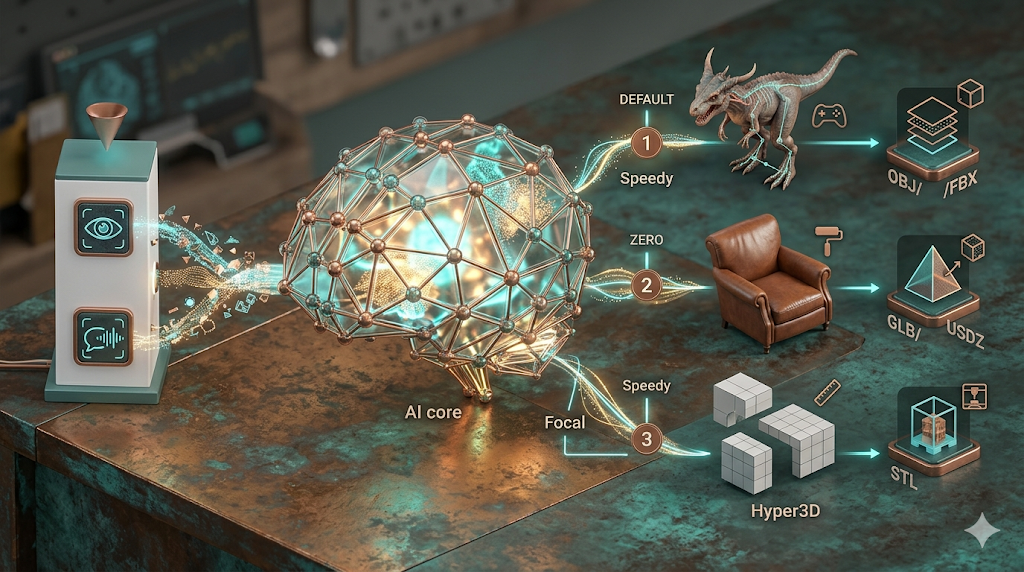
The most common formats are STL, OBJ, FBX, GLB, and USDZ. Your choice depends on the target platform ??STL for 3D printing, GLB for web, FBX for game engines, and USDZ for Apple AR.
Do I need a powerful computer for this?
Most AI-based tools run in the cloud, so you only need a browser and internet connection. Traditional software like Blender benefits from a dedicated GPU with at least 4GB VRAM.
Is there a free option available?
Yes. Several tools offer free tiers ??Hyper3D gives free credits to new users, Tencent's Hunyuan3D offers 20 free generations per day, and Blender is completely free and open-source.