가져오기부터 내보내기까지 3단계
The Mesh Editor runs a full sculpting environment in your browser tab. Open it, load geometry, and keep working — no installs, no accounts, no uploads.
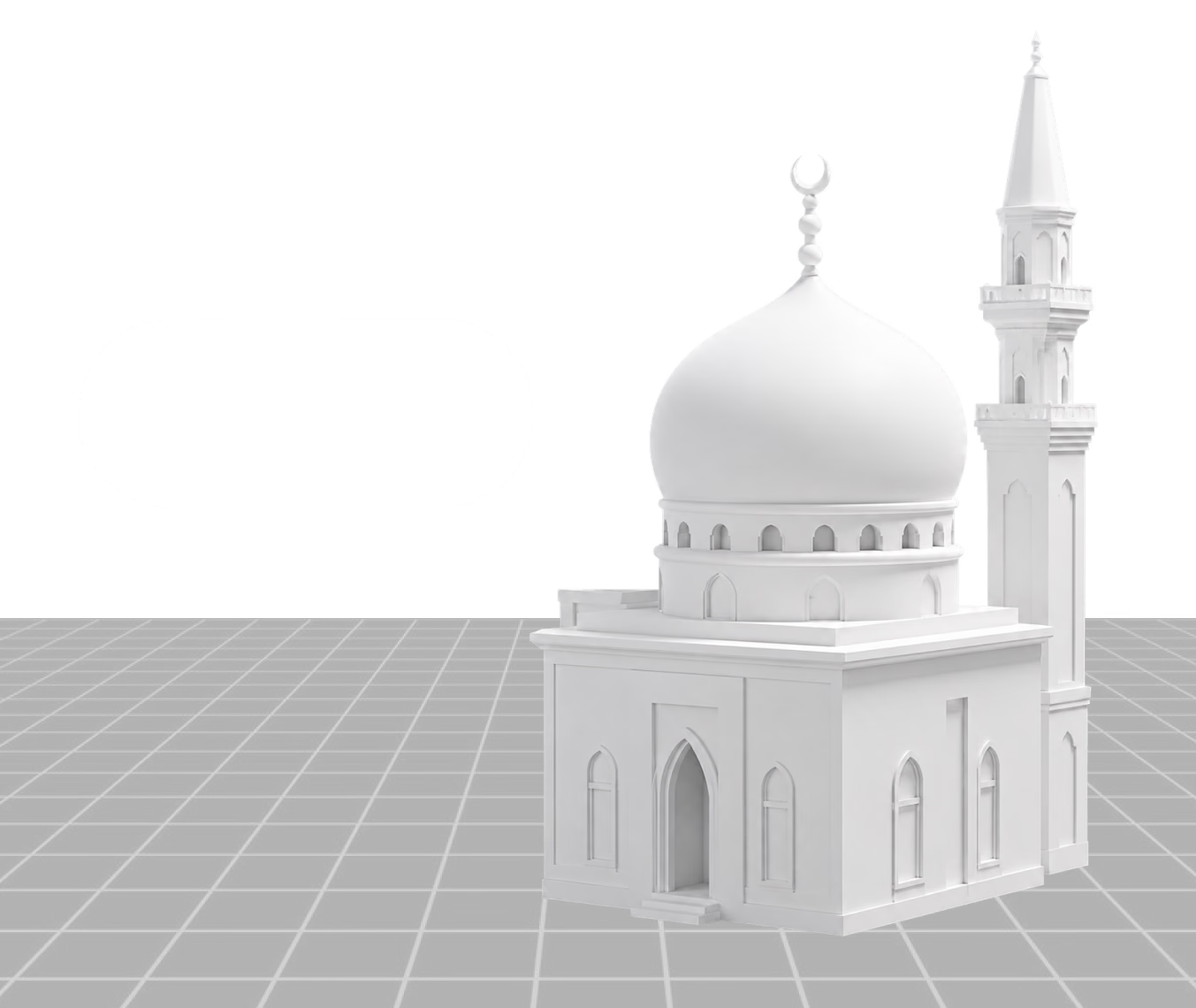
- 1단계 — 가져오기

Import a model or start from a base mesh
Import a compatible 3D model or start from built-in geometry to begin editing in OmniCraft Mesh Editor.
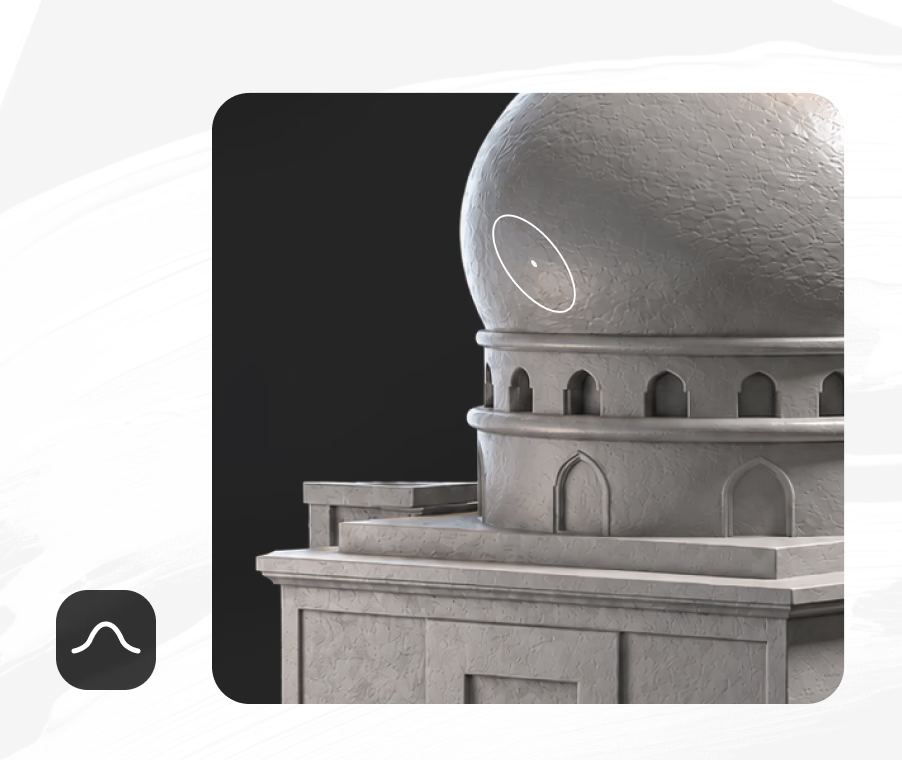
- 2단계 — 스컬핑 & 페인팅

Sculpt, paint, and mask the surface
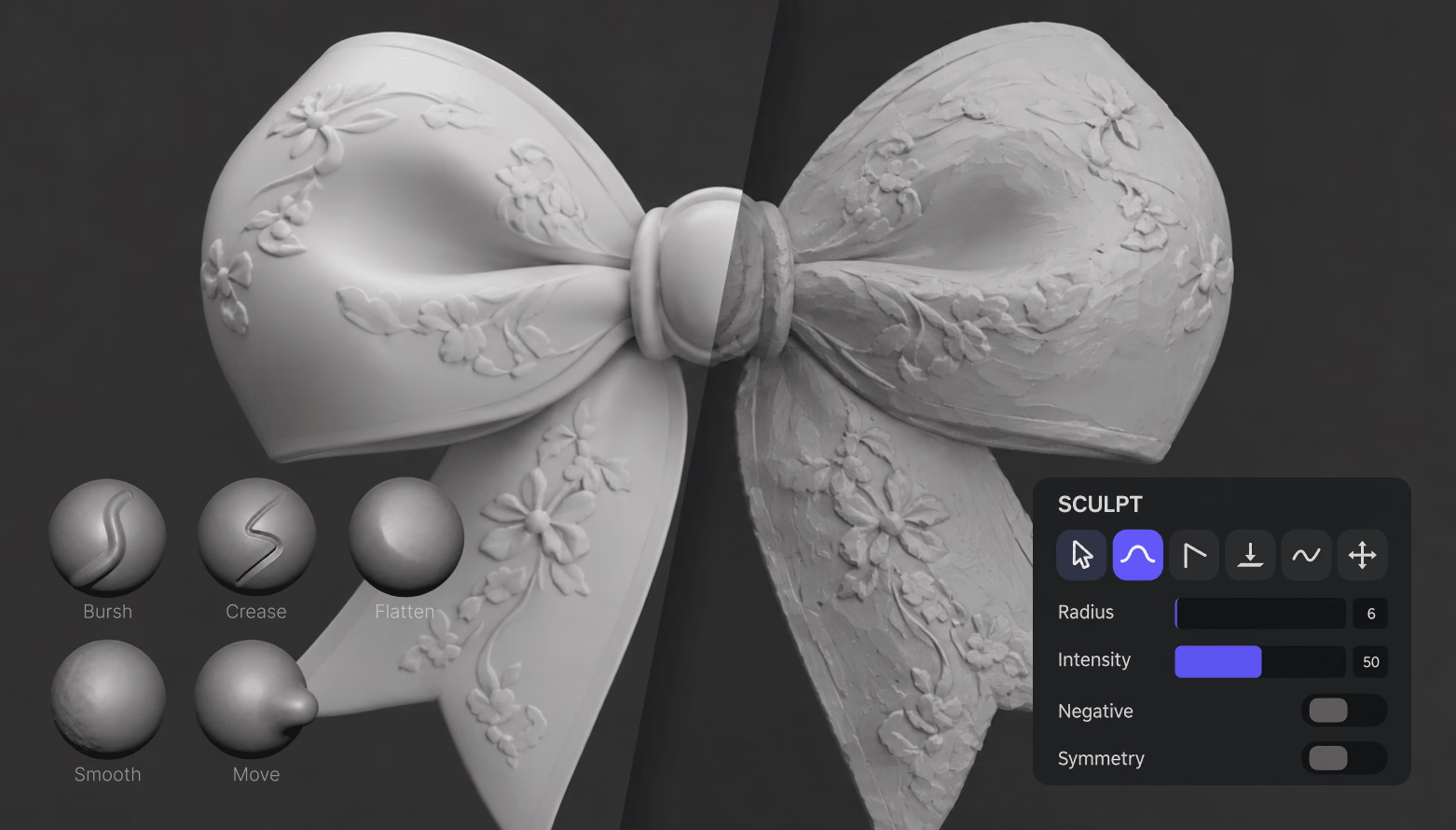
Shape the mesh with 11 tools like Brush, Inflate, and Smooth — symmetry is on by default. Paint PBR albedo, roughness, and metalness, and mask regions.
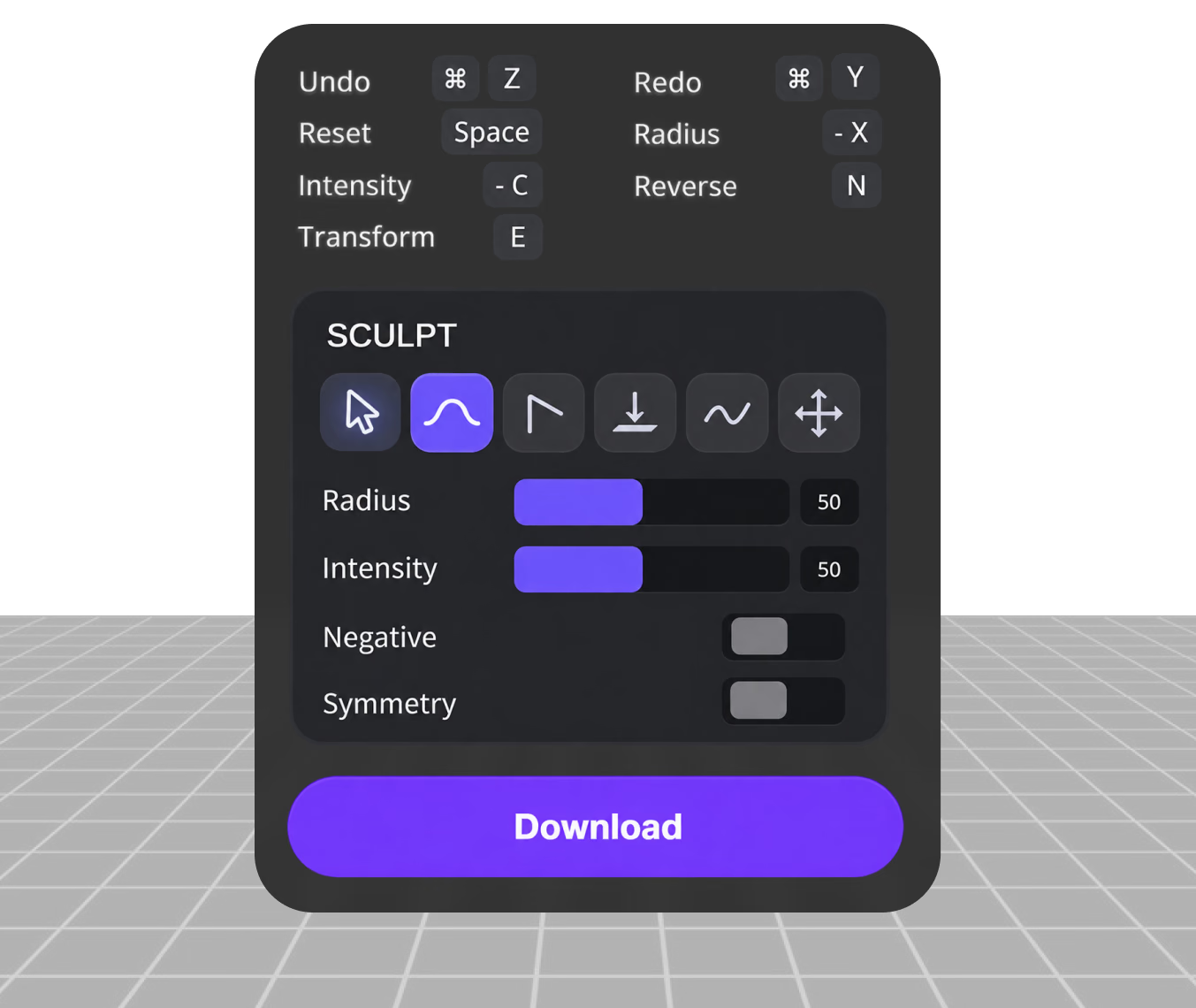
- 3단계 — 내보내기

Optional Remeshing and Export
OmniCraft Mesh Editor offers optional density controls and live vertex counts for creative optimization.
Optional Creative Control for Every Surface
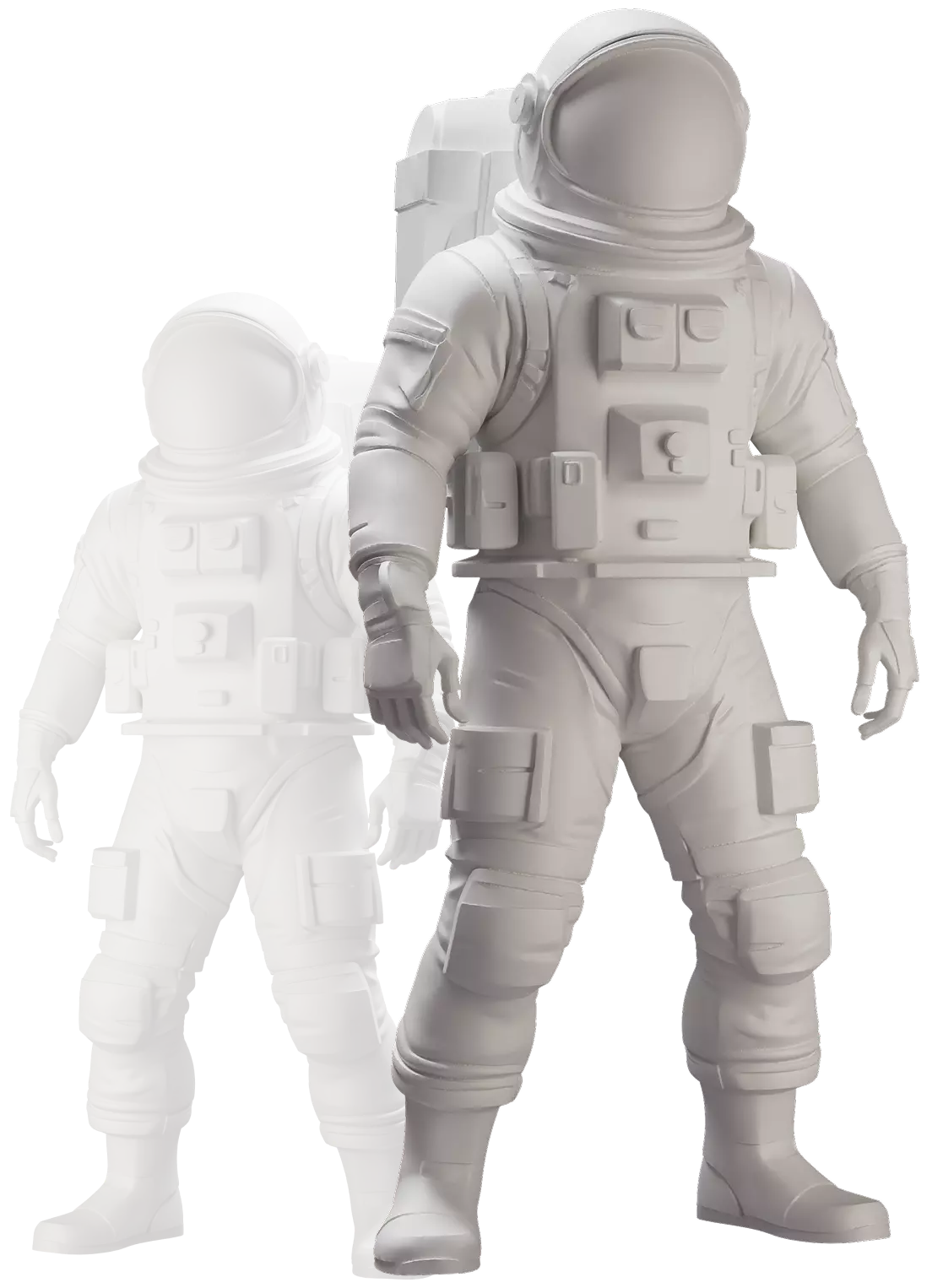
Clay-style matcap shading strips away color so you can read the geometry itself — silhouettes, dents, and density jumps stand out immediately. Switch to curvature, normal, UV, or full PBR shading, toggle wireframe, and watch live vertex and face counts while you work.

게임, 프린팅, 제품 작업을 위해
One editor, four everyday jobs. Each card links to a deeper workflow guide.
Game Assets
Game Assets
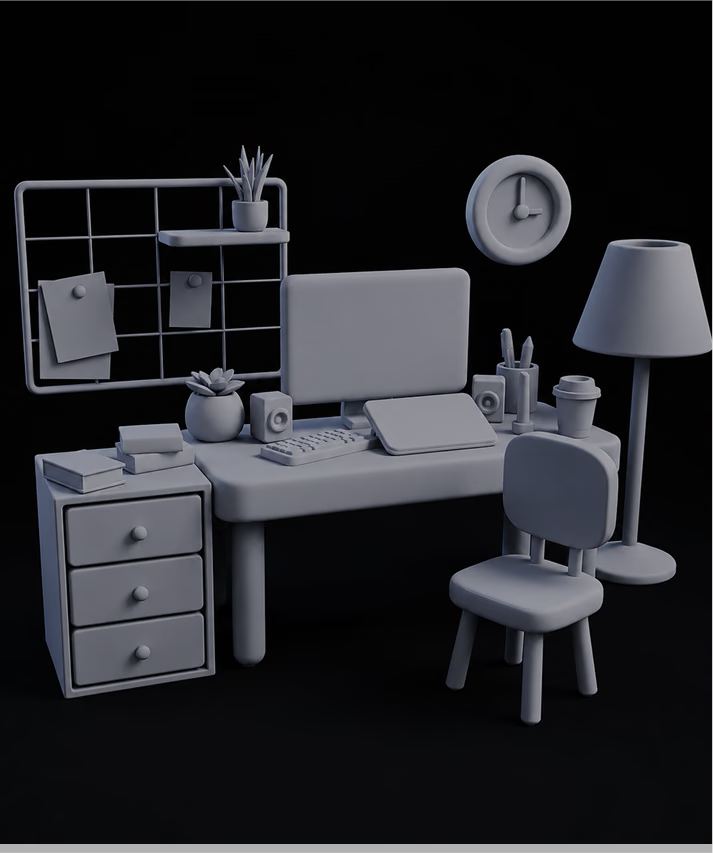
OmniCraft Mesh Editor offers optional sculpting and density controls, with flexible export for supported 3D workflows.
3D Printing
3D Printing
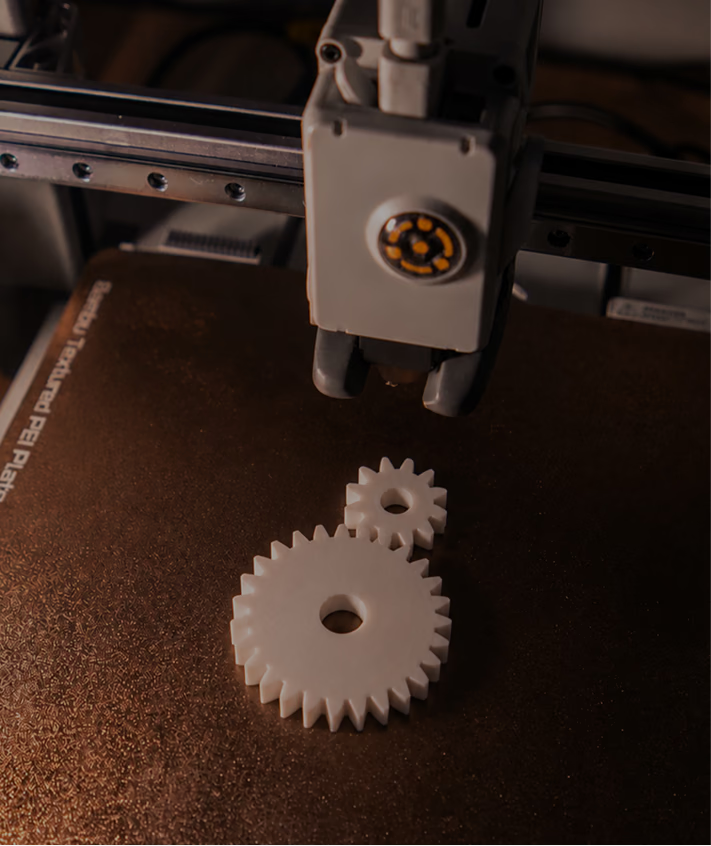
OmniCraft Mesh Editor offers optional remeshing, smoothing, and STL export controls for compatible 3D assets.
Product & E-Commerce
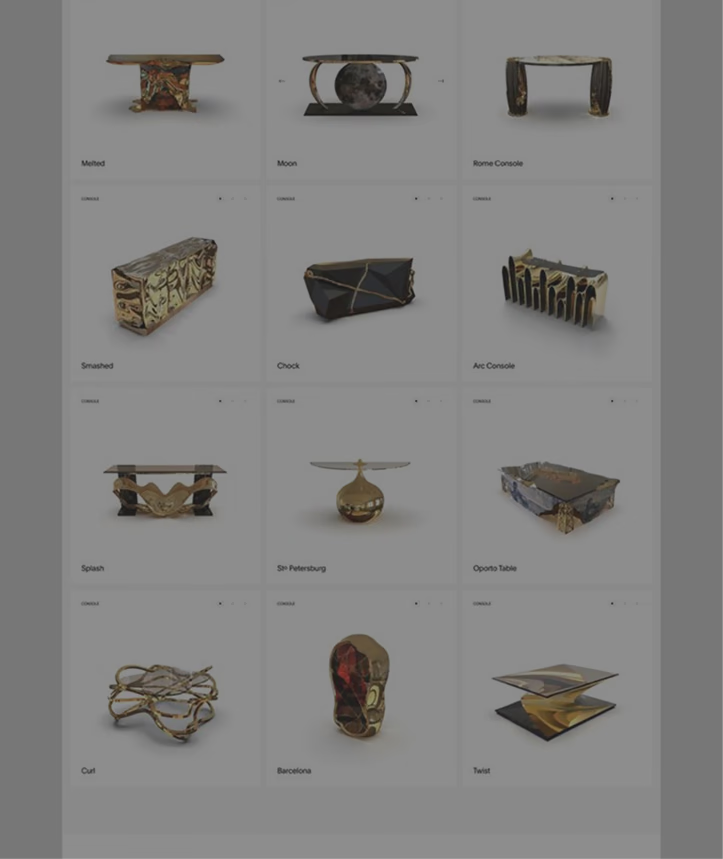
OmniCraft Mesh Editor offers optional sculpting, surface-shaping, and preview controls for creative edits to compatible 3D assets.
Format Conversion Handoff
Need FBX, GLB, or USDZ on the way out? Export clean OBJ from the Mesh Editor, then run it through the free Hyper3D converter for engine- or AR-specific delivery formats.
3D 메시 편집기
FAQ
브라우저에서 스컬핑을 시작하세요
누구나 무료, 로그인 불필요, 업로드 없음. 최대 200MB 모델을 가져오거나 기본 메시에서 시작하고, 완성되면 OBJ, PLY, STL로 내보내세요.