How to Open OBJ Files: Viewers & Import Guide
Opening a 3D model for the first time can feel like a puzzle, especially when you encounter a file format like OBJ. Whether you're a seasoned 3D artist or just starting, knowing how to open obj file is a fundamental skill. This guide will walk you through various methods, from dedicated desktop software to convenient online viewers, ensuring you can access and work with your 3D models on any platform.
What is an OBJ file?
An OBJ file is a standard 3D image format that stores information about 3D models. Developed by Wavefront Technologies, it has become a widely used format for exchanging 3D graphics. OBJ files can store not only the geometry of a 3D model but also texture maps, which are the 2D images that wrap around a 3D model to give it color and detail. This makes them versatile for a wide range of applications, from 3D printing to video games and animation.
One of the key advantages of the OBJ format is its open nature. This means it is not proprietary to any single software, and as a result, it is supported by a vast array of 3D modeling and viewing applications. This widespread compatibility makes it a popular choice for sharing 3D models between different programs.
How to Open OBJ File: Different Methods
There are several ways how to open obj file, each with its own advantages. You can use desktop software for more advanced features and offline access, or you can use online viewers for quick and easy access without any installation.
Using Desktop Software
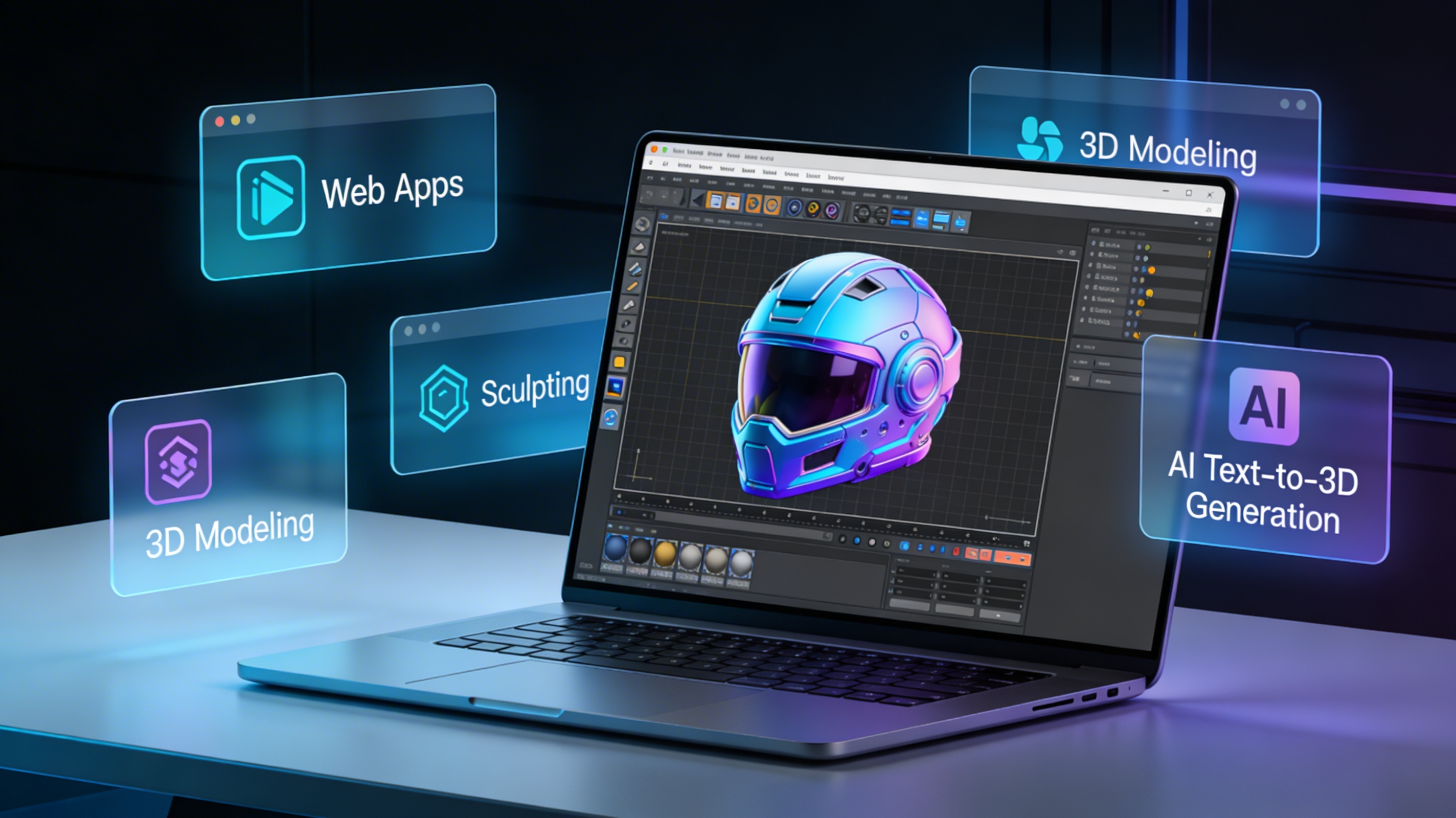
For those who frequently work with 3D models, desktop software is often the preferred choice. These applications typically offer more features than online viewers, such as editing, rendering, and animation tools. Many popular 3D modeling programs, including Blender, Autodesk Maya, and 3ds Max, support the OBJ format.
Windows users have a built-in option with Paint 3D. While not as feature-rich as other dedicated 3D software, it provides a simple way to view and perform basic edits on these 3D models. For Mac users, MeshLab is a powerful open-source option that offers a comprehensive set of tools for processing and editing 3D models.
Using Online Viewers
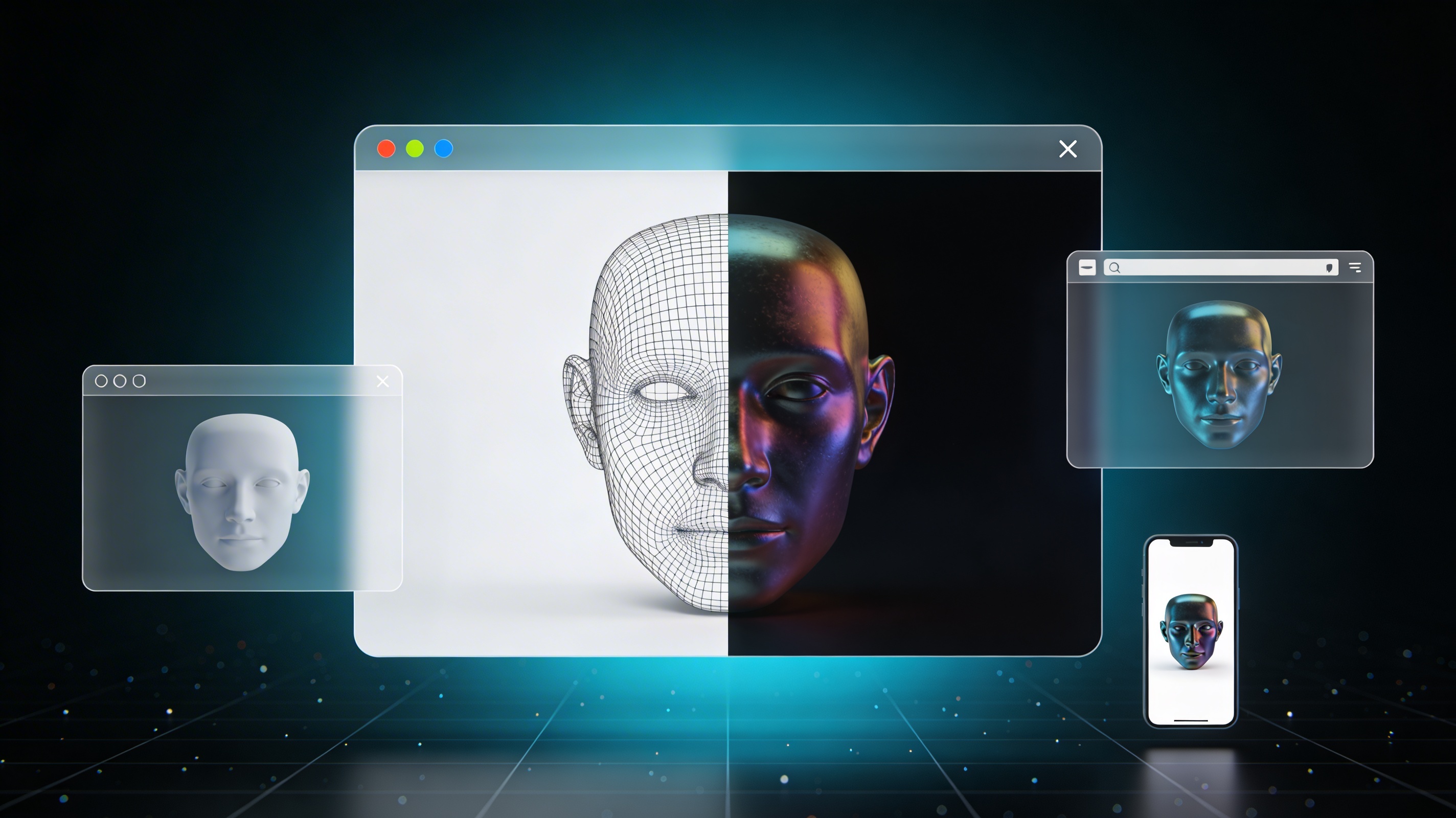
If you only need a quick look at an OBJ file or don't want to install any software, online viewers are an excellent option. These web-based tools allow you to upload and view your 3D models directly in your browser. Many online viewers, such as the OBJ file viewer from Hyper3D, are free to use and support a variety of 3D file formats.
Online viewers are particularly useful for sharing 3D models with others, as the recipient doesn't need to have any special software installed. They can simply click a link and view the model in their browser. This makes them a great choice for collaboration and client presentations.
Top OBJ Viewer Tools Compared
With so many options available, choosing the right OBJ viewer can be a challenge. Here?? a comparison of some of the top tools to help you decide which one is best for your needs.
| Tool | Platform | Price | Pros | Cons |
|---|---|---|---|---|
| Hyper3D | Web | Free | Easy to use, supports multiple formats, no installation required | Requires an internet connection |
| MeshLab | Windows, macOS, Linux | Free | Powerful editing and processing tools, open-source | Steeper learning curve for beginners |
| Autodesk Viewer | Web | Free (with account) | Supports a wide range of file formats, good for collaboration | Requires an Autodesk account |
Hyper3D
Hyper3D offers a suite of online tools for 3D creators, including an OBJ file viewer. It's a great choice for those who want a quick and easy way to view their OBJ files without any hassle. The viewer is entirely web-based, so there's no need to download or install any software. In addition to viewing, Hyper3D also provides a powerful 3D format converter and an AI 3D model generator.
MeshLab
MeshLab is a free and open-source application for processing and editing 3D triangular meshes. It provides a wide range of tools for cleaning, healing, and converting 3D models, making it a popular choice among 3D artists and engineers. While its extensive feature set can be overwhelming for beginners, it is an invaluable tool for those who need more advanced capabilities.
Autodesk Viewer
Autodesk Viewer is a free online viewer that supports a wide range of 2D and 3D file formats, including OBJ. It is a good option for those who work with a variety of file types and need a single viewer to handle them all. The viewer also includes collaboration features, allowing you to share and review designs with others.
How to Open OBJ File: A Step-by-Step Guide
Here?? a simple step-by-step guide on how to open obj file using an online viewer:
1. Find an online OBJ viewer: There are many free online viewers available. A quick search for "online OBJ viewer" will give you plenty of options. We recommend the OBJ file viewer from Hyper3D for its ease of use.
2. Upload your file: Most online viewers have a simple drag-and-drop interface. Simply drag your OBJ file into the browser window or click the "upload" button to select the file from your computer.
3. View your model: Once the file is uploaded, the viewer will render your 3D model. You can then use your mouse to rotate, pan, and zoom to inspect the model from all angles.
Advanced Tips for Working with OBJ Files
Once you are comfortable with opening OBJ files, you can start exploring more advanced techniques. For example, you can use a OBJ to GLB converter to convert your OBJ files to a more web-friendly format. GLB files are the binary version of the glTF format, which is optimized for web and mobile devices.
If you're feeling creative, you can even try creating your own 3D models from images. With tools like Hyper3D's image to 3D converter, you can turn your 2D photos into 3D models.
My First-Hand Experience
As a 3D artist, I work with OBJ files on a daily basis. I??e used a variety of tools to work with them, from the powerful but complex Blender to the quick and convenient online viewers. For quick previews and sharing with clients, I find online viewers like Hyper3D?? to be incredibly efficient. The ability to just send a link and have the client view the model in their browser without any software installation is a huge time-saver.
For more in-depth work, I rely on desktop software like Blender. The level of control and the extensive feature set are essential for professional 3D modeling. However, for anyone just starting or needing a quick way to view a model, I always recommend starting with an online viewer. It?? the easiest way to get familiar with the format and see your 3D creations come to life.
Frequently Asked Questions (FAQ)
What is the difference between OBJ and FBX?
OBJ and FBX are both popular 3D file formats, but they have some key differences. OBJ is an open format that is widely supported, while FBX is a proprietary format developed by Autodesk. FBX files can store more complex data than OBJ files, such as animations and camera information.
Can I view an OBJ file on my phone?
Yes, you can view an OBJ file on your phone using a mobile-friendly online viewer. Many of the online viewers mentioned in this guide are responsive and will work on both desktop and mobile devices.
How do I view an OBJ file with textures?
To view an OBJ file with textures, you need to make sure that the texture files (usually in formats like JPG or PNG) are in the same directory as the OBJ file. The OBJ file contains references to the texture files, so they need to be accessible for the viewer to display them correctly.
What is the best free tool for how to open obj file?
The best free tool for opening obj files depends on your needs. For quick and easy viewing, an online viewer like Hyper3D?? is a great option. For more advanced features, a desktop application like MeshLab or Blender is a better choice.
Can I edit an OBJ file?
Yes, you can edit an OBJ file using 3D modeling software like Blender, Autodesk Maya, or 3ds Max. These programs allow you to modify the geometry, textures, and other properties of the 3D model.