How to Open STL Files: Best Viewers and Methods
Whether you're a seasoned 3D printing enthusiast or just starting, you'll inevitably encounter STL files. They are the most common file format for 3D printing, but opening them can sometimes be a hurdle. This article will guide you through the best ways to open and view STL files on various platforms, including Windows, Mac, and online, which is relevant when working with how to open stl file.
What is an STL File?: How To Open Stl File
STL (stereolithography) is a file format native to the stereolithography CAD software created by 3D Systems. It was developed in the 1980s and has since become the de facto standard for transferring 3D models to 3D printers. An STL file describes only the surface geometry of a three-dimensional object without any representation of color, texture, or other common CAD model attributes. This makes the format simple and universal, but also limited in its scope, which is relevant when working with how to open stl file.
How Does it Work?
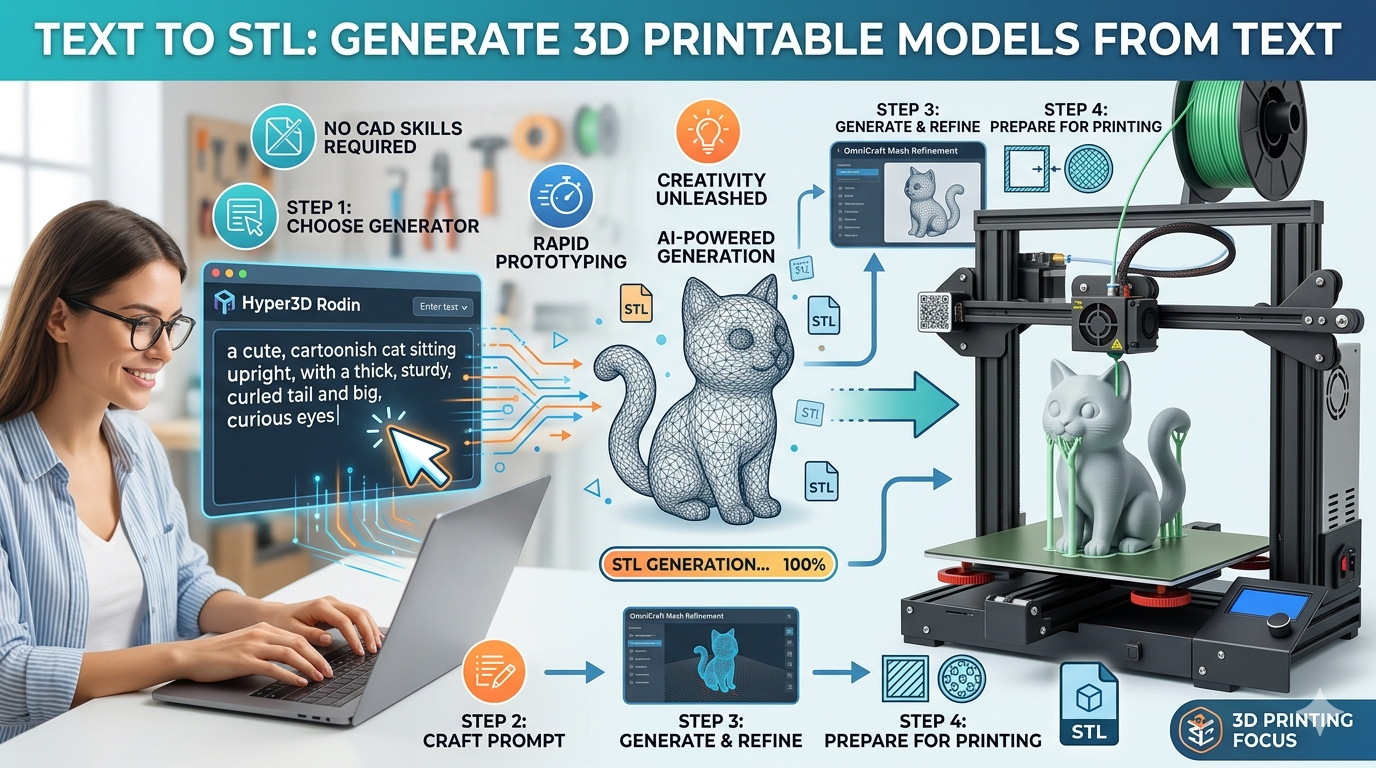
The format defines the geometry of a 3D object by tiling its surface with a series of interconnected triangles. This process is called tessellation. Each triangle is described by the coordinates of its three vertices and a normal vector that points outwards. The normal vector is used to determine the orientation of the face, which is crucial for the 3D printing process. The simplicity of this structure makes STL files easy for slicing software to process, which is the next step in preparing a model for printing. However, this simplicity also means that the files lack the rich data of other formats like OBJ or FBX, which can store information about color, materials, and more, which is relevant when working with how to open stl file.
How to Open STL Files
There are several ways to open STL files, each with its own advantages. You can use dedicated desktop software, online viewers, or even your operating system's built-in tools. For those looking to not just view but also edit, more advanced 3D modeling software is the way to go. The method you choose will depend on your needs, from a quick check of a model to a detailed inspection and modification, which is relevant when working with how to open stl file.
Using an Online STL Viewer
For a quick and easy way to view an STL file without installing any software, an STL viewer online is your best bet. These tools are web-based, so you can access them from any device with an internet connection. They are perfect for a quick inspection of a model before sending it to a 3D printer. Many online viewers also offer additional features, such as measurement tools, the ability to change the model's color, and even simple editing functions. This makes them a versatile option for many users.
Using Desktop Software
If you work with 3D models regularly, a dedicated desktop application is a must. These programs offer more features than online viewers, including measurement tools, section views, and sometimes even basic editing capabilities. Many 3D modeling packages like Blender or Fusion 360 can also import and export STL files, making them a powerful option for users who need to do more than just view a model. Desktop software is generally more powerful and responsive than online viewers, especially when working with large and complex models.
Using Built-in OS Viewers
Both Windows and macOS have some built-in capabilities for viewing 3D files. Windows has the "3D Viewer" app, which allows you to view and interact with 3D models in various formats, including STL. macOS users can use Preview for basic viewing, although its functionality is more limited. These built-in viewers are convenient for a quick look at a file without needing to install any additional software, but they lack the advanced features of dedicated applications.
Top STL Viewers Compared
Choosing the right STL viewer depends on your specific needs. Here?? a comparison of some of the most popular options:
| Tool | Pros | Cons | Best For |
|---|---|---|---|
| Hyper3D | Easy to use, web-based, supports various formats, includes editing tools. | Requires an internet connection. | Quick viewing, editing, and converting. |
| MeshLab | Powerful and open-source, with advanced mesh processing features. | Can be complex for beginners. | Advanced users and researchers. |
| Ultimaker Cura | Excellent for 3D printing preparation, includes a good slicer. | Primarily a slicer, not just a viewer. | 3D printing enthusiasts. |
| 3D Viewer (Windows) | Built-in to Windows, easy to access. | Very basic features. | Quick, simple viewing on Windows. |
| Preview (macOS) | Built-in to macOS. | Limited functionality. | Mac users who need a quick look. |
| FreeCAD | A powerful open-source parametric 3D modeler with STL support. | The learning curve can be steep. | Engineers and designers who need CAD features. |
| SketchUp | Intuitive and easy to use, with a free version available. | The free version has limited features. | Architects, designers, and hobbyists. |
Step-by-Step Guide to Opening STL Files
Here?? a simple guide to opening an STL file using both an online and a desktop viewer.
Online Viewer: Hyper3D
1. Navigate to the viewer: Open your web browser and go to the Hyper3D STL viewer.
2. Upload your file: You can either drag and drop your STL file directly onto the page or click the "upload" button to select the file from your computer.
3. Inspect your model: Once the file is uploaded, it will appear in the viewer. You can use your mouse to rotate, pan, and zoom to see the model from every angle.
4. Explore additional tools: Hyper3D offers several tools to help you inspect your model further. You can take measurements, create cross-sections, and even make simple edits to the geometry.
Desktop Viewer: MeshLab
1. Download and install MeshLab: Go to the MeshLab website and download the correct version for your operating system. Follow the installation instructions.
2. Open the application: Launch MeshLab on your computer.
3. Import your STL file: Go to "File" > "Import Mesh" and select the STL file you want to open.
4. Navigate the 3D view: Use your mouse to rotate, pan, and zoom in on the model. MeshLab offers a variety of navigation modes, so you can choose the one that works best for you.
5. Use the analysis tools: MeshLab is known for its powerful analysis tools. You can check for errors in the mesh, measure distances and angles, and even perform complex mesh processing operations.
For those interested in creating their own 3D models from images, you might want to check out an image to STL converter.
My First-Hand Experience
As a 3D artist, I work with STL files daily. I??e found that having a combination of tools is the most effective workflow. For quick checks and sharing with clients, I rely on online viewers like Hyper3D. The ability to just send a link is incredibly convenient, and it saves me the hassle of explaining how to install and use desktop software. When I need to do more serious work, like repairing a mesh or preparing a model for printing, I turn to desktop software. I??e used MeshLab for complex mesh analysis and found it to be very powerful, though it took some time to learn. The filter system in MeshLab is particularly useful for cleaning up messy scans. For my 3D printing projects, I almost always use Ultimaker Cura. Its slicing capabilities are top-notch, and the built-in viewer is great for a final check before printing. I can preview the toolpath and make sure everything is perfect before committing to a multi-hour print.
Advanced Tips
- Repairing Meshes: STL files can sometimes have errors like holes or non-manifold edges. These errors can cause problems when you try to 3D print the model. Tools like MeshLab or the 3D-Builder tool in Windows can help you fix these issues automatically. It's always a good idea to run a mesh analysis before printing.
- Reducing File Size: If your STL file is too large, it can be difficult to work with and can take a long time to slice. You can use a process called decimation to reduce the number of triangles in the mesh while preserving the overall shape. Blender and MeshLab both have good decimation tools that give you a lot of control over the process.
- Converting to Other Formats: If you need to use your model in a different application, you can convert your STL file to other formats like OBJ or FBX. Hyper3D?? OmniCraft tool is great for this, allowing you to export to STL, FBX, OBJ, GLB, and USDZ. This is particularly useful when you want to add color or textures to your model.
- Scaling and Orienting: Sometimes, an STL file will import at the wrong scale or orientation. Most STL viewers and editors will allow you to easily scale and rotate the model to the correct size and position. This is an important step to ensure your model prints correctly.
FAQ
How do I open an STL file on a Mac?
You can use the built-in Preview app for basic viewing, or you can use an online viewer like Hyper3D. For more advanced features, you can download a desktop application like Blender or FreeCAD.
Can I edit an STL file?
Yes, you can edit STL files using 3D modeling software like Blender, Fusion 360, or Hyper3D's OmniCraft editor. However, because STL files are just a mesh, editing can be more difficult than with other formats that store the model's history.
What is the difference between STL and OBJ?
STL files only contain the geometry of a model, while OBJ files can also include information about color, texture, and materials. This makes OBJ a more versatile format for 3D graphics and is often preferred for models that will be rendered or used in games.
Why won't my STL file open?
There are a few reasons why an STL file might not open. The file could be corrupted, or you might not have the right software to view it. Try opening it with a different viewer or using a tool to repair the file. Sometimes, the file might be a binary STL, and your viewer only supports ASCII, or vice-versa.
What is the best free STL viewer?
There are many great free STL viewers available. For a simple and easy-to-use online viewer, Hyper3D is an excellent choice. For a more powerful desktop application, MeshLab is a great open-source option. The best one for you will depend on your specific needs and level of expertise.
Can I open an STL file on my phone?
Yes, there are many mobile apps available for both Android and iOS that can open and view STL files. These are great for viewing models on the go, but they generally have limited features compared to desktop or web-based viewers.
Is it possible to convert an STL file to a solid model?
Yes, it is possible to convert an STL file to a solid model, but it can be a complex process. This is often done in CAD software like FreeCAD or Fusion 360. The software will attempt to create a solid body from the mesh, which can then be edited using parametric modeling tools.
For more information on 3D modeling and file formats, be sure to check out the Hyper3D blog. You can also explore our other tools, like the Rodin generation tool or the ChatAvatar face generator. If you have any more questions, feel free to contact us.