




Use BANG, Parts, and Partial Editing in Rodin
Rodin provides post-generation editing for cases where the overall asset is useful but its component structure or one local region needs work. Use these controls from the generated task or the 3D Editing path rather than starting a new generation by default.
Use BANG or Parts for component structure
Choose a parts workflow when an object should be separated into meaningful pieces, such as a vehicle body and wheels, a product assembly, or detachable equipment. The current workspace promotes Manual BANG to Parts for generated results and exposes Parts inside 3D Editing for uploaded OBJ, FBX, or GLB files.
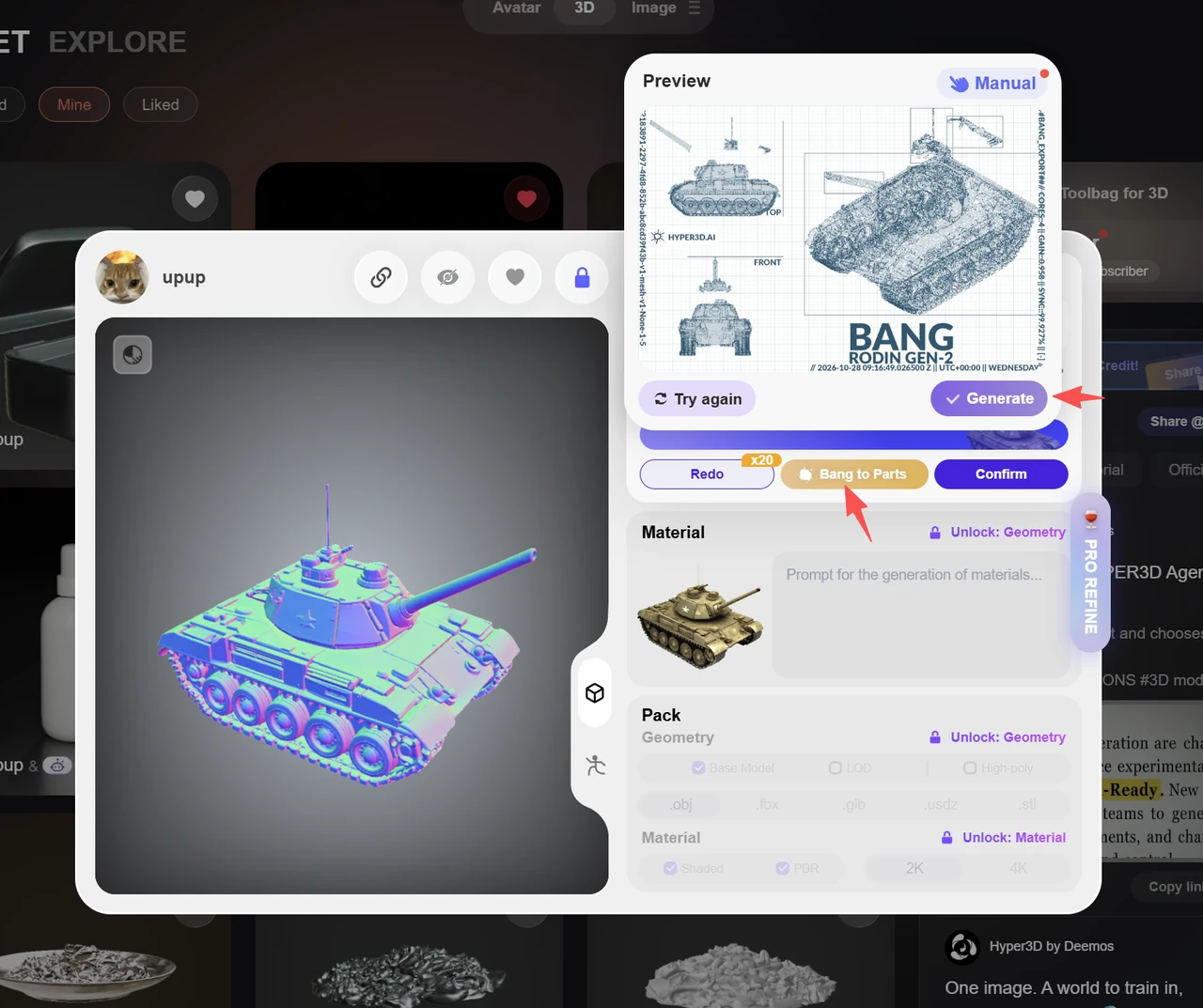
Use Partial Edit for a local change
Start from a result whose silhouette and proportions are already acceptable. Select only the region that needs revision and describe the replacement, shape change, or detail clearly. A smaller, well-defined edit area reduces unintended changes to the rest of the asset.
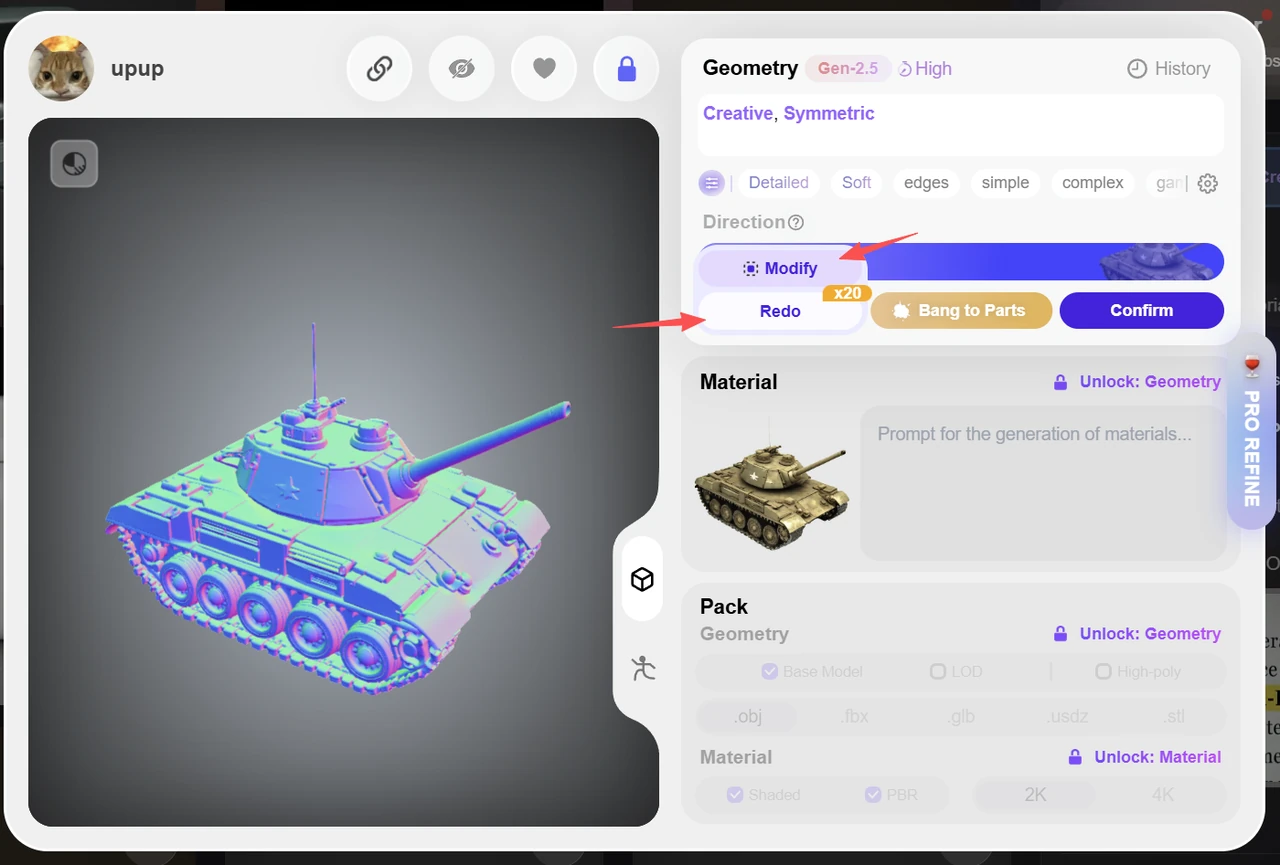
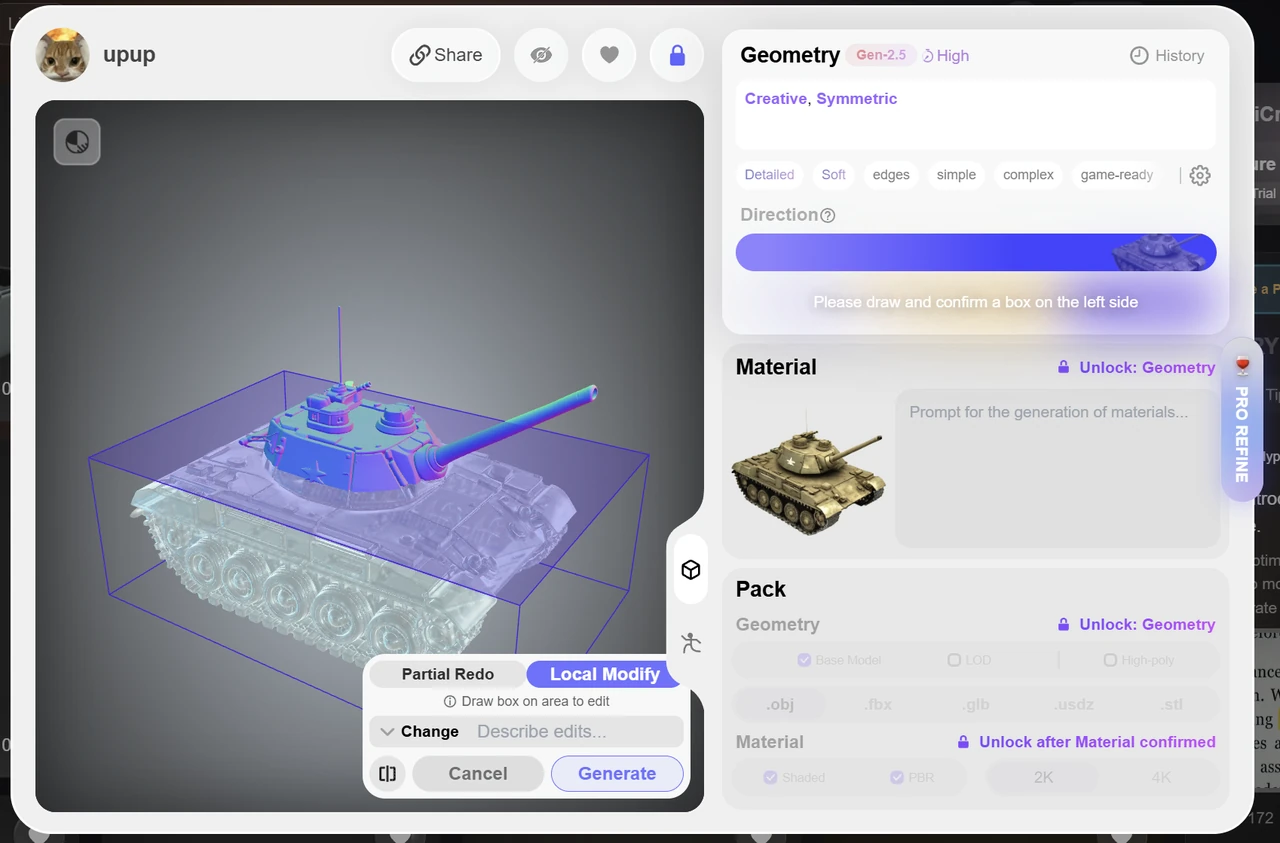
Tips for Partial Editing
- Select the area you want to edit, and clearly specify whether you want to modify, add, or remove something.
- Describe the intended changes as precisely as possible.
- If you are not satisfied with the preview generated from your text prompt, try again until you are happy with the preview before confirming the model edit.
Inspect the edited result
Check part boundaries, pivots, gaps, intersections, normals, UVs, and texture continuity. Availability can depend on the selected Rodin model, account, and task stage, so follow the actions shown on the current result page.