How to Create USDZ Files: AI-Powered AR Model Creation
With the rise of augmented reality, 3D models are no longer confined to screens. They are popping up in our living rooms, on our desks, and in our hands. For anyone with an Apple device, the key to this world is the USDZ file format. If you're a developer, a designer, or just a curious creator, you've probably wondered how to make these files. This article will show you how to create USDZ files, from traditional methods to new AI-powered workflows, giving you the knowledge to bring your ideas to life in AR. If you want to create usdz file assets, this guide is for you.
What is a USDZ File?: Create Usdz File
USDZ is a 3D file format developed by Apple in collaboration with Pixar. It's essentially a package, a zero-compression, unencrypted zip archive that can contain USD (Universal Scene Description) files, along with textures and animations. Think of it as a ready-to-view 3D model that works smoothly across the Apple ecosystem. The USD part of the format provides a powerful framework for describing 3D scenes, including geometry, materials, lighting, and cameras. The Z at the end signifies that it is a zipped package, making it a self-contained and easily shareable file.
Why is it important for AR?
The main advantage of USDZ is its native integration with iOS, iPadOS, and macOS. This means users can view AR content directly in apps like Safari, Messages, and Mail without needing to download a separate app. This ease of use has made USDZ the standard for AR experiences on Apple devices, from e-commerce product previews to interactive educational models. For businesses, this means a customer can go from browsing a product on a website to seeing it in their own home in a matter of seconds. For educators, it means creating immersive learning experiences that are accessible to anyone with an iPhone or iPad.
How to Create USDZ Files: An Overview of Methods
There are several paths you can take to create a USDZ file, each with its own set of tools and learning curves. Learning how to create usdz file assets is a valuable skill for anyone in the AR space. The method you choose will depend on your existing skills, your project requirements, and the resources you have available.
Using Apple's Developer Tools
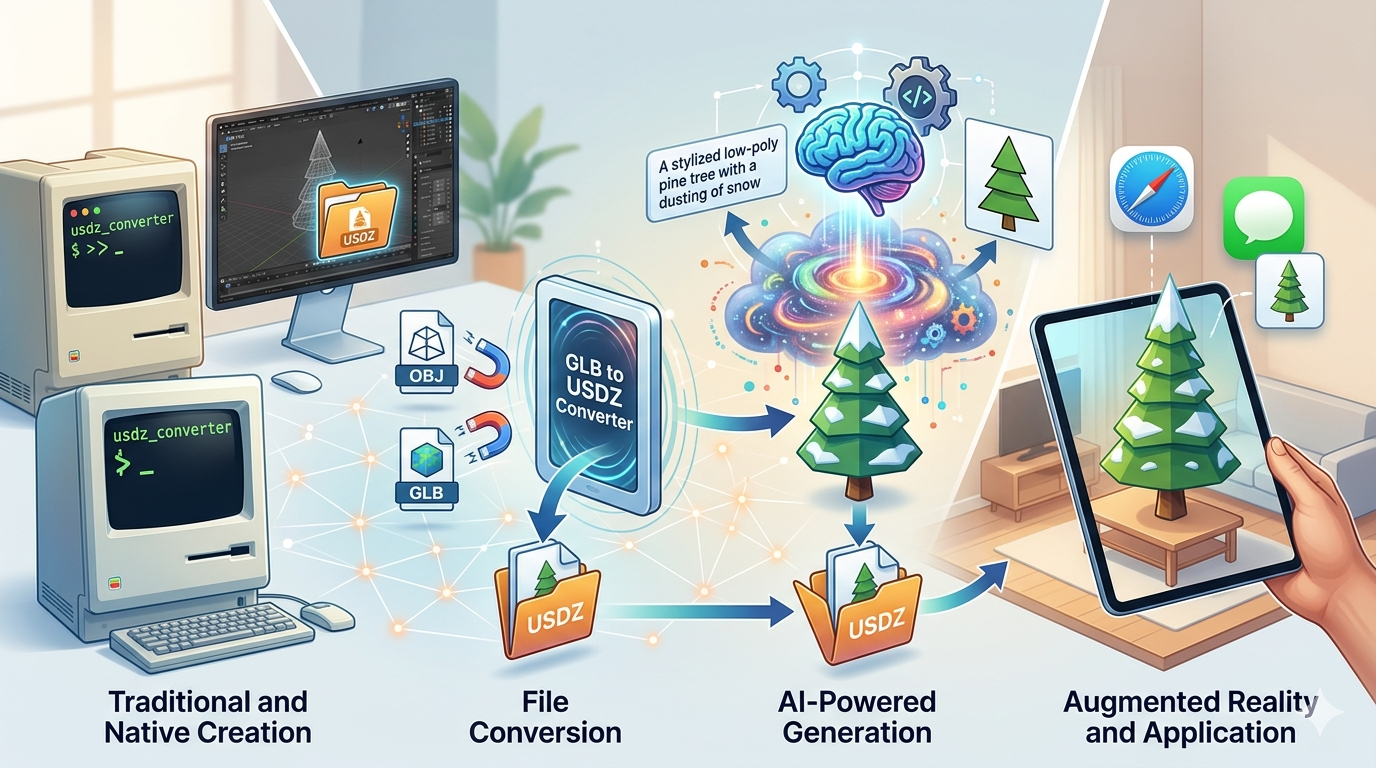
For those comfortable with the command line, Apple provides a tool called `usdz_converter` as part of Xcode. This is a great way to create usdz file assets programmatically. This allows you to convert other formats, like OBJ and GLB, into USDZ. It's a powerful option for developers who want to integrate USDZ creation into their automated workflows. For example, a large e-commerce site could use this tool to automatically convert their entire catalog of 3D product models to USDZ. While it lacks a graphical interface, its scripting capabilities make it a valuable tool for large-scale projects.
Converting from Other 3D Formats
If you already have 3D models in formats like FBX, OBJ, or GLB, the easiest way to create usdz file assets is to convert them. There are many online and offline tools available for this, including dedicated converters and 3D modeling software with export capabilities. Many creators use a GLB to USDZ converter for a quick and easy workflow. This method is ideal for artists and designers who are already comfortable working in other 3D software and just need a reliable way to get their models into the Apple ecosystem.
Creating from Scratch with 3D Software
For full control over your 3D models, you can create them from scratch using software like Blender, Maya, or Cinema 4D. This is the most hands-on way to create usdz file assets. These programs allow you to model, texture, and animate your creations before exporting them to a format that can be converted to USDZ. This is the most time-consuming method, but it also offers the most creative freedom. You can build highly detailed, custom models that are perfectly optimized for your specific needs.
The Rise of AI-Powered Creation
A newer, more accessible method to create usdz file assets is to use AI-powered 3D model generation tools. These platforms can create 3D models from text prompts or 2D images, and many can export directly to USDZ. This approach dramatically lowers the barrier to entry for 3D content creation. Now, anyone with an idea can generate a 3D model without needing to learn complex software. This is not just for beginners; experienced artists can use these tools to quickly prototype ideas or generate base meshes for further refinement.
Top Tools for Creating USDZ Files Compared
Let's look at some of the most popular tools to create usdz file assets, each suited for different needs.
For Developers: Xcode and Command Line
- Pros: Direct access to Apple's official conversion tool, scriptable for batch processing, no extra software needed if you already have Xcode. It's the most "native" way to create USDZ files on a Mac.
- Cons: Requires a Mac, has a steep learning curve for those unfamiliar with the command line, limited to conversion. It offers no modeling or editing capabilities.
For Designers: Blender with Plugins
- Pros: Free and open-source, incredibly powerful and versatile for 3D modeling, large community for support. You can do everything from modeling and sculpting to texturing and animation.
- Cons: Complex interface for beginners, requires plugins for direct USDZ export, can be overkill for simple conversions. The learning curve is steep, and it can take a significant amount of time to become proficient.
For Quick Conversions: Online Converters
There are several web-based tools that offer quick and easy file conversions. Here are a few popular options:
Hyper3D
- Pros: Offers a suite of AI-powered tools, including a GLB to USDZ converter. The platform also allows for model generation from text and images with its Rodin tool, and editing with OmniCraft. It supports exports in STL, FBX, OBJ, GLB, and USDZ. The AI generation is a fast way to create new assets.
- Cons: As a newer platform, some advanced features are still in development. The quality of AI-generated models can vary and may require some manual cleanup.
Vectary
- Pros: Browser-based 3D design tool with solid USDZ export capabilities. Good for creating and customizing models before exporting. It has a user-friendly interface that is easier to learn than Blender.
- Cons: The free tier has limitations, and the interface can be complex for newcomers. For advanced features, a paid subscription is required.
Adobe Aero
- Pros: Part of the Adobe ecosystem, great for creating interactive AR experiences. Can import various file types and export to USDZ. It integrates well with other Adobe products like Photoshop and Illustrator.
- Cons: Requires a Creative Cloud subscription, more focused on the AR experience than model creation itself. It's not a full-fledged 3D modeling tool.
Step-by-Step Guide: Creating a USDZ File with an AI Tool
Let's walk through how to create usdz file assets with an AI tool.. We'll use Hyper3D's Rodin for this example.
1. Sign up and log in: Head over to the Hyper3D website and create an account. The process is quick and only requires an email address.
2. Navigate to Rodin: Once you're in, find the Rodin tool for 3D model generation. It's prominently displayed on the dashboard.
3. Enter your prompt: In the text box, describe the model you want to create. Be as specific as you can. For example, instead of "a car," try "a classic red sports car from the 1960s."
4. Choose your generation mode: Hyper3D offers several modes like Gen-2, Default, and Speedy. For a first attempt, 'Default' is a good starting point. 'Speedy' is faster but may produce lower-quality results, while 'Gen-2' is more advanced.
5. Generate and refine: Let the AI work its magic. Once the model is generated, you can use the OmniCraft tool to make adjustments, like changing colors, smoothing surfaces, or even adding small details. This is where you can really make the model your own.
6. Export as USDZ: When you're happy with your model, go to the export options and select USDZ. Your file will be ready to download and use. You can then airdrop it to your iPhone and see it in AR right away.
My First-Hand Experience
I've spent years working with traditional 3D modeling software like Blender. It's powerful, but it took me a long time to get comfortable with its interface. Creating a simple model could take hours of tweaking vertices and wrestling with UV maps. The process is meticulous and requires a great deal of patience.
Recently, I tried out Hyper3D's AI tools to create a model for a project. I needed a stylized, low-poly tree. In Blender, this would have involved creating the trunk, extruding branches, and then carefully placing leaves. I would have had to think about the topology, the poly count, and the UV unwrap. Instead, I just typed "a low-poly pine tree with a dusting of snow" into Rodin. Within a minute, I had a model that was 90% of the way there. The geometry was clean, and the style was exactly what I was looking for. I spent another ten minutes in OmniCraft adjusting the snow distribution and tweaking the branch angles. Then, I exported it directly to USDZ. The entire process took less than 15 minutes. It was a completely different way of working, much more intuitive and faster for this kind of asset. It felt less like technical modeling and more like creative direction.
Advanced Tips for USDZ Creation
Once you've got the basics down, here are a few tips to take your efforts to create usdz file assets to the next level.
Optimizing File Size
For AR, performance is key. Large file sizes can lead to long loading times and a poor user experience. To optimize your models, reduce texture sizes, simplify your geometry, and remove any unnecessary elements. A good rule of thumb is to keep your total file size under 100MB, and ideally under 10MB for simple objects. Use tools like ImageOptim to compress your textures without sacrificing too much quality.
Adding Interactivity
USDZ files can include animations and simple interactive elements. You can create these in your 3D modeling software before exporting, or use a tool like Reality Composer to add behaviors to your models. For example, you could make a lamp that turns on when you tap it, or a car whose doors open. This can make your AR experiences much more engaging.
Material and Texture Best Practices
USDZ uses a Physically Based Rendering (PBR) material model. To make your models look their best, use PBR textures for properties like roughness, metallic, and ambient occlusion. This will ensure your models look realistic in different lighting conditions. Make sure your textures are in a format that is supported by USDZ, such as PNG or JPG. Avoid procedural materials, as they may not convert correctly.
FAQ
Can I create a USDZ file on Windows?
Yes. While Apple's native tools are Mac-only, you can use cross-platform software like Blender or online tools like Hyper3D to create usdz file assets on a Windows machine. The workflow is slightly different, but the end result is the same.
What's the difference between USD and USDZ?
USD (Universal Scene Description) is the underlying file format that describes the 3D scene. USDZ is a package that contains the USD file along with all its dependencies, like textures and animations, in a single, easy-to-share file. Think of it like a webpage: USD is the HTML, and USDZ is a zip file containing the HTML, CSS, and images.
How do I view a USDZ file?
On an Apple device, you can view USDZ files natively in many apps. For other platforms, or for a more feature-rich experience, you can use a dedicated USDZ file viewer. These viewers often provide additional tools for inspecting and manipulating the model.
Are USDZ files only for Apple devices?
While they are optimized for the Apple ecosystem, USDZ files can be viewed on other platforms with the right software. However, the smooth, app-free AR experience is currently unique to Apple devices. Other platforms may require a dedicated app to view the content.
Can I animate a USDZ model?
Yes, USDZ supports skeletal and transform-based animations. You can create these animations in your 3D software and include them in the exported file. This allows you to create everything from simple spinning objects to complex character animations.
*For more tutorials and AI-powered 3D tools, check out the resources at hyper3d.ai*.
*Explore our other articles on 3D file formats and AI in 3D design*.