











Convert
Move 3D models seamlessly between browser-supported formats.
Use Hyper3D to turn HEIC references into DAE 3D assets. Generate previewable models, then export for 3D printing, games, AR, or production workflows.
Converted result
Converted model preview will appear here.
Convert
Local history
Converted files will appear here.
Selected files


Generate 3D models from text or images, and export for games, products, and 3D printing.
Move 3D models seamlessly between browser-supported formats.
Inspect both source and converted files directly online.
Create new 3D assets from text descriptions or uploaded images.
Choose formats, upload your file, convert locally when supported, and preview the result before download.
Select the 3D or image format you have, then choose the target format you need for preview, game engines, AR, CAD review, or 3D printing.
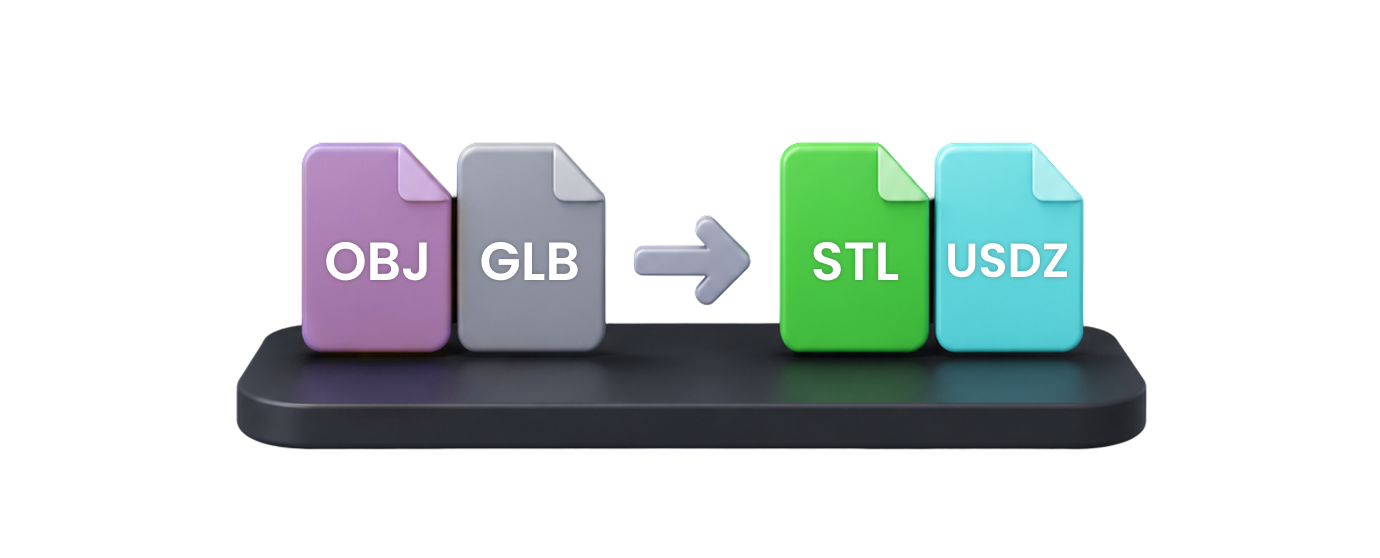
Drag a supported model or image file into the converter. For formats with companion files, include materials, textures, or binary data together.
Run the browser conversion, inspect the result in the preview panel, then download the converted file for your next production step.
A useful converter should be fast, private, previewable, and connected to the next asset workflow.

Fast & Private
Supported conversions run in your browser and recent conversion history stays on this device.

Preview First
Inspect the source and converted model so you can catch scale, visibility, and material issues early.

Zero Friction
Use supported browser conversions without creating an account or installing desktop software.

Seamless Ecosystem
Continue into Hyper3D generation, viewer, API, and export workflows when you need more than conversion.
Answers for creators, developers, product teams, print users, and 3D artists working with model files in the browser.